Home
» LINUX
»
How to Install the Xfce Desktop on Linux [Guide]
How to Install the Xfce Desktop on Linux [Guide]
Xfce is a lightweight, modular Linux desktop environment that you can add without reinstalling your operating system. The exact package name differs by distribution, but the basic process is the same: install the Xfce desktop packages, log out or reboot, and choose the Xfce session from your login screen.
This guide covers current installation methods for Ubuntu, Debian, Arch Linux, Fedora, and openSUSE. Xfce's own documentation describes the desktop as a collection of components including a window manager, panel, file manager, and settings tools. See the official Xfce documentation for component-specific help.
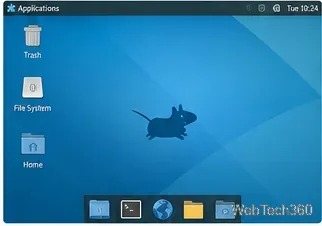
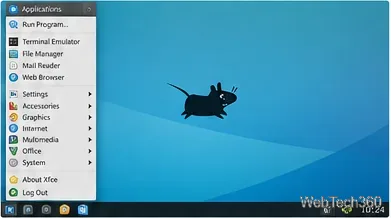
A typical Xfce desktop keeps the main interface compact while still providing familiar desktop controls.
Before you install Xfce
Save open work and install pending system updates first. Adding a second desktop environment can also add applications, themes, and a display manager. It is usually safer to keep your current desktop installed until you have confirmed that Xfce starts correctly.
Install Xfce on Ubuntu
Ubuntu provides the xubuntu-desktop metapackage, which installs the Xubuntu desktop experience built around Xfce. Ubuntu currently publishes this package for supported releases, including Ubuntu 26.04 LTS. You can verify availability on the Ubuntu package search.
Open Terminal.
Refresh package information with sudo apt update.
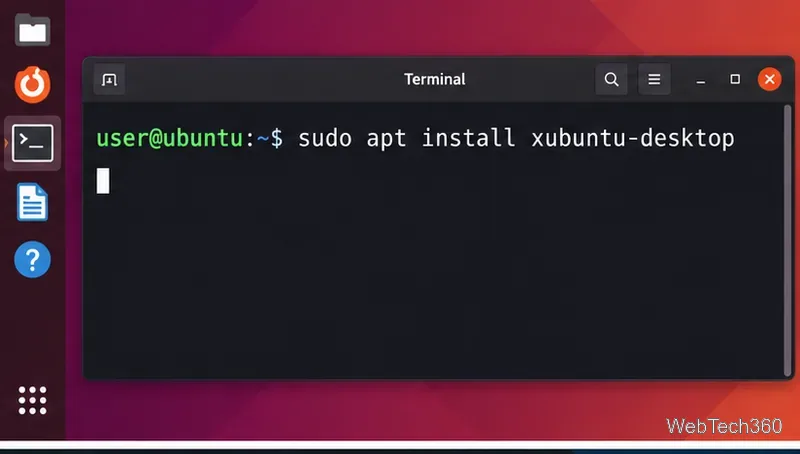
Install the desktop with sudo apt install xubuntu-desktop.
Review the package list and confirm the installation when prompted.
When installation finishes, log out or reboot.
Ubuntu can add the Xubuntu desktop set with the xubuntu-desktop metapackage.
If Ubuntu asks you to choose a display manager during installation, read the prompt before selecting one. The display manager controls the graphical login screen; Xfce itself can work with common Linux display managers.
Install Xfce on Debian
On Debian, the most complete option is the task-xfce-desktop task package. Debian describes it as the desktop task that provides Xfce along with packages users normally expect on a desktop system. See the official Debian package page.
Run sudo apt update.
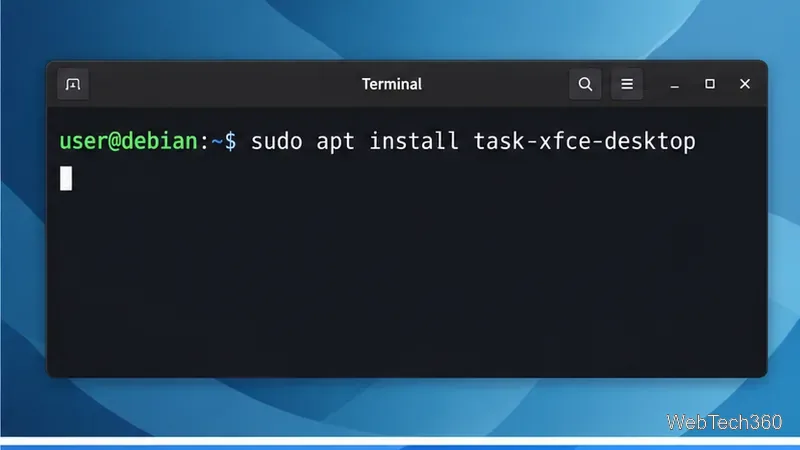
Install the full desktop task with sudo apt install task-xfce-desktop.
Confirm the changes, then reboot or log out when the installation completes.
The Debian desktop task installs Xfce together with the supporting desktop packages Debian recommends.
If you prefer a smaller Xfce installation, Debian also provides the xfce4 metapackage. You can add common Xfce extras with sudo apt install xfce4 xfce4-goodies.
The xfce4 and xfce4-goodies packages are an alternative when you do not want the full Debian desktop task.
Install Xfce on Arch Linux
Arch Linux ships Xfce as the xfce4 package group. The ArchWiki Xfce guide also recommends the optional xfce4-goodies group for additional plugins and utilities.
Update the system with sudo pacman -Syu.
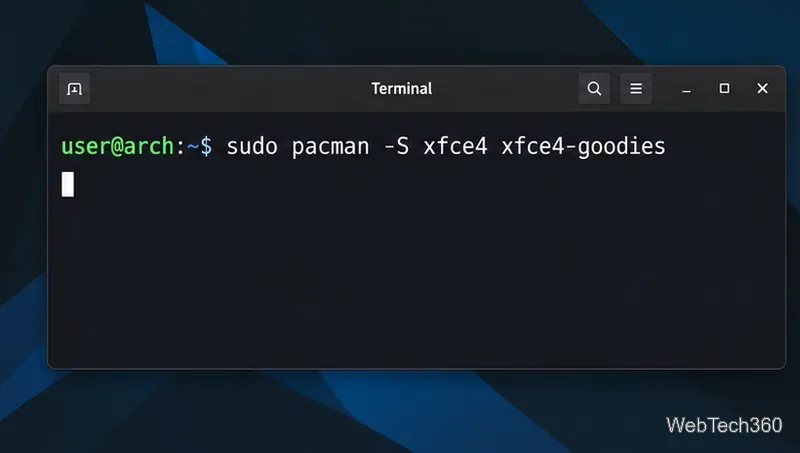
Install Xfce with sudo pacman -S xfce4 xfce4-goodies.
After installation, select Xfce Session in your display manager.
Arch provides Xfce through the xfce4 group, with xfce4-goodies available for additional tools.
On a minimal Arch setup without a display manager, ArchWiki documents starting Xfce through Xinit by adding exec startxfce4 to your Xinit configuration.
Install Xfce on Fedora
Fedora provides an Xfce desktop environment group. The Fedora Project's Xfce page lists dnf install @xfce-desktop-environment for adding it to an existing Fedora system.
Apply updates with sudo dnf upgrade --refresh.
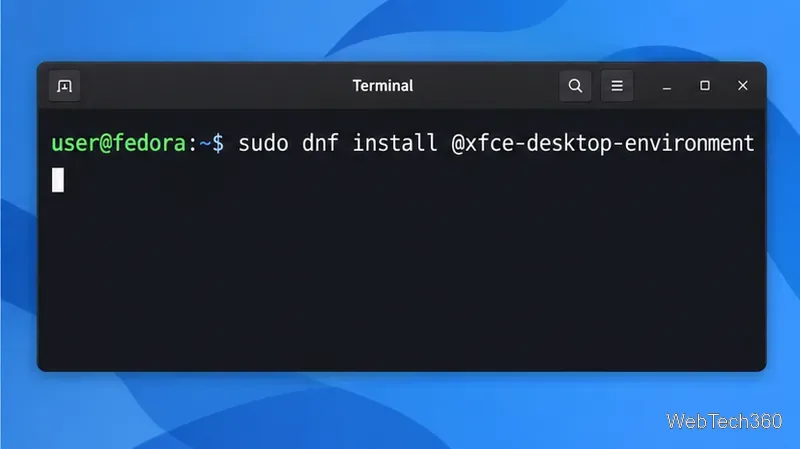
Install Xfce with sudo dnf install @xfce-desktop-environment.
Reboot or log out, then select the Xfce session.
Fedora's Xfce desktop environment group installs the desktop and its related components.
Install Xfce on openSUSE
openSUSE packages Xfce as an installation pattern. The current openSUSE pattern set includes an XFCE Desktop Environment pattern, while the official Zypper documentation shows how to install patterns with the -t pattern option.
Refresh repositories with sudo zypper refresh.
Install the Xfce pattern with sudo zypper install -t pattern xfce.
Confirm the transaction, then log out or reboot.
openSUSE installs the full Xfce desktop through its xfce software pattern.
Choose Xfce at the login screen
After installation, sign out. On the login screen, look for a gear icon, session menu, or similar control near your username. Choose Xfce Session; on Ubuntu with the Xubuntu package set, you may also see a Xubuntu session. Then sign in normally.
After signing in to Xfce, the Applications menu provides access to settings, utilities, and installed programs.
You can switch back to your previous desktop later by logging out and choosing its session at the same login screen. If Xfce does not appear, reboot once and confirm that the installation command completed without package errors before trying again.