Home
» LINUX
»
How to Install Trojita Mail on Linux
How to Install Trojita Mail on Linux
Trojita (Trojitá) is a Qt email client focused on IMAP. If your Linux distribution still packages it, use that package; otherwise, you can try building from upstream source. KDE’s release list ends at version 0.7 (June 15, 2016), and upstream says its prebuilt downloads are no longer maintained. Check compatibility and password handling before using it for an everyday mailbox.
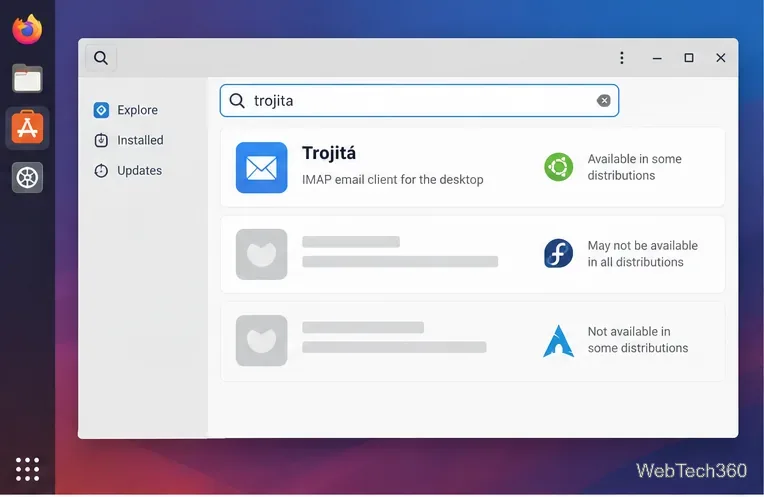
Search for Trojitá in Discover or another AppStream-capable software center. The package result depends on your Linux distribution.
Check your Linux repositories first
KDE’s Trojitá page points Linux users to AppStream software centers and their distribution’s package manager. Search there before adding a repository. Package availability and version freshness depend on the distribution and release.
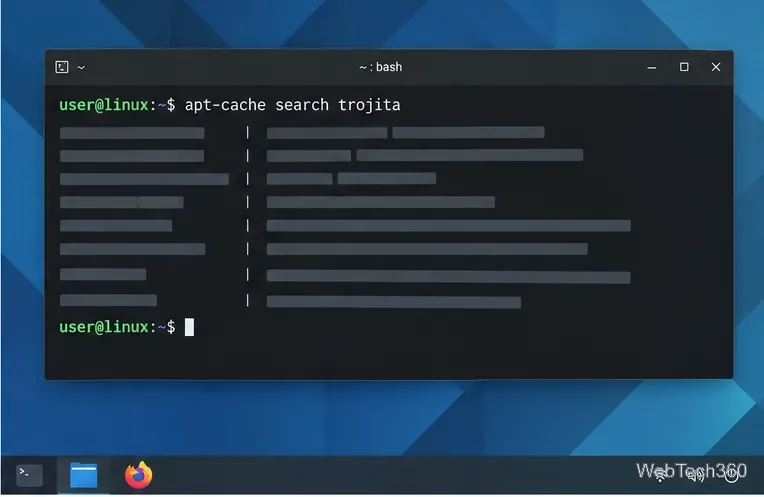
Use your distribution’s query to see whether its configured repositories offer a Trojitá package. Refresh the package index first if needed. If there is no result or APT reports Candidate: (none), skip the install command and go to the source-build section.
Check the package name in your configured repositories before trying to install it.
Distribution
Check availability
Install only if listed
Ubuntu or Debian
apt-cache policy trojita
sudo apt install trojita
Fedora
dnf info trojita
sudo dnf install trojita
Arch Linux
pacman -Ss trojita
sudo pacman -Syu trojita
openSUSE
zypper search -s trojita
sudo zypper install trojita
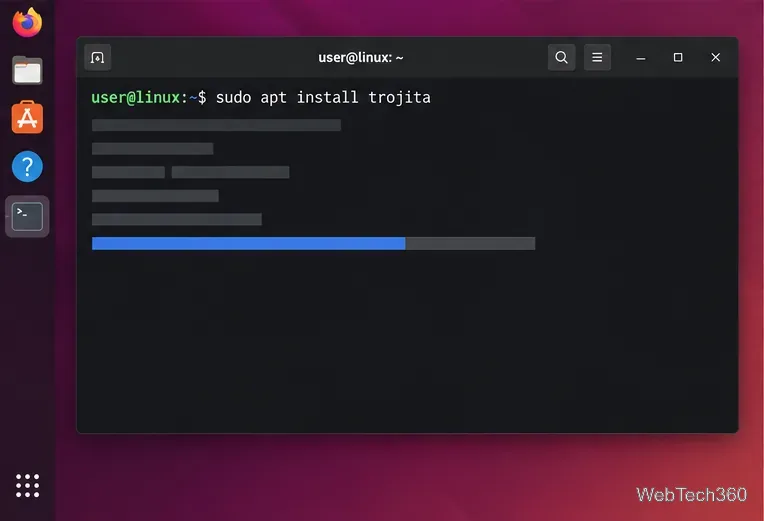
Install from the distribution repository only after confirming that it offers a Trojita package.
Review the proposed package changes before confirming. Then launch Trojitá from the app menu or with trojita, if available. Avoid older guides that add an Open Build Service repository for Ubuntu 16.04, download Debian 8 packages, or use apt-key; those instructions target obsolete systems.
Build Trojitá from upstream source
If your repositories do not offer the app, upstream documents a source-build route. It may fail on a modern distribution if an older dependency is unavailable, so use only the repository linked from KDE’s source page and install dependencies from your distribution’s official repositories.
Install build prerequisites. You need Git, CMake, a C++ compiler, and the project’s development libraries. Check the upstream build instructions for dependencies; package names vary by distro.
Clone the KDE source repository and enter the project directory:
git clone https://invent.kde.org/pim/trojita.git
cd trojita
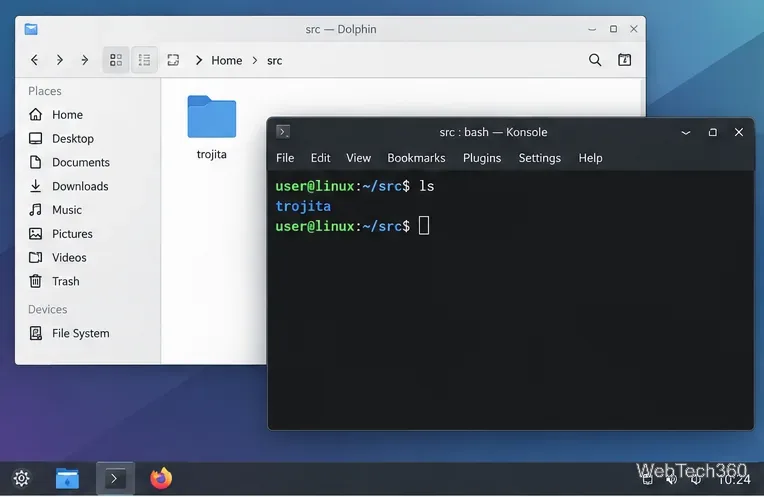
The Trojitá source checkout is kept in a user-owned source directory.
Configure a separate build directory so generated files stay out of the source tree:
mkdir _build
cd _build
cmake ..
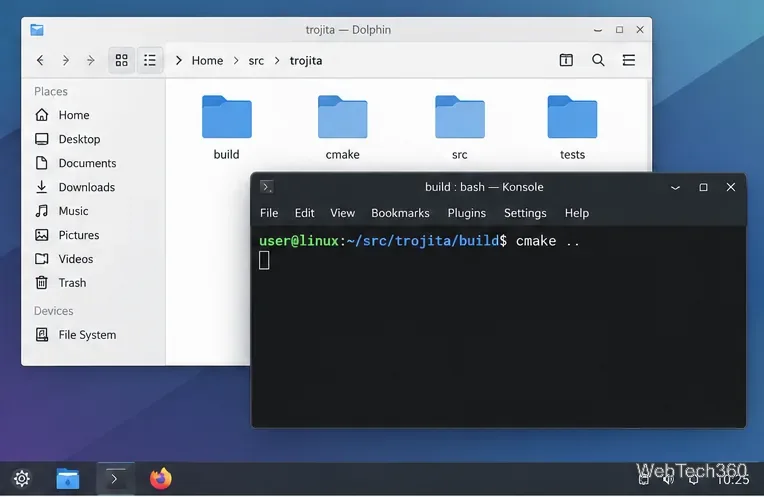
Run CMake from the separate build directory to check whether the required development libraries are present.
Compile, test, and run the app. The upstream instructions use Make and launch the executable from the build directory:
make -j4
ctest -j 4 --output-on-failure
./trojita
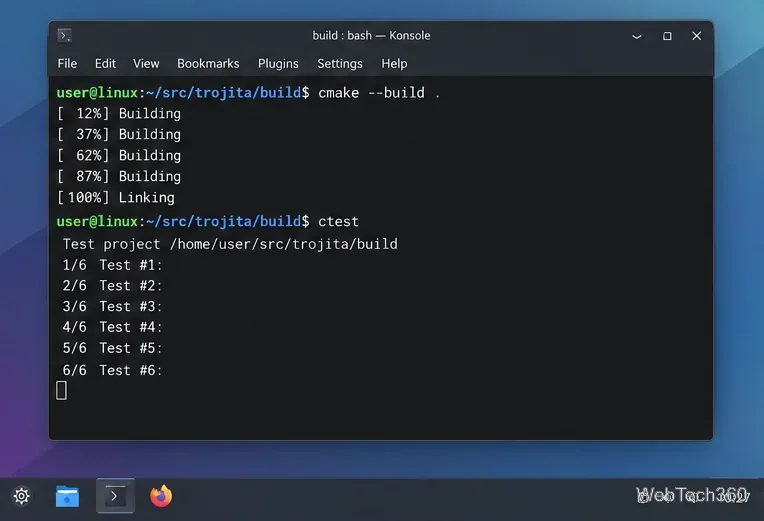
Build and run the available tests before launching the executable from the build folder.
If CMake reports a missing library, install its development package and run cmake .. again. If a required dependency is unavailable or the build fails, do not force old packages onto a current system. Upstream documents running the app from the build folder; that is not a distribution-managed installation.
Configure IMAP and SMTP
At first launch, enter the incoming IMAP and outgoing SMTP details from your email provider. Use its exact hostnames, ports, security mode, and username format. Do not guess based on your email address.
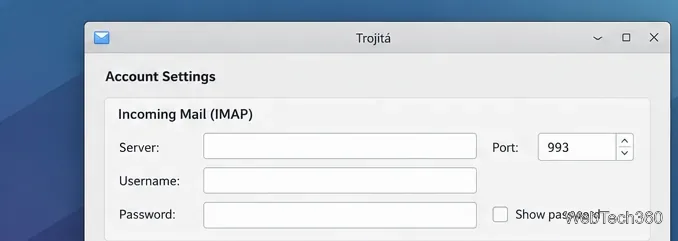
Enter the provider’s IMAP server and account details in the incoming-mail section.
Secure IMAP commonly uses implicit TLS on port 993. For outgoing mail, providers commonly support STARTTLS on 587 or implicit TLS on 465. Match the security mode to your provider’s instructions; the IETF email TLS guidance describes these connection patterns.
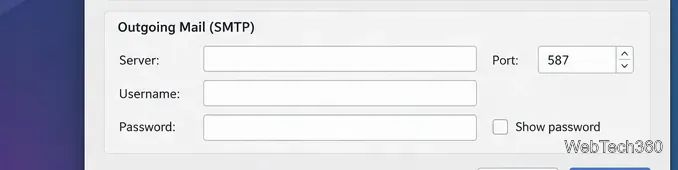
Enter the provider’s SMTP server and authentication details in the outgoing-mail section.
Before saving a password, read the Trojitá handbook: it warns that the app stores usernames and passwords in a plain-text file on the computer. This is a significant security limitation. Use a dedicated app password if your provider supports one, and revoke it when you stop using Trojitá. Some providers require newer sign-in methods that this older client may not support, so confirm compatibility before entering credentials.
Common problems and removal
No package appears: confirm your distro release and refresh repository metadata. Build from source only if you can satisfy its dependencies.
CMake cannot find a dependency: install the matching development package from your distro and configure again. Do not mix packages from a different release.
Mail will not connect: recheck the server, port, TLS or STARTTLS choice, username, and any app-password or modern-authentication requirement from your provider.
Remove the app: uninstall a repository package with the same package manager. For a source build, close Trojitá and delete the source checkout and its _build directory; no system package was registered.