TuxGuitar is a free, open-source tablature editor for writing, playing, and converting guitar scores. On Linux, the simplest installation method for most desktop users is Flatpak, while Ubuntu and Debian also provide native packages. The right choice depends on your distribution, CPU architecture, and whether you need a newer upstream release.
Before installing, note that the official TuxGuitar releases page currently marks version 2.1.0 as the latest stable release. Distribution repositories and Flathub can lag behind upstream, so the version you receive may be older. TuxGuitar 2.0 and newer also use a newer native file format that older TuxGuitar releases cannot read directly, although the project says you can export tablatures in the older format when compatibility matters.
Which TuxGuitar installation method should you use?
Flatpak: the easiest cross-distribution option for supported systems. The current Flathub listing for TuxGuitar is community-provided and unverified, and it currently lists x86_64 as the available architecture.
Ubuntu or Debian package: best if you prefer software managed entirely by APT. These packages can be older than upstream, but dependencies are handled automatically.
Upstream release: useful when you specifically need the newest stable release. The project warns that its downloadable release packages are not officially signed, so this route is better suited to users who understand that tradeoff.
Install TuxGuitar with Flatpak
This is the most consistent method across Fedora, openSUSE, Ubuntu, Debian, Arch-based distributions, and other Linux systems that support Flatpak. If Flatpak is not installed yet, follow the current instructions for your distribution on the Flathub setup page. For example, Ubuntu and Debian use sudo apt install flatpak, openSUSE uses sudo zypper install flatpak, and Arch-based systems use sudo pacman -S flatpak. Fedora Workstation normally includes Flatpak already.
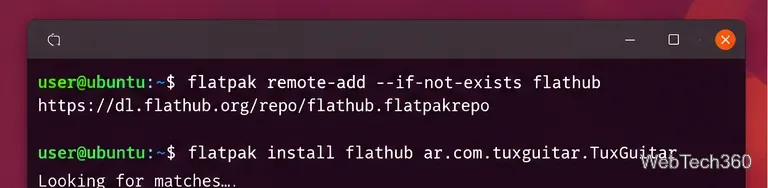
1. Add the Flathub repository
Open a terminal and add Flathub with the repository URL shown in Flathub's current documentation:
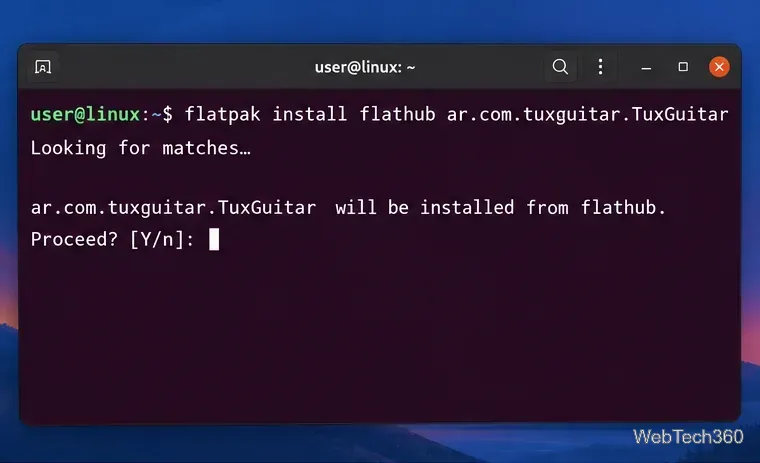
Review the requested runtime and permissions, then confirm the installation. Flatpak downloads the required runtime automatically when it is not already present.
The TuxGuitar Flatpak uses the application ID ar.com.tuxguitar.TuxGuitar.
3. Launch TuxGuitar
Start TuxGuitar from your desktop's application menu, or run:
flatpak run ar.com.tuxguitar.TuxGuitar
To update the Flatpak later, use flatpak update ar.com.tuxguitar.TuxGuitar.
Install TuxGuitar on Ubuntu
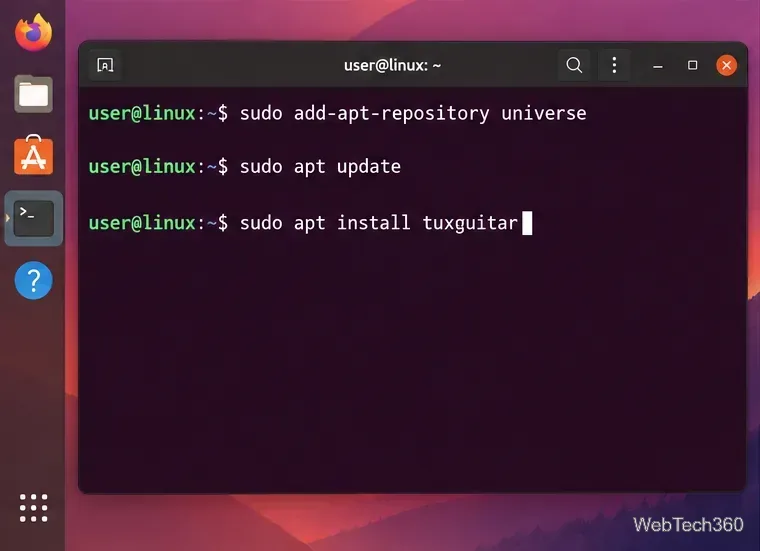
Ubuntu currently carries tuxguitar in the Universe repository. The official Ubuntu package search shows it for supported releases including Ubuntu 24.04 LTS and 26.04 LTS, although the packaged version differs by Ubuntu release.
First try:
sudo apt update
sudo apt install tuxguitar
If APT says it cannot locate the package, enable Universe and try again:
Ubuntu users can install the native package from Universe.
Install TuxGuitar on Debian
Debian also provides a native tuxguitar package. The current Debian stable package is available through the normal repository, so installation is straightforward:
sudo apt update
sudo apt install tuxguitar
You can check the version available for your Debian release on the official Debian package page. If your repository version is older than a feature you need, consider Flatpak or the project's stable release instead of mixing packages from a different Debian branch.
Open TuxGuitar and confirm it works
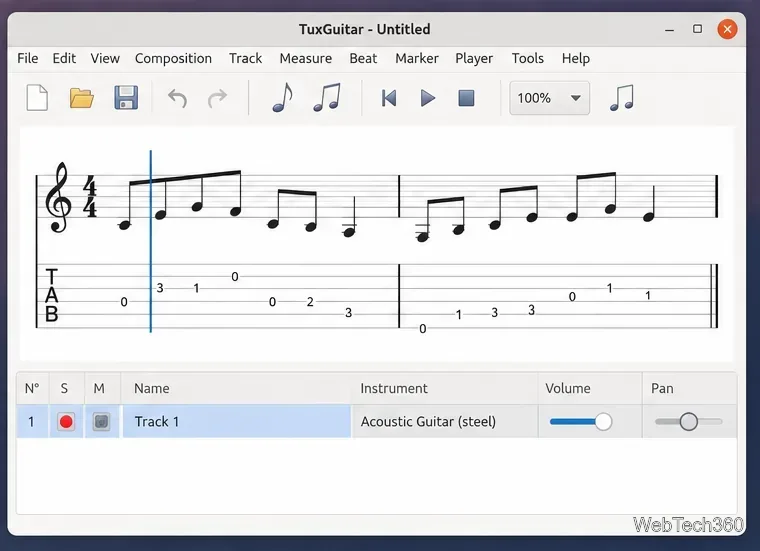
After installation, launch TuxGuitar and create a new score or open a supported tablature file. The main editor combines standard notation with guitar tablature and playback controls. TuxGuitar can also import several Guitar Pro formats, along with PowerTab and TablEdit files.
A typical TuxGuitar workspace shows standard notation and tablature together.
Common installation problems
flatpak: command not found: install Flatpak for your distribution first, then add Flathub and repeat the TuxGuitar install command.
No TuxGuitar result from Flathub: run flatpak remotes and confirm that flathub is listed. If not, add the remote again using the current Flathub URL above.
APT installs an older TuxGuitar version: this is normal when a distribution freezes package versions for stability. Do not force a package from an unrelated Ubuntu or Debian release just to get a newer version.
No playback sound on Ubuntu or Debian: the repositories provide optional audio-related TuxGuitar packages, including FluidSynth support. On systems where the main package does not provide the playback setup you need, try sudo apt install tuxguitar-fluidsynth, then restart TuxGuitar.
For most x86_64 Linux desktops, Flatpak is the most portable path. Ubuntu and Debian users who prefer native integration can use APT, while users who need a specific newer feature should compare their packaged version with the project's stable release before switching installation methods.