Waveform Free 14 is Tracktion’s current free digital audio workstation for Linux. The safest installation path is to create or sign in to a Tracktion account, download the Linux build from Tracktion, install it on a supported 64-bit system, then complete licensing and audio setup inside Waveform. Tracktion currently lists Ubuntu 24.04 64-bit as its tested Linux platform, so instructions for other distributions should be treated as unofficial unless Tracktion documents them.
Before you install Waveform Free on Linux
Start with the official Waveform Free page. Tracktion’s current product page identifies the Linux release as Waveform 14 and says the Linux build is tested on Ubuntu 24.04 64-bit. It also notes that Waveform Pro features are automatically unlocked while Waveform is running on Linux.
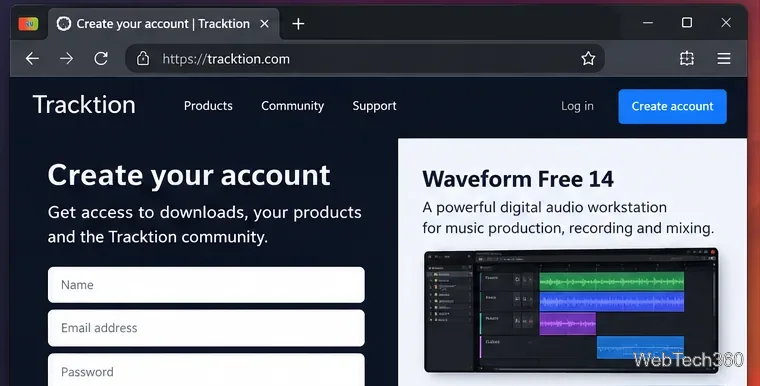
You will also need a Tracktion account. The company’s account registration page states that an account is needed to install and unlock the software.
1. Create a Tracktion account and get the Linux installer
Open Tracktion’s Waveform Free page and choose the free download option. If you are not signed in, Tracktion will send you to its account registration or login flow. Create the account, verify the email address if requested, and sign in.
Download the Linux installer that Tracktion provides for your account. Save it in your normal Downloads folder. Do not use the old Waveform 11 direct-download URL from older guides; build numbers and download locations change.
2. Confirm the installer and open a terminal
On Ubuntu, open Files and check the downloaded package before installing it. If Tracktion supplies a .deb package, you can install that local package with APT, which is preferable to using dpkg first because APT can resolve required repository dependencies in the same operation.
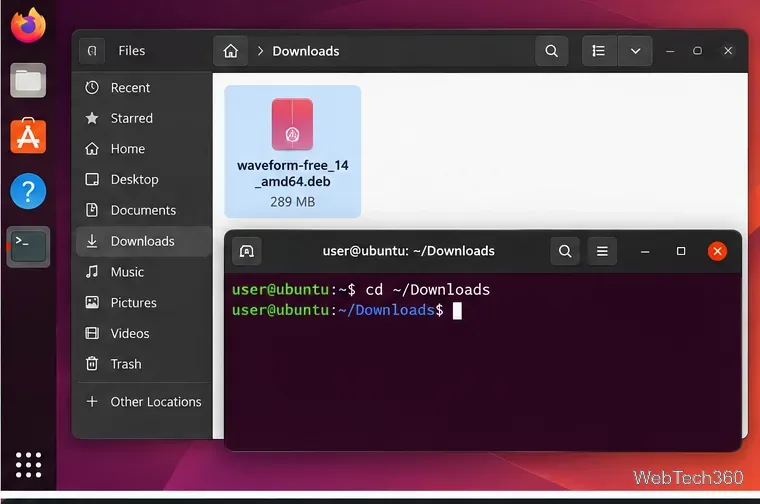
Open Terminal and move to the download directory:
cd ~/Downloads
If you are unsure of the exact filename, list the Debian packages in the folder:
ls -1 *.deb
3. Install the downloaded package on Ubuntu
Replace YOUR-WAVEFORM-FILE.deb with the exact filename you downloaded, then run:
sudo apt install ./YOUR-WAVEFORM-FILE.deb
Enter your Linux password when prompted and let APT complete the installation. The ./ prefix matters because it tells APT to install a local file rather than search for a package with the same name in configured repositories.
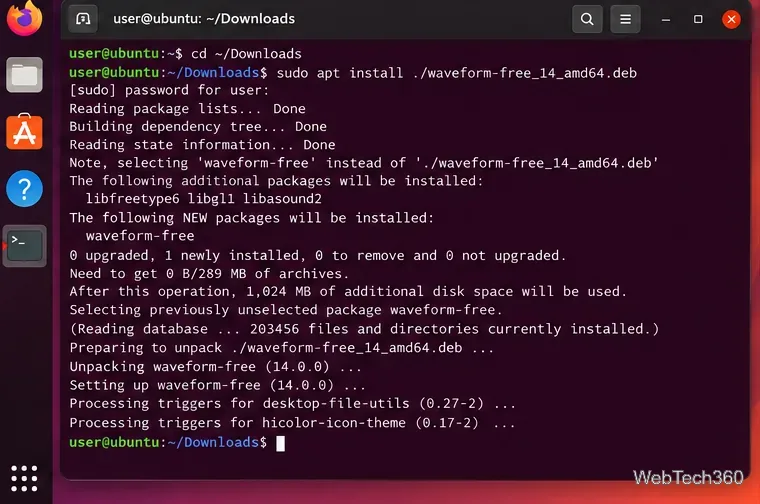
If APT reports a problem, first make sure you downloaded the current Linux build directly from Tracktion and that your system matches the supported 64-bit Linux target. Avoid converting the installer to RPM or using an old third-party AUR helper recipe just because an older tutorial recommends it. Tracktion’s current product page only identifies Ubuntu 24.04 64-bit as the tested Linux environment.
4. Launch Waveform, refresh the license, and set up audio
Launch Waveform from your application menu. Tracktion’s current Waveform 14 Quick Start says a fresh installation runs in demo mode until it is unlocked. Open Settings > Licensing, choose Refresh Licenses, and sign in with your Tracktion account so Waveform can apply the licenses associated with it.
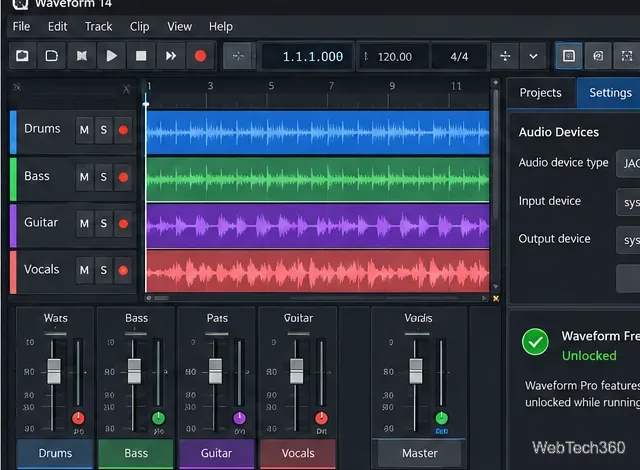
Next, open Settings > Audio Devices. The current manual recommends JACK on Linux, with ALSA as another option. Choose the input and output that match your audio hardware, then test playback and recording before starting a project. Tracktion’s quick-start guide suggests beginning with a common sample rate such as 44.1 kHz or 48 kHz and a moderate buffer, then increasing the buffer if you hear clicks or dropouts.
What about Debian, Fedora, Arch Linux, or openSUSE?
Waveform may run on distributions other than Ubuntu, but Tracktion’s current public requirements do not claim broad distribution testing. If your Debian-based system accepts the same local package, APT may be able to install it, but that is not the same as an official support statement for every Debian release.
For Fedora, openSUSE, Arch Linux, and other non-Debian systems, avoid relying on obsolete package-conversion instructions or unverified community packages as the default recommendation. For a production workstation, use Tracktion’s tested Ubuntu target or ask Tracktion Support whether your distribution is currently supported.
After installation
Once Waveform is licensed and your audio device works, create a small test project, record or import a short clip, and confirm that playback reaches the expected outputs. The official Waveform 14 manual covers recording, MIDI, plugins, mixing, and export if you need the next steps.









