How to Recover Lost Partitions and Hard Disk Data Safely

Learn how to recover lost partitions and files with TestDisk and PhotoRec. Protect the source drive, scan safely, and save recovered data to another disk.
To install Wireshark on Linux, use your distribution’s package manager. The commands below install it from the system’s configured repositories, which is usually the simplest way to get updates and the capture helper packaged for your system. Choose the section for your distribution; you do not need to add a third-party Ubuntu PPA or manually edit Arch’s repository configuration.
Open a terminal, enter the command for your distribution, and approve the package manager’s prompt. The graphical interface is included by the GUI package; if you only need terminal analysis, most distributions also package TShark separately.
Refresh the package index, then install Wireshark:
sudo apt update
sudo apt install wireshark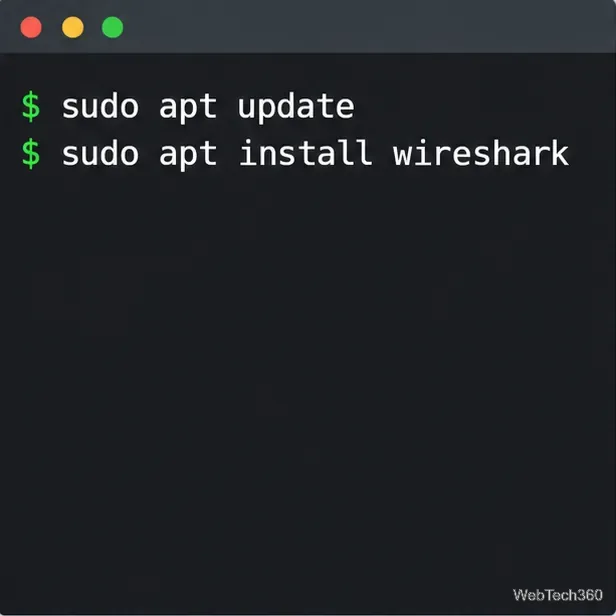
During setup, Debian-based systems may ask whether non-superusers should be allowed to capture packets. Choose Yes only if you want selected user accounts to capture live traffic; the installer does not automatically add your account to the wireshark group. If you choose No, you can still open and analyze saved capture files.
Install the repository package with DNF:
sudo dnf install wireshark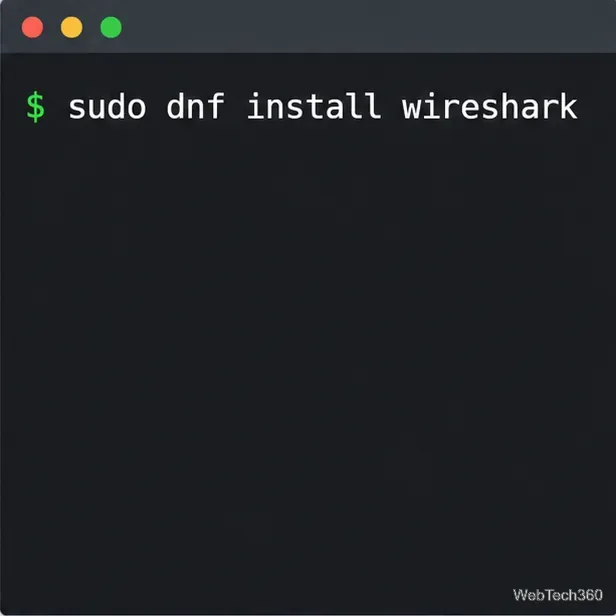
Fedora packages the Qt desktop analyzer as wireshark; the command-line tools are available separately as wireshark-cli. Fedora’s package also prepares a wireshark group for controlled live capture.
Arch expects a full system update rather than a partial package upgrade. Update the system, then install the Qt interface:
sudo pacman -Syu
sudo pacman -S wireshark-qt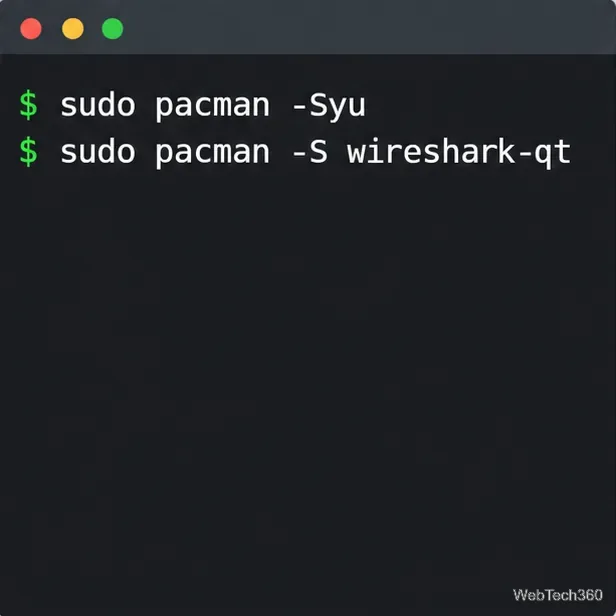
For a command-line-only setup, install wireshark-cli instead. The package names and current repository are listed in the Arch Linux package database.
Refresh enabled repositories and install the available Wireshark package:
sudo zypper refresh
sudo zypper install wireshark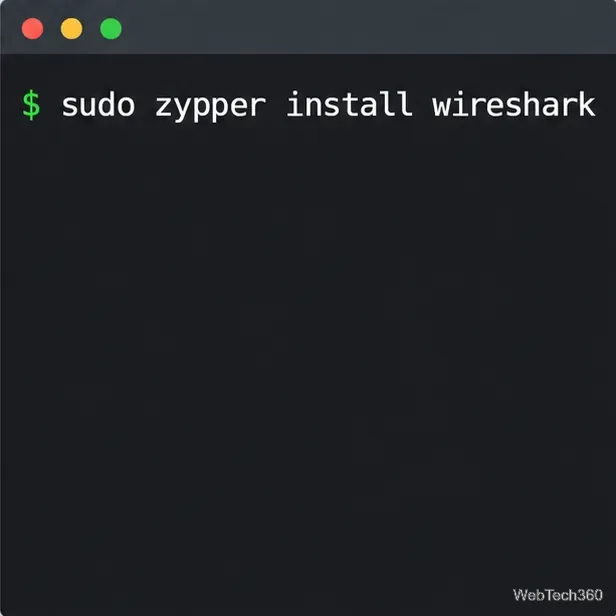
Package names can differ between openSUSE releases. If you specifically want the Qt desktop interface, check whether wireshark-ui-qt is available for your release with zypper search wireshark or the openSUSE Software package listing. Use the repositories configured for your release; old instructions for retired Leap versions may point to obsolete third-party repositories.
If your distribution does not provide a convenient package, you can install the Flathub build after setting up Flatpak and its Flathub remote:
flatpak remote-add --if-not-exists flathub https://flathub.org/repo/flathub.flatpakrepo
flatpak install flathub org.wireshark.Wireshark
Important: Wireshark’s documentation says the Flatpak sandbox cannot capture directly from a network adapter. Use this build to inspect existing capture files; for live capture, install the native package for your Linux distribution. The app is listed on Flathub.
Installing Wireshark and capturing packets are separate permissions. Start the desktop app as your normal user; do not launch the full Wireshark interface with sudo. Wireshark separates the small dumpcap capture helper from the larger analyzer so the analyzer can run with ordinary user privileges.
sudo dpkg-reconfigure wireshark-common and choose Yes when asked about non-superuser capture. Then add only trusted accounts: sudo usermod -aG wireshark "$USER". Log out and back in so the new group membership takes effect.wireshark group. Add your account with sudo usermod -aG wireshark "$USER", then log out and back in.Membership grants access to live network captures, which may contain sensitive traffic. Limit it to accounts that need this access. Other distributions may have their own setup; follow the steps for your package rather than copying capability or permission commands from a different Linux release. See Wireshark’s capture privilege guidance for platform-specific details.
Launch Wireshark from your desktop’s application menu, or run these commands:
wireshark --version
wireshark
The first command prints the installed version; the second opens the analyzer. If no interfaces appear for live capture, check the permission steps above and start a new login session. You can still open a saved .pcap or .pcapng file from Wireshark without live-capture access.
For the package-manager approach and Debian capture configuration, see the Wireshark User’s Guide to installing Linux packages and the Debian packaging notes.
Learn how to recover lost partitions and files with TestDisk and PhotoRec. Protect the source drive, scan safely, and save recovered data to another disk.
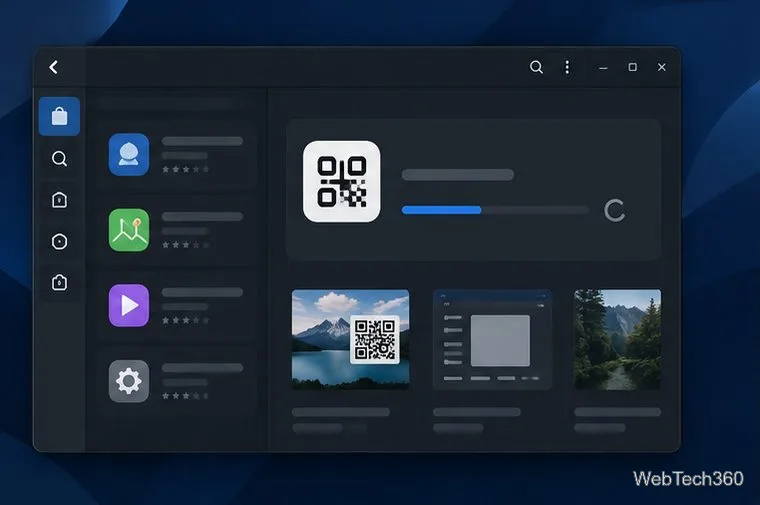
Scan QR codes on Linux with CoBang using a webcam or image file. See installation options, setup steps, and fixes for Flatpak camera access.
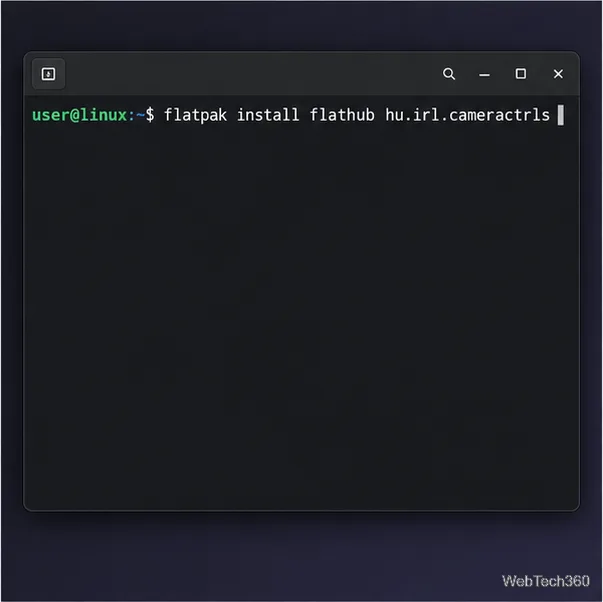
Change webcam settings on Linux with Cameractrls: tune exposure, color, flicker reduction, and other supported controls, then check compatible video modes.
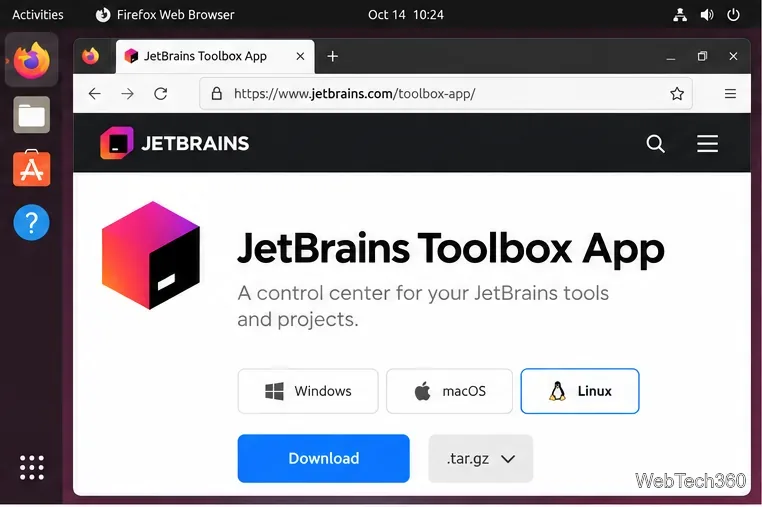
Install PhpStorm on Linux with JetBrains Toolbox or the standalone tar.gz archive, plus Snap and Arch AUR options. Java is already bundled.
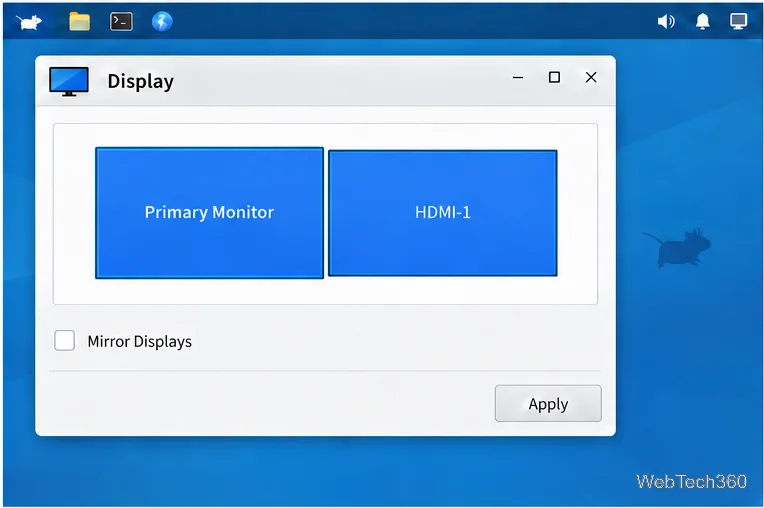
Create a separate XFCE 4 panel for each display, assign the second panel to the right output, position and size it, and add the launchers and status items you need.
Download Cisco Packet Tracer 9.0.1 for Ubuntu 64-bit, install the DEB package with APT, accept the license in Terminal, and sign in to start a lab.
Remove a photo background on Linux with GIMP: trace a subject, delete the selected background, keep transparency, and export a reusable PNG.
Create a CD-ROM ISO on Linux with GNOME Disks or dd. Identify the optical drive, monitor the copy, verify the image, and know when a damaged or audio disc needs another tool.
Download FlightGear for free from the official site. Compare Windows, macOS, and Linux packages, install the data files, and start your first flight.
Open Google Tasks in a browser, add a Chrome shortcut or app-style launch, and manage dated to-dos through Calendar and Gmail.