To install Zoiper on Linux, download Zoiper’s current Linux build and choose the format for your distribution: Debian (.deb), RPM (.rpm), or a tar.xz archive. Install the package with APT, DNF, or Zypper. Zoiper’s Linux requirements specify X11 (Wayland is unsupported), and placing calls requires a VoIP provider or PBX account.
Check compatibility and choose a package
Zoiper lists Ubuntu, SUSE, RHEL, Mint, Fedora, CentOS, and Debian among the Linux distributions it has tested. It officially supports GNOME and KDE desktop environments. The published Linux requirements include X11, libc6 2.18 or later, libgcc1, libnotify, libXss, and libv4l. A package installation may bring in some dependencies automatically; the standalone archive may need libraries already available on your system. See the Zoiper Linux system requirements if the app fails to start.
Package
Best fit
Debian package (.deb)
Ubuntu, Debian, and compatible distributions
RPM package (.rpm)
Fedora, openSUSE, and compatible RPM distributions
tar.xz archive
Other Linux systems when their libraries and desktop environment meet Zoiper’s requirements
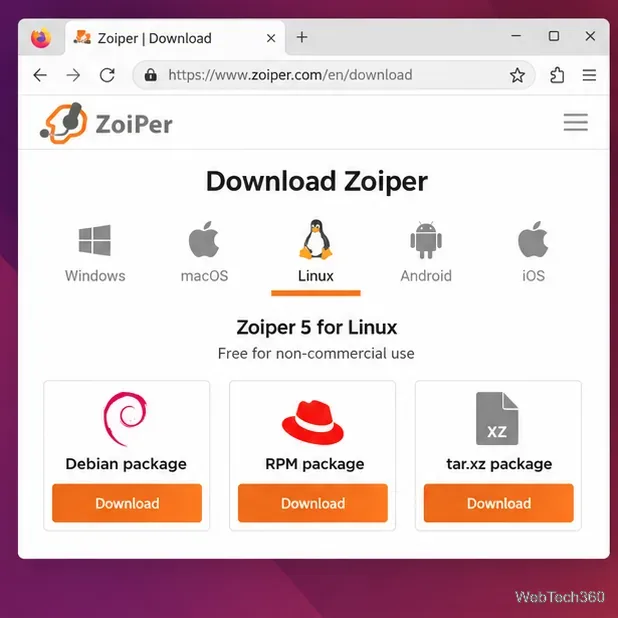
Zoiper’s current page offers Free for noncommercial use; review its license options for commercial use. The Linux page lists Debian, RPM, and tar.xz packages. For Arch, check vendor support before relying on a community-maintained build.
Download the current Linux build
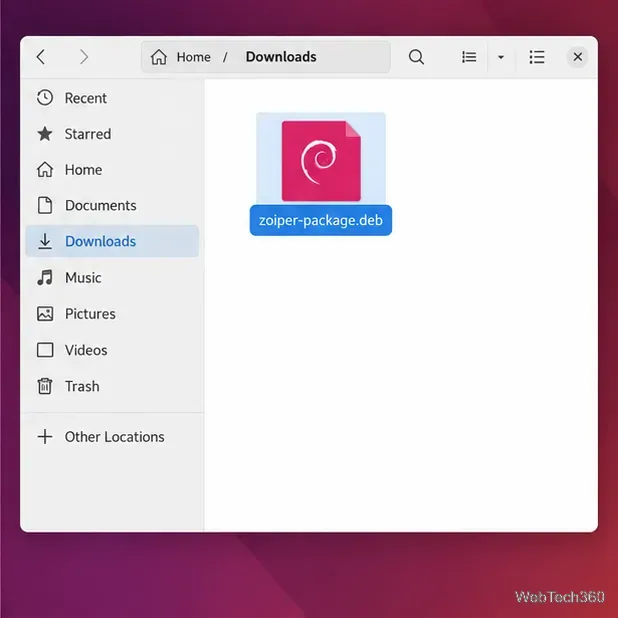
On the official Zoiper download page, select Linux, choose Free if its terms fit your use, and pick Debian, RPM, or tar.xz. Save the file in Downloads. Filenames and versions change, so use the name of the file you downloaded.
Example download view with the three Linux package formats listed by Zoiper.
Install a Debian package on Ubuntu or Debian
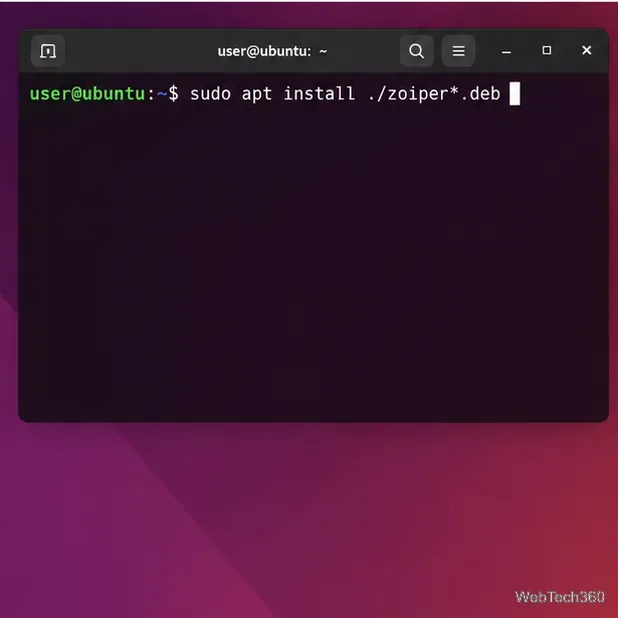
From Downloads, install the .deb with APT:
cd ~/Downloads
sudo apt install ./zoiper*.deb
Enter your password and confirm the transaction. APT resolves available dependencies. If the wildcard does not match, check ls *.deb and use the exact filename.
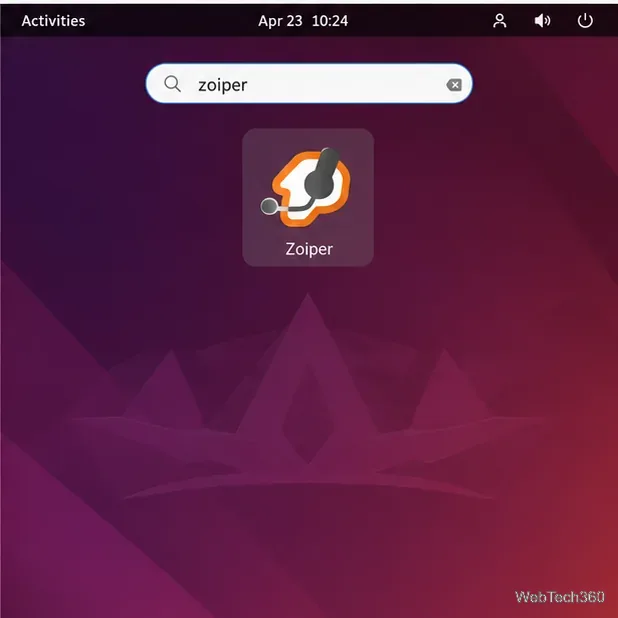
Check that the downloaded file ends in .deb before installing it.Run the local-package command from the folder containing the .deb file.After installation, search the desktop app launcher for Zoiper.
Install an RPM on Fedora or openSUSE
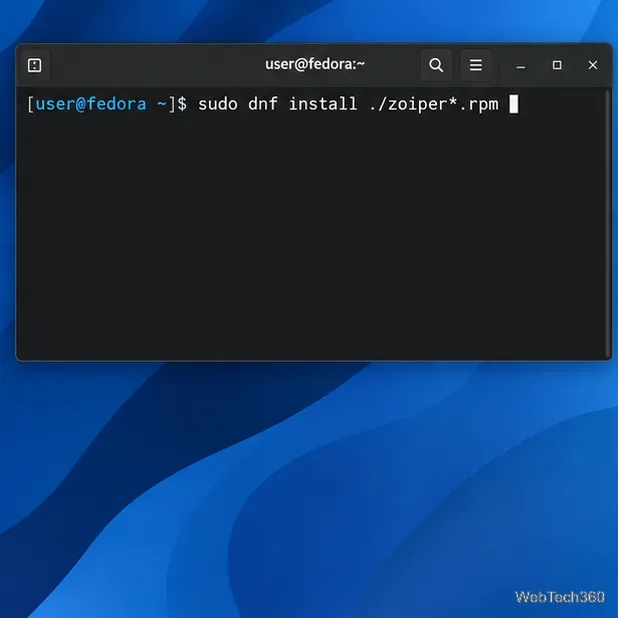
On Fedora, install the local RPM with DNF:
cd ~/Downloads
sudo dnf install ./zoiper*.rpm
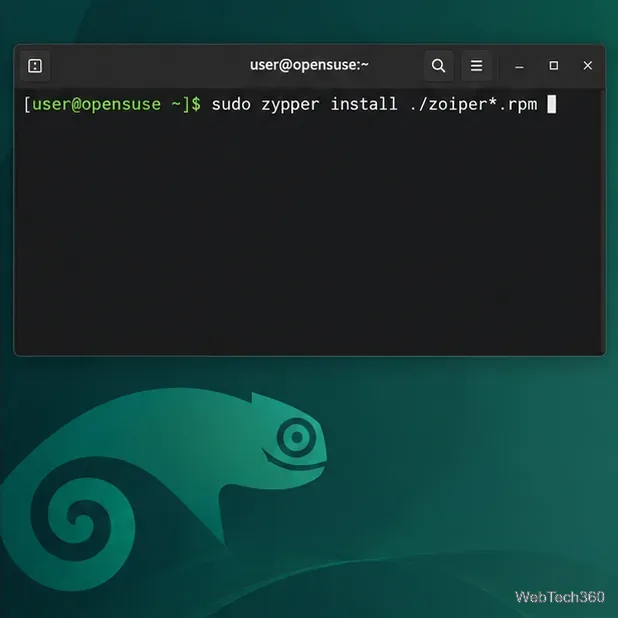
On openSUSE, use Zypper:
cd ~/Downloads
sudo zypper install ./zoiper*.rpm
Confirm the transaction. If multiple RPMs match in Downloads, use the exact Zoiper filename.
Install the downloaded RPM with DNF on Fedora.Use Zypper to install the local RPM on openSUSE.
Use the generic tar.xz archive
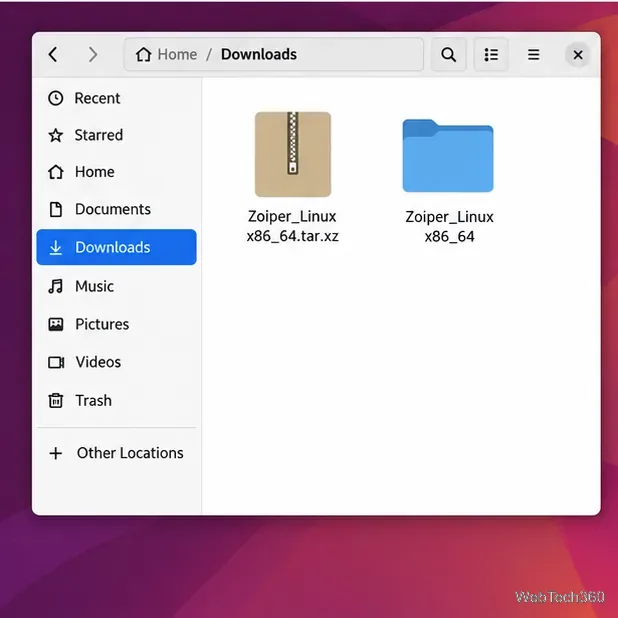
Use the archive if your distribution has no suitable package; it will not register Zoiper with the package manager. In Downloads, extract it using the actual filename:
cd ~/Downloads
tar -xf <archive-name>.tar.xz
Open the extracted folder and start its Zoiper executable. If it is named zoiper, run ./zoiper there; otherwise use the name supplied in the archive. Names vary by build. Keep the folder in place because the app may use files beside the executable.
Extract the archive first, then open the folder it creates; names vary by build.
Sign in and verify the setup
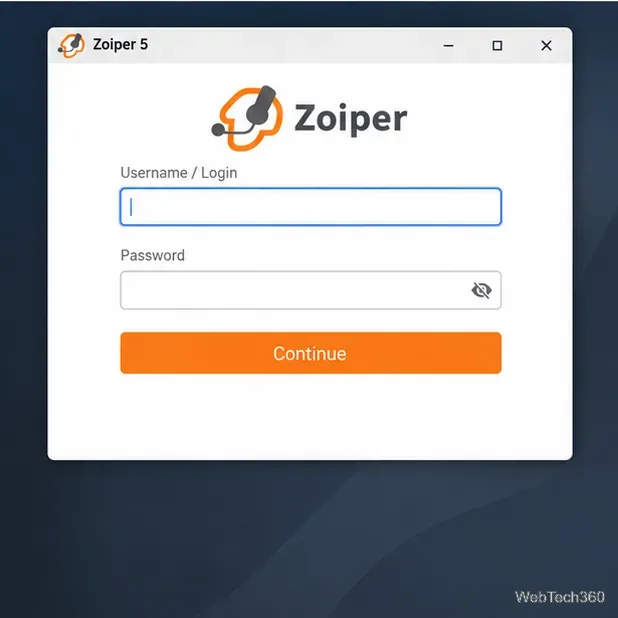
Launch Zoiper and enter the username or login and password supplied by your provider or PBX. If asked, enter its SIP host or domain. Some services require a separate authentication username or outbound proxy; get those values from your provider. Zoiper’s SIP/IAX account setup guide explains the fields for Linux and other desktop platforms.
Wait for the account to register before testing a call. Installing Zoiper does not create a phone number or service account; it needs an internet connection and a VoIP provider or PBX.
Enter the SIP credentials provided by your VoIP service or PBX administrator.
Fix common installation problems
Zoiper does not open in a Wayland session: Zoiper currently lists X11 as required and Wayland as unsupported. Sign in to an X11 session and try again.
A library or dependency is missing: install the DEB or RPM with your distribution’s package manager so it can resolve available dependencies. For the archive, check Zoiper’s Linux requirements and install the matching libraries from your distribution’s repositories.
The package will not install: confirm you selected the package type for your distribution and that the download completed. Zoiper recommends downloading the installer again if the file may be corrupted; see its installation troubleshooting page.
The account will not register: verify the SIP username, password, server address, and any provider-specific authentication or proxy values. Ask the provider or PBX administrator to confirm the account is active.