Home
» LINUX
»
How to Install Zorin OS 15.3 From a USB Drive
How to Install Zorin OS 15.3 From a USB Drive
To install Zorin OS 15.3, download its ISO from Zorin’s archive, write it to a USB drive with balenaEtcher, boot from USB, and follow the installer. Zorin OS 15 stopped receiving security updates in April 2023. Use 15.3 only if you specifically need this legacy release; for everyday use, choose a supported version. Zorin warns that older releases may not work on newer computers and recommends a virtual machine for non-production use. See the 15.3 release announcement and official archive.
Before you begin
Back up files on the target computer. An erase-disk install removes data from the selected drive.
Use a spare USB drive. Zorin’s current install guide specifies at least 4 GB for Core and Lite; other editions may need more. Etcher erases the selected USB.
Zorin’s current minimums are a 1 GHz dual-core 64-bit Intel/AMD processor, 2 GB RAM, 15 GB storage for Core, and an 800 × 600 display. These figures describe current Zorin OS, not a guarantee for every 15.3 edition. Test the live session before installing.
If replacing Windows, save your recovery key and keep backup drives unplugged during installation.
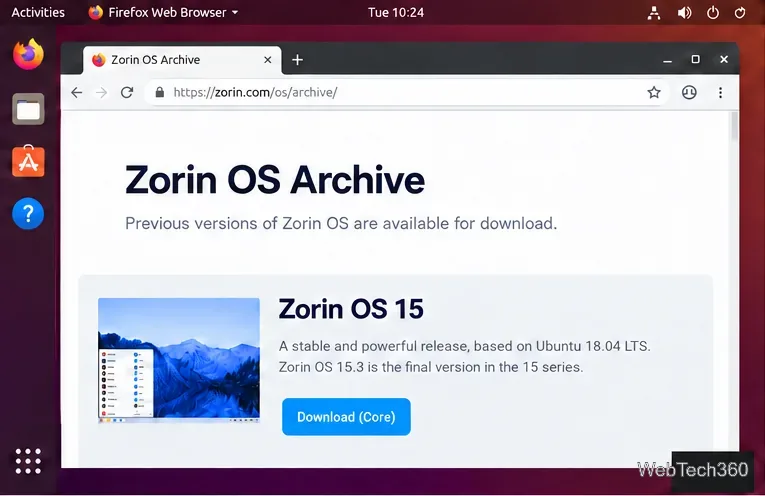
Open the archive and find Zorin OS 15. Its Core download link currently resolves to the Zorin OS 15.3 Core 64-bit ISO. Follow the link from Zorin’s archive rather than downloading a repackaged image elsewhere. If you purchased Zorin OS 15 Ultimate, Zorin directs owners to the download link in the original purchase email.
UI illustration: Zorin OS 15 in the archive.
Save the ISO and wait for the download to finish. If a checksum is published for that exact file, compare it with the download; a checksum from another release will not verify this ISO.
2. Create a bootable USB drive
Download Etcher from the official Etcher site, launch it, and connect the spare USB.
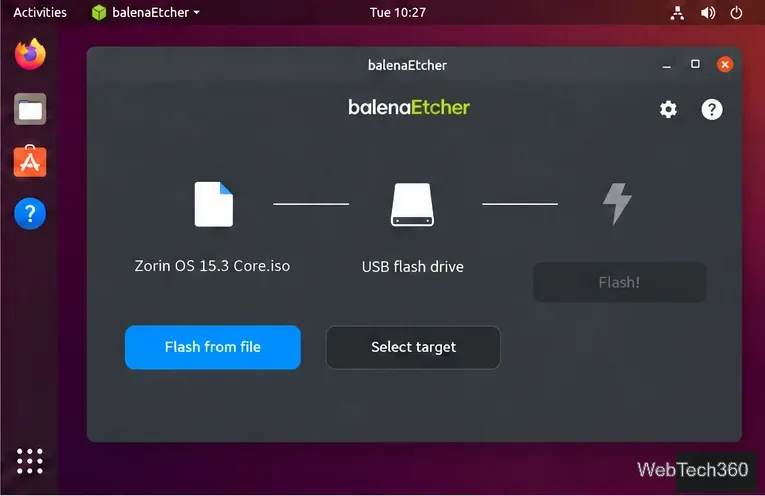
Choose Flash from file, select the ISO, then choose Select target. Check the USB’s name and capacity carefully; never select an internal or backup disk.
UI illustration: verify the ISO and USB target before flashing.
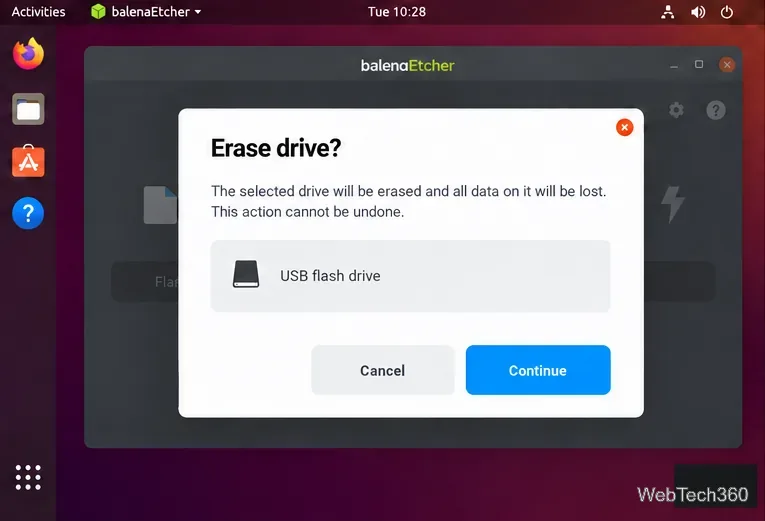
When Etcher warns that the target will be erased, continue only if the selected device is the USB drive you intend to overwrite.
UI illustration: Etcher’s warning before erasing the target USB.
Choose Flash! and wait for writing and verification to finish. Safely eject the USB when Etcher reports success.
3. Boot from USB
Shut down the computer completely, insert the installer, and turn it on.
Immediately press the manufacturer’s boot-menu key. Common keys include F12, Esc, F2, and Delete; check your computer’s manual for the correct key.
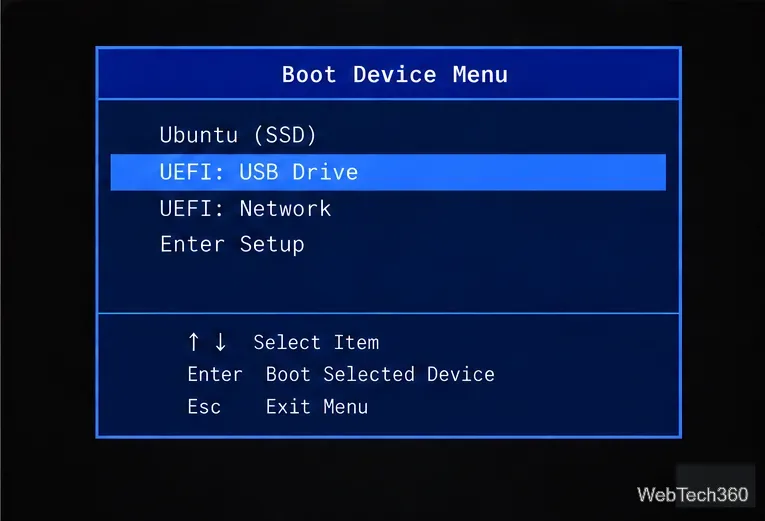
Select the entry naming the USB drive. It may include “UEFI,” the drive brand, or “USB.”
UI illustration: choose the USB entry in the boot menu.
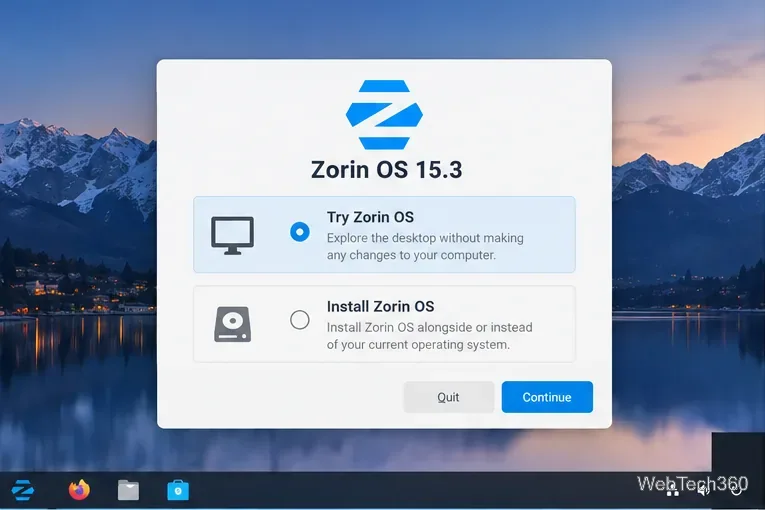
If the startup menu offers a try-first option, use it to check the display, keyboard, Wi-Fi, and sound before installing. Start the installer from the live environment when ready; exact menu wording can vary.
UI illustration: try the live session first if available.
4. Install Zorin OS 15.3
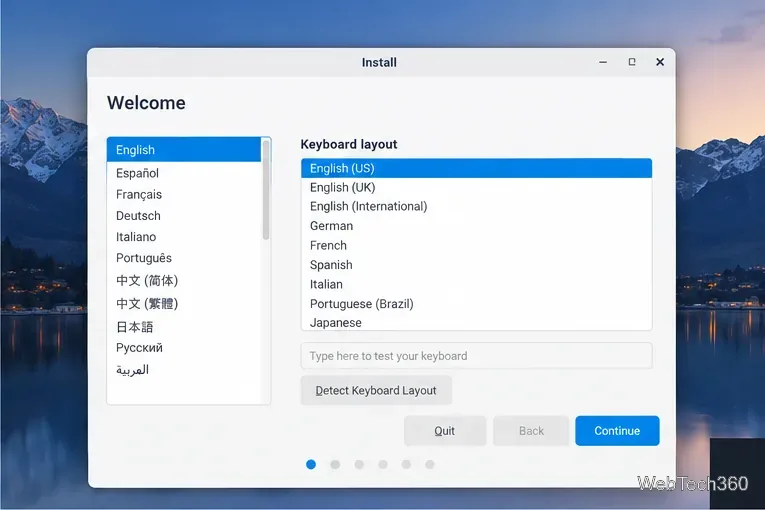
Choose your language and keyboard layout, then continue. Test the layout if the installer provides a text field.
UI illustration: confirm language and keyboard layout.
If offered, connect to the internet to download updates during setup. Installing third-party graphics, Wi-Fi, or media software is optional; select it only if you want those components.
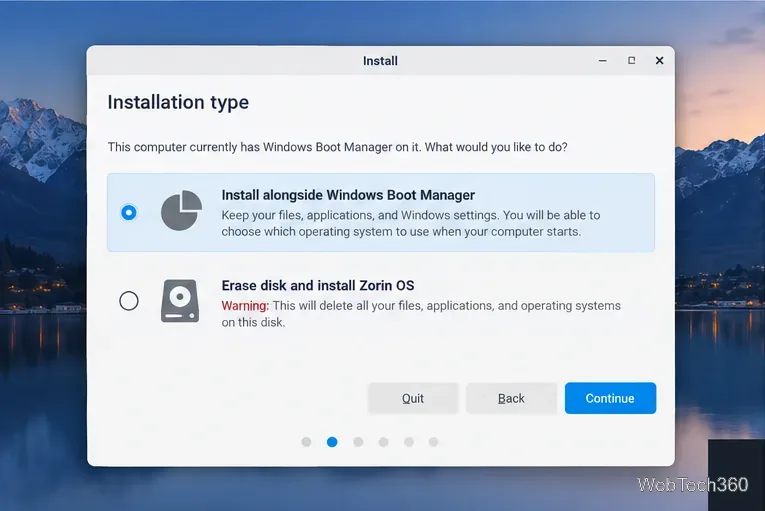
At Installation type, choose Install alongside only if you want to keep the existing operating system and the installer offers that choice. Review the space allocation.
Choose Erase disk and install Zorin OS only if you intend to remove everything on that disk, including its OS, partitions, apps, and personal files. For custom layouts, follow Zorin’s manual partitioning guide only if you understand the disk layout.
UI illustration: keeping an existing OS and erasing a disk are different choices.
Set the time zone and create your account and password. Recheck the target disk and final confirmation before approving the install.
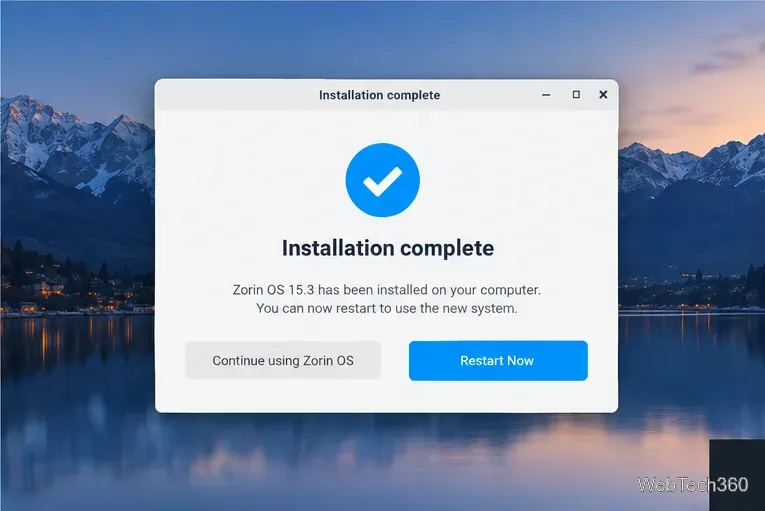
Wait for setup to finish, restart, and remove the USB when prompted. If the installer starts again, remove the USB and boot from the internal drive.
UI illustration: restart after installation completes.
If the USB does not boot
Try another USB port, recreate the installer from the ISO, and select the USB explicitly in the boot menu. If it still does not start, follow Zorin’s USB boot troubleshooting guide. If “Install alongside” is missing, stop and review the disk layout; do not choose “Erase disk” as a workaround.
Because Zorin OS 15.3 is unsupported, keep it for isolated testing or a virtual machine. Use a supported release for a regularly maintained desktop.