How to Access a Windows BitLocker Partition in Linux

Use Dislocker to unlock a BitLocker volume in Linux, mount its virtual NTFS file read-only, and safely unmount it without exposing your password in a command.
For a Pardus Linux client, the direct route is Pardus Domain Joiner, the official Pardus tool for domain enrollment. The current Pardus package tracker lists the command-line package pardus-domain-joiner-cli, version 1.1.2. Its documented join command supports either SSSD or Winbind. This guide uses SSSD in its example; choose the service your organization supports.
Joining will work only if the client can discover an Active Directory domain controller through DNS, reach the required domain services, and authenticate with an account permitted to create or reuse a computer account. A tool cannot compensate for a client using public DNS that cannot resolve the AD domain, a clock that is out of sync, or a join account without the needed rights.
Example values used below: the AD DNS domain is corp.example.com, the authorized join account is joinadmin, and the client name is pdws-042. Replace them with your real domain and approved account. Do not type your password as a command-line argument; the Pardus CLI prompts for it when omitted.
Use an elevated local administrator account on Pardus. Ask your AD administrator for the fully qualified DNS domain name, any required organizational unit (OU), whether to use SSSD or Winbind, the allowed join account, and the required login-name format. Joining a computer to a domain creates or updates a computer account in Active Directory; it does not automatically grant every domain user permission to log in locally.
pdws-042. Confirm that this name does not collide with another active computer account.Active Directory uses DNS to help clients locate domain controllers. Microsoft’s guidance identifies LDAP and Kerberos SRV records as important discovery records. If discovery fails, check the client’s configured DNS server and the AD records before changing the join command.
Refresh APT metadata, check that the package is available for your Pardus release, and install it from the configured Pardus repository:
sudo apt update
apt policy pardus-domain-joiner-cli
sudo apt install pardus-domain-joiner-cli
The package tracker lists this CLI in the Pardus 25 repository, but availability can vary by edition or repository configuration. If APT shows no candidate, do not download a random package from a third-party site. Check the official Pardus repository or use the graphical Pardus Domain Joiner if it is offered for your installation. Pardus describes that GTK application as a tool for joining or removing a system from a domain; its exact screens can differ by version.
Set the intended local host name if it needs to change. Replace the sample name with the one approved for your network:
sudo hostnamectl set-hostname pdws-042
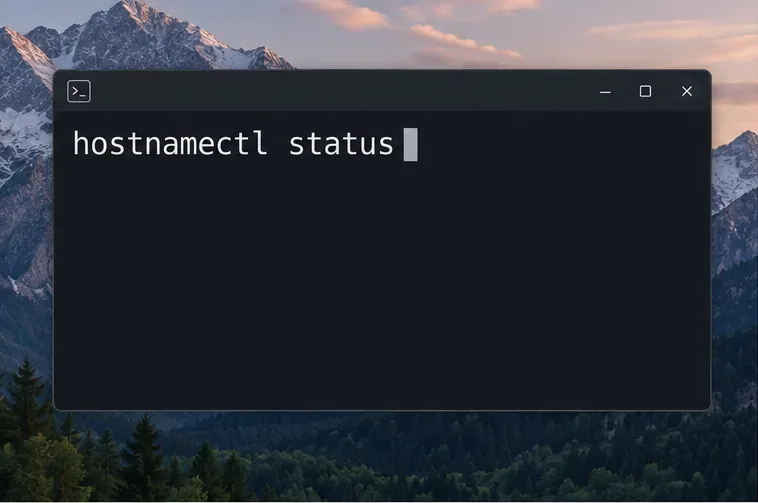
hostnamectl status
Then ask the Pardus tool to discover the domain before joining:
sudo pardus-domain-joiner-cli info corp.example.comThe command should return discovery information for the requested domain. If it cannot find the realm or domain controller, stop and check DNS, network reachability, VPN state, and the exact DNS domain name. Do not substitute the short NetBIOS name for the DNS domain unless your organization specifically requires it.
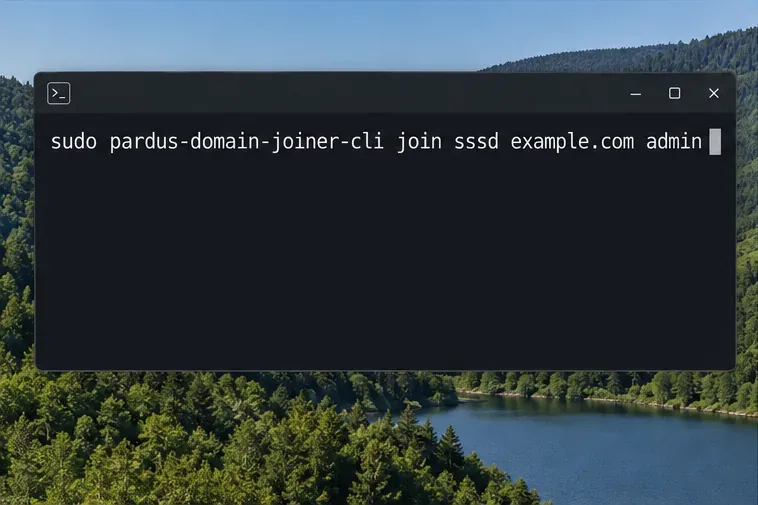
For the example environment, the command is:
sudo pardus-domain-joiner-cli join sssd corp.example.com joinadminWhen prompted, enter the password for joinadmin. The Pardus CLI README documents sssd and winbind as the service choices, and says it will prompt securely when a password is not supplied. Keep the password out of shell history and shared scripts. Use a delegated account with only the rights needed to join computers, not a permanent Domain Admin credential.
If your IT team has provided an OU distinguished name (DN), the CLI also documents an optional --ou argument. For example:
sudo pardus-domain-joiner-cli join sssd corp.example.com joinadmin --ou "OU=Linux,OU=Workstations,DC=corp,DC=example,DC=com"Use the OU DN exactly as supplied by the directory administrator. If no OU is required, omit the option. The command also documents a --hostname option; use it only when you need to set the AD computer name separately and have confirmed the expected behavior for your package version.
A successful command should finish without an enrollment error. If it fails, record the complete error text and correct the underlying cause before retrying. Repeated attempts with an incorrect DNS resolver, an expired password, or an unauthorized account are unlikely to help and may leave a stale computer object that the AD administrator needs to review.
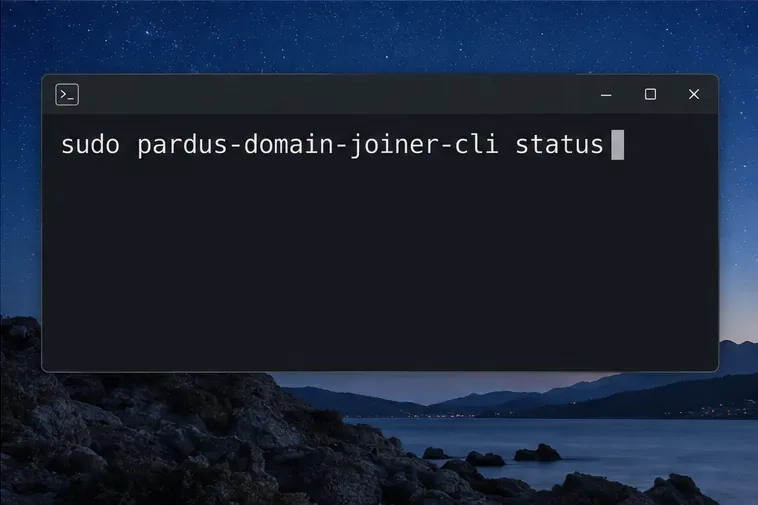
Check the joiner’s status after the command completes:
sudo pardus-domain-joiner-cli statusThen check whether the client can resolve a test user through the configured identity service. Use the exact login format approved by your IT team:
id alice@corp.example.comIf the account resolves, the output should include the user’s numeric identity and group information. If it does not, check whether the user is allowed to log in to this client, whether the organization requires a particular user-name format, and whether the selected SSSD or Winbind service is active. Test an interactive login with an approved test account before handing the machine to a user.
Joining the domain establishes domain membership and enables identity lookups through the configured service. It does not guarantee that every Windows Group Policy setting, roaming profile, sudo rule, network share, printer, or software deployment policy will behave the same way on Linux. Configure and validate those capabilities separately with your organization’s Linux management approach.
| Symptom | First checks |
|---|---|
| The domain cannot be discovered | Confirm the AD DNS domain name, client DNS resolver, LDAP SRV records, VPN route, and reachability to a domain controller. |
| “Cannot contact any KDC” or a Kerberos error | Check DNS discovery for Kerberos services, system time synchronization, domain-controller reachability, and the realm/domain spelling. |
| The join account is rejected | Confirm credentials, password status, account permissions, computer-account quota or reuse rules, and the requested OU. |
| The join succeeds but a user cannot log in | Check the selected identity service, login-name format, account access policy, group lookup, and the client’s authentication logs. |
For troubleshooting, use the joiner’s info and status commands before editing Kerberos, SSSD, or Samba configuration files. The lower-level realmd command-line interface also provides discovery, join, leave, list, and login-permission commands on systems that use realmd, but do not mix manual realmd changes with Pardus Domain Joiner without understanding which configuration files the Pardus tool manages.
Use Dislocker to unlock a BitLocker volume in Linux, mount its virtual NTFS file read-only, and safely unmount it without exposing your password in a command.
Learn how to reduce RAM usage on Linux by finding memory-hungry apps, trimming browser and startup load, and testing a lighter desktop safely.
Compare four WhatsApp alternatives for Linux by privacy defaults, desktop support, setup requirements, and the people each app suits.
Troubleshoot a VirtualBox VM that will not start on Linux by checking vboxdrv, kernel headers, Secure Boot, Extension Pack versions, and VM logs.
Transfer your Ubuntu user data with a tar archive and external drive, then restore personal files and selected settings without overwriting the new setup.
Install gThumb on Linux, browse and make simple photo edits, then set it as the default app for the image types you choose in GNOME.
Create an organized playlist in Rhythmbox or save a reusable XSPF playlist in VLC. Learn how to add tracks, name a list, and reopen it on Linux.
Install Dino on Linux with Flatpak or your distribution’s package manager. Get current Ubuntu, Debian, Fedora, and Arch commands, plus first-launch tips.
Install Arch Linux’s linux-lts kernel, add it to GRUB or systemd-boot, select it at startup, and verify it while keeping a fallback kernel.
Download the right Pi 4 image, write it to a microSD card, and complete LibreELEC’s first-run setup with Raspberry Pi Imager.








