How to Access a Windows BitLocker Partition in Linux

Use Dislocker to unlock a BitLocker volume in Linux, mount its virtual NTFS file read-only, and safely unmount it without exposing your password in a command.
On Ubuntu, the safest general way to cap a workload with cgroups is to let systemd create and manage its control group. Use systemd-run for a command you are starting now, or configure a systemd service when the limit must survive restarts. Set CPUQuota= for a hard CPU-time ceiling and choose between MemoryHigh= for pressure and MemoryMax= for a hard memory boundary. These limits apply to the unit and its child processes together.
A cgroup (control group) is a Linux kernel mechanism that organizes processes so the system can account for and control their resource use. Ubuntu's systemd already places services in cgroups, so most users do not need to create directories under /sys/fs/cgroup by hand. Examples below use systemd's resource-control interface and should be checked against the systemd version installed on your Ubuntu release.
| Method | What it controls | Best fit | Main trade-off |
|---|---|---|---|
systemd-run transient scope | CPU quota and memory limits for a newly launched command and its descendants | A build, script, import, or one-time batch job | The scope is temporary and ends with the workload; it does not attach itself to an arbitrary process that is already running. |
| systemd service settings | Resources for the service's cgroup, including child processes | A daemon or application that should keep the same limits after reboot | Requires service configuration and usually a restart to apply the new settings. |
| Direct cgroup v2 files | Kernel-level controllers such as cpu.max and memory.max | Container runtimes, delegated cgroup managers, or specialized administration | More manual; systemd owns much of Ubuntu's hierarchy, and writing into its managed tree can conflict with systemd or fail due to permissions and delegation. |
nice or CPUWeight= | Relative CPU priority when groups compete | Keeping background work lower priority while allowing it to use idle CPU | This is not a hard CPU cap and does not limit memory. |
For most interactive Ubuntu machines, a transient scope is the quickest reversible choice. For a production service, use the service unit so the policy is documented and restored at boot. Use direct cgroup files only when you are deliberately managing a delegated hierarchy or building a container/runtime workflow.
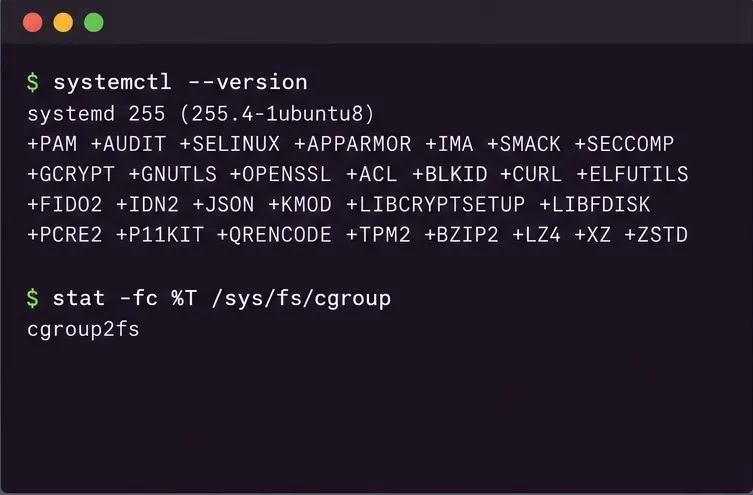
First check that systemd is available and whether the cgroup filesystem is unified v2:
systemctl --version
stat -fc %T /sys/fs/cgroup
A result of cgroup2fs from the second command indicates the unified cgroup v2 filesystem. Ubuntu releases and customized systems can differ, so do not assume every machine has the same hierarchy or systemd features. You can also inspect the current systemd version with the first command. If the cgroup mount is not v2, some resource properties or controller behavior may differ; consult the Ubuntu manual page for the installed release before copying a configuration.
Pick values after measuring the workload. Leave room for the rest of the system, and remember that limits set on a user service are also constrained by any limits on its parent slice. A child cgroup cannot receive more resources than an ancestor allows.
For a command in your own user session, launch it in a transient scope with systemd-run --user --scope. For example:
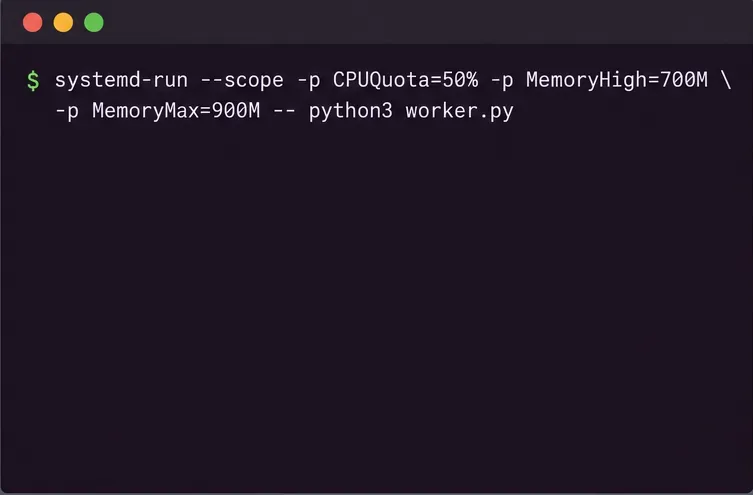
systemd-run --user --scope --unit=worker-capped \
  -p CPUQuota=50% \
  -p MemoryHigh=700M \
  -p MemoryMax=900M \
  -- python3 /opt/worker.py
Replace the Python command with the program you actually need to run. This example gives the cgroup a maximum CPU bandwidth equivalent to half of one CPU, begins memory pressure handling around 700 MiB, and sets a 900 MiB hard memory maximum. The memory values use systemd's base-1024 units. A quota of 100% represents up to one CPU's worth of time; 200% can use up to two CPUs' worth when available. It does not mean a percentage of all cores in the computer.
The command runs in the foreground because this is a scope. When it exits, the transient unit disappears. Remove --user only if you intend to use the system manager and have the required privileges; for a system-wide transient unit, run the command with sudo and use the appropriate command options. Resource settings may be rejected if the manager or cgroup controller does not support them.
For a service such as worker.service, create a drop-in instead of editing the vendor unit file. Run sudo systemctl edit worker.service and add:
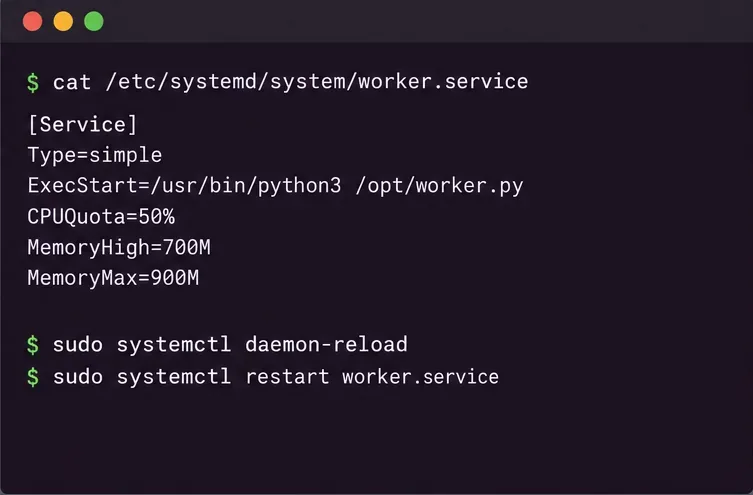
[Service]
CPUQuota=50%
MemoryHigh=700M
MemoryMax=900M
Save the drop-in, then reload systemd's unit definitions and restart the service so the process starts under the revised policy:
sudo systemctl daemon-reload
sudo systemctl restart worker.service
Use a cautious memory ceiling. If the service cannot reclaim enough memory below MemoryMax, the kernel may invoke the out-of-memory killer inside that cgroup. This can terminate one or more processes in the service group and interrupt work. A safer pattern is often to set MemoryHigh at a level where reclaim and throttling are acceptable, then set MemoryMax higher as a final boundary. Test with realistic peak loads before deploying tight caps.
For the transient scope, check its status using the unit name you supplied:
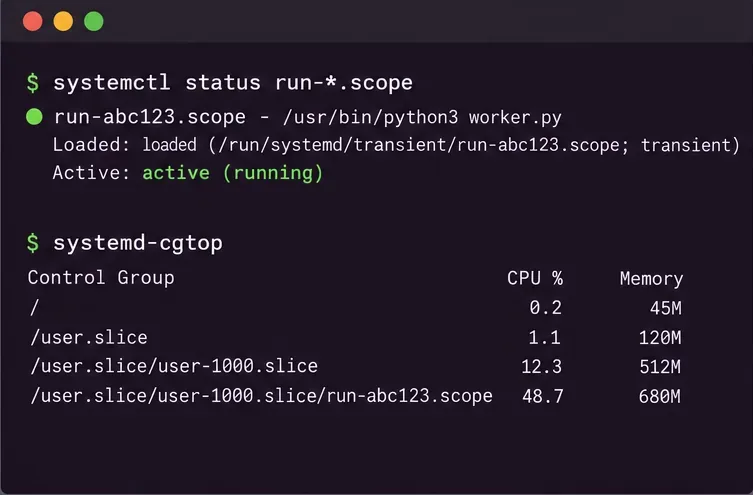
systemctl --user status worker-capped.scope
systemd-cgtop
For a system service, omit --user in the status command. The status view confirms the unit exists and is active; systemd-cgtop shows live resource use by control group. To inspect configured properties, query the unit directly, for example:
systemctl --user show worker-capped.scope \
  -p CPUQuotaPerSecUSec -p MemoryHigh -p MemoryMax
Memory reported for a cgroup is not necessarily the same as one process's resident-set figure: it accounts for memory charged to the group and can include the workload's descendants. Treat monitoring as evidence of how this workload behaves over time, not as a single number to optimize blindly.
systemd-run starts a new command inside a new unit; it does not take an arbitrary existing PID and move it into that scope. If the process belongs to a systemd service, apply the settings to that service with a drop-in or, for a temporary change, use sudo systemctl set-property --runtime worker.service CPUQuota=50% MemoryHigh=700M MemoryMax=900M. The --runtime form is temporary and does not replace a persistent service configuration.
If the process is a regular program in your desktop session, the safe simple method is usually to stop it and relaunch it under systemd-run. Applying a property to a broader slice, such as your whole user slice, can affect many unrelated applications. Moving a process by writing its PID into a cgroup file requires control of the relevant delegated hierarchy and must respect the cgroup v2 process-placement rules; do not write into systemd-managed directories by guesswork.
CPUQuota=. Lower values reduce peak CPU consumption but can slow completion and increase queue time.CPUWeight= rather than a quota. Weight shares CPU relatively under contention; it does not reserve a fixed percentage or prevent use of idle CPU.MemoryHigh= as the main pressure threshold and observe latency and reclaim behavior.MemoryMax= with enough headroom for normal peaks. Be prepared for OOM behavior when the boundary cannot be respected.There is no single ideal limit for every workload. A desktop batch job may tolerate a low quota and a moderate memory cap; a latency-sensitive service may need more CPU headroom and a higher MemoryHigh to avoid reclaim-related pauses. Start conservatively, monitor the unit during a representative peak, and adjust one setting at a time.
Use Dislocker to unlock a BitLocker volume in Linux, mount its virtual NTFS file read-only, and safely unmount it without exposing your password in a command.
Learn how to reduce RAM usage on Linux by finding memory-hungry apps, trimming browser and startup load, and testing a lighter desktop safely.
Compare four WhatsApp alternatives for Linux by privacy defaults, desktop support, setup requirements, and the people each app suits.
Troubleshoot a VirtualBox VM that will not start on Linux by checking vboxdrv, kernel headers, Secure Boot, Extension Pack versions, and VM logs.
Transfer your Ubuntu user data with a tar archive and external drive, then restore personal files and selected settings without overwriting the new setup.
Install gThumb on Linux, browse and make simple photo edits, then set it as the default app for the image types you choose in GNOME.
Create an organized playlist in Rhythmbox or save a reusable XSPF playlist in VLC. Learn how to add tracks, name a list, and reopen it on Linux.
Install Dino on Linux with Flatpak or your distribution’s package manager. Get current Ubuntu, Debian, Fedora, and Arch commands, plus first-launch tips.
Install Arch Linux’s linux-lts kernel, add it to GRUB or systemd-boot, select it at startup, and verify it while keeping a fallback kernel.
Download the right Pi 4 image, write it to a microSD card, and complete LibreELEC’s first-run setup with Raspberry Pi Imager.








