How to Share Files Over Bluetooth on Linux with Blueman

Send and receive files over Bluetooth on Linux with Blueman. Install OBEX support, pair devices, choose a file, accept transfers, and fix common issues.
Tbinge is a Linux desktop catalog for keeping track of movies and TV shows you plan to watch or have already watched. It searches TMDb for title records and saves entries to a local library; it is not a video player, streaming service, or tool that scans folders of movie files. You can add TV shows and movies, then mark titles as watched.
There is an important maintenance caveat before installing it: the Snap Store lists the stable Tbinge package as last updated on March 8, 2019, and warns that it may be unmaintained, with possible stability or security issues. The GitHub repository currently shows no published releases. Review those pages before deciding whether an old desktop app is suitable for your system.
If Snap is available on your distribution, first inspect the package details:
snap info tbingeSnapcraft documents this command as a way to inspect a snap’s publisher, available commands, and release channels. Compare the terminal output with the Tbinge page in the Snap Store; the store page is where the current publisher and last-update warning appear. The word “stable” is the channel name, so it should not be taken as a guarantee that the application is actively maintained.
If you choose to proceed, make sure snapd is installed and enabled for your Linux distribution. The setup differs across distributions, so use the official snapd installation guide for the matching system rather than copying a command written for another distro. Then install Tbinge:
sudo snap install tbinge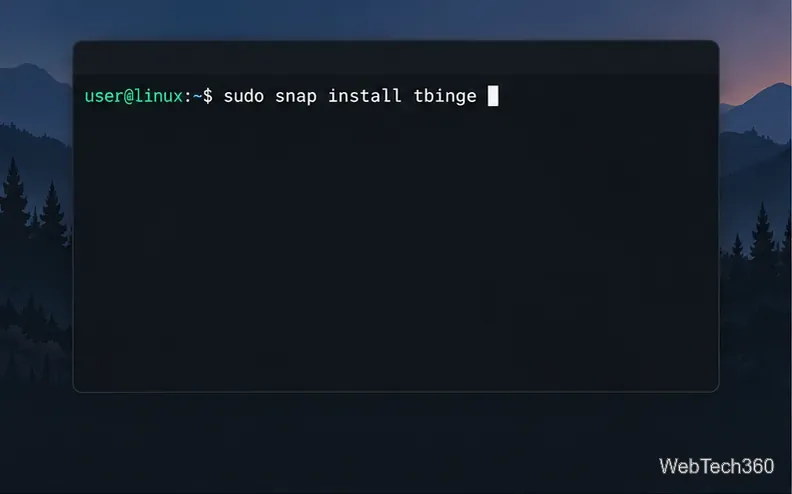
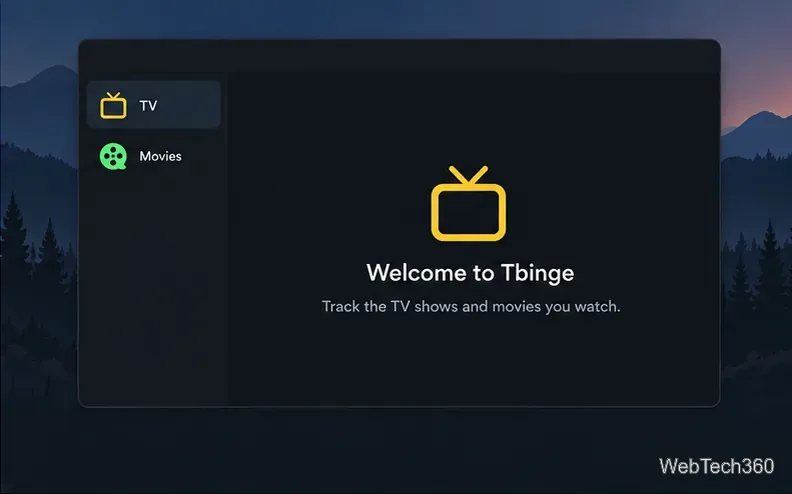
Open Tbinge from your desktop application menu. If it does not appear, check whether the installation completed and use snap info tbinge to see which command the package exposes. The project’s source repository includes developer build instructions, but its age means those steps are not a maintained, beginner-friendly alternative. Avoid old instructions that add a legacy Node.js setup script or globally install Yarn without checking the current project and dependencies first.
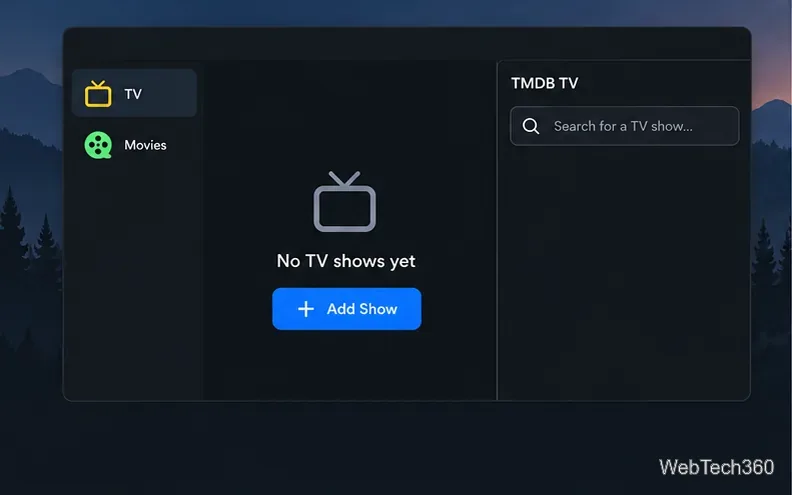
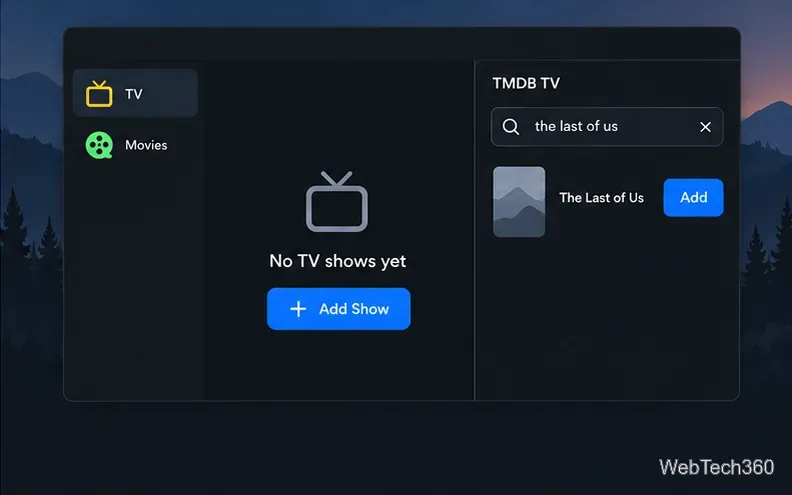
To record a show as watched, select its entry in your library and click Watched. The documented workflow is title-level tracking; do not assume it records episode-by-episode progress. If you use Tbinge as a watchlist, leave that control unselected for shows you still plan to watch.
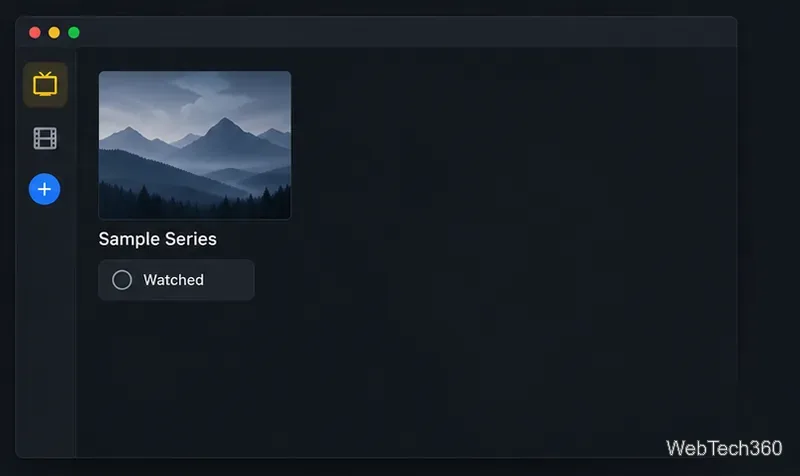
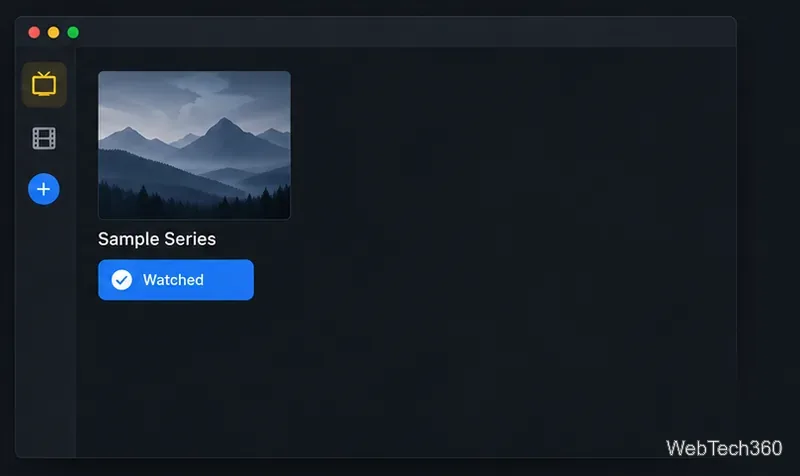
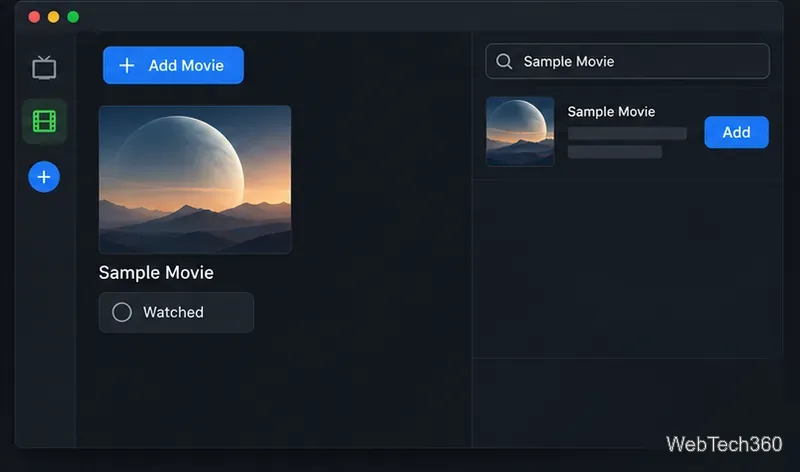
The movie workflow follows the same pattern. Select the green film icon to open the Movies area, then use the blue plus button. Search for the movie in the side panel and add the correct catalog result to your library. Check the title carefully when a remake or a film with a common name produces multiple matches.
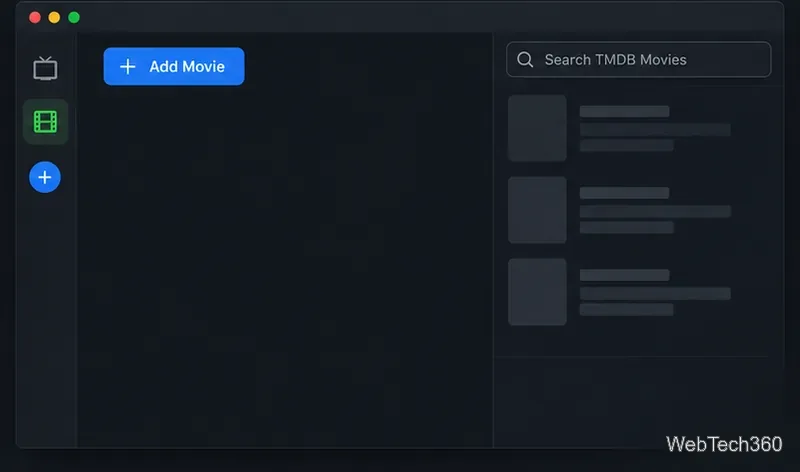
When you have watched a movie, open its entry and click Watched. The project README describes Tbinge as a local tracking library with options to search TMDb, add or remove titles, and use the app offline without TMDb searching. In practice, plan to be online when you need to look up new titles; an existing library is meant to be tracked locally.
Tbinge is useful if you want a simple desktop list of films and shows, plus a watched status. It does not organize the video files stored on your disks, fetch or play the files, or provide a streaming catalog. Keep your media folders and backups managed separately.
If search does not return a title, confirm that the computer is online and try the title’s full name. If the Snap is unavailable or installation fails, recheck the Snap Store status and snapd setup instead of following an old build tutorial blindly. Because the package has not had a listed stable update since 2019, stop if the application behaves inconsistently or if its dependency and security status do not meet your needs.
For current project details, compare the Tbinge project README, the Tbinge page in the Snap Store, and the Snapcraft documentation for snap info. They provide the project’s stated feature set, package age, and Snap inspection guidance.
Send and receive files over Bluetooth on Linux with Blueman. Install OBEX support, pair devices, choose a file, accept transfers, and fix common issues.
Connect GNOME Files to SSH/SFTP, FTP, SMB, WebDAV, or NFS with the correct server URI, sign-in details, and fixes for common connection errors.
Open SFTP, SSH, SMB, FTP, NFS, and WebDAV locations in Dolphin, sign in safely, transfer files, and save network folders for later.
Connect a DualShock 4 to Linux by USB or Bluetooth, then check controller detection and configure Steam Input only when a game needs it.
Use DNF5 parallel downloads to reduce RPM install waits in GNOME Software, then tell when mirror or Flatpak delays need a different fix.
Access iCloud on Linux in a current browser. Learn how to sign in, use iCloud Drive and other web apps, and understand the limits of browser access.
Save GRUB settings, boot files, and UEFI entry details to removable storage, then use rescue media to repair the correct boot path safely.
Install Bitwarden on Linux with the right DEB, RPM, Snap, Flatpak, or AppImage package, then sign in and set a secure vault timeout.
Pick a screensaver theme in Xfce, preview it, choose when it starts, and configure automatic locking in the separate Lock Screen tab.
Stop GNOME Shell from blanking or locking your display automatically. Change Power and Screen Lock settings, or use Caffeine for a temporary keep-awake toggle.








