Home
» LINUX
»
How to Manage Linux Users and Groups from the Terminal
How to Manage Linux Users and Groups from the Terminal
Use Linux’s account tools to create users, organize permissions with groups, and remove access when it is no longer needed. The commands below work on many distributions that use the standard Shadow utilities. Run them with sudo; if your system does not use sudo, become root with su - and omit sudo from each command. Examples use maya as a username and developers as a group.
Check a user’s groups first
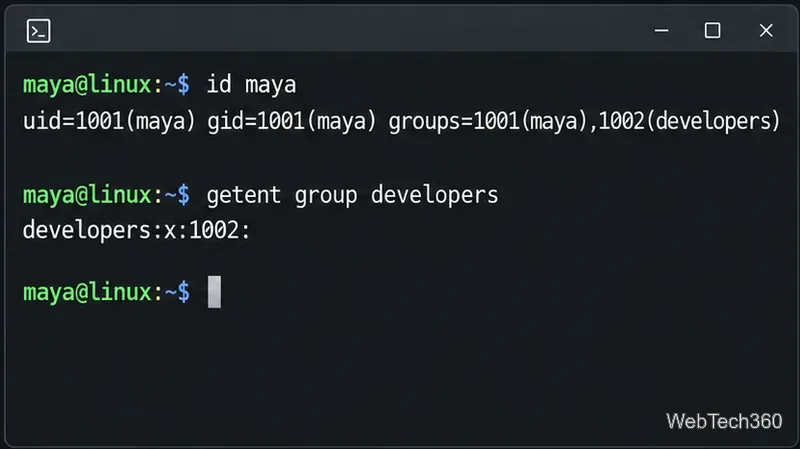
A user has a primary group and can also belong to supplementary groups. Groups let you grant shared access to files or services without changing each file’s owner. Before editing an account, inspect its current IDs and memberships:
id maya
groups maya
getent group developers
id shows user and group IDs; groups lists membership names. getent queries the configured group database, including network directories when configured, so it is more reliable than searching only /etc/group. These local commands do not administer directory-managed accounts; update those through your identity service.
Check a user’s current memberships and confirm whether a group exists.
Create or remove a group
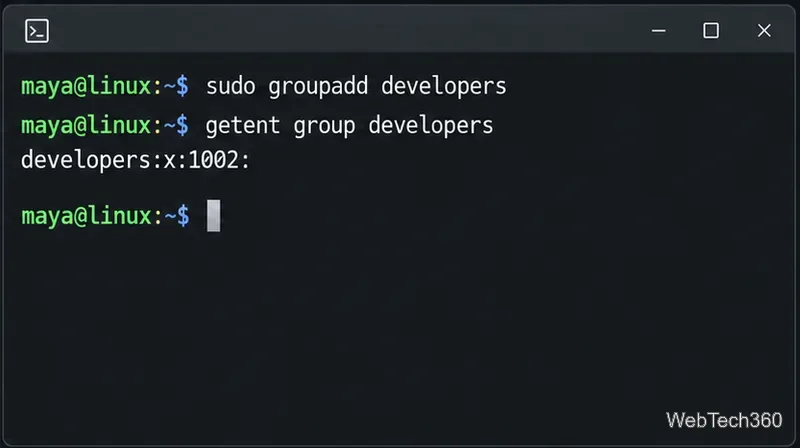
Create one group by passing one group name to groupadd:
sudo groupadd developers
getent group developers
Run groupadd once per group. A comma-separated list is not a way to create several groups; it is accepted by some other commands, such as the -G option for assigning a user to multiple groups. Group names should follow your distribution’s naming rules.
Create a group, then look it up by name.
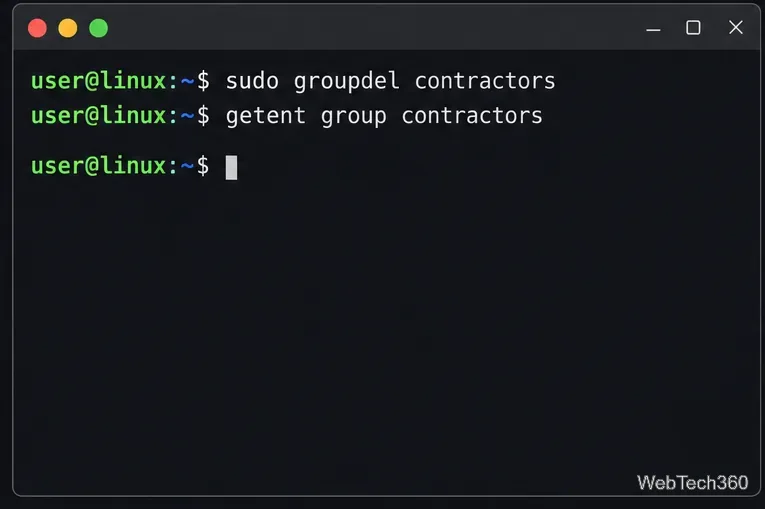
Remove an unused group with sudo groupdel oldgroup. First confirm that no user has it as a primary group; move those users to an appropriate group before retrying. Check for files owned by the group, too. Deleting it does not change file ownership, and its files may show only a numeric group ID. Avoid force options that bypass these checks.
Remove a group only after checking primary-group and file ownership dependencies.
Add or remove a user from a group
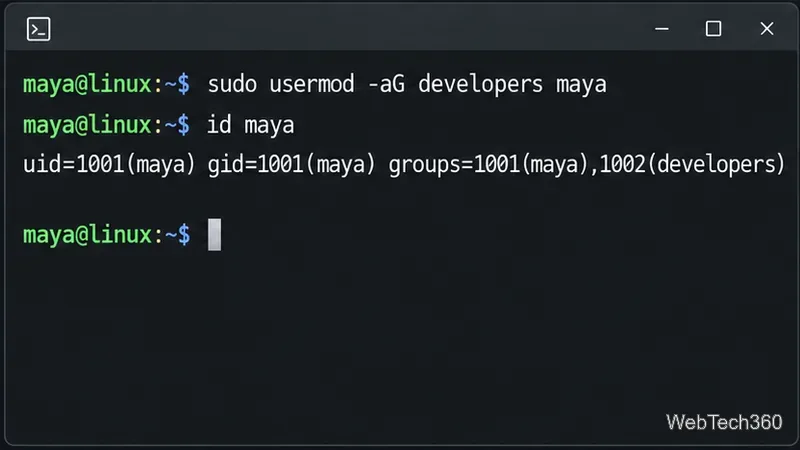
To add an existing user to a supplementary group while keeping their other memberships, use usermod with both -a and -G:
sudo usermod -aG developers maya
id maya
The -a means “append.” Without it, -G replaces the supplementary-group list and can remove existing access. Verify with id maya. The user must start a new login session to pick up the change; running processes keep their current group credentials.
Append the new group, then verify the full membership list.
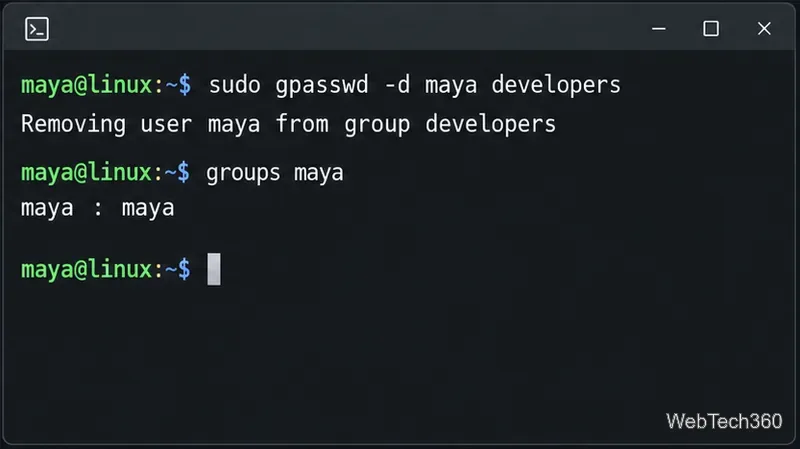
To remove one user from one supplementary group without replacing the rest of their groups, use:
sudo gpasswd -d maya developers
id maya
For an access-sensitive removal, end the user’s active sessions or restart affected services; existing processes may retain the old group list.
Remove only the selected membership and confirm what remains.
Create a user account
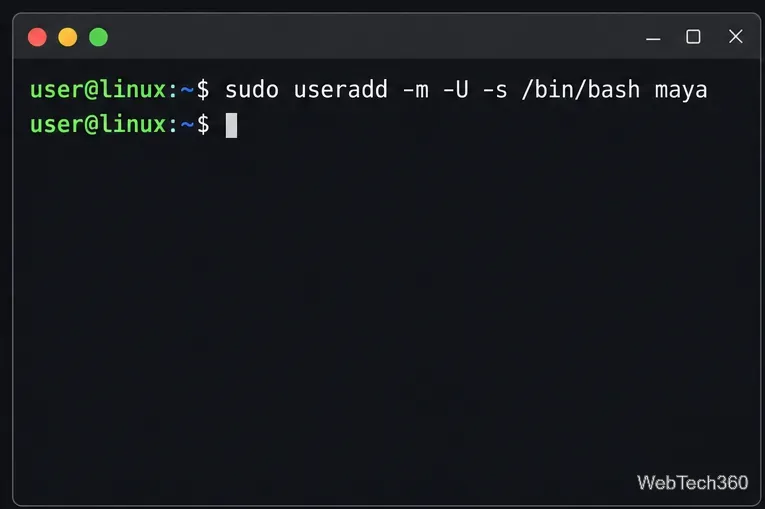
On systems with Shadow’s useradd, the following creates a home directory and a same-named primary group:
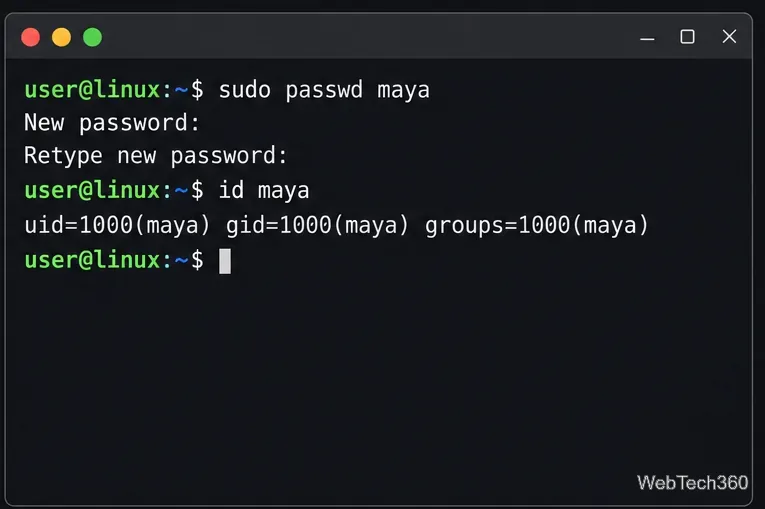
-m creates the home directory, and -U requests a same-named primary group. You can add -s /path/to/shell if you need a specific installed shell. passwd prompts for a password without displaying the characters. Some distributions provide an interactive adduser command instead; check local documentation if an option is unavailable.
Create a regular account with an explicit home directory and primary group.Set a password interactively and check the account’s IDs.
Delete a user safely
Before removing an account, confirm its owner, save files or mail that must be retained, stop services or scheduled work running as that user, and have them sign out. Never delete the account you are currently using.
To remove the account entry but keep its home directory, run:
sudo userdel maya
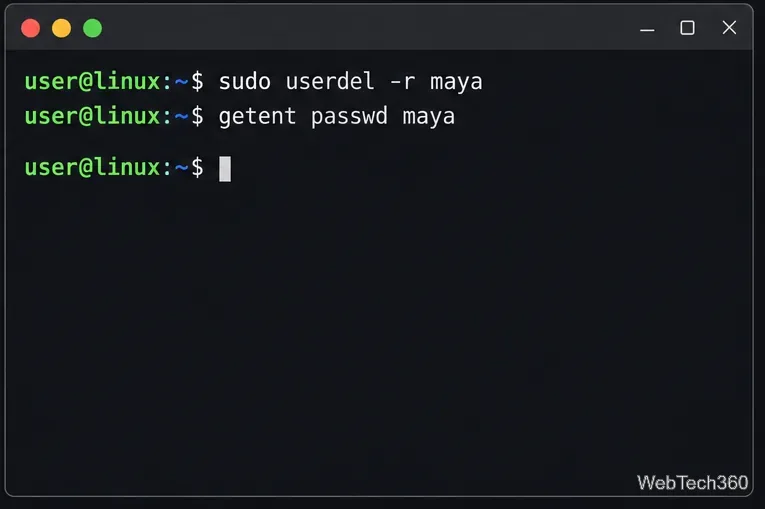
To also remove the home directory and the configured mail spool, use -r:
sudo userdel -r maya
getent passwd maya
With -r, the home directory and mail spool are deleted; files elsewhere are not automatically removed. Back up needed data first, then search for leftover files owned by the account. Avoid -f, which skips safety checks and can leave inconsistencies.
The -r option removes the home directory, so confirm backups before using it.
Quick troubleshooting
“Permission denied”: use sudo if authorized, or switch to root.
Name already exists: check with getent group name or getent passwd name.
Access has not changed: start a new login session and confirm whether the app uses centralized identity.