Home
» LINUX
»
How to Merge PDFs with PDFsam on Linux
How to Merge PDFs with PDFsam on Linux
PDFsam Basic is a practical way to merge PDFs on Linux without sending your documents to an online service. The free, open-source desktop app processes files locally and includes a dedicated Merge tool for combining whole PDFs or selected page ranges. The basic workflow is simple: install PDFsam, open Merge, add and order your files, choose an output file, and click Run.
Install PDFsam Basic on Linux
Start with the official PDFsam download page. At the time of this update, PDFsam Basic 6.0.6 is the current stable release and supports 64-bit Linux. The project's official FAQ also confirms that PDFsam Basic has bundled its own Java runtime since version 4, so you do not need to install Java separately for current releases.
On Debian- and Ubuntu-based systems, use the current official .deb package when it is offered. You can install a downloaded package with:
Replace VERSION with the version in the file you actually downloaded. For other distributions, the official release provides a Linux x64 archive. The current PDFsam GitHub releases page lists a pdfsam-basic-6.0.6-linux-x64.tar.gz build. Extract the archive, open the extracted folder, and launch the included bin/pdfsam.sh script. Distribution-maintained packages may also exist, but their versions can lag behind the upstream release.
How to merge PDFs with PDFsam on Linux
1. Open PDFsam Basic and choose Merge
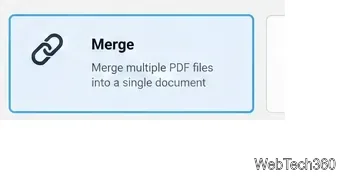
Launch PDFsam Basic from your desktop application menu. On the home screen, select Merge. This opens the workspace used to combine multiple PDF files into one document.
Select the Merge tool from the PDFsam Basic home screen.
2. Add your PDF files and put them in the right order
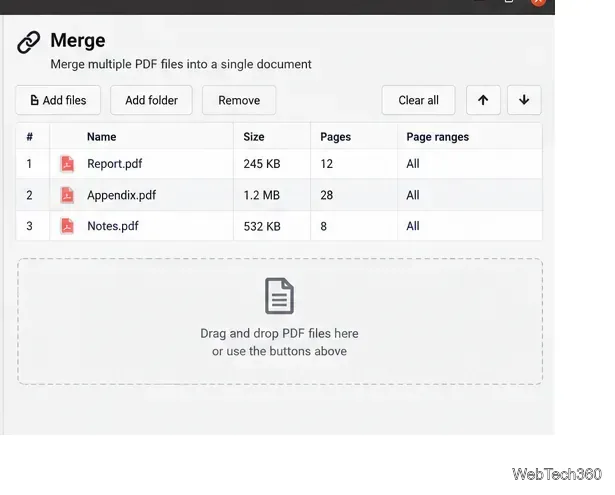
Drag PDF files into the Merge workspace or use Add files. PDFsam combines the documents in the order shown in the list, so arrange them before you run the job. Use the move-up and move-down controls when a file needs to come earlier or later in the final PDF.
Add the PDFs you want to combine, then arrange them in final reading order.
3. Choose page ranges and the output file
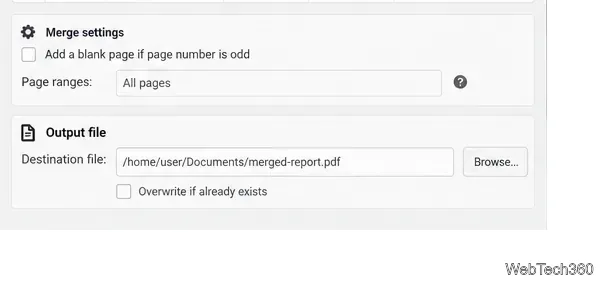
If you want every page from every input document, leave the page-range setting at its default. To merge only part of a file, enter page selections for that file. PDFsam's official Basic documentation supports comma-separated ranges such as 1-10, 14, 25-.
Next, choose the destination and filename for the new PDF. A clear filename such as merged-report.pdf makes the result easier to find. Confirm that the destination folder is writable and that you are not unintentionally replacing an existing file.
Set page ranges when needed and choose where PDFsam should save the combined PDF.
4. Run the merge and open the result
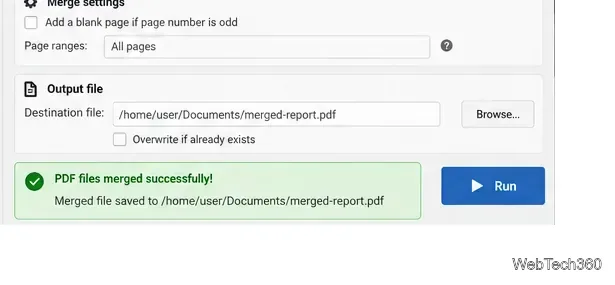
Review the file order and output path, then click Run. PDFsam creates the combined PDF at the destination you selected. The official PDF merge guide describes the same core process: add files, arrange them, select the resulting filename, and run the merge.
Click Run after checking the file order and destination for the merged PDF.
Useful merge options
PDFsam Basic can do more than simply append one file to another. For each input PDF, you can restrict the pages that are included. The Merge tool can also control how bookmarks and AcroForms are handled, while current PDFsam documentation lists options such as creating a table of contents, normalizing page sizes, adding a footer, and flattening forms. Use these only when they solve a specific problem; a basic merge usually needs no extra settings.
If the final PDF is in the wrong order, return to the Merge workspace and rearrange the input files rather than editing the finished document page by page. If only a few pages are needed from a large PDF, define a page range before merging so the unwanted pages never enter the output file.
Why PDFsam Basic is a good fit for Linux
PDFsam Basic is free and open source, runs on Linux, and performs its work locally. According to the official product page, files are not uploaded to a server and the app does not add watermarks or impose a PDF file-size limit. That makes it useful for combining personal, business, or otherwise sensitive documents when you prefer to keep the processing on your own computer.
The most important change from older PDFsam Linux guides is that current releases are self-contained: you should not install a separate Java runtime just to run PDFsam Basic, and you should avoid hard-coding old 4.x download links. Use the current official download or release page, then follow the four merge steps above.