Home
» LINUX
»
How to Mount a Remote SSHFS Directory Automatically at Boot in Debian
How to Mount a Remote SSHFS Directory Automatically at Boot in Debian
You configure an SSHFS mount, confirm that it works, reboot Debian, and suddenly the remote directory is empty again. The manual command worked because you were logged in, the network was already online, and SSH could ask questions if it needed a password or host-key confirmation. Boot-time mounts do not have those conveniences.
The reliable fix is to make SSH authentication noninteractive, create a persistent /etc/fstab entry, and tell systemd that the filesystem depends on the network. This guide starts with the simplest working setup, then adds options for slow networks and dropped SSH sessions. The examples use user@server.example.com:/srv/data as the remote directory and /mnt/remote as the local mount point.
Debian's package page currently lists SSHFS 3.7.3 for Debian 12 (Bookworm), and SSHFS uses the SFTP subsystem provided by SSH. See the Debian SSHFS package page and the upstream SSHFS manual. Package revisions differ across Debian releases, but the boot-mount approach below is based on standard fstab and systemd behavior.
Why does an SSHFS mount work manually but fail at boot?
Three causes account for most failures. First, SSH may still require a password, key passphrase, or first-time host-key confirmation. A boot job has no terminal where it can answer those prompts. Second, the mount can start before networking or DNS is fully usable. Third, a long-lived SSH connection can later become stale after a network interruption.
Debian's systemd documentation explains that the _netdev option forces a mount to be treated as a network mount. Network mounts are ordered after network-online.target. The same documentation notes that /etc/fstab entries are converted into native systemd mount units at boot. See systemd.mount(5) in Debian.
1. Install SSHFS and create the mount point
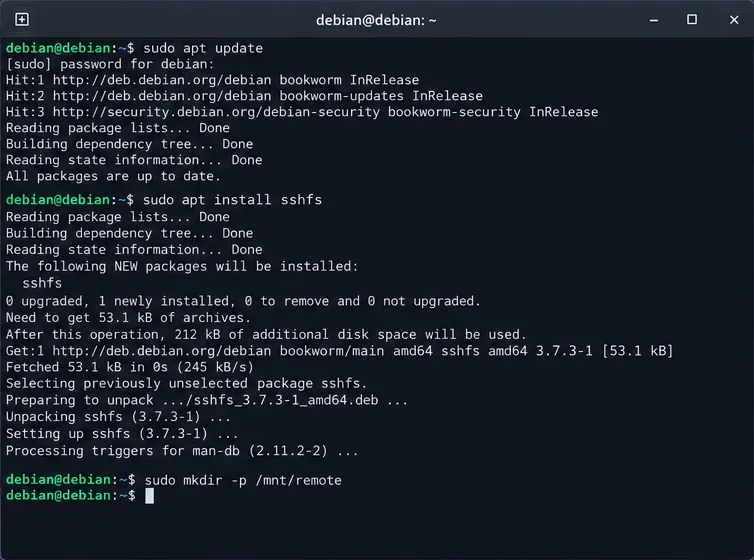
Install the packaged SSHFS client and create the local directory that will expose the remote files:
SSHFS is built on FUSE, the Linux Filesystem in Userspace interface. On Debian 12, the sshfs package depends on FUSE 3 and the OpenSSH client.
Install the SSHFS package and create the local directory that will become the mount point.
2. Set up SSH authentication that can run without a prompt
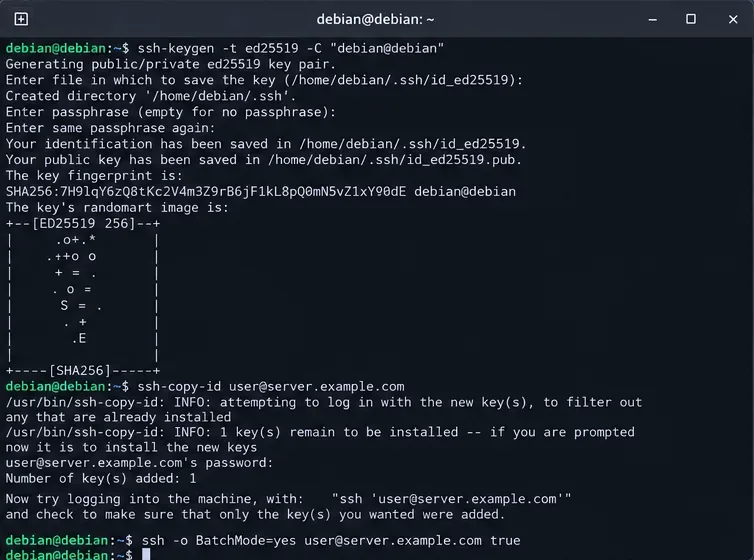
For a system-wide mount started by systemd, a dedicated root-owned key is straightforward because the mount helper runs as root. Generate one without a passphrase only if the machine itself is trusted and the key is restricted to this purpose:
If that command exits successfully with no prompt, authentication is ready for boot. If it asks to confirm the server fingerprint, connect once interactively as root, verify the fingerprint against a trusted source, and accept it. Do not work around host-key errors by disabling host verification.
OpenSSH documents BatchMode=yes specifically for scripts and batch jobs because it disables password and confirmation prompts. Host keys are checked against the user's known_hosts file. See the Debian ssh(1) manual and ssh_config(5).
Prepare key-based SSH access and verify that the connection can succeed without interactive input.
3. Confirm the SSHFS mount manually before editing fstab
Do not debug boot ordering until the basic SSHFS command works. Mount the directory once using the same key:
Check that you can list the remote files, then unmount it before testing fstab:
ls -la /mnt/remote
sudo fusermount3 -u /mnt/remote
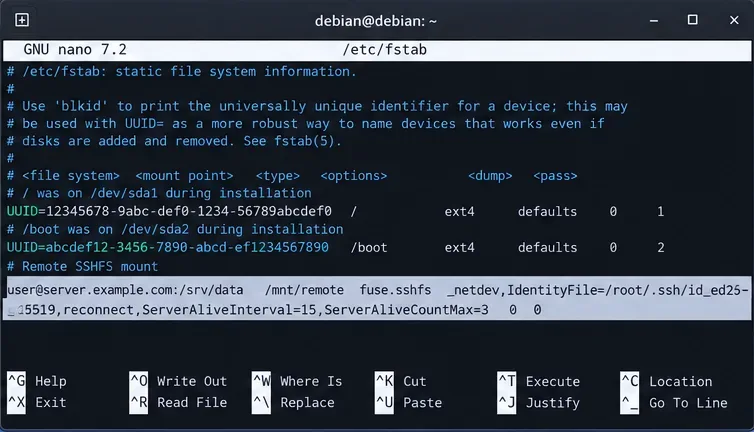
The upstream SSHFS manual recommends reconnect for re-establishing interrupted connections. It also explains that ServerAliveInterval can prevent an apparently frozen mount when an idle SSH connection is silently dropped. With an interval of 15 seconds and the OpenSSH default count of three unanswered probes, a dead connection is detected in roughly 45 seconds; here the count is written explicitly so the behavior is obvious.
The fuse.sshfs subtype is understood by Debian's mount tooling. The upstream SSHFS manual also documents sshfs as an fstab filesystem type and notes fuse.sshfs for compatibility. Debian's fstab(5) manual describes the six fstab fields and recommends filesystem subtype notation such as fuse.sshfs.
Option
Why it is here
_netdev
Makes systemd treat the mount as network-dependent.
IdentityFile=...
Selects the private key explicitly instead of depending on an interactive agent.
BatchMode=yes
Fails instead of waiting for a password or confirmation prompt.
reconnect
Allows SSHFS to re-establish a broken connection.
ServerAliveInterval=15
Sends SSH-level keepalive probes during idle periods.
ServerAliveCountMax=3
Limits unanswered keepalive probes before SSH disconnects.
default_permissions
Enables local permission checking in addition to remote authorization.
Add the SSHFS mount to /etc/fstab with explicit network, identity, and reconnect options.
5. Test the fstab entry before rebooting
A typo in /etc/fstab is much easier to fix before a reboot. Ask systemd to reload generated mount units, then test the entry:
sudo systemctl daemon-reload
sudo mount -a
findmnt -T /mnt/remote
ls -la /mnt/remote
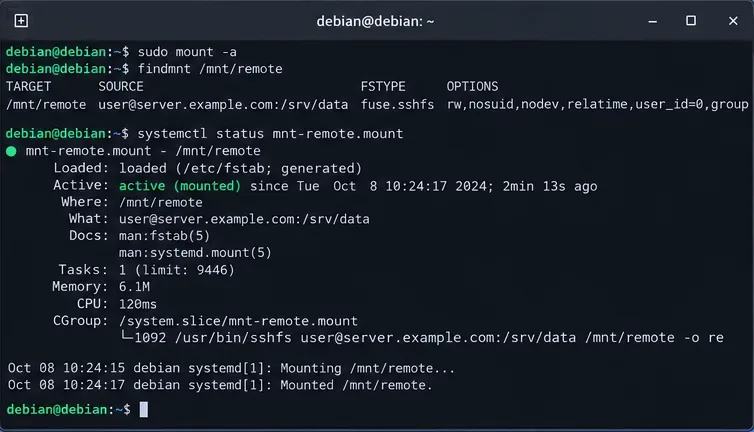
If mount -a returns no error and findmnt reports fuse.sshfs, the fstab syntax is accepted and the filesystem is mounted. Debian's mount(8) manual confirms that mount -a mounts fstab filesystems except entries marked noauto.
Verify the fstab entry with mount -a, findmnt, and the generated systemd mount unit before rebooting.
What if the network is not ready soon enough?
_netdev gives systemd the correct ordering semantics, but network-online.target is only as accurate as the network-management service that provides it. Wi-Fi, VPNs, DHCP delays, DNS delays, and unusual network stacks can still make an immediate boot mount unreliable.
In that case, use systemd automounting so the boot process creates an automount point and establishes the SSHFS connection only when something first accesses /mnt/remote. Add x-systemd.automount to the options:
This is often the better choice for laptops, Wi-Fi systems, or servers where the remote host may occasionally be unavailable. It changes the semantics slightly: the automount is prepared during boot, but the actual SSH connection is made on first access. If an application absolutely requires the remote directory to be connected before it starts, keep the normal network mount and make that application's systemd unit depend on the mount unit instead.
Do you need allow_other?
By default, a FUSE mount is accessible only under the permissions associated with the mounting context. The SSHFS manual documents allow_other for allowing access by other local users. Do not add it unless a service or another account genuinely needs the mounted files.
If you do use allow_other, review /etc/fuse.conf and the FUSE security implications first. Pairing it with default_permissions is generally appropriate so local Unix permission checks are not skipped. The remote SSH account still ultimately determines what operations the server allows.
Troubleshooting boot-time SSHFS failures
The mount waits for a password
Repeat the exact noninteractive test with sudo ssh ... -o BatchMode=yes. If it fails, fix public-key authentication before touching systemd. A key protected by a passphrase will also need an agent or another boot-time secret mechanism; a plain fstab mount cannot type the passphrase for you.
Host key verification failed
Do not set StrictHostKeyChecking=no as a blanket fix. Verify whether the server was rebuilt or its host key legitimately changed. SSH host-key checking is a security control against impersonation and man-in-the-middle attacks.
The mount works after login but not during boot
Check the generated unit name and its journal. For /mnt/remote, systemd normally escapes the path to mnt-remote.mount:
systemctl status mnt-remote.mount
journalctl -b -u mnt-remote.mount
If you added x-systemd.automount, also inspect:
systemctl status mnt-remote.automount
Access hangs after the server or network disappears
Keep reconnect and SSH keepalives enabled. The upstream SSHFS manual warns that filesystem operations can block indefinitely when a broken connection is not detected. Keepalives make failure detection bounded, but any I/O that was in progress when the connection died can still fail and may need to be retried by the application.
How to verify the mount really survives a reboot
Once mount -a succeeds, reboot the machine:
sudo reboot
After reconnecting, run these checks:
findmnt -T /mnt/remote
systemctl is-active mnt-remote.mount
ls -la /mnt/remote
If you chose x-systemd.automount, the mount unit may be inactive until the first access. Check the automount first, then trigger it with ls:
systemctl is-active mnt-remote.automount
ls -la /mnt/remote
findmnt -T /mnt/remote
A successful setup has four observable properties: SSH authentication completes without interaction, the fstab entry passes mount -a, systemd recognizes the mount as network-dependent, and the remote files are reachable after a clean reboot. If any one of those checks fails, troubleshoot that layer directly rather than adding more mount options at random.