Home
» LINUX
»
How to Mount a USB Drive in Ubuntu Linux (GUI and Terminal)
How to Mount a USB Drive in Ubuntu Linux (GUI and Terminal)
On Ubuntu Desktop, a USB flash drive, card reader, or external USB disk will usually mount when you select it in Files. If it does not, you can mount the partition with the Disks app or from the terminal. The most important command-line rule is to identify the correct partition first—for example, /dev/sdb1—instead of blindly mounting a whole disk such as /dev/sdb.
Mount a USB drive with Ubuntu Files
This is the easiest method for a normal desktop session. GNOME's Files documentation confirms that the file manager can browse storage devices such as external disks.
Connect the USB storage device to the computer.
Open Files from the dock or the app overview.
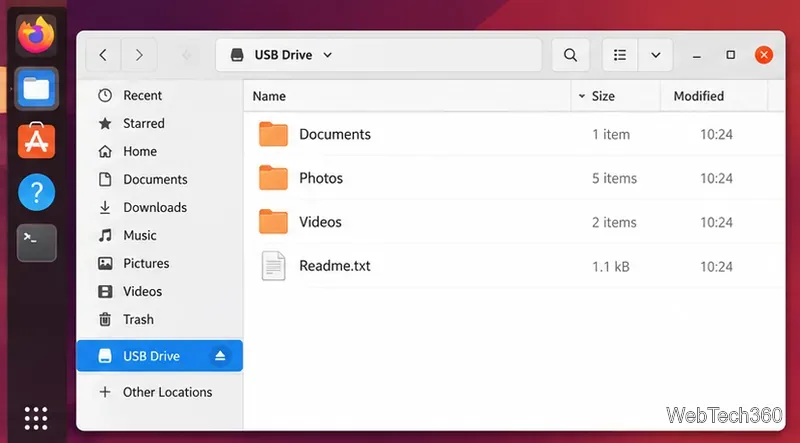
Look for the drive name in the left sidebar and select it. If the drive was not already mounted, selecting it normally mounts the volume and opens its contents.
If your version of Files shows Other Locations and the drive is not in the main sidebar, check there for attached storage.
A mounted USB volume appears in the Files sidebar and can be opened like any other folder.
When you are finished, use the eject/unmount icon next to the drive before unplugging it. GNOME recommends safely removing external storage so pending writes can finish; see its safe-removal guidance.
Mount a USB drive with GNOME Disks
Disks is useful when Files does not mount the device or when you want to see the drive, its partitions, and filesystem details before mounting anything. GNOME describes Disks as a tool for inspecting and configuring disks and block devices. On Ubuntu, the package is gnome-disk-utility.
If Disks is missing on your Ubuntu flavor, install it with:
The package is available in current Ubuntu repositories; you can verify it on the official Ubuntu package search.
Open Disks.
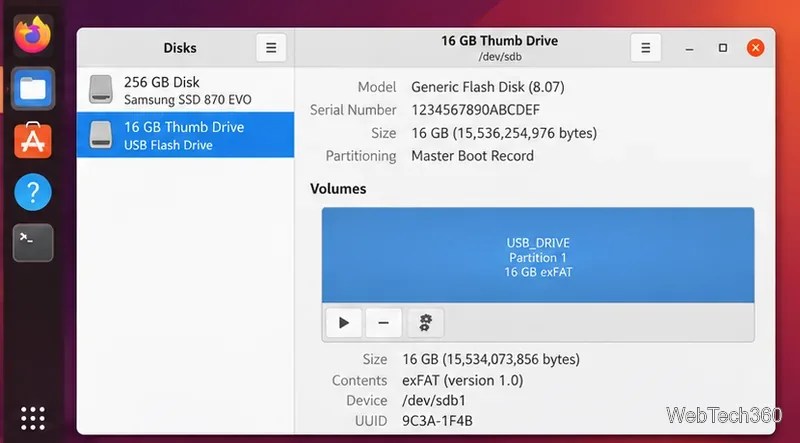
Select the USB device in the left column. Double-check its size and model so you do not operate on the wrong disk.
Select the partition you want to use.
Click the triangular Mount selected partition button if the partition is not mounted.
Disks lets you verify the USB device and partition before mounting it.
Mount a USB drive from the terminal
1. Identify the USB partition
Open Terminal with Ctrl + Alt + T, connect the USB drive, then run:
lsblk -f
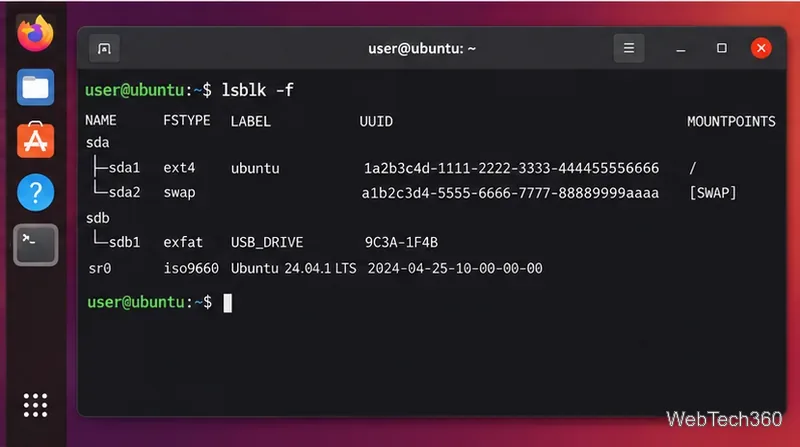
lsblk -f shows block devices together with filesystem information. The official Ubuntu lsblk manual also notes that device data may change as hardware is added or removed. Match the USB device by size, label, and filesystem, and identify its partition, such as /dev/sdb1. Do not assume your USB is always sdb1.
Use lsblk -f to identify the removable drive's partition before running mount.
2. Create a mount point and mount the partition
Create a directory to use as the mount point:
sudo mkdir -p /mnt/usb
Then mount the partition you identified:
sudo mount /dev/sdb1 /mnt/usb
Replace /dev/sdb1 with the actual partition on your system. The current Ubuntu mount manual documents the standard mount device directory form and warns that kernel device names can change.
You can confirm the result with:
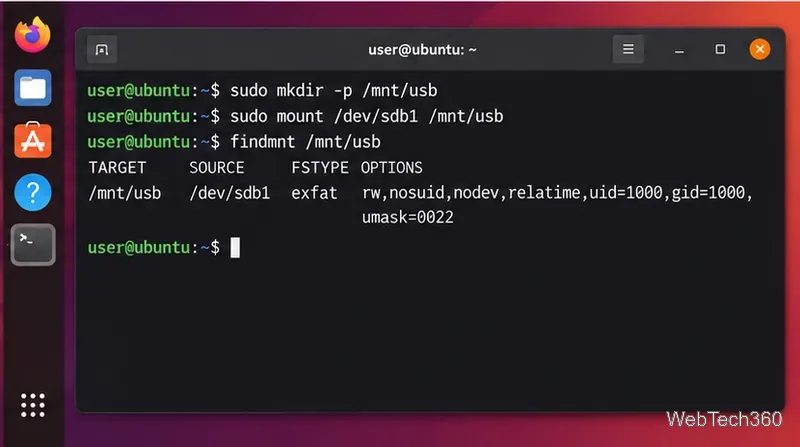
findmnt /mnt/usb
A manual mount attaches the selected USB partition to the directory you choose.
Your files are now available under /mnt/usb. Before removing the drive, leave that directory and unmount it:
cd ~
sudo umount /mnt/usb
If the USB drive will not mount
Nothing appears in Files: run lsblk -f. If the USB device appears there, try Disks or the terminal method.
The disk appears but no filesystem is listed: the partition may be unformatted or may use a filesystem Ubuntu does not currently recognize.
Mount reports that the device is busy: it may already be mounted. Check the MOUNTPOINTS column in lsblk -f or run findmnt.
Unmount reports that the target is busy: close Files windows, terminals, and applications using files on the USB drive, then try umount again.
For most users, Files is the best first choice. Disks adds a clearer view of the hardware and partitions, while the terminal gives you precise control over where the USB filesystem is attached.