How to Access a Windows BitLocker Partition in Linux

Use Dislocker to unlock a BitLocker volume in Linux, mount its virtual NTFS file read-only, and safely unmount it without exposing your password in a command.
If you want Debian Desktop to behave like an immutable operating system, the key point is that installing OSTree on your current Debian system does not convert it. OSTree deploys complete, bootable filesystem trees and needs operating-system integration for the bootloader, initramfs, /etc, and writable state. Debian’s package page explicitly says that installing the ostree tools does not affect the host system’s boot process. For most desktop users, the safe route is a backup followed by a fresh installation of a distribution that already uses OSTree. This guide explains that migration and what a custom Debian image requires.
At the time of writing, the OSTree project lists Endless OS as a distribution that uses libostree for its host system. The same upstream documentation lists a Debian-based image builder sample as not production-ready. For sources and version-specific caveats, see the Debian package details, the OSTree project’s distribution and tooling overview, and its guide to adapting an existing distribution.
There is no general, supported one-command conversion for an arbitrary Debian Desktop installation. OSTree is an operating-system deployment and update layer, not a switch that makes an existing APT-managed root read-only. An OSTree deployment must be built as a coherent filesystem tree and booted through suitable initramfs and bootloader integration. The system also needs rules for configuration and mutable directories, plus a way to build and deliver future OS trees.
The Debian ostree package gives developers tools to create and manage trees, but installing it alone leaves the current Debian installation and its boot flow unchanged. Do not run a random ostree admin command against your main workstation expecting it to convert the root filesystem.
| Your goal | Practical route | What changes |
|---|---|---|
| Use a maintained desktop that updates through OSTree | Back up Debian, then install a distribution that ships OSTree integration, such as Endless OS | Fresh OS installation; restore personal data and reinstall applications |
| Keep Debian and experiment with immutable deployments | Build and test a Debian-based OSTree image as a separate project, preferably in a VM or on a spare disk | Requires image composition, boot integration, configuration/state design, update delivery, and recovery testing |
| Reduce accidental system changes without replacing Debian | Keep standard Debian and use ordinary backups, snapshots, and Flatpak where suitable | Convenience improvements, but the root filesystem is still managed by APT and is not OSTree-immutable |
The rest of the step-by-step migration uses Endless OS as a concrete, Debian-derived OSTree desktop example. Its current installation guidance says that the USB can run a try-before-install session or reformat the computer. The reformat choice removes the existing operating system, applications, and data on the target disk. Endless OS also documents dual boot alongside Windows, but says dual boot with other Linux distributions is not supported. Read its installation guidance and confirm the current hardware requirements and available image before proceeding.
Decide whether you are willing to replace Debian on the target computer. If you need to preserve the existing Debian system, stop here and use a virtual machine or a spare drive for evaluation. Do not assume that selecting the install option will preserve Linux partitions. Keep a second bootable device or recovery plan available in case the new system does not support a particular device.
Copy documents, photos, downloads, project files, browser bookmarks, SSH keys, password-manager recovery information, and any other data you need to an external disk or trusted backup location. Open several files from the backup to verify that the copy is readable. Keep the backup disconnected during OS installation so the installer cannot mistake it for the target drive.
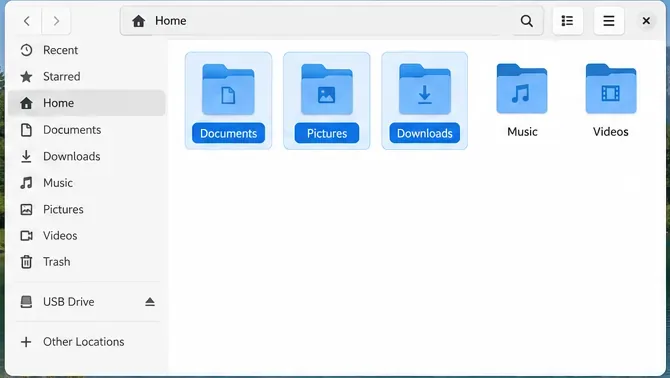
Debian package selections and system configuration do not map cleanly to a different operating system. Record application names and settings, but plan to reinstall applications rather than copying /usr or the entire old /etc into the new installation. If you already use Flatpak, save a list of installed apps with flatpak list --app > flatpak-apps.txt. The official Flatpak command reference documents flatpak list for listing installed applications.
Get the image from the operating system’s official download route. Follow its instructions for checking the download, if provided. Use a USB drive that can be erased, and verify the selected target carefully before writing anything to it. Endless OS’s support guide documents using balenaEtcher to select the downloaded image, select a USB target, and flash it. Flashing erases the selected USB drive.
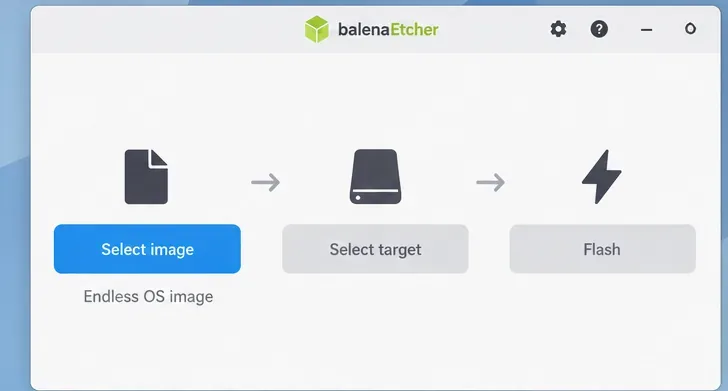
Wait for the write and verification phases to finish. If the flashing program reports an error, do not continue to install from that USB. Recheck the image source, USB device, and the current instructions in the Endless OS balenaEtcher guide.
Restart the computer and use its one-time boot menu to select the USB drive. The exact key and wording depend on the computer’s firmware. Choose the option to try the OS without formatting first. Test Wi-Fi, sound, display resolution, suspend/resume, keyboard, touchpad, and any peripherals that matter to your work. A live session may run more slowly from USB, so use it to check basic compatibility rather than to judge final performance.

If a critical component does not work, check the distribution’s hardware guidance and consider a different target before erasing anything. The USB trial is a compatibility check; it cannot guarantee that every device will work identically after installation.
When you are ready to replace Debian, select the reformat option and carefully confirm the disk shown by the installer. This operation is destructive: the selected disk’s existing operating system, applications, and files will be removed. If you have multiple drives, disconnect any drive that should not be touched. Keep the verified backup disconnected until installation has completed.

Complete the installer’s prompts, create the new user account, and allow the first boot and initial setup to finish. Do not interrupt disk writes or power off during installation. For current device-specific steps, follow the distribution’s official installation guide rather than assuming every release has identical screens.
After the installed system boots successfully, reconnect the backup drive and copy personal files into the corresponding folders. Restore only application data you recognize and need. Reinstall desktop applications through the new system’s supported software interface or package format. On an OSTree-oriented desktop, Flatpak is commonly used for desktop apps, but available applications, permissions, and integration differ by distribution.
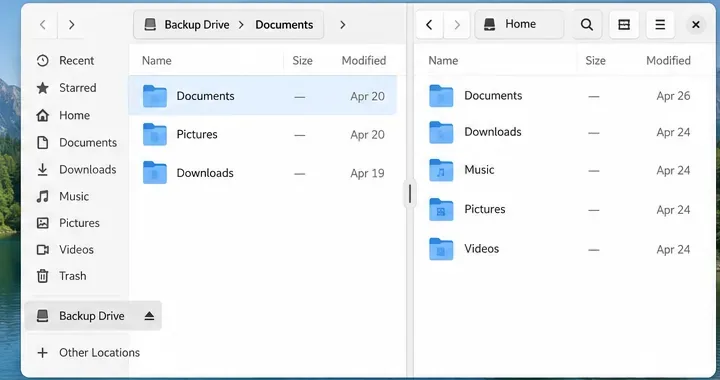
If you recorded Flatpak applications on Debian, compare that list with the new system’s software catalog. Reinstall only applications you still use, then open each one and confirm it can access the files and devices it needs. The command flatpak list --app can help check which Flatpak apps are installed on the new system.
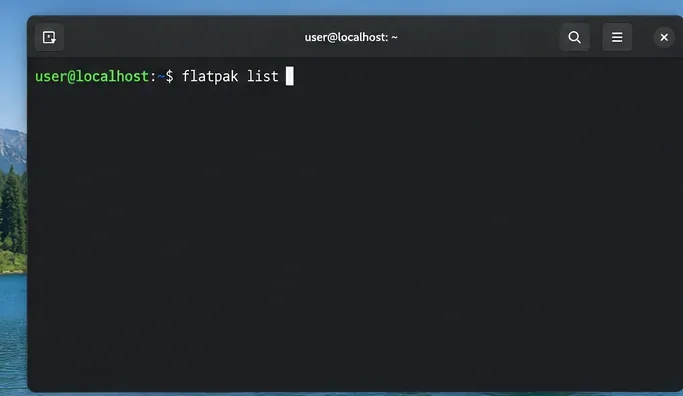
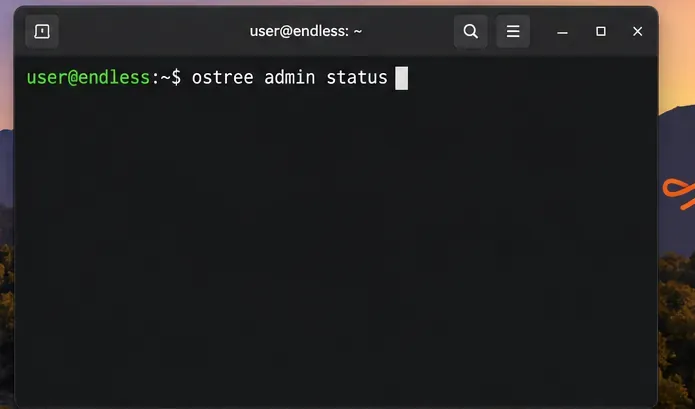
Open a terminal on the newly installed system and run:
ostree admin statusOn a booted OSTree system, this command lists deployments and marks the current booted deployment with an asterisk. The OSTree manual notes that it returns an error when run outside a booted OSTree system. If the command is unavailable or reports that the system is not booted from OSTree, do not infer that the Debian package you may have installed earlier made Debian immutable; check the operating system’s documentation and installation result instead. See the official ostree admin status manual page.
That is an OS engineering project, not a desktop conversion. Start with a disposable VM or spare computer. Build a complete Debian filesystem tree, ensure the tree follows OSTree conventions, provide initramfs and bootloader integration, decide which data belongs in /etc, /var, and /home, and design how packages and updates become new commits. Test upgrades, interrupted updates, hardware support, and rollback before using the image on a daily workstation.
OSTree’s own guide explains that adapting an existing distribution requires decisions about filesystem layout, boot integration, system users, and package-manager behavior. Its project overview points to Debian-oriented tools and examples, but describes the Garden Linux OSTree image builder as a sample that is not production-ready. Treat those repositories as engineering references, not as a turnkey migration tool. For most Debian desktop users, installing a maintained OSTree-based distribution is the safer and more supportable way to get the model.
After migration, verify the machine boots normally, confirm the deployment list, reconnect backups, and test your essential applications before deleting any remaining copies of the old data. The result is an OSTree-managed desktop installation, but it is a new OS deployment with restored user data—not the original Debian root converted in place.
Use Dislocker to unlock a BitLocker volume in Linux, mount its virtual NTFS file read-only, and safely unmount it without exposing your password in a command.
Learn how to reduce RAM usage on Linux by finding memory-hungry apps, trimming browser and startup load, and testing a lighter desktop safely.
Compare four WhatsApp alternatives for Linux by privacy defaults, desktop support, setup requirements, and the people each app suits.
Troubleshoot a VirtualBox VM that will not start on Linux by checking vboxdrv, kernel headers, Secure Boot, Extension Pack versions, and VM logs.
Transfer your Ubuntu user data with a tar archive and external drive, then restore personal files and selected settings without overwriting the new setup.
Install gThumb on Linux, browse and make simple photo edits, then set it as the default app for the image types you choose in GNOME.
Create an organized playlist in Rhythmbox or save a reusable XSPF playlist in VLC. Learn how to add tracks, name a list, and reopen it on Linux.
Install Dino on Linux with Flatpak or your distribution’s package manager. Get current Ubuntu, Debian, Fedora, and Arch commands, plus first-launch tips.
Install Arch Linux’s linux-lts kernel, add it to GRUB or systemd-boot, select it at startup, and verify it while keeping a fallback kernel.
Download the right Pi 4 image, write it to a microSD card, and complete LibreELEC’s first-run setup with Raspberry Pi Imager.








