To mute a sound device on Linux, the fastest option is usually the speaker icon in your desktop panel or your keyboard’s mute key. If you need to silence one specific output—for example, HDMI audio while keeping headphones active—open your desktop’s sound settings, use Pavucontrol, or use wpctl on PipeWire systems.
Mute the default output quickly
Most Linux desktops expose a speaker control in the top bar, system tray, or panel. Click it and use the speaker button to toggle mute. A hardware mute key does the same thing on many keyboards. This normally affects the current default output, not every audio device in the computer.
If only one application should be silent, use the per-application mixer instead of muting the entire output. GNOME, KDE Plasma, and Pavucontrol can all manage application streams separately.
GNOME: mute output or individual apps
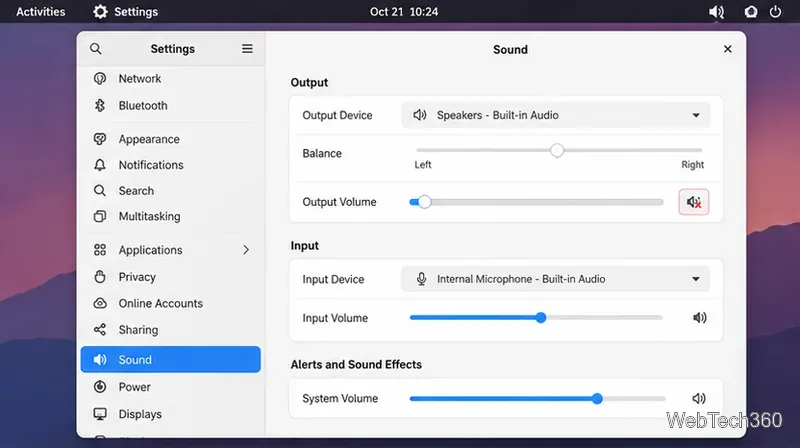
Open the system menu from the top-right corner and use the volume control for a quick system-wide mute.
For more control, open Settings > Sound.
Under Output, choose the speakers, headphones, USB interface, or other output you want to use.
To silence an individual program, open Volume Levels in the Sound panel and use the speaker button next to that app.
GNOME’s Sound panel can select an output and mute system or application audio.
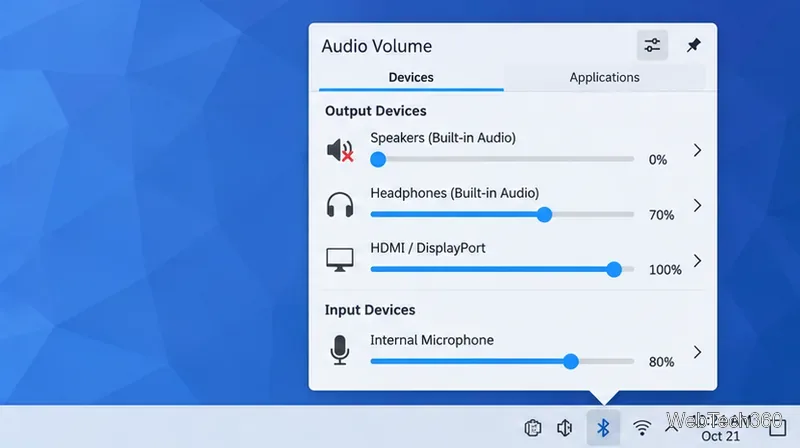
Find the relevant entry under the output-device controls.
Click its speaker icon to mute that output without necessarily muting another device.
Open the full Audio settings when you need separate controls for applications, recording devices, inputs, or device profiles.
KDE Plasma’s Audio Volume controls can expose multiple output and input devices separately.
The official KDE Audio Volume documentation describes separate controls for applications, output devices, input devices, recording streams, and configuration profiles.
Cinnamon, Xfce, and MATE
These desktops also commonly provide a panel sound applet. For a quick mute, click the speaker icon and use its mute control or drag the volume to zero. Menu names vary by distribution and desktop version, so if you need to mute one particular device rather than the current default output, open the desktop’s full sound settings or use Pavucontrol.
This is more reliable than following old instructions that assume every desktop uses the same tab names. Modern Linux installations may use PipeWire underneath even when the desktop still presents familiar PulseAudio-style controls.
Mute one device with Pavucontrol
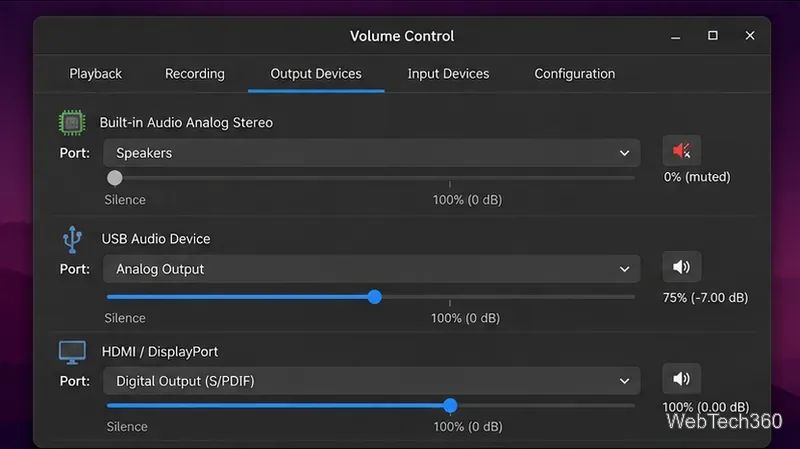
Pavucontrol is useful when your desktop’s small panel menu does not show every device. Install the package named pavucontrol with your distribution’s package manager, then launch Volume Control from the app menu or run pavucontrol.
Open the Output Devices tab.
Find the speakers, headphones, HDMI/DisplayPort output, USB interface, or other device you want to silence.
Click the speaker/mute button for that device. Use Playback instead if you only want to mute one application stream.
Pavucontrol is especially useful when several playback devices are available at the same time.
The upstream Pavucontrol project describes it as a mixer for hardware devices and individual playback streams. On PipeWire systems, the PipeWire PulseAudio-compatibility layer is designed so tools such as Pavucontrol continue to work.
Mute from the terminal with wpctl
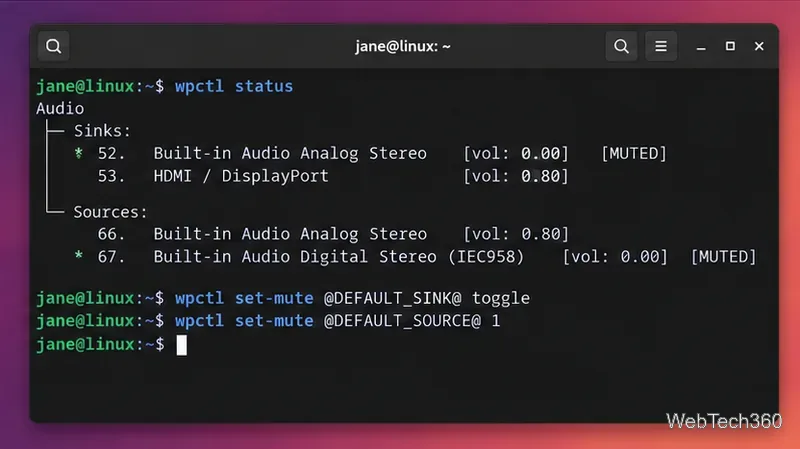
If your system uses PipeWire with WirePlumber, wpctl provides a direct way to inspect and mute audio nodes. First list the current sinks and sources:
wpctl status
Toggle the default playback device:
wpctl set-mute @DEFAULT_SINK@ toggle
Mute the default microphone:
wpctl set-mute @DEFAULT_SOURCE@ 1
Replace 1 with 0 to unmute, or use toggle to switch the current state. To target a non-default device, use the numeric node ID shown by wpctl status.
WirePlumber’s wpctl command can mute the default sink, source, or a device selected by node ID.
Check the selected output: sound may be routed to HDMI, Bluetooth, a dock, or a USB interface instead of the speakers you muted.
Check application volume: an app stream and a hardware output have separate controls.
Check the microphone separately: muting playback does not automatically mute your input device.
Use Pavucontrol or wpctl for hidden devices: they make it easier to distinguish multiple sinks and sources than a compact panel menu.
For most users, the desktop speaker button is enough. When several audio devices are connected, use the full sound settings, Pavucontrol, or wpctl so you can mute the exact output or input you intend.