Home
» LINUX
»
How to Open Microsoft PowerPoint Files in LibreOffice Impress
How to Open Microsoft PowerPoint Files in LibreOffice Impress
You can open Microsoft PowerPoint files directly in LibreOffice Impress; you do not need to convert them with Google Drive first. LibreOffice's official help says PowerPoint .ppt, .pps, and .pptx files open in Impress, and its current import/export filters also cover modern PowerPoint presentation formats. The basic workflow is File > Open, choose the presentation, review it for formatting differences, and then save either as PowerPoint or as LibreOffice's native ODP format.
If LibreOffice is not installed, get it from the official LibreOffice download page. On Linux, your distribution may also offer LibreOffice and Impress through its package manager.
How to open a PowerPoint file in LibreOffice Impress
1. Open LibreOffice and choose File > Open
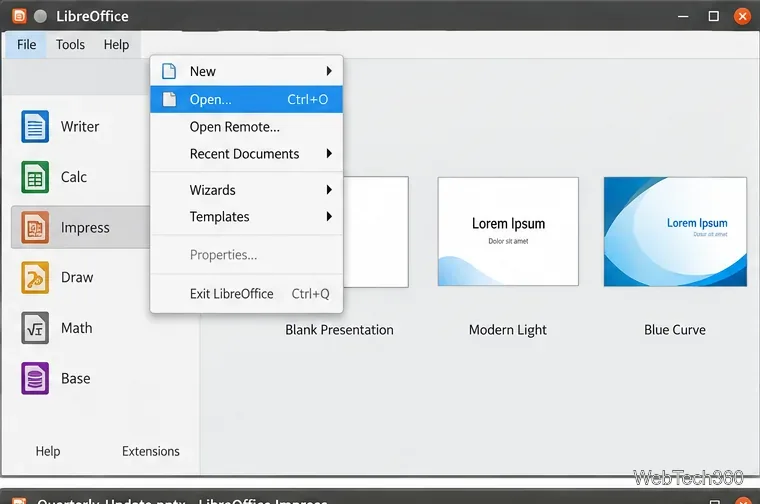
Launch LibreOffice. From the Start Center, choose File > Open. You can also use Ctrl+O on Windows and Linux. You do not have to create a blank presentation first; LibreOffice will send a recognized PowerPoint file to Impress automatically.
Choose File > Open from the LibreOffice Start Center to browse for a PowerPoint presentation.
2. Select the PPTX, PPT, or presentation file
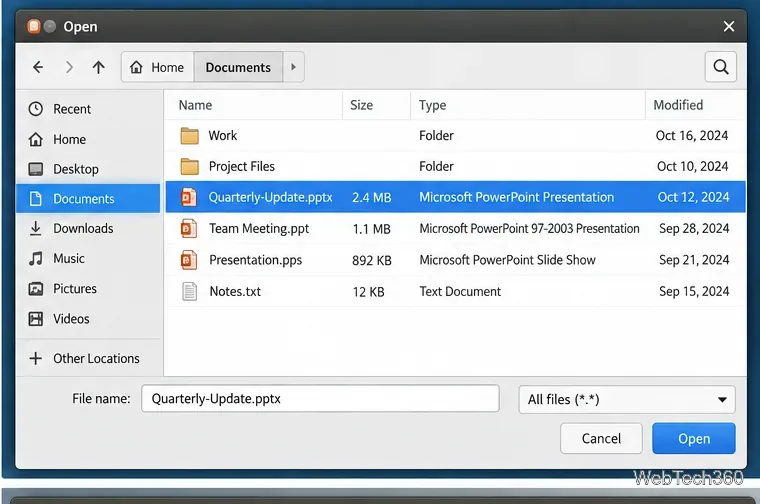
Browse to the folder containing the presentation, select the file, and click Open. A standard .pptx file is the most common format for recent versions of Microsoft PowerPoint, while older presentations may use .ppt. LibreOffice also recognizes PowerPoint slideshow formats such as .pps and, through its current filters, newer slideshow formats such as .ppsx.
Select the PowerPoint file in the Open dialog, then click Open.
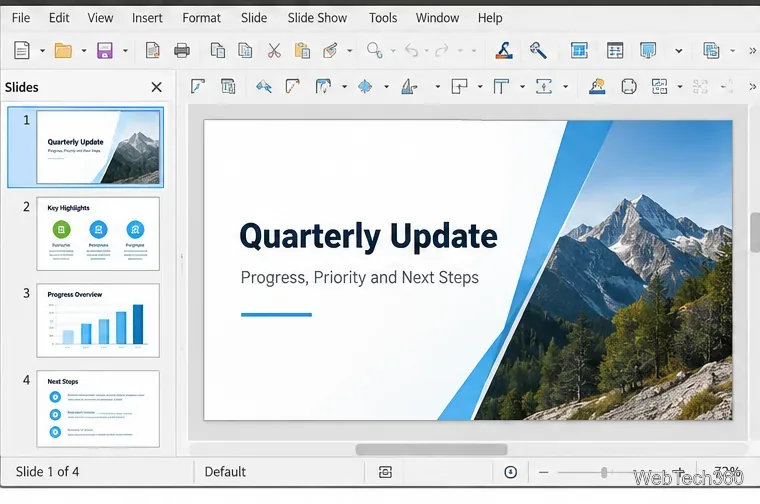
After the file opens, check several slides before editing. Text, images, simple charts, and common slide layouts usually transfer well, but PowerPoint and LibreOffice do not implement every feature in exactly the same way. Complex fonts, embedded objects, animations, transitions, media, or unusual layout effects can change when a presentation is imported.
A PowerPoint presentation opens in LibreOffice Impress, where you can review and edit the slides.
LibreOffice's Microsoft Office conversion notes warn that complex formatting can require manual adjustment. If the deck must look identical for a meeting or handoff, check fonts, line breaks, charts, video, transitions, and speaker-facing elements before presenting.
4. Save the file in the format you need
If you only need to read the slides, you can close the file without converting it. If you edit the presentation, use File > Save As so you can keep the original as a fallback.
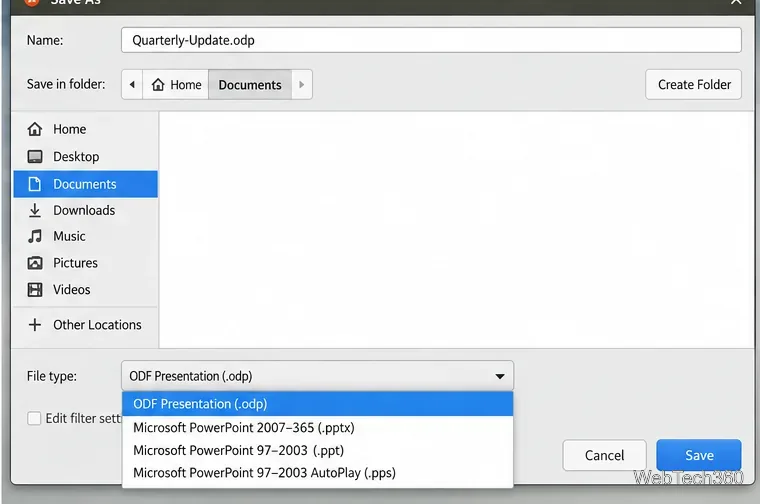
Use Save As to choose ODP for LibreOffice work or PPTX when you need to keep a PowerPoint-compatible copy.
Choose ODF Presentation (.odp) if you plan to continue working mainly in LibreOffice. Choose Microsoft PowerPoint 2007-365 (.pptx) if the file needs to go back to people using PowerPoint. LibreOffice may display a compatibility warning when you save to a non-ODF format; that warning is a reminder that some LibreOffice-specific features may not map perfectly to PowerPoint.
Should you save as PPTX or ODP?
Choose
Best when
What to keep in mind
PPTX
You need to exchange the presentation with Microsoft PowerPoint users.
Recheck formatting and effects after saving, especially in complex decks.
ODP
You will continue editing primarily in LibreOffice Impress.
PowerPoint users may see differences if they later open the ODP file.
The current LibreOffice Impress filter list includes ODF Presentation and PowerPoint 2007-365 (.pptx), along with several other presentation formats.
What to do if the PowerPoint file does not look right
Update LibreOffice. Import and export filters continue to improve, so an old installation may handle a newer deck less reliably.
Check missing fonts. If the presentation uses fonts that are not installed on your computer, text can wrap differently and shift slide layouts.
Inspect animations, transitions, video, and embedded objects. These are more likely than basic text and images to behave differently across presentation programs.
Use Save As instead of overwriting the original. Keep a clean copy of the source PPTX until you have reviewed the edited version.
Be careful with macro-enabled presentations. LibreOffice's VBA support is not complete, so a presentation that depends on macros should be tested in its intended environment before you rely on it.
Do you need to convert PPTX to ODP before opening it?
No. For normal PowerPoint files, converting first is unnecessary. LibreOffice Impress can open the PowerPoint file directly, and you can decide afterward whether to keep it as PPTX or save a separate ODP copy. This is simpler than uploading the presentation to an online converter and avoids adding another conversion step that could alter formatting.
For most users, the safest routine is straightforward: open the PowerPoint file directly in Impress, review the slides, then save a copy in the format required by the next person or application.