Home
» LINUX
»
How to Open Programs With Root Access on Linux
How to Open Programs With Root Access on Linux
To open a program with root access on Linux, use the narrowest method for the task: approve the app’s own administrator prompt, run one terminal command with sudo, or edit a protected text file with sudoedit. Avoid starting an entire desktop app as root for a single privileged action. Root can change any system file, so temporary access helps prevent accidental damage. GNOME’s guide to administrative privileges explains why elevated access should be limited to the work that needs it.
Choose the right method
Start an app normally if you need to install software, change a system setting, manage a disk, or perform another system-wide task. Programs designed for these jobs can ask for authorization only when the protected action is requested. Use sudo for a command-line utility, sudoedit for a protected text file, and pkexec only when the program’s documentation supports it.
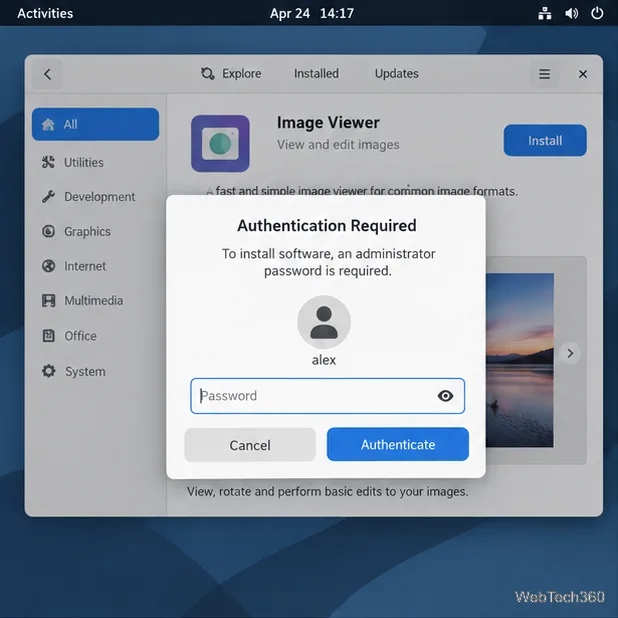
An installer can request administrator authentication before a system-wide change. Approve only a request you recognize.
Run one command with sudo
Open a terminal from your desktop’s application menu.
Type sudo followed by the exact command and arguments that need elevated access.
Review the command, press Enter, and authenticate if prompted.
The general form is:
sudo command-name [options]
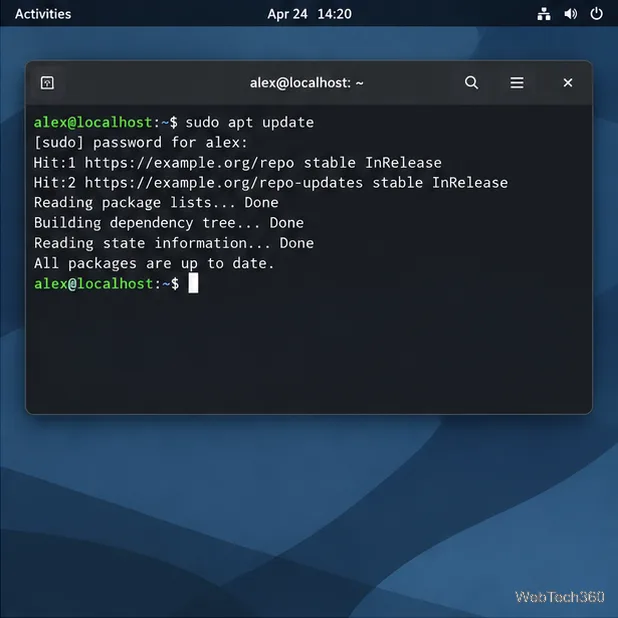
For example, sudo apt update refreshes package metadata on Debian and Ubuntu. Other distributions use different package managers, so follow your distribution’s documentation instead of copying an apt command onto Fedora, Arch Linux, or another system. Read unfamiliar commands before running them, especially commands that change disks, services, users, or system files.
Illustrative Debian or Ubuntu terminal example: sudo apt update. The command varies by distribution.
On most sudo setups, enter your signed-in account password, not the root password. No characters appear as you type. Your account must be authorized to use sudo; if it is not, ask an administrator to grant access. Don’t open a root shell with sudo -s or sudo -i just to run one command: every command in that shell stays elevated until you exit it.
Edit a protected file with sudoedit
To change a system configuration file, use sudoedit instead of launching a full text editor as root. For example:
sudoedit /etc/hosts
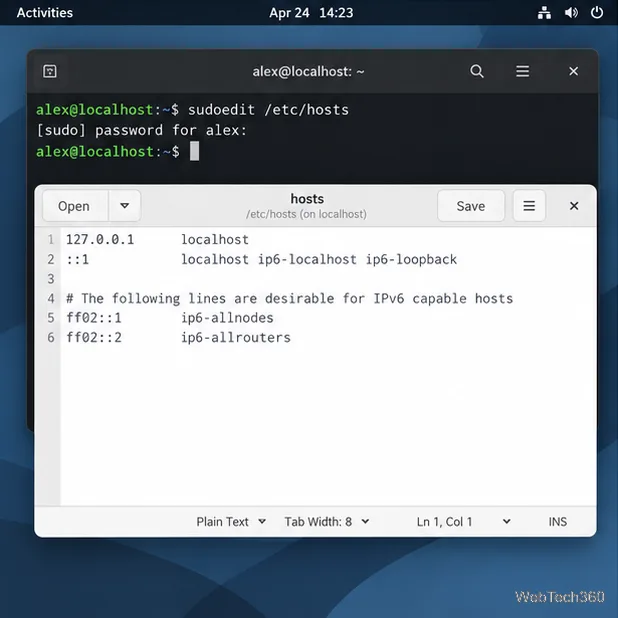
You can also use sudo -e /etc/hosts. The editor works on a temporary copy as your normal user; sudoedit writes the saved changes to the protected file. Check the path before saving. See the sudoedit manual for details.
sudoedit lets your regular editor change a temporary copy, then writes the file with elevated permission.
Use pkexec only when a GUI app supports it
For a graphical program, first try its built-in administrator action or authentication prompt. Package managers and system settings tools often request authorization when you choose a system-wide change. If an app has no such feature, check its own documentation before using a launcher.
pkexec documentation describes it as a polkit tool for running a command as another user, root by default. Use it only when the program’s instructions specify it and give the correct executable path:
pkexec /absolute/path/to/program
Replace the example path with the documented path. Polkit uses an authentication agent and runs the command with a restricted environment. The manual notes that pkexec does not preserve the usual X11 display variables by default, so some GUI apps will not open this way. Don’t bypass that restriction with copied environment-variable hacks or custom polkit rules. If the app does not support pkexec, use its built-in workflow or a command-line alternative.
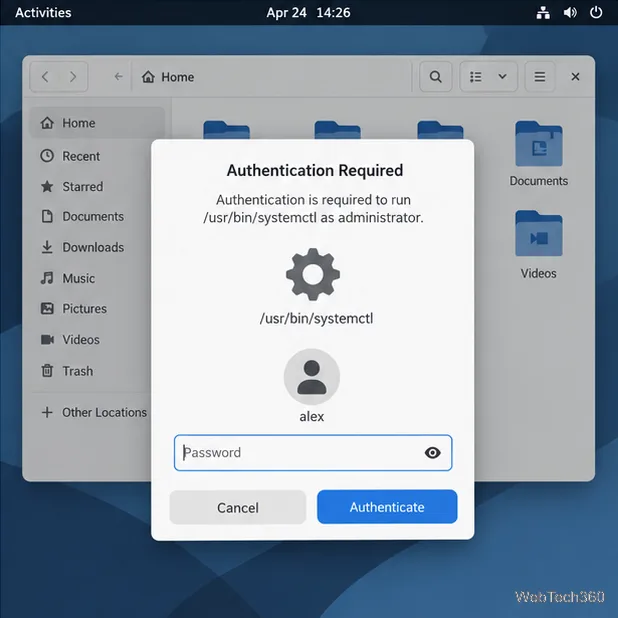
Check the program path and requested action before authenticating. This example does not mean every GUI app supports pkexec.
Skip outdated root-launch instructions
Older tutorials may recommend starting a file manager as root, enabling root with passwd, or installing gksu or gksudo. These are not safe, universal instructions for current desktop Linux. A root file manager can alter protected files, and a root GUI can create files in your home directory that your normal account cannot manage. Root-account setup differs by distribution; don’t unlock or set a root password unless its current documentation calls for that task. The Debian package tracker lists gksu as unavailable in current Debian distributions, so skip old repository commands for it.
Fix common permission errors
sudo says you are not allowed: use an authorized administrator account or ask the system administrator for access. Changing file permissions will not grant sudo rights.
pkexec shows no prompt or the app will not open: the session may lack an authentication agent, or the app may not support this launch method. Open it normally and use its supported admin action.
A root-launched app created files you cannot edit: correct ownership only for the affected files using your distribution’s documented steps. Don’t recursively change ownership across your home folder.
For most jobs, use the app’s own prompt for a graphical change, sudo for one command, and sudoedit for a protected text file. That keeps root access limited to the operation that needs it.