Home
» LINUX
»
How to Pair the Nintendo Switch Pro Controller on Linux
How to Pair the Nintendo Switch Pro Controller on Linux
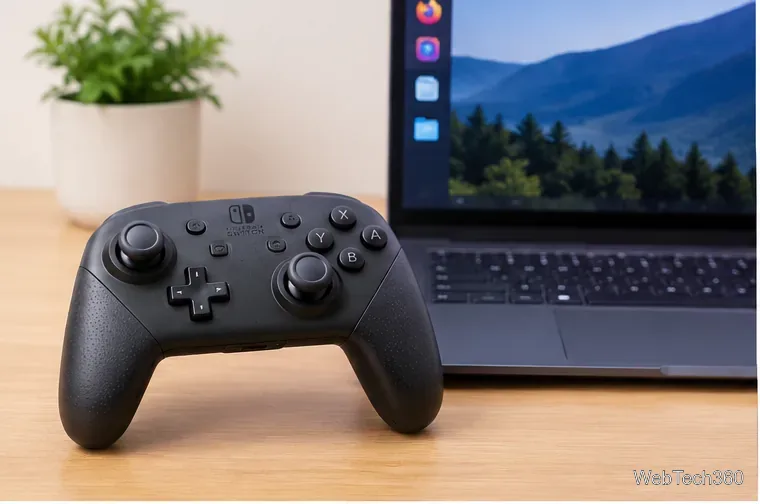
You can pair a Nintendo Switch Pro Controller with Linux without compiling a third-party driver on a current distribution. Mainline Linux includes the hid-nintendo driver for the Pro Controller over both Bluetooth and USB, and Steam Input officially supports the Nintendo Switch Pro Controller. The old advice to install Joycond just to use one Pro Controller is no longer necessary for most PCs.
A Nintendo Switch Pro Controller can connect to a current Linux PC over Bluetooth or USB-C.
Before you pair the Pro Controller
Charge the controller first and make sure Bluetooth works on the PC if you want a wireless connection. Mainline Linux 5.16 already contained the Nintendo HID driver, and the current kernel configuration still lists support for Nintendo Joy-Con, NSO, and Pro Controllers. You can verify the implementation in the Linux 5.16 hid-nintendo source and the current Linux HID configuration.
If your distribution uses an unusually old kernel, update through the distribution's normal update tools before troubleshooting controller drivers. This guide is aimed at the official Nintendo Switch Pro Controller; third-party controllers can identify themselves differently and may need vendor-specific instructions.
How to pair the Nintendo Switch Pro Controller over Bluetooth
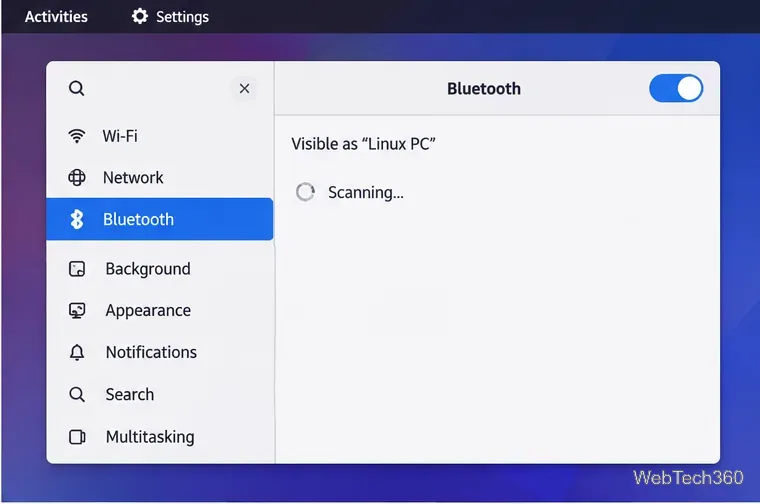
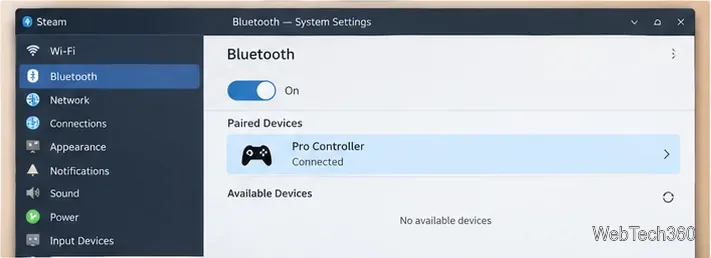
Open Bluetooth settings and turn Bluetooth on. On GNOME, open Activities, search for Bluetooth, and open the Bluetooth panel. GNOME begins searching while the panel is open; KDE Plasma provides a similar add-device flow in its Bluetooth controls. See the official GNOME Bluetooth pairing guide or KDE Bluetooth documentation if your menus differ.
Open your desktop Bluetooth settings and leave the panel scanning for nearby devices.
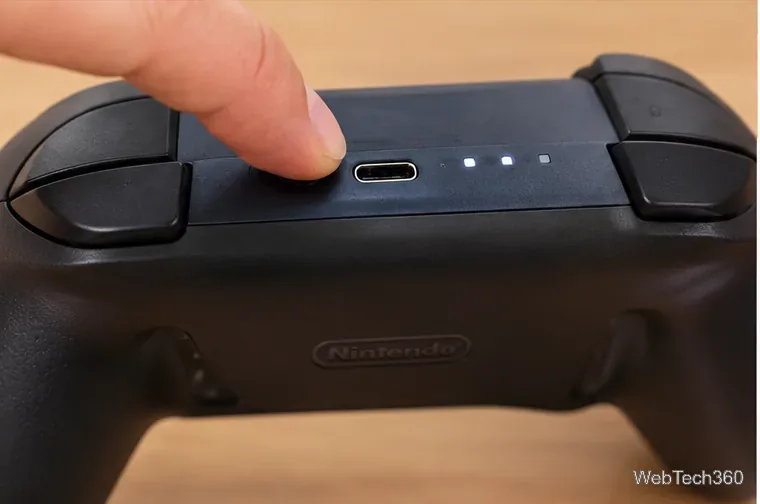
Put the controller into pairing mode. Press and hold the small SYNC button near the USB-C connector for at least one second. Nintendo identifies this button in its Pro Controller diagram and uses the same SYNC-button action for wireless pairing.
Hold the small SYNC button near the USB-C port to put the Pro Controller into pairing mode.
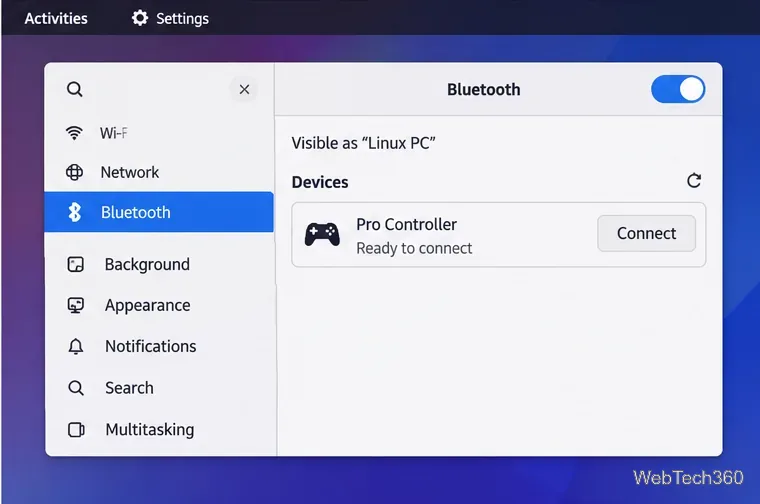
Select Pro Controller. Keep the Linux Bluetooth panel open until Pro Controller appears, then select it and choose the available Connect or Pair action. The exact button label depends on your desktop environment.
Select Pro Controller when it appears in the nearby-device list.
Confirm the connection. When the device shows Connected, press a few controller buttons or launch a game that supports gamepads. If the player LEDs keep cycling and Linux never reports a connection, remove the saved device and repeat the pairing process.
A connected status confirms that Bluetooth pairing has completed.
Use the Switch Pro Controller over USB-C
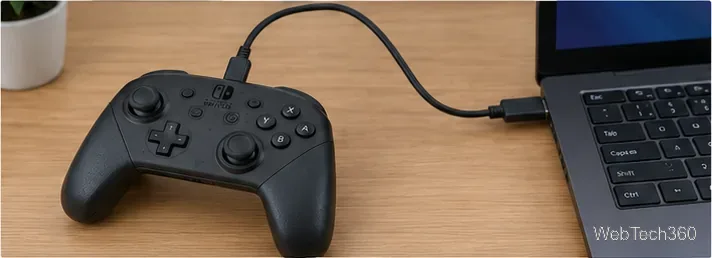
A wired connection does not require Bluetooth pairing. Connect a data-capable USB-C cable between the Pro Controller and the Linux PC. The kernel's Nintendo HID driver explicitly supports the Pro Controller in USB mode, so a current Linux system should create the input device automatically. If the controller charges but no input device appears, try another cable because some USB-C cables carry power only.
USB-C is the simplest fallback because the Pro Controller also supports wired USB mode.
Set up the Pro Controller in Steam
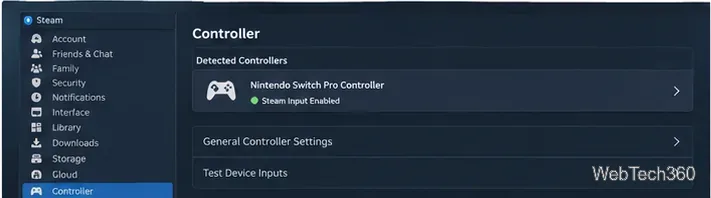
Valve lists the Nintendo Switch Pro Controller as a supported Steam Input device. After connecting the controller, open Steam > Settings > Controller and check that the controller appears in the detected-controller area. Valve's Steam Input Devices documentation confirms Switch Pro support, while its player setup guide explains the Controller settings workflow.
If a game shows the wrong prompts or layout, adjust that game's Steam Input layout rather than installing another Linux kernel driver. You can also reconnect the controller before launching Steam if the client was already running when you paired it.
Steam Input supports the Nintendo Switch Pro Controller and should list it in Controller settings.
If the controller does not appear in Bluetooth settings
First make sure the controller has power, Bluetooth is enabled, and no stale Pro Controller entry is blocking a fresh pairing. Nintendo recommends charging an unresponsive Pro Controller before pairing, and GNOME notes that Bluetooth failures can also come from a disabled or unsupported adapter.
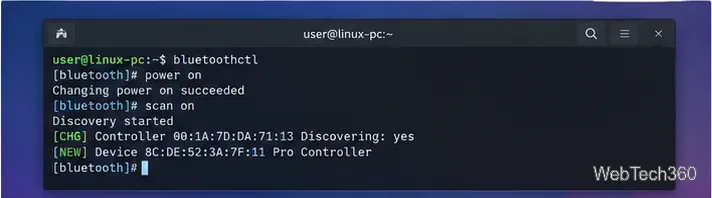
If the graphical panel still does not find the controller, use BlueZ's bluetoothctl utility:
bluetoothctl
power on
agent on
default-agent
scan on
Hold the controller's SYNC button again and wait for an entry named Pro Controller. Note its Bluetooth address, then run:
pair XX:XX:XX:XX:XX:XX
scan off
quit
The current bluetoothctl manual documents scan, agent, and pair; the pair command pairs, trusts, and connects the device. Replace the example address with the one shown on your PC.
The bluetoothctl utility can scan and pair the controller when a desktop Bluetooth panel is not enough.
Do you still need Joycond?
Usually, no. For a single Pro Controller, current Linux kernel support plus your desktop's Bluetooth stack is enough. Joycond is a separate userspace daemon built around hid-nintendo for Joy-Con pairing and virtual-controller behavior. Install it only if you specifically need those extra workflows, not as a basic prerequisite for pairing a Pro Controller.