Home
» LINUX
»
How to Play Age of Empires II (2013) on Linux with Proton
How to Play Age of Empires II (2013) on Linux with Proton
Age of Empires II (2013) can still be played on Linux through Steam Play and Proton. The game does not have a native Linux build, so Steam runs the Windows version through Valve's compatibility layer. Steam now labels this release Age of Empires II (Retired), but it is the same Steam app covered by this guide, app ID 221380.
The current Steam store page for Age of Empires II (Retired) says this edition is no longer being updated after the release of Age of Empires II: Definitive Edition. It still lists Windows system requirements rather than Linux requirements, so Proton is the practical route for Linux users.
Before you start
Use an up-to-date 64-bit Linux distribution and current graphics drivers.
Install the Linux Steam client from Valve or your distribution's supported package source.
Own Age of Empires II (2013)/Retired on the Steam account you plan to use. Store availability and pricing can vary by region.
Valve's current Steam for Linux documentation targets recent Ubuntu or Ubuntu LTS releases on x86_64 hardware and requires modern 64-bit and 32-bit graphics libraries. Valve also states that Steam stopped supporting Linux systems with glibc older than 2.31 on August 15, 2025. Other distributions may work, but they are outside Valve's primary support target. See the Steam for Linux requirements for the current baseline.
How to play Age of Empires II (2013) on Linux
1. Install Steam for Linux
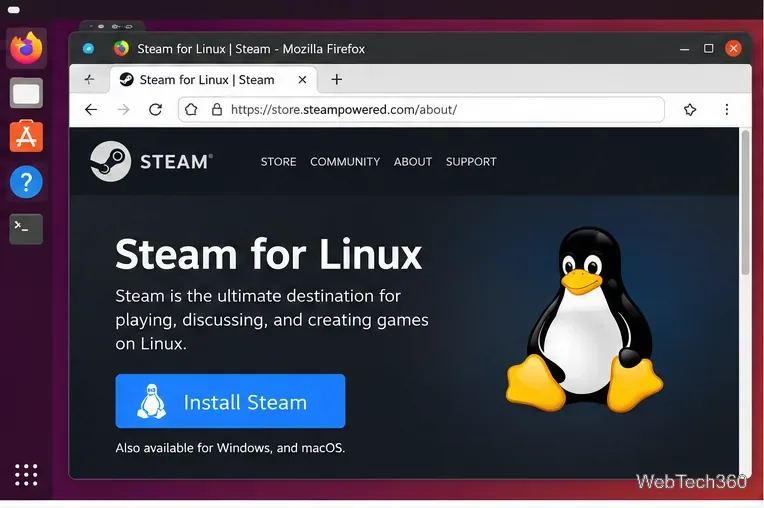
Download Steam from Valve's official Steam for Linux page, or install the Steam package supplied by your Linux distribution. Open Steam after installation, allow it to update, and sign in to your account.
Install the Linux Steam client before configuring Proton for the game.
2. Find Age of Empires II in your Steam Library
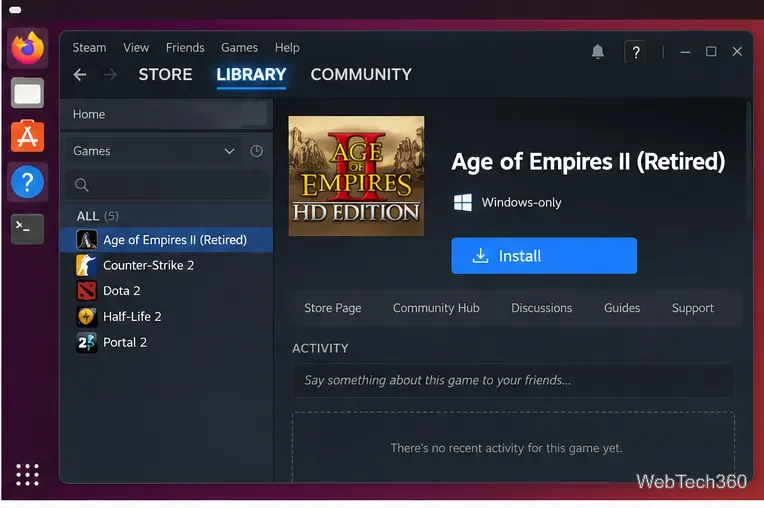
Open Library and search for Age of Empires II. In the current Steam catalog, the 2013 HD release may appear as Age of Empires II (Retired). Do not confuse it with Age of Empires II: Definitive Edition, which is a separate Steam product.
If the game is not yet installed, you can leave it uninstalled while setting the compatibility tool. This makes it clear to Steam that the Windows build should be handled through Proton.
The 2013 release is currently labeled Age of Empires II (Retired) in Steam.
3. Force a Proton compatibility tool
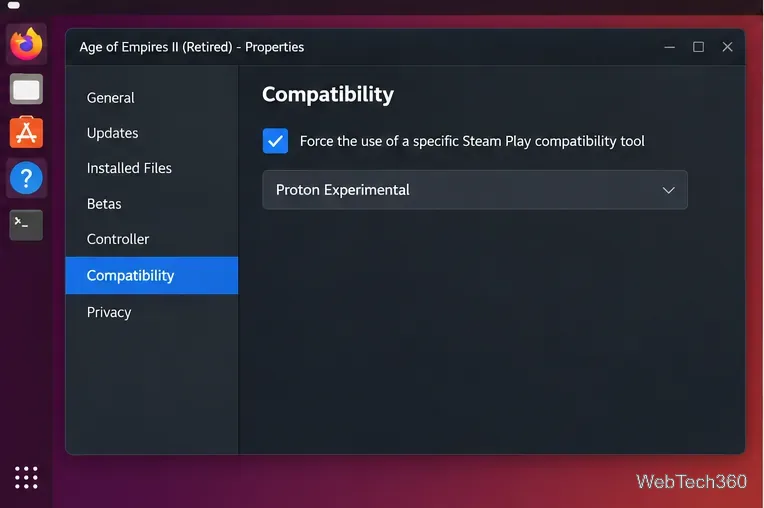
Right-click the game in your Library and choose Properties. Open Compatibility, then enable Force the use of a specific Steam Play compatibility tool. Select Proton Experimental or the newest stable Proton version offered by your Steam client.
Valve describes Proton as the Steam compatibility tool that lets Windows-only games run on Linux. For most users, Valve recommends using the Proton builds supplied directly through Steam rather than building Proton manually. You can read the official Proton documentation for more detail.
Use the game's Compatibility page to force a Steam Play Proton version.
4. Install the game
Return to the game's Library page and click Install. Steam downloads the Windows game files plus any compatibility components Proton needs. Let the installation finish before trying to launch the game.
You do not need to install Wine separately for this method. Proton is integrated with Steam and is designed to handle the Windows compatibility layer for Steam Play titles.
5. Launch Age of Empires II
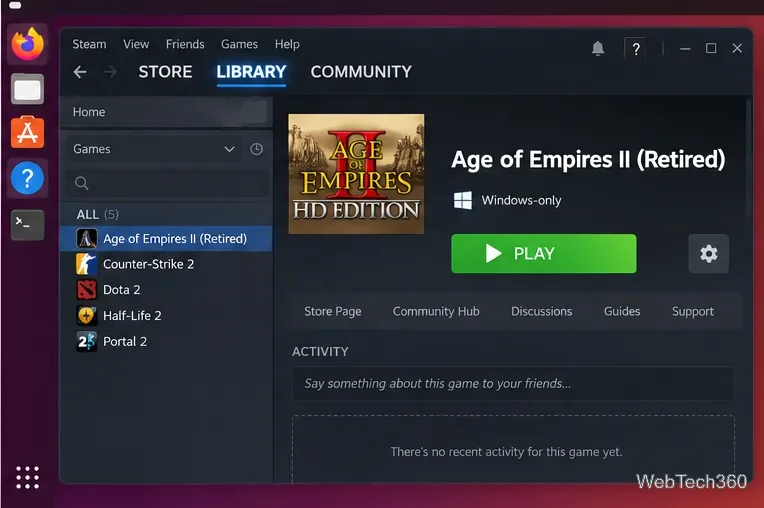
When installation is complete, click Play. The first launch can take longer than later launches because Steam may prepare the Proton environment and install Windows runtime components required by the game.
After Proton is configured and the game is installed, launch it from the normal Steam Play button.
What to do if the game does not launch
If Age of Empires II closes immediately, hangs, or never reaches the main menu, try these fixes in order:
Verify the game files. Open Properties > Installed Files and run Verify integrity of game files. Valve recommends file verification when Steam games fail during launch.
Try another official Proton build. Return to Properties > Compatibility and switch between Proton Experimental and the newest stable Proton version listed by Steam.
Update Steam, Linux, and your graphics drivers. Old 32-bit graphics libraries are a common source of Steam and Proton problems on Linux.
Remove unnecessary launch options. If you previously copied custom Proton environment variables or Wine commands from an old guide, clear them and test with Steam's defaults first.
Valve notes that Steam Play can run Windows-only games on Linux, but it does not guarantee that every Windows title will work perfectly. Its Linux game launch troubleshooting page recommends checking system requirements, verifying files, and reviewing Steam Play-specific issues when a Windows game fails under Proton.
Is the 2013 edition still worth using?
This guide is specifically for the 2013 HD release. Steam now marks that edition as Retired and says it will not receive further updates. If you already own it and want to keep playing your existing library copy, Proton gives you a straightforward Linux route. If you are deciding which edition to buy today, compare it with Age of Empires II: Definitive Edition before purchasing because the two releases are maintained separately.