Home
» LINUX
»
How to Play Baldur’s Gate 3 on Linux with Steam Proton
How to Play Baldur’s Gate 3 on Linux with Steam Proton
Yes, you can play Baldur’s Gate 3 on Linux, but there is no native Linux build listed on the game’s Steam page. The practical route is the Windows version running through Valve’s Proton compatibility layer in Steam. That setup is well established: Steam currently marks Baldur’s Gate 3 as Steam Deck Verified, while Valve describes Proton as the technology that lets Windows games run on Linux.
The old Early Access instructions are no longer relevant. Larian released the full game on August 3, 2023. The steps below use Steam and official Proton rather than manual Wine prefixes or third-party launchers.
What you need before installing
Install a current 64-bit Linux distribution, keep your graphics drivers up to date, and make sure you have plenty of SSD space. Larian’s official PC requirements call for 150 GB of available SSD storage, 8 GB of RAM minimum, and 16 GB recommended. Those are Windows requirements, not a Linux performance guarantee, but they are a useful baseline.
A Steam account that owns Baldur’s Gate 3
The current Steam client for Linux
At least 150 GB free on an SSD, preferably with additional headroom for updates and shader data
Current Mesa or proprietary GPU drivers supplied for your distribution
Install Steam using your distribution’s supported package method or Valve’s installer, then launch it and sign in. Update Steam when prompted. Package names and repository setup vary across distributions, so prefer your distro’s current instructions.
2. Check Steam Play and Proton
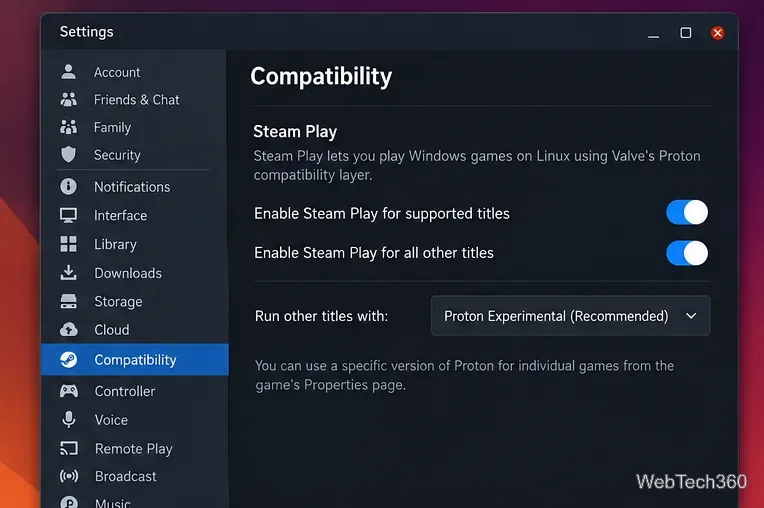
Open Steam > Settings > Compatibility. Steam Play uses Proton for Windows-only games on Linux. If Baldur’s Gate 3 is already installable, leave Steam’s automatic compatibility choice alone. If Windows-only titles are not installable, enable Steam Play for other titles and let Steam use an official Proton build.
Steam’s Compatibility settings control Steam Play and Proton for Windows games on Linux.
Valve’s Proton documentation explains that Proton is a Wine-based compatibility layer with graphics API implementations designed for Windows games on Linux.
3. Install Baldur’s Gate 3 to an SSD
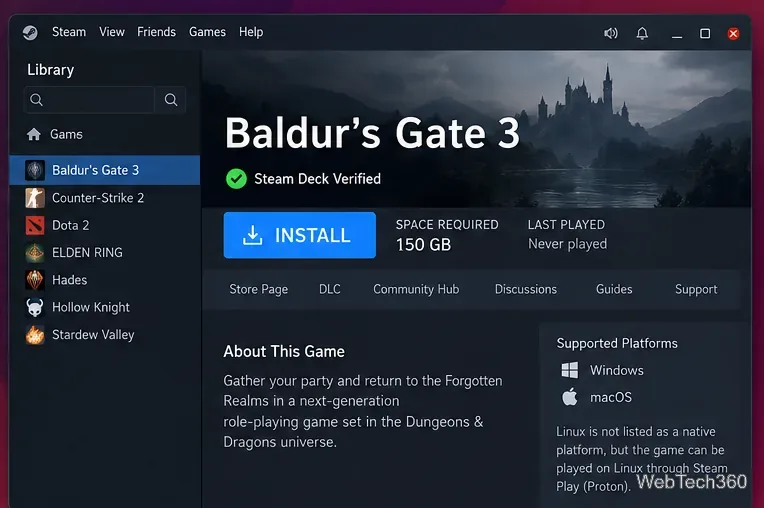
Open your Steam Library, select Baldur’s Gate 3, and click Install. Choose an SSD library with at least 150 GB free. If needed, buy it from the Steam store, then return to Library. Steam handles the Windows game files and Proton runtime automatically.
Install the game from Steam to an SSD with enough free space for the 150 GB requirement and future updates.
4. Use a per-game Proton override only if needed
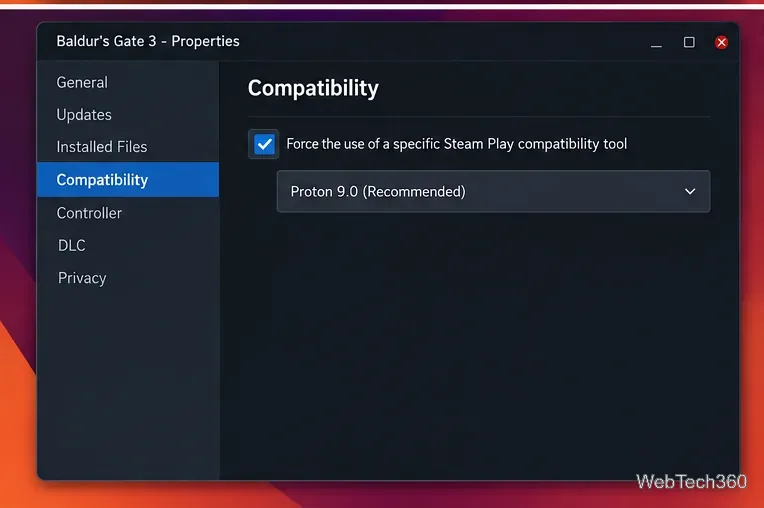
After installation, try launching the game with Steam’s default selection first. If it does not start or a Proton update causes a regression, right-click the game, open Properties > Compatibility, and use Force the use of a specific Steam Play compatibility tool. Choose a recent official Proton build shown by Steam. The version list changes over time, so avoid locking the game to an old Proton release when automatic selection works.
A per-game compatibility override is useful for troubleshooting, but the automatic Proton choice should be your starting point.
5. Launch the game and switch graphics API only when troubleshooting
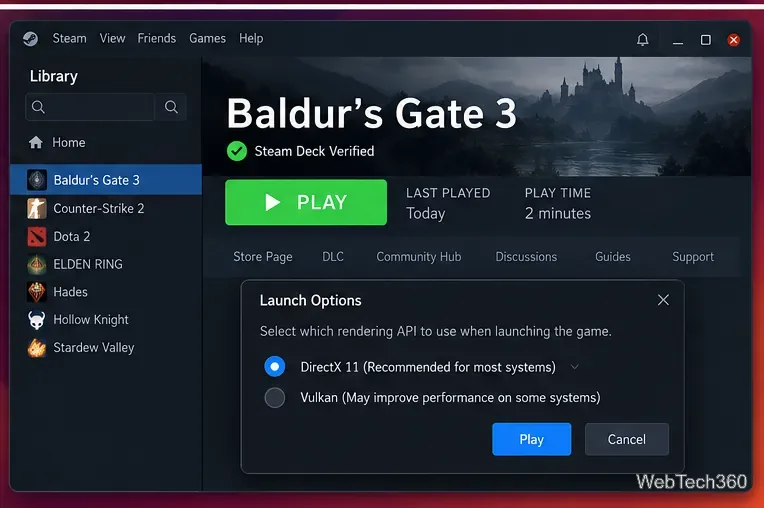
Click Play. The launcher may offer DirectX 11 and Vulkan. Larian’s support documentation recommends trying the other API when you have startup, graphics, or stability problems. Use whichever option is stable on your hardware.
If one rendering API causes crashes or graphical problems, Larian recommends trying the other option.
Verify the game files: in Steam, open Properties, then Installed Files, and run the integrity check.
Update the GPU driver and Steam: Proton depends heavily on the Linux graphics stack, so old drivers can cause startup or rendering failures.
Disable mods while testing: Larian notes that mods and leftover mod files can cause crashes and data mismatches. Confirm the unmodified game starts before restoring them.
Try another official Proton build: use the per-game Compatibility override only as a troubleshooting step, then return to the automatic choice after the issue is resolved.
Switch DirectX 11 and Vulkan: Larian specifically recommends testing the other renderer when one path crashes or produces graphical problems.
Does Baldur’s Gate 3 have a native Linux version?
No native Linux build is listed on the current Steam store page; the listed desktop platforms are Windows and macOS. Linux users play the Windows build through Steam Play/Proton. The Steam Deck Verified badge shows Valve has validated the game on its Linux-based handheld environment, but desktop results can still vary with distribution, GPU driver, kernel, and Proton version.
For most Linux players, the shortest path is simple: install an up-to-date Steam client, let Steam choose Proton automatically, install the game to an SSD, and only force a different Proton version or rendering API if you actually encounter a problem.