Home
» LINUX
»
How to Play Battlefield 1 on Linux: Why Proton No Longer Works
How to Play Battlefield 1 on Linux: Why Proton No Longer Works
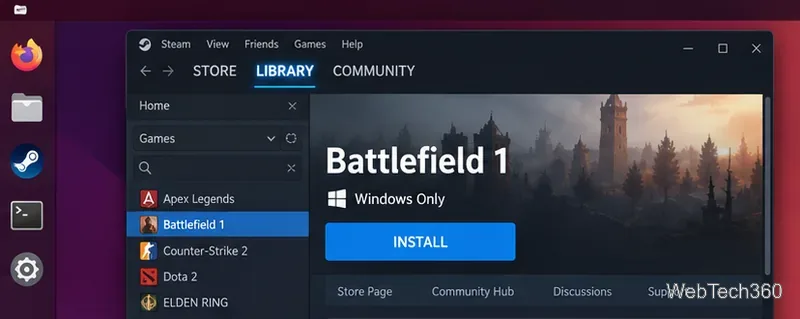
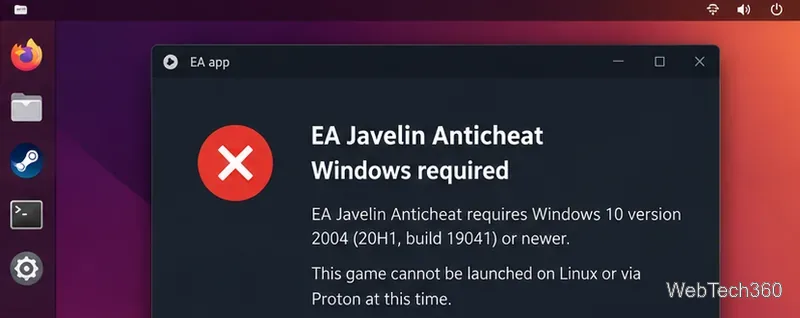
Battlefield 1 cannot currently run directly on Linux through Steam Proton, Wine, or Lutris. The old Origin-based Linux method is no longer valid. Electronic Arts moved Battlefield 1 to its kernel-level anticheat in October 2024, and EA's current EA Javelin Anticheat documentation requires Windows 10 20H1 (build 10.0.19041) or newer. Steam also lists the game as requiring the EA app, an EA Account, and EA Javelin Anticheat.
If Linux is your main operating system, there are still two practical ways to play: boot the same PC into a supported Windows installation, or stream the game to Linux from a Windows PC that is actually running it. The guide below explains why the previous Proton/Lutris route stopped working and how to use those alternatives without wasting time on obsolete Origin scripts.
Battlefield 1 is a Windows game on Steam; running the Windows executable through Proton is no longer enough because of the anticheat requirement.
Why Battlefield 1 no longer works through Proton or Lutris
Battlefield 1 itself has never had a native Linux release. In the past, Wine, Lutris, and Steam Proton could translate enough of the Windows game and graphics stack to make it playable on many Linux systems. Valve describes Proton as a Windows compatibility layer for Linux, but compatibility layers cannot make every kernel-level anticheat system work.
The current blocker is EA Javelin Anticheat's Windows requirement, not a missing Proton setting or DXVK package.
The Battlefield 1 Steam page now explicitly lists EA Javelin Anticheat as kernel-level anticheat and says EA app software installation and background use are required. That is why changing Proton versions, installing Wine-GE, switching DXVK versions, or recreating a Lutris prefix does not solve the current launch barrier.
Why the old Origin and Lutris instructions are obsolete
Older Linux guides commonly installed Origin inside a Wine prefix, then used a Lutris script to configure DXVK and launch Battlefield 1. That path has two separate problems now. First, EA says Origin has shut down and has been replaced by the EA app. Second, even a working EA app prefix does not remove the Windows-only anticheat requirement.
You can therefore skip old instructions that ask you to add an Origin-specific Lutris repository, download OriginSetup.exe, choose an AMD/NVIDIA DXVK preset, or apply a Proton launch option advertised as an anticheat workaround. Those steps target an older software stack and do not address the component that now blocks Linux.
Option 1: Dual-boot into Windows to play locally
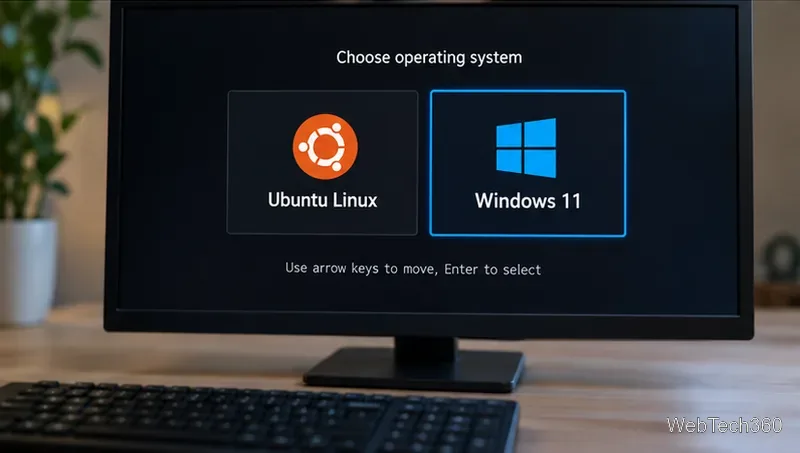
For local play on the same hardware, a Windows installation is the most direct supported route. If your PC already dual-boots Linux and Windows, select Windows at startup. For a new setup, use a separate partition or drive and follow Microsoft's installation guidance for your hardware; Windows 11 is the sensible choice for a new installation when your PC supports it.
A dual-boot setup lets you keep Linux for everyday use and start Windows when you want to run Battlefield 1 locally.
Once in Windows, install Steam if you own the Steam edition, sign in to the EA app when prompted, and install Battlefield 1. EA Javelin Anticheat should install automatically with a protected game. Do not disable or remove the anticheat; EA's support documentation says games that use it are not playable without it.
Option 2: Stream Battlefield 1 from a Windows PC to Linux
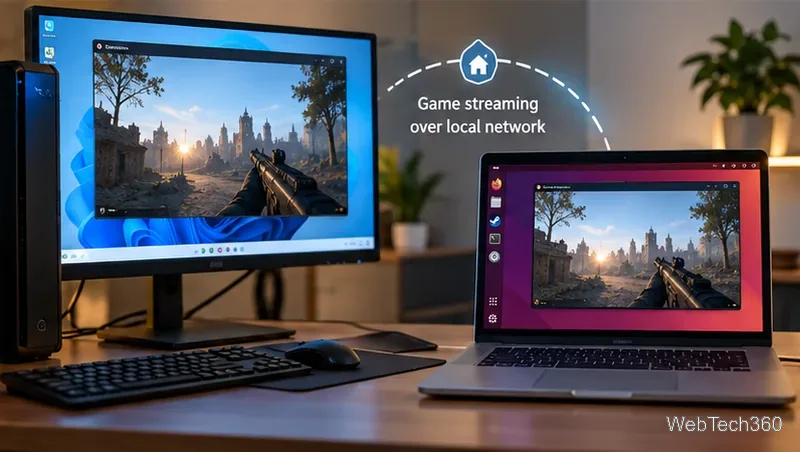
If you have another Windows gaming PC, streaming avoids rebooting the Linux machine. Valve's Steam Remote Play documentation says a game can run on one computer while its video, audio, and controls are streamed to another computer, including a Linux client. The important detail is that Battlefield 1 must launch successfully on the Windows host first.
Steam Remote Play can keep the game running on a Windows host while you play from a Linux computer.
Sign in to Steam on the Windows host and on the Linux PC with the same account.
Install and launch Battlefield 1 successfully on the Windows host at least once, including the EA app and anticheat.
On Linux, open the Steam Library and choose the streaming option for the host instead of trying to launch the game locally.
For smoother streaming, Valve recommends a wired network when possible; strong 5 GHz Wi-Fi can also work, but latency and image quality depend on the network.
Can a Proton update make Battlefield 1 work again?
A future change could restore Linux compatibility, but it would need more than a routine graphics or Wine fix. The anticheat layer itself would have to support the Linux/Proton environment or EA would need to change how Battlefield 1 uses it. Until EA documents such support, treat direct Linux launch guides as outdated even if they worked before October 2024.
For the latest status, check EA's anticheat support page and the official Steam store requirements before reinstalling the game or rebuilding a Wine prefix. At present, the reliable choices are Windows for local execution or streaming from a Windows host to Linux.