Home
» LINUX
»
How to Play Battlefield V on Linux: Current Options and Limits
How to Play Battlefield V on Linux: Current Options and Limits
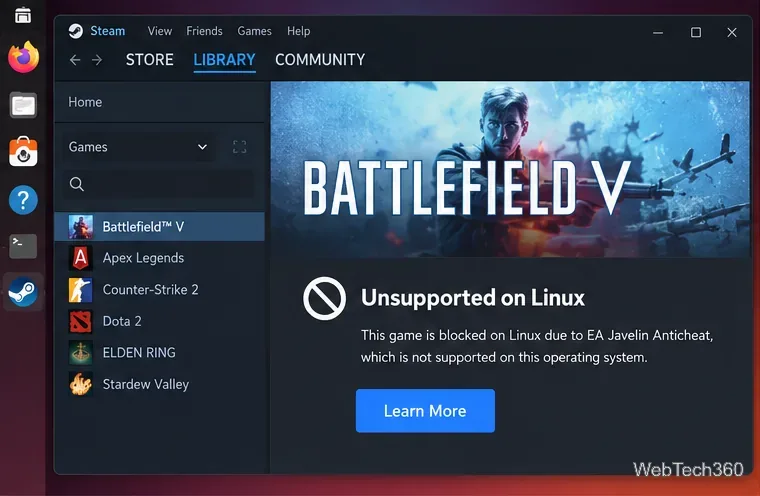
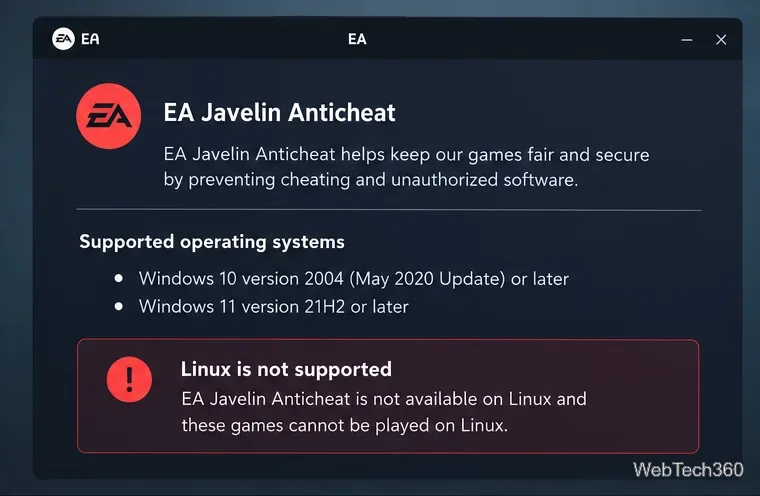
Battlefield V cannot currently be played locally on Linux through Steam Play or Proton. The old Proton-based method stopped being viable after EA moved Battlefield V to its kernel-level anti-cheat in April 2024. EA says its anti-cheat supports Windows 10 version 2004 or newer and Windows 11 version 21H2 or newer, while the current Steam listing identifies the game as using EA Javelin Anticheat.
That means changing Proton versions, switching to Proton Experimental, or installing Proton-GE does not fix the core problem. If you use Linux as your main operating system, the practical supported choices are to boot into Windows for Battlefield V or stream the game from another Windows PC.
Battlefield V is no longer a normal Proton compatibility case; its required anti-cheat is the blocker.
Can Battlefield V run on Linux today?
Method
Current status
What to know
Native Linux version
No
Battlefield V has no native Linux release.
Steam Play / Proton
No
The required kernel-level EA anti-cheat is not supported on Linux.
Proton-GE or custom launch options
No supported fix
These can solve some Windows-game compatibility issues, but they cannot make the required Windows anti-cheat driver supported on Linux.
Windows dual boot
Yes
The game runs on a supported Windows installation that meets its requirements.
Steam Remote Play from a Windows PC
Yes
The game runs on Windows and is streamed to your Linux computer.
What changed from the old Linux method?
Older guides could install the Windows version of Steam, enable Proton, let the game install Origin, and then launch Battlefield V. That information is now outdated in two important ways. First, Steam now says the game requires the EA app for activation and background use rather than the old Origin client. Second, EA extended its kernel-mode anti-cheat to Battlefield V on April 3, 2024.
EA describes this anti-cheat as a kernel-mode anti-cheat and anti-tamper system. Its published system requirements list supported Windows versions, not Linux. You can verify the current details in EA's Battlefield anti-cheat FAQ and the Battlefield V Steam store page.
EA's published anti-cheat requirements are Windows-only, so Proton selection is not the deciding factor.
Option 1: Dual boot Windows for local play
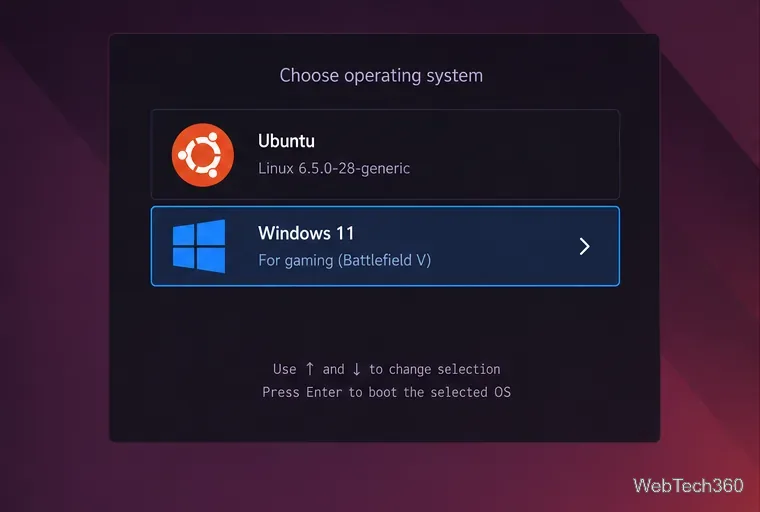
If you want Battlefield V to use your Linux PC's hardware directly, dual booting is the simplest supported approach. A separate SSD for Windows is preferable when available because it reduces the risk of changing your Linux partitions.
Back up important files. Partitioning and bootloader changes can cause data loss if something goes wrong.
Install a supported Windows version. EA's anti-cheat documentation lists Windows 10 version 2004/build 19041 or newer and Windows 11 version 21H2/build 22000 or newer. For a new setup, use a currently supported Windows release.
Install Steam and Battlefield V in Windows. Sign in to the Steam account that owns the game. The Steam version also requires an EA account and the EA app.
Launch Battlefield V and let EA anticheat install. If you remove the anti-cheat, EA states that games requiring it will not be playable until it is reinstalled.
A dual-boot setup lets you keep Linux for everyday use and start Windows when you want to play Battlefield V locally.
Option 2: Stream Battlefield V to Linux with Steam Remote Play
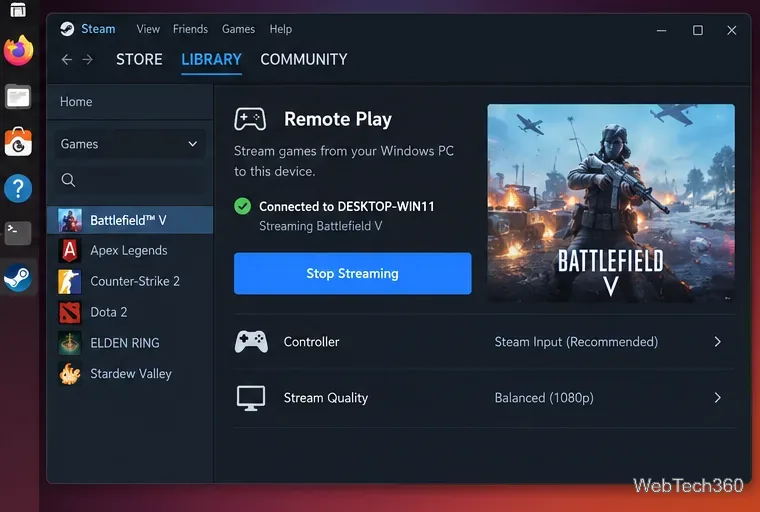
If you already have a second Windows gaming PC, Steam Remote Play avoids rebooting your Linux machine. Valve says a game can run on one computer while its video and audio are streamed to another device, with input sent back to the host. Valve specifically notes that a Windows-only game can be streamed from a Windows PC to a Linux-based system.
Install and launch Battlefield V normally on the Windows host PC.
Install Steam on the Linux computer and sign in to the same Steam account.
Leave the Windows host powered on, signed in, and running Steam.
Open your Library on Linux and start the remote session for Battlefield V.
For the official setup details and troubleshooting information, see Steam Support's Remote Play guide. A wired connection for the host and a strong local network will generally give the best experience.
Remote Play keeps Linux on the client, but Battlefield V itself still runs on the Windows host.
What not to do
Avoid scripts, modified executables, or launch tricks that claim to bypass EA anticheat. They are not a supported Linux solution, can break online functionality, and may create account or security risks. If Battlefield V is the goal, use a supported Windows installation locally or stream from a Windows host instead.
So, if you found an older guide telling you to enable Proton Experimental and install Origin, do not follow it: that workflow predates the anti-cheat change and the move to the EA app.