Home
» LINUX
»
How to Play BioShock Remastered on Linux With Steam Proton
How to Play BioShock Remastered on Linux With Steam Proton
BioShock Remastered can be played on Linux through Steam and Valve's Proton compatibility layer. Steam does not list a native Linux build for the game, so the practical route is to run the Windows version with Proton. The current Steam page also marks the game as Playable on Steam Deck, which is another sign that Valve's Linux compatibility stack is the intended path.
This guide uses the official Steam client and current Proton workflow. You do not need the old 2K Launcher, and you should not start by copying legacy launch-option tweaks from older Linux guides.
What you need before installing
Use a reasonably current 64-bit Linux distribution, an up-to-date graphics driver, and the Steam client. Valve's current Steam for Linux requirements call for a 64-bit system plus both 64-bit and 32-bit graphics libraries. For Windows games under Proton, current Vulkan-capable drivers are especially important.
The BioShock Remastered Steam page lists 25 GB of storage for the game. Leave additional free space for Steam updates and Proton's compatibility files.
How to play BioShock Remastered on Linux
1. Install Steam and sign in
Install Steam using the supported package for your distribution or Valve's official Steam installer, then sign in to the account that owns BioShock Remastered. There is no need to use old distro-specific download URLs from legacy tutorials; current distribution packages or Valve's installer are easier to maintain.
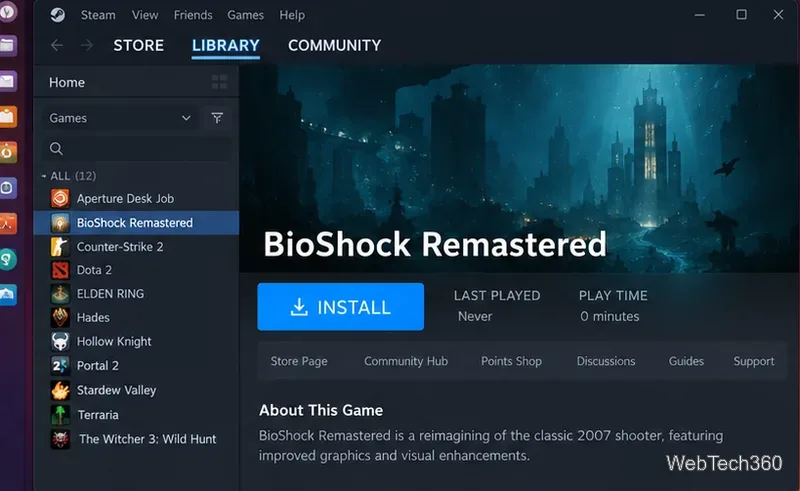
Open Library and select BioShock Remastered. If Steam already offers an Install button, you can proceed directly to the installation step.
BioShock Remastered should appear in your Steam Library with an Install option once Steam Play is available.
2. Make sure Steam Play compatibility is enabled
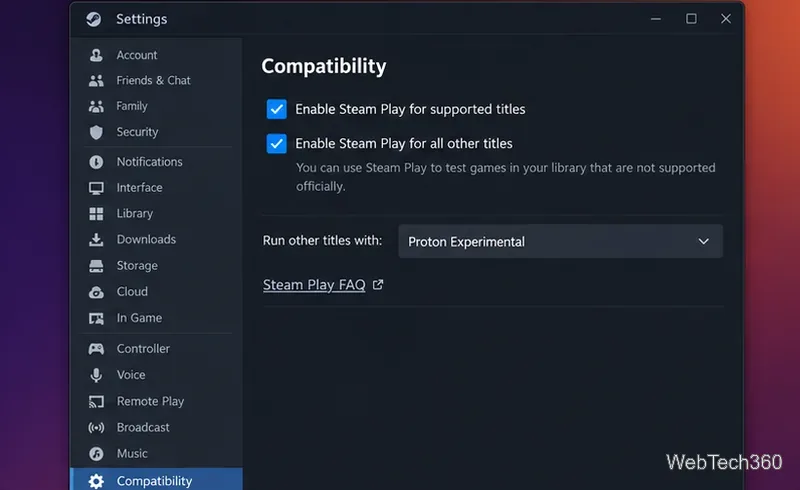
In Steam, open Steam > Settings > Compatibility. If needed, enable Steam Play for other titles. Valve describes Proton as the Steam Play tool that allows Windows-only games to run on Linux; the official Valve Proton project also notes that most users should use the Proton versions supplied by Steam itself.
Steam's Compatibility settings control the Proton version used for Windows games on Linux.
3. Install BioShock Remastered
Return to the game in your Library and click Install. Choose a Steam library location with enough free space and let Steam finish downloading the game and any required compatibility components. You do not need to install Wine separately when you are using Steam's Proton builds.
4. Only force a Proton version if the default does not work
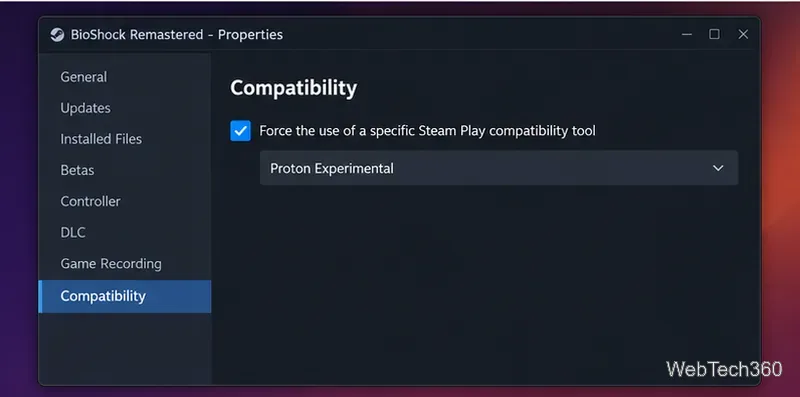
Steam can choose a compatible Proton build automatically. Try that first. If the game will not start, right-click BioShock Remastered, choose Properties > Compatibility, enable Force the use of a specific Steam Play compatibility tool, and select the latest stable Proton version available in your client. If the stable build still has a problem, try Proton Experimental. Valve's own troubleshooting guidance uses this same per-game Compatibility menu.
Use a per-game Proton override only when the automatic compatibility choice is not working well.
Do not add old launch options by default. Commands such as PROTON_USE_WINED3D11=1 PROTON_NO_ESYNC=1 PROTON_NO_FSYNC=1 %command% were once suggested as workarounds, but they deliberately disable or replace parts of Proton's normal graphics and synchronization path. Valve's Proton documentation recommends leaving runtime overrides unset when you want the default configuration.
5. Launch the game
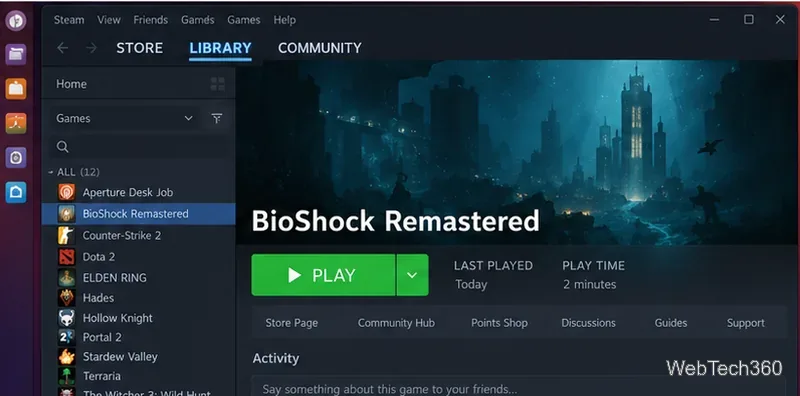
Click Play. The first start may take longer than later launches while Steam prepares the Proton environment. Since November 2024, the 2K Launcher is no longer part of the normal Steam launch path. According to 2K's launcher sunset notice, BioShock Remastered now launches directly into the game after you press Play.
Once installation and Proton setup are complete, launch BioShock Remastered directly from the Steam Library.
If BioShock Remastered will not start
Remove legacy launch options. Open Properties > General and clear old Proton environment-variable commands before testing again.
Try another Valve Proton build. Switch between the newest stable version and Proton Experimental rather than changing several settings at once.
Verify the game files. In Properties > Installed Files, run Steam's file-verification option if the game crashes immediately or an update was interrupted.
Update your graphics stack. Install current NVIDIA drivers or current Mesa/Vulkan packages for AMD and Intel. Valve maintains Proton graphics-driver requirements for Linux users.
Restart Steam fully after an old 2K Launcher install. 2K specifically recommends closing and reopening Steam so the launcher-removal update is applied. Verifying the files can also help if an older installation is stale.
Does BioShock Remastered have native Linux support?
No native Linux system requirements are currently listed on the Steam store page. On a Linux desktop, the normal approach is therefore Steam Play with Proton. For most users, the best setup is also the simplest: install Steam, let Steam choose its default Proton configuration, install the game, and only force a different Proton version when you have an actual launch or rendering problem.