Home
» LINUX
»
How to Play Borderlands 2 on Linux With Steam or Proton
How to Play Borderlands 2 on Linux With Steam or Proton
Borderlands 2 still works on Linux through Steam. Steam continues to list a native SteamOS + Linux version, so the simplest route is to install Steam, download the game from your Library, and launch it normally. If the older native build gives you trouble on a modern distribution, Steam's Proton compatibility layer is a practical fallback.
Does Borderlands 2 still support Linux?
Yes. The official Borderlands 2 Steam page still lists SteamOS + Linux support and names Aspyr as the Linux developer. Steam also currently marks the game as Playable on Steam Deck.
One detail needs context: the Linux system-requirements block on the store page still mentions Ubuntu 14.04 and hardware from the original Linux release era. Those are legacy game requirements, not a good guide to today's Steam client support. Valve's current Steam for Linux requirements call for a 64-bit Linux system, current 64-bit and 32-bit graphics drivers, and glibc 2.31 or newer. Valve officially targets the latest Ubuntu or Ubuntu LTS, while other distributions generally rely on their own maintained Steam packages.
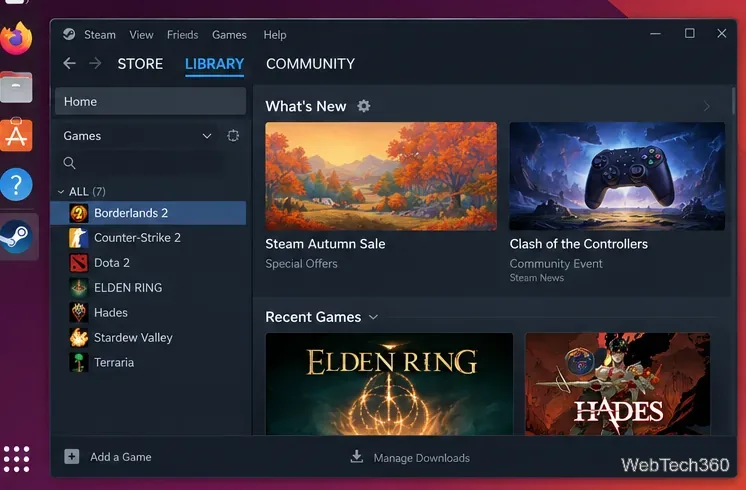
Steam running on Linux with Borderlands 2 visible in the Library.
How to play Borderlands 2 on Linux
1. Install or update Steam
Install Steam from your distribution's trusted package source or use Valve's official Linux package on a supported Ubuntu system. Launch Steam, let the client update, and sign in to the account that owns Borderlands 2. Keep your graphics drivers current before troubleshooting the game itself.
2. Download Borderlands 2 from your Library
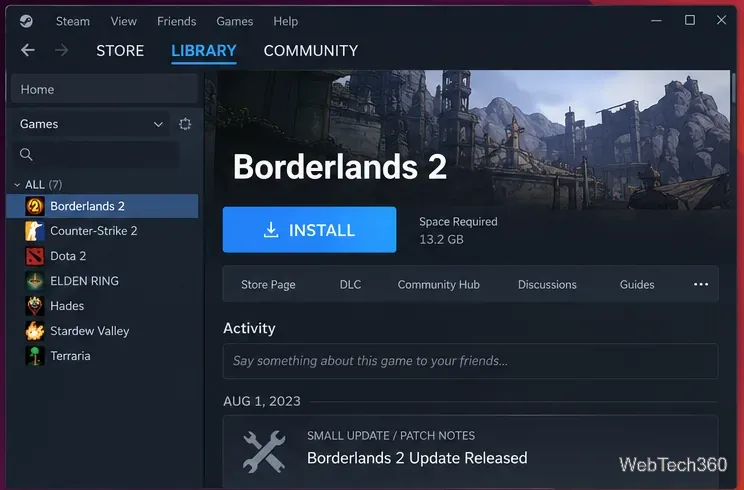
Open Library, select Borderlands 2, and choose Install. If you do not own it yet, purchase it from its Steam store page first. Steam lists about 13 GB for the base Linux game, but leave additional free space for updates and DLC.
Select Borderlands 2 in your Steam Library and use the Install button to download it.
By default, Steam should install the native Linux build when no compatibility tool is forced. Let the download finish before changing compatibility settings.
3. Launch the native Linux version first
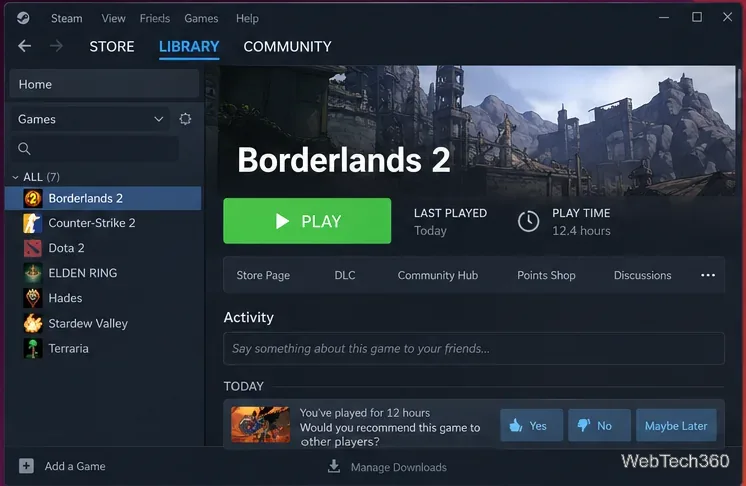
Select Play after installation. Starting with the native build keeps the setup simple and avoids adding a Windows compatibility layer when you do not need one. The Steam listing also shows Steam Cloud and controller support.
The store currently states that a third-party SHiFT account is required. If Steam or the game asks you to link or sign in to SHiFT, follow the account prompt. 2K's current SHiFT support page confirms that Steam accounts can be used with SHiFT.
After installation, start with the native Linux build by selecting Play.
4. Switch to Proton if the native build will not run correctly
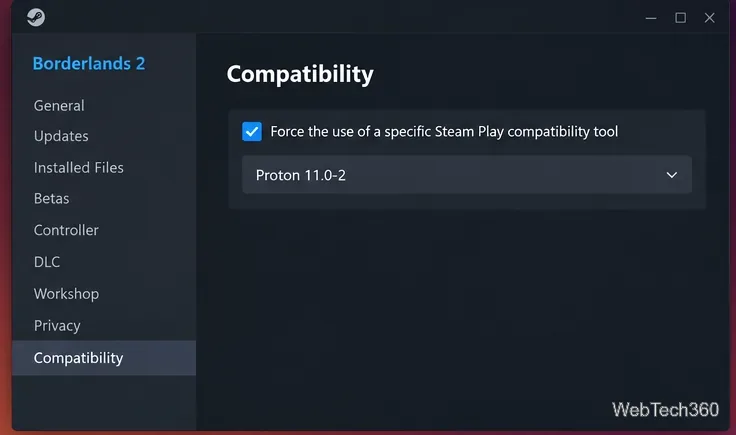
If the game fails to start, crashes, or behaves badly with your current Linux stack, try the Windows build through Proton. In Steam, right-click Borderlands 2, open Properties > Compatibility, enable Force the use of a specific Steam Play compatibility tool, and select the newest stable Proton version Steam offers.
Valve documents this same per-game compatibility setting in its Steam Deck troubleshooting guide. Proton is Valve's Steam Play compatibility tool for running Windows games on Linux; Valve recommends using the Proton version supplied by Steam rather than manually installing it for normal use.
If the native build has problems, force a current Proton version from Properties > Compatibility.
Changing from native Linux to Proton can cause Steam to download different game files. Back up any local saves you cannot afford to lose before switching builds, even though Steam lists Cloud support for the game.
Quick fixes if Borderlands 2 will not start
Verify the files: open Properties > Installed Files and choose Verify integrity of game files.
Update the graphics stack: Steam for Linux needs working 64-bit and 32-bit graphics libraries. Missing 32-bit driver components can prevent Steam games from launching correctly.
Try the other runtime: if native Linux fails, test current Proton; if you previously forced Proton and it stopped working after a change, clear the forced compatibility option and test the native build again.
Restart Steam after changing Proton: let Steam finish any compatibility-tool or game-file downloads before launching again.
Check SHiFT separately: if the game starts but online/account features fail, use 2K support rather than treating an account outage as a Linux graphics problem.
Native Linux or Proton: which should you use?
Option
Best use
Native Linux build
Start here. It is still officially listed on Steam and requires no forced compatibility layer.
Proton
Use it when the native build has launch, graphics, or compatibility problems on your current Linux setup.
For most users, the shortest path is simple: install Steam, install Borderlands 2, try the native version, and only enable Proton if you actually need it.