Home
» LINUX
»
How to Play Bully: Scholarship Edition on Linux with Proton
How to Play Bully: Scholarship Edition on Linux with Proton
Bully: Scholarship Edition does not have a native Linux version on Steam, but you can play the Windows release on Linux through Steam Play and Valve's Proton compatibility layer. The current Steam store page lists Windows 10 as the supported OS, so Linux play is unofficial and can vary by hardware, drivers, and Proton version. The simplest setup is to install Steam, let Steam manage Proton, install the game, and only add compatibility overrides if the default configuration fails.
What you need before you start
A 64-bit Linux installation that can run the current Steam client. Valve's Steam for Linux requirements call for a current 64-bit Linux environment and both 64-bit and 32-bit graphics support.
Up-to-date AMD, Intel, or NVIDIA graphics drivers. Proton normally uses Vulkan-based translation for Direct3D games, so outdated graphics packages are a common source of launch problems.
Enough free storage. Steam lists 4.7 GB for the Windows game itself; leave additional space for Proton files, shader caches, and updates.
1. Install Steam on Linux
Install Steam from your distribution's supported package source or from Valve's official Steam download page. Valve officially supports a narrower Linux configuration than the full range of distributions where Steam can run, so keeping your operating system and graphics stack current is especially important.
Sign in to Steam after installation. If you already own the game, open Library and select Bully: Scholarship Edition. If you do not own it yet, purchase it from its Steam store page first.
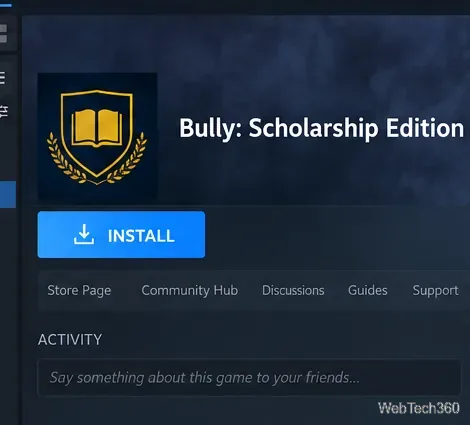
Select Bully: Scholarship Edition in your Steam Library to begin the Linux setup.
2. Use Proton for Bully: Scholarship Edition
Proton is Valve's Steam Play compatibility tool for running Windows games on Linux. Valve recommends using the Proton versions supplied by the Steam client rather than manually installing Wine for a typical Steam game.
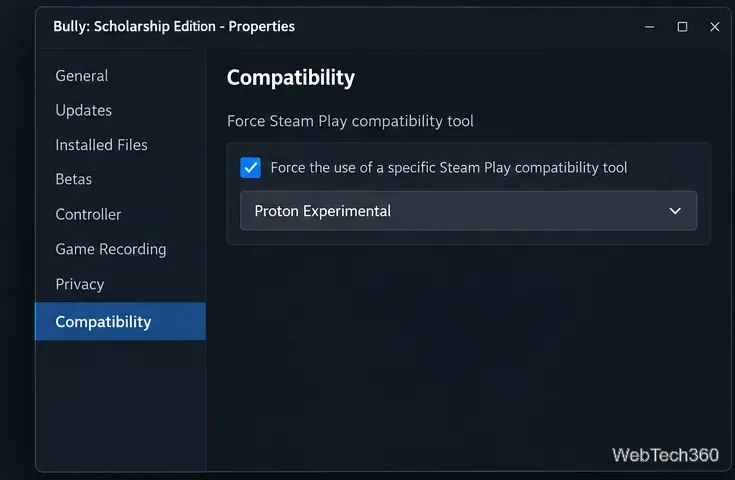
Start by letting Steam use its default compatibility choice. If Bully does not install or launch correctly, open Library, right-click the game, choose Properties, open Compatibility, and enable Force the use of a specific Steam Play compatibility tool. Choose the latest stable Proton version available in your client. If that still fails, Proton Experimental is a sensible next test. Steam documents the same per-game Compatibility path in its official Proton troubleshooting guidance.
The per-game Compatibility tab lets you force a different Proton version when the default fails.
Do not copy the launch options from older Bully-on-Linux guides by default. Valve's current Proton documentation marks PROTON_USE_D9VK as obsolete since Proton 5.0, while PROTON_FORCE_LARGE_ADDRESS_AWARE is enabled by default. In most cases, leaving the Launch Options box empty is the better starting point.
3. Install the game
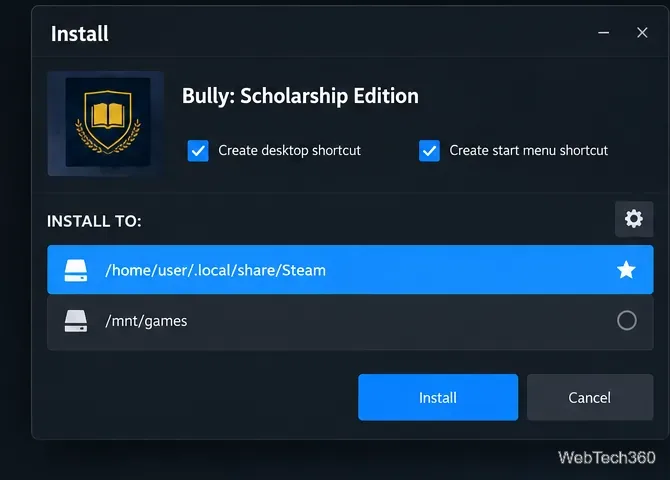
With Bully selected in your Library, click Install. Choose the Steam Library location you want to use and confirm the installation. If the library is on another drive, make sure the drive is mounted before Steam starts and that your Linux user has permission to write to it.
Choose a writable Steam Library location and start the download.
The Steam listing currently states that the game requires a Rockstar Games account and supports linking it to Steam. If a Rockstar account prompt appears during first launch, complete that sign-in or linking step rather than closing the installer or first-run setup.
4. Launch Bully on Linux
After the download finishes, click Play. The first launch can take longer than later starts because Steam may create the Proton prefix and install Windows runtime components used by the game. Let those processes finish before deciding that the game has frozen.
If the game opens, avoid adding extra Proton flags simply because an old tutorial recommends them. Run with the cleanest configuration that works; unnecessary overrides can turn into problems after Proton updates.
Troubleshooting Bully with Proton
If Bully does not start, crashes immediately, or develops missing-file errors, work through these fixes in order:
Try another Proton version. Switch between the latest stable Proton and Proton Experimental in Properties > Compatibility.
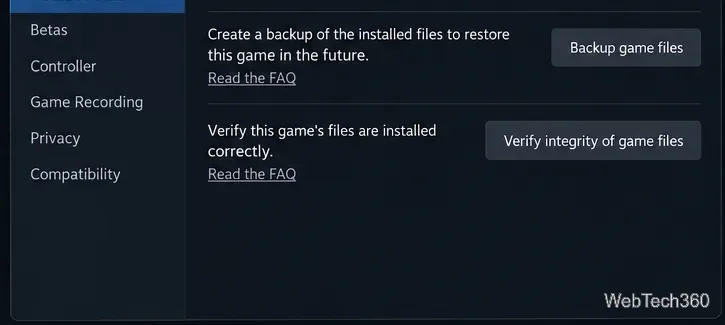
Verify the game files. Open Properties > Installed Files and select Verify integrity of game files. Valve recommends this for Linux launch and crash problems in its Steam verification guide.
Update Linux and your graphics drivers. Steam for Linux needs current 64-bit and 32-bit graphics libraries. Reboot after driver updates before testing again.
Remove old launch options. Clear legacy D9VK, large-address-aware, or latency tweaks and test the game with Proton defaults.
Create a Proton log if you need details. Put PROTON_LOG=1 %command% in the game's Launch Options, run the game once, and then inspect the generated steam-12200.log file in your home directory. Remove the option when you are finished troubleshooting.
Verifying the installation is a good early step when Bully stops launching after an update or interrupted download.
If the problem appears to be specific to a Proton release, Valve maintains a dedicated Proton issue for Bully: Scholarship Edition, App ID 12200. Because the Steam store still lists the game as Windows-only, Valve and Steam Support do not guarantee that every Linux configuration will work. Keeping Steam, Proton, Linux, and your graphics drivers current gives you the best starting point.