Home
» LINUX
»
How to Play Call of Duty: Black Ops III on Linux with Steam Proton
How to Play Call of Duty: Black Ops III on Linux with Steam Proton
Call of Duty: Black Ops III does not have a native Linux version, but you can play its Steam Windows version through Proton. Install Steam, enable Steam Play for other titles, select a Proton version for the game, and install it from your Library. Proton is Valve’s compatibility tool for Windows games; results can vary with Linux distribution, graphics drivers, and hardware, so this is not the same as official Linux support.
This guide uses the desktop Steam client. Steam’s labels can shift between client updates, but the Compatibility and Properties pages remain the key places to configure Proton.
Check your system and game access
You need a Steam account that owns Call of Duty: Black Ops III, a supported 64-bit Linux distribution, working graphics drivers, and enough storage. Steam’s current Windows listing specifies 100 GB of available space; leave extra room for updates or optional content and use the install dialog to check the library you plan to use. The listing provides Windows and macOS requirements, not a Linux performance guarantee. See the official Steam page for Black Ops III.
Set up Steam Play
1. Install Steam on Linux
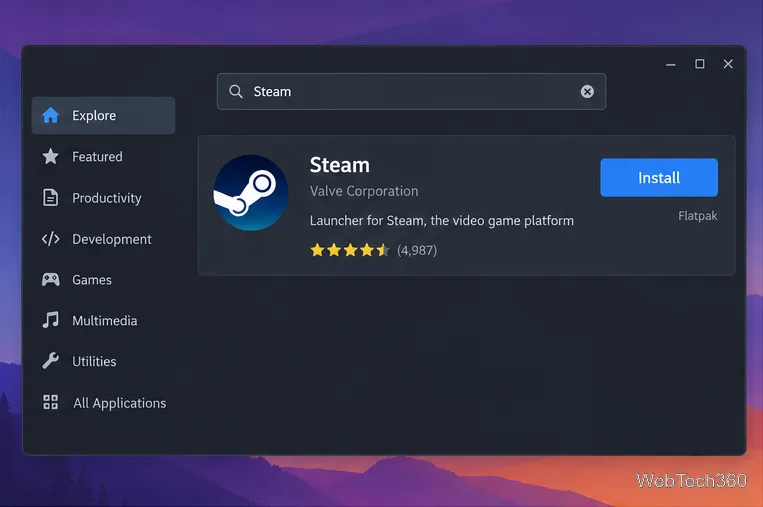
Install Steam from your distribution’s software center or package source, or use the Linux download on Steam’s official download page. Prefer the package supported by your distribution, then open Steam and sign in. The exact installation steps differ between Ubuntu, Fedora, Arch, Debian, and other distributions, so avoid copying package commands intended for a different system.
A distribution software center is one way to install the official Steam client on Linux.
2. Enable Steam Play for all titles
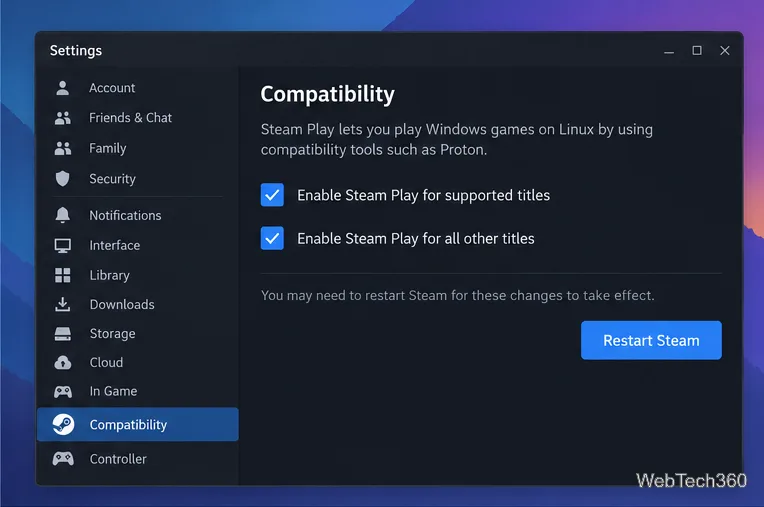
In Steam, open Steam > Settings > Compatibility. Turn on Enable Steam Play for supported titles and Enable Steam Play for all other titles. The second option lets Steam try Proton with games that do not list Linux support. Restart the client when Steam asks. Valve’s compatibility guide describes the per-game Proton control as well.
Enable Steam Play for supported games and for other titles, then restart Steam if prompted.
Install and configure Black Ops III
3. Add the game to your Steam Library
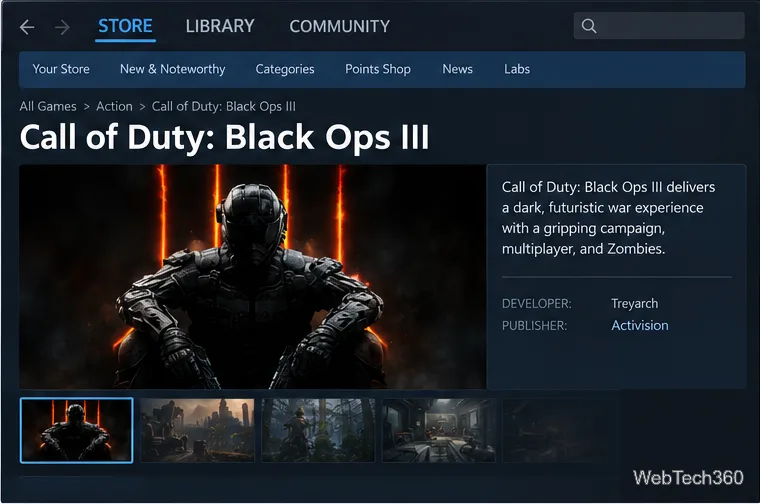
Search the Steam Store for Call of Duty: Black Ops III. If you already own it, choose the option to install it or add it to your Library. Otherwise, complete the purchase through Steam first. The game includes Campaign, Multiplayer, and Zombies modes; adding it to your account is separate from whether Proton can run it on a particular Linux setup.
Open the Steam Store listing if you still need to add the game to your account.
4. Choose a Proton version for the game
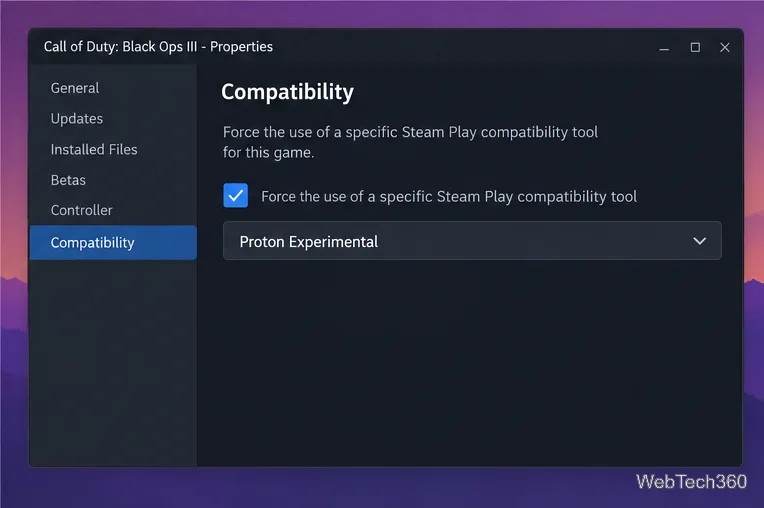
In your Library, right-click Call of Duty: Black Ops III and select Properties. Open Compatibility, check Force the use of a specific Steam Play compatibility tool, then choose Proton Experimental. This is a sensible first choice because it uses a Proton build supplied through Steam and receives ongoing compatibility updates. Valve explains Proton in its official Proton project.
Select your Call of Duty: Black Ops III entry in the Steam Library before changing its compatibility settings.Choose Proton Experimental as the per-game compatibility tool to start.
5. Install the game
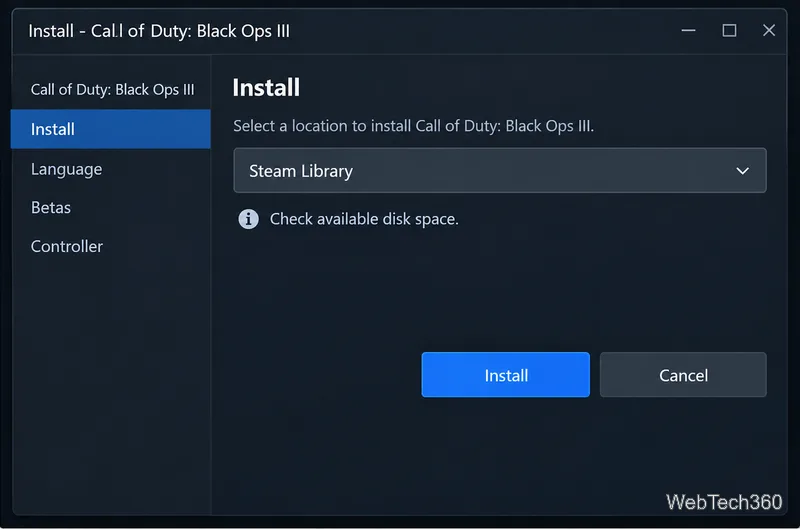
Close Properties, select Install on the Library page, and choose the Steam library with enough free space. Steam downloads the Windows game files and prepares them through Proton. Keep Steam open until the download and any first-run setup finish; the available space and download size can differ from the store’s listed requirement.
Choose a Steam library that has enough free space before starting the download.
6. Launch and test it
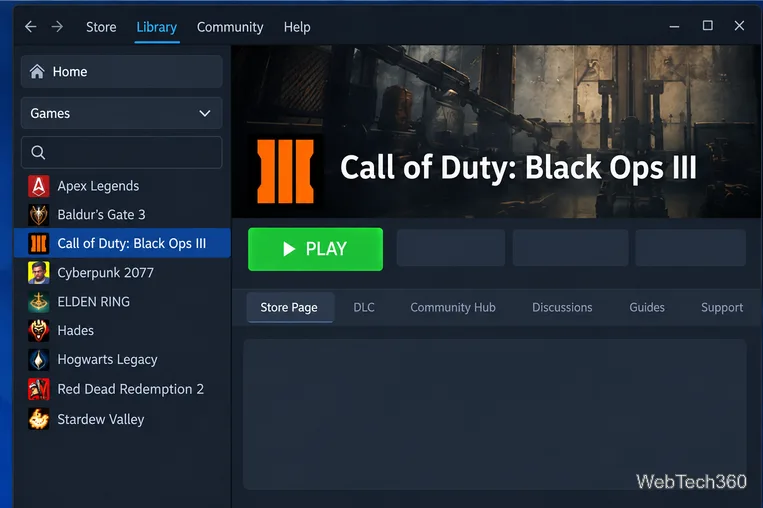
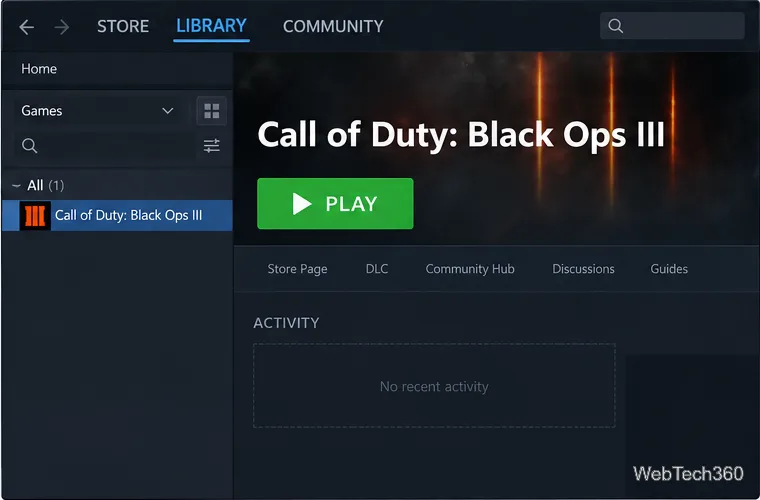
Select Play from the Library. The first launch may take longer while Steam configures the compatibility environment. Start with Campaign or a solo Zombies session to check that video, audio, and input work on your system before relying on online play. If the game opens, you can later adjust resolution and graphics from its in-game settings.
When installation finishes, launch the game from its Library page.
If the game will not start
Restart Steam after enabling Steam Play, then confirm that the game’s Compatibility page still has a Proton tool selected.
Try another Valve-supplied Proton version. If Experimental fails, switch to the current stable Proton option shown in the dropdown, or switch back if the new choice behaves worse. Avoid relying on an old Proton-GE archive from an earlier guide; custom community builds are installed separately and may have different fixes.
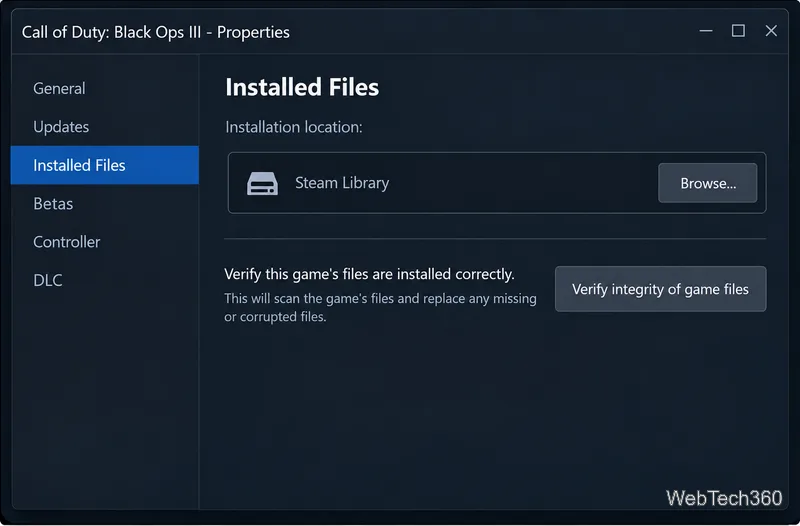
Verify the installation. Open the game’s Properties > Installed Files page and select Verify integrity of game files. Steam will check the local install and replace missing or damaged files. Follow Steam’s file-verification instructions if the menu differs.
Update your system graphics driver and restart Steam. If the problem continues, note your distribution, GPU and driver, and Proton version before checking the Valve Proton issue tracker for game-specific reports.
Use Verify integrity of game files if the install is damaged or the game fails to start.
Proton can make the Windows release playable on Linux, but it cannot promise identical performance or online behavior on every PC. Keeping Steam and your graphics stack current, starting with a Valve-provided Proton version, and verifying the game files give you a clean baseline for troubleshooting.