Home
» LINUX
»
How to Play Cities: Skylines on Linux
How to Play Cities: Skylines on Linux
Yes, you can play Cities: Skylines on Linux without Proton. The original Cities: Skylines has a native SteamOS + Linux build on Steam, so the normal route is to install the Linux Steam client, install the game from your library, and launch it normally. The main thing to avoid is relying on the very old Ubuntu versions still shown on the game’s store-page system requirements.
What you need before you start
The official Cities: Skylines Steam page still lists SteamOS + Linux support. However, those Linux requirements reference Ubuntu 12.04 and 14.10, which are long out of support. Valve says the current Steam client no longer supports Linux distributions using glibc older than 2.31, so use a current, maintained 64-bit distribution instead.
Valve’s Steam Linux support notice also recommends keeping the operating system current. If you want the configuration Valve officially supports, its Linux troubleshooting documentation centers on the latest Ubuntu LTS release with a supported desktop environment.
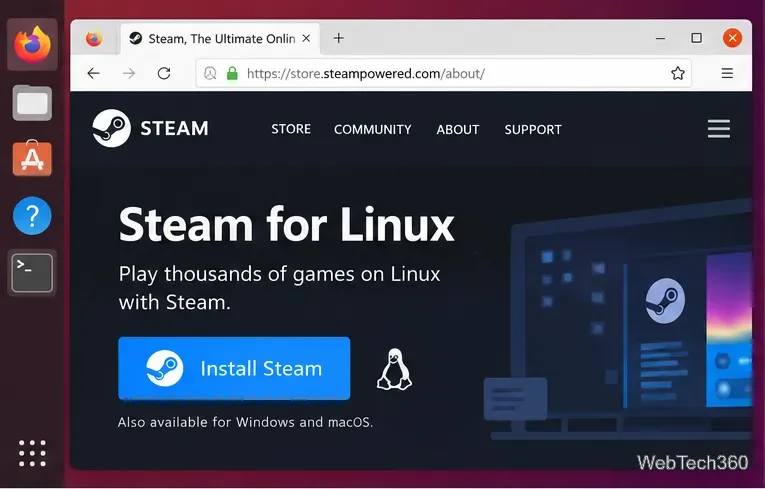
Steam can be downloaded from Valve’s official website on Linux.
Step 1: Install Steam on Linux
The safest general option is to use the package supplied by your distribution or download Steam from Valve’s official Steam install page. On current Ubuntu releases, the Steam installer package is available from Ubuntu’s repositories.
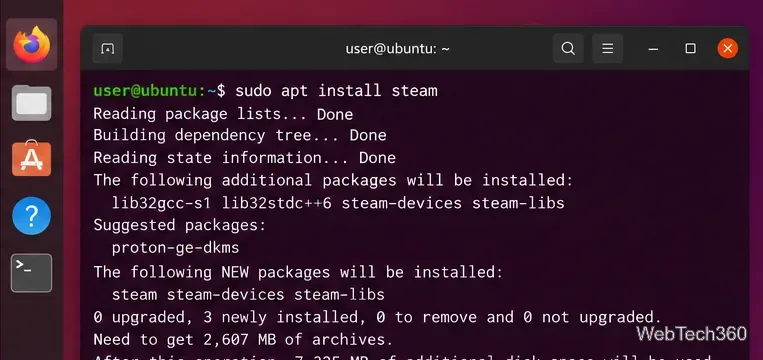
On Ubuntu, first update the package index and then install the Steam installer:
sudo apt update
sudo apt install steam-installer
The transitional steam package also exists on current Ubuntu releases, but steam-installer is the direct package name. If you use Debian, Arch, Fedora, openSUSE, or another distribution, follow that distribution’s current Steam packaging instructions rather than copying old commands meant for obsolete releases.
A terminal-based Steam installation on Ubuntu Linux.
Step 2: Sign in and install Cities: Skylines
Launch Steam and sign in to the account that owns the game. If you do not own it yet, search the Steam Store for Cities: Skylines and purchase the original game. Be careful not to confuse it with Cities: Skylines II, which is a separate title with different platform support.
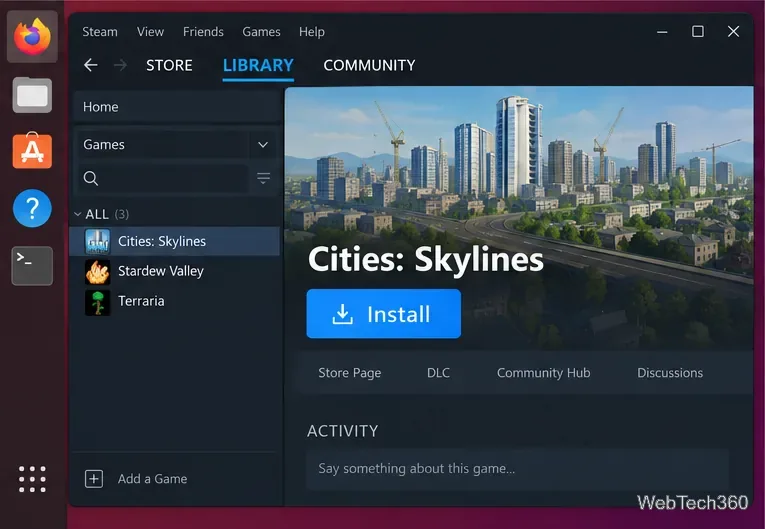
Open Library, select Cities: Skylines, and choose Install. Steam should select the native Linux version automatically. Pick an installation drive with enough free space for the base game plus any DLC, Workshop assets, mods, and save data you plan to use.
Select Cities: Skylines in the Steam Library and install the native Linux build.
Step 3: Launch the native Linux version
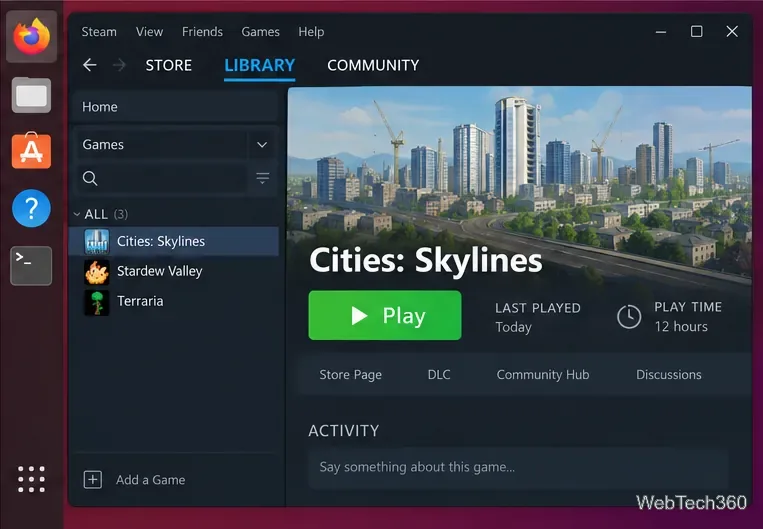
When the download finishes, click Play. You normally do not need to enable Steam Play or force a Proton version because Steam provides a Linux build for the original game. If you previously forced a compatibility tool, open the game’s Steam properties and return compatibility settings to the default so Steam can use the native build.
Cities: Skylines may also start through the Paradox Launcher v2 before the game itself opens. That launcher is used with Cities: Skylines when the game is started through Steam.
After installation, launch Cities: Skylines from the Steam Library.
If Cities: Skylines will not launch on Linux
Start with the simple checks: fully update Steam, install current graphics drivers from your distribution, verify the game files in Steam, and reboot after major driver or runtime changes. Avoid forcing Proton unless you have a specific reason, because that changes you from the native Linux build to the Windows build running through a compatibility layer.
Mods are another common cause of startup and save-loading problems. Paradox recommends testing the game with Workshop content and mods disabled. Add the following Steam launch options temporarily:
--disableMods --noWorkshop
If the game starts normally afterward, re-enable your mods gradually and remove or update the one causing the problem. Paradox documents this process in its official Cities: Skylines mod troubleshooting guide. On Linux, the game’s local user data is stored under ~/.local/share/Colossal Order/Cities_Skylines, so back up saves before deleting or rebuilding local game data.
Bottom line
For the original Cities: Skylines, Linux support is still straightforward: use a current 64-bit Linux distribution, install Steam, install the game from your library, and run the native Linux build. The biggest correction to older guides is that you should no longer treat Ubuntu 12.04 or 14.10 as usable targets for modern Steam; keep the operating system and graphics stack current instead.