How to Share Files Over Bluetooth on Linux with Blueman

Send and receive files over Bluetooth on Linux with Blueman. Install OBEX support, pair devices, choose a file, accept transfers, and fix common issues.
To play Commodore 64 (C64) games on Linux, install VICE, open its C64 emulator, and load a game image you have the right to use. For many disk games, the quickest route is to select a .d64 file and click Autostart. VICE emulates the computer; it does not provide a catalog of commercial games.
The VICE team lists version 3.10, released December 24, 2025. Flathub also lists a VICE package, but identifies it as community-provided and unverified, and says it is not affiliated with or supported by the VICE team. Check the VICE release page and Flathub listing for current package details.
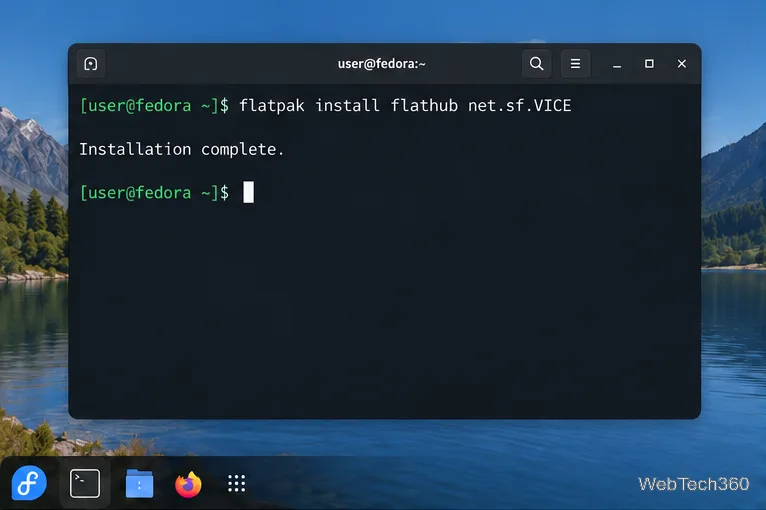
Flatpak is a straightforward option across Linux distributions. If Flatpak is already installed and Flathub is enabled, open a terminal and run:
flatpak install flathub net.sf.VICEApprove the installation prompt, then launch VICE from your applications menu. If the command cannot find the Flathub remote, first install Flatpak and add Flathub using the instructions for your distribution on Flathub's setup page. The VICE package page notes that its Flatpak build is a community package, so users who prefer distribution-maintained software can also check whether their Linux repository offers VICE and review its version.
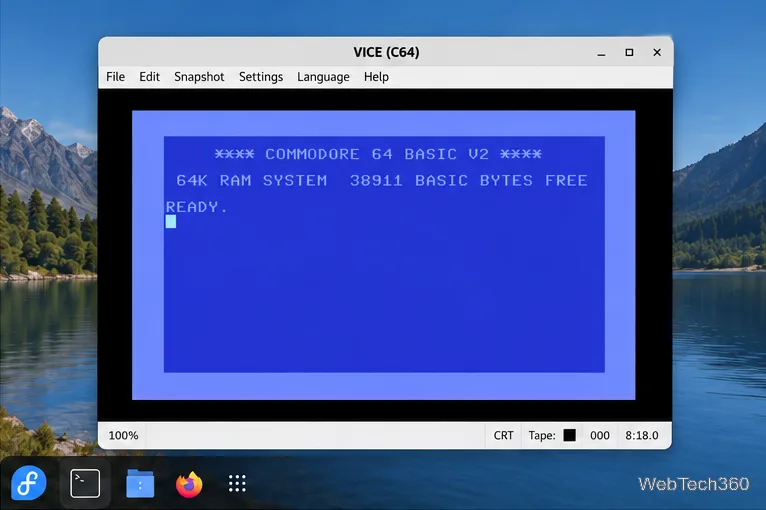
In the application menu, choose VICE's Commodore 64 entry. The C64 program is called x64sc, the accurate C64 emulator in the VICE family; the Flatpak launcher starts it for you. You can also start the Flatpak from a terminal with flatpak run net.sf.VICE. The emulator should open at the familiar blue BASIC screen, usually showing READY. That screen means the virtual C64 is running, but no game has been loaded yet.
VICE also includes emulators for other Commodore systems, so choose the C64 entry rather than VIC-20, C128, or another machine if you are following a C64 game's instructions. The VICE manual's emulator overview describes the available programs and their command names.
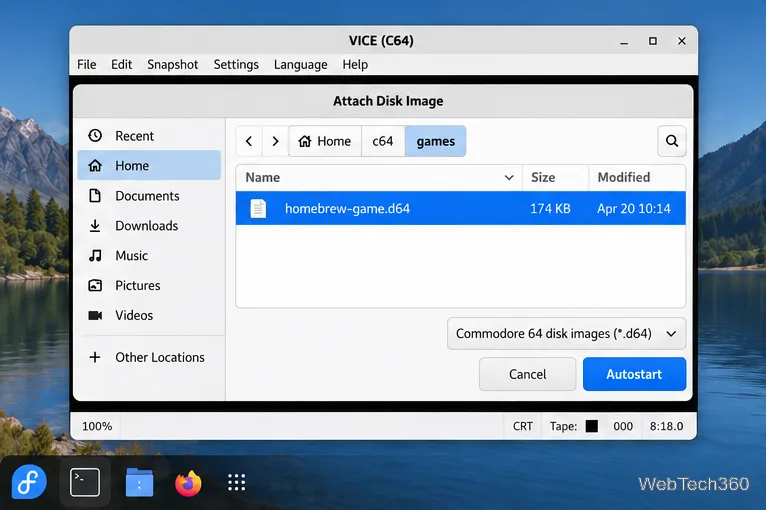
Use a game image that you own or are otherwise authorized to use, such as a personal backup made from media you own or an authorized homebrew release. These files are often called C64 ROMs in casual conversation, though common .d64 and .g64 files are disk images. VICE supports multiple disk, tape, cartridge, and program formats; the manual's media-image section lists supported types and loading behavior. For tape software, it recommends TAP for tape emulation; T64 support has limitations.
With the C64 window open, choose File > Attach disk image, browse to your .d64 or other supported disk image, select it, and click Autostart. VICE attaches the image and attempts to run its first program. If your software is a tape image, choose the tape-image command instead. When a title screen, disk prompt, or loading instructions appear, follow the game's directions; not every release starts or loads the same way.
Some C64 games use the keyboard, while others expect a joystick. VICE can map keyboard controls through a numeric keypad layout or a configurable keyset. In the keypad layout, keys 1 through 9 cover directions, including diagonals, and 0 acts as the fire button. If those controls do not match a game's instructions, open VICE's settings and check its joystick options.
For a USB gamepad, connect it before starting VICE, then use the joystick settings to assign the host controller to the C64 joystick port the game expects. If movement or fire does not register, try the other C64 port and confirm that Linux recognizes the controller. The devices available in VICE depend on the joystick support exposed by the host system. The VICE joystick settings reference explains the device and keyset options.
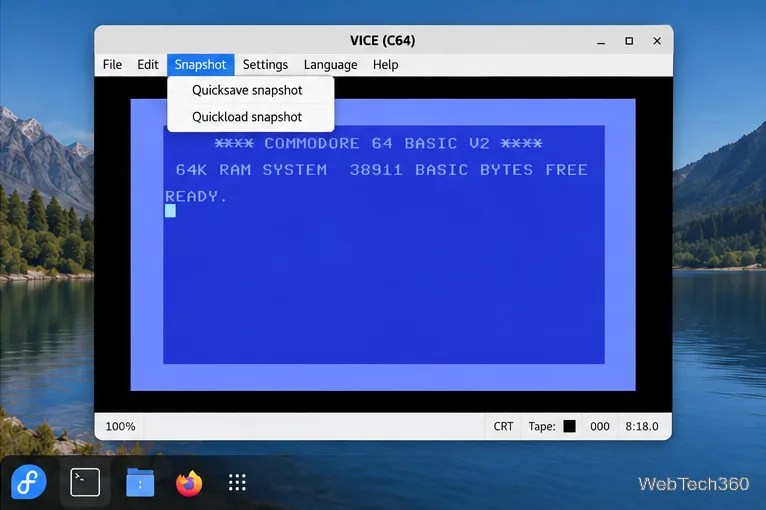
To return to the same point later, open the Snapshot menu and choose Quicksave snapshot. To restore that saved emulator state, choose Quickload snapshot. A snapshot captures the emulator's state, including the running game, rather than making a separate save inside the game itself. Keep the original game image too. VICE warns that snapshots can be rejected by later versions when their contents are incompatible, so treat them as convenient checkpoints instead of permanent archival files. See the official snapshot documentation for details.
Once VICE is installed and the correct game image is attached, Linux can run the same C64 software through its emulated keyboard, disk and tape drives, and joystick ports.
Send and receive files over Bluetooth on Linux with Blueman. Install OBEX support, pair devices, choose a file, accept transfers, and fix common issues.
Connect GNOME Files to SSH/SFTP, FTP, SMB, WebDAV, or NFS with the correct server URI, sign-in details, and fixes for common connection errors.
Open SFTP, SSH, SMB, FTP, NFS, and WebDAV locations in Dolphin, sign in safely, transfer files, and save network folders for later.
Connect a DualShock 4 to Linux by USB or Bluetooth, then check controller detection and configure Steam Input only when a game needs it.
Use DNF5 parallel downloads to reduce RPM install waits in GNOME Software, then tell when mirror or Flatpak delays need a different fix.
Access iCloud on Linux in a current browser. Learn how to sign in, use iCloud Drive and other web apps, and understand the limits of browser access.
Save GRUB settings, boot files, and UEFI entry details to removable storage, then use rescue media to repair the correct boot path safely.
Install Bitwarden on Linux with the right DEB, RPM, Snap, Flatpak, or AppImage package, then sign in and set a secure vault timeout.
Pick a screensaver theme in Xfce, preview it, choose when it starts, and configure automatic locking in the separate Lock Screen tab.
Stop GNOME Shell from blanking or locking your display automatically. Change Power and Screen Lock settings, or use Caffeine for a temporary keep-awake toggle.








