Home
» LINUX
»
How to Play Counter-Strike: Global Offensive on Linux
How to Play Counter-Strike: Global Offensive on Linux
Yes, you can still play Counter-Strike: Global Offensive on Linux through Steam. The important change is that Valve now provides CS:GO as a separate, unlisted Steam app rather than treating it as the current Counter-Strike release. The official listing is free to play, supports SteamOS + Linux, and uses App ID 4465480. Because the page is unlisted, a normal Steam Store search may not find it.
This guide is specifically for CS:GO on Linux. If you want the latest Counter-Strike release, Valve points players to Counter-Strike 2 instead. You can view the current CS:GO listing on the official Counter-Strike: Global Offensive Steam page.
What changed for CS:GO on Linux?
Older instructions often tell Linux users to search for CS:GO under App 730 or select a legacy beta branch from Counter-Strike 2. That is no longer the clearest installation path. Valve's current store page exposes CS:GO as its own unlisted game, while the Counter-Strike 2 page remains the home of the current version.
There is another important compatibility detail: the CS:GO store page still shows very old Linux requirements, including Ubuntu 12.04. Do not use that as a current operating-system recommendation. Steam Support states that, from August 15, 2025, the Steam client no longer supports Linux distributions with glibc older than 2.31. Use a currently supported Linux release and keep it updated.
1. Install Steam on Linux
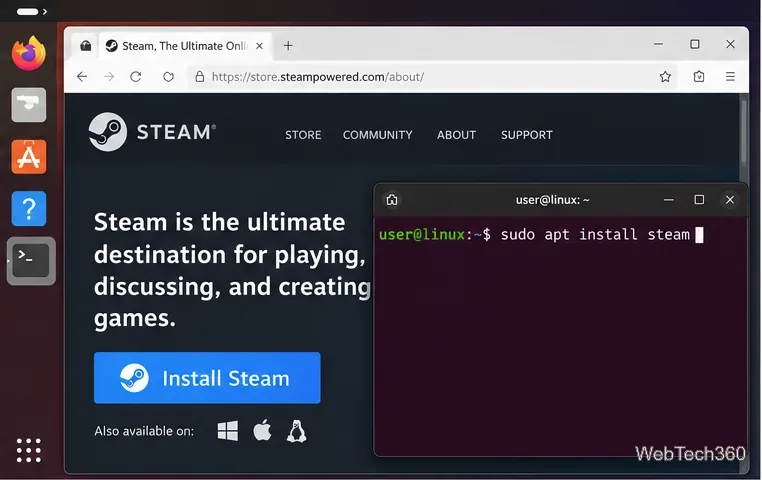
If Steam is already installed and updated, skip to the next step. On Ubuntu or another Debian-based distribution, Valve provides the current steam_latest.deb package through its official Steam for Linux repository. After downloading the package, you can install it from the download directory with:
sudo apt install ./steam_latest.deb
On other distributions, use the Steam package recommended by your distribution. Then launch Steam, let the client update, and sign in. If Steam itself refuses to start on an older distribution, check Valve's Steam Linux Support notice before troubleshooting the game.
Install and update Steam before adding CS:GO to the Linux game library.
2. Open the unlisted CS:GO Steam page
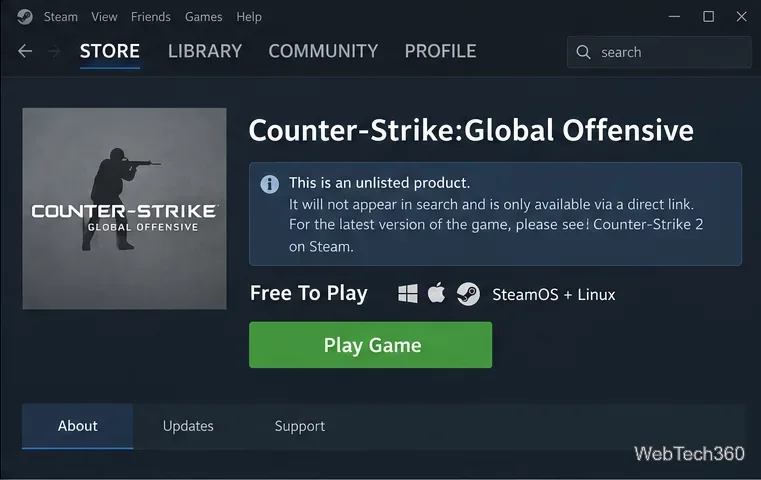
Do not rely on the Steam Store search box. Open the direct Valve store listing for CS:GO. The page identifies the game as unlisted and free to play. Select Play Game; if your web browser asks for permission to open Steam, allow it.
CS:GO is unlisted on Steam, so the direct store page is more reliable than Store search.
3. Install the native Linux build
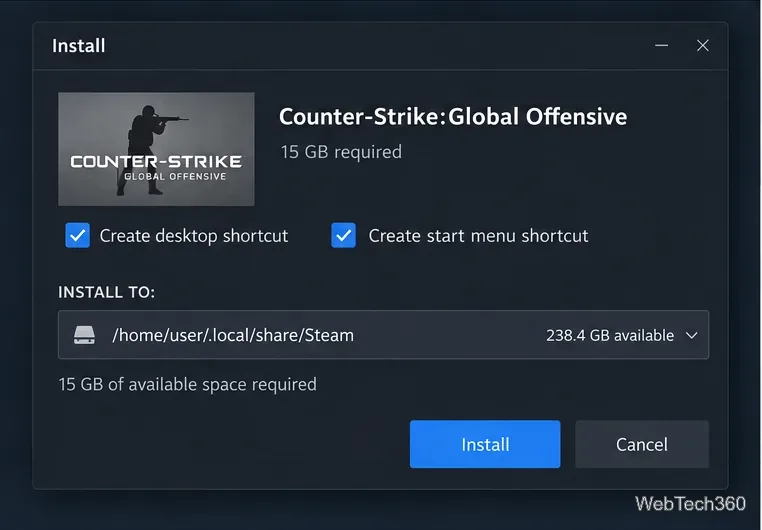
Steam should open an installation dialog. Choose your Steam library location and start the download. Valve's current CS:GO page lists 15 GB of available storage as the minimum, so leave extra free space for downloads, updates, and temporary files.
The store page includes SteamOS + Linux system requirements, so CS:GO has a native Linux build. You do not need Proton for a normal installation. If you previously forced a Steam Play compatibility tool, open the game's Properties > Compatibility settings and disable the forced compatibility option so Steam can use the Linux build.
Choose a Steam library with enough free space, then install the native Linux version.
4. Launch CS:GO from your Steam Library
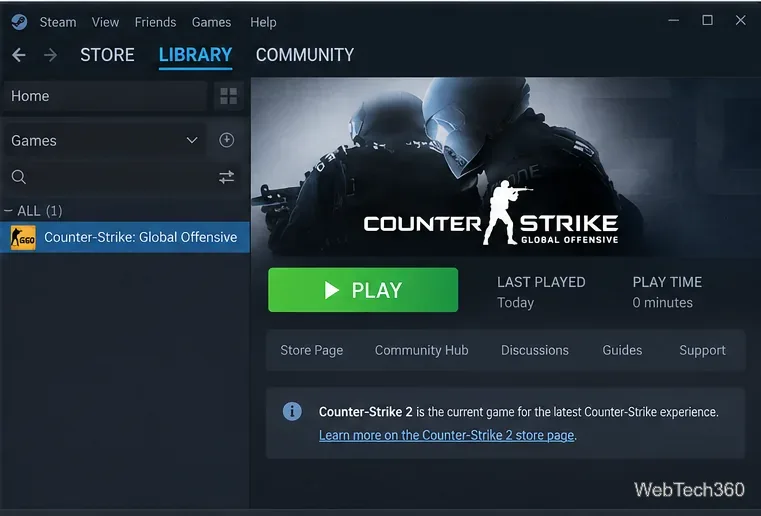
When the download finishes, open Library, select Counter-Strike: Global Offensive, and click Play. The first start can take longer than later launches while Steam completes setup and the game creates local files. Keep your graphics driver and Linux system packages current, especially if you encounter rendering or startup problems.
After installation, launch CS:GO directly from its separate Steam Library entry.
If CS:GO will not launch on Linux
Steam does not start: update to a supported Linux release and confirm that the system is not using glibc older than 2.31.
You can only find Counter-Strike 2: that is expected because CS:GO is unlisted. Use the direct App 4465480 page above.
The game crashes or shows missing content: restart Steam, update Linux and your graphics drivers, then right-click CS:GO and choose Properties > Installed Files > Verify integrity of game files. Valve documents this process in its file verification guide.
Steam tries to use a Windows build: turn off any forced Proton or Steam Play compatibility setting for CS:GO and retry the native Linux version.
For the latest Counter-Strike experience, use Counter-Strike 2. If your goal is specifically the classic CS:GO client, Valve's separate unlisted Steam app is the most direct current route on Linux.