Home
» LINUX
»
How to Play Cyberpunk 2077 on Linux with Steam Proton
How to Play Cyberpunk 2077 on Linux with Steam Proton
Yes, you can play Cyberpunk 2077 on Linux through Steam Play and Valve's Proton compatibility layer. The game does not currently have a native Linux build on Steam—the store lists Windows and macOS—but Valve's Steam Play can run Windows-only games on Linux, and Cyberpunk 2077 is Steam Deck Verified. For most desktop Linux systems, the simplest route is Steam plus the default Proton version.
Before you install Cyberpunk 2077 on Linux
Start with an up-to-date 64-bit Linux installation, current GPU drivers, and an SSD. CD PROJEKT RED's current PC requirements list 70 GB of SSD storage as the minimum storage requirement. Treat the publisher's official PC system requirements as a hardware baseline, while remembering that Proton adds another compatibility layer and results can vary by driver and desktop environment.
Valve officially documents Steam for Linux and Steam Play in its Steam Linux support page. On Ubuntu, the native Steam package is the easiest choice. Valve also provides its own Steam for Linux launcher repository. Other distributions can use their maintained Steam package, but Valve support is more limited outside Ubuntu.
How to play Cyberpunk 2077 on Linux
1. Install Steam
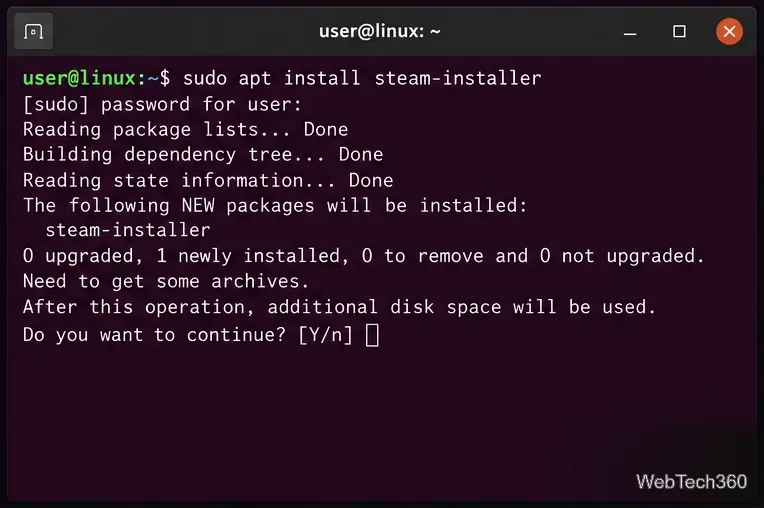
On Ubuntu, open Terminal and install the Steam launcher package:
sudo apt update
sudo apt install steam-installer
Launch Steam after installation, let the client update, and sign in to the account that owns Cyberpunk 2077.
Install Steam from your distribution package or Valve's official Linux launcher source.
2. Enable Steam Play and Proton
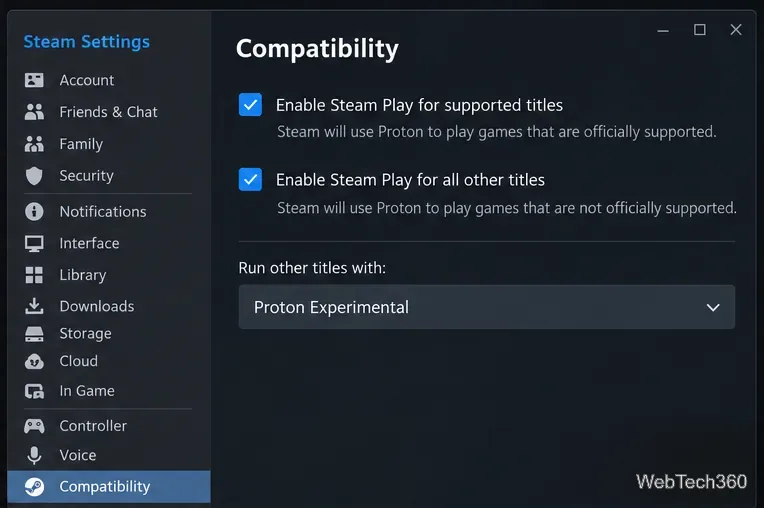
Open Steam > Settings > Compatibility. Enable Steam Play for supported titles. If your client also offers the option to enable Steam Play for other titles, turn that on as well. Steam can then use Proton to launch Windows games that do not ship a native Linux executable.
Steam Play lets the Linux client run Windows games through Proton.
3. Install Cyberpunk 2077
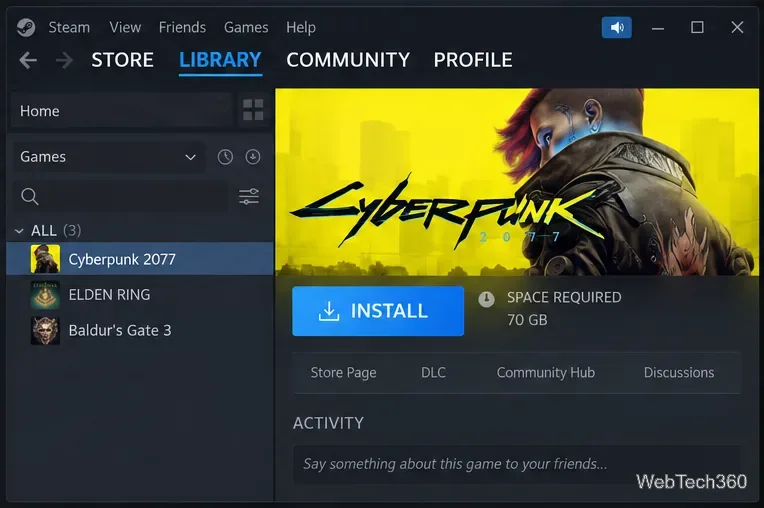
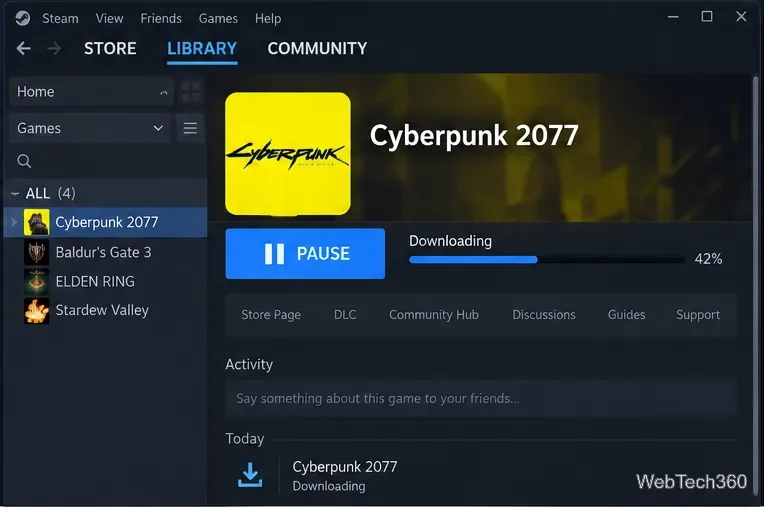
Open Library, select Cyberpunk 2077, and choose Install. If you do not own the game yet, purchase it from the official Cyberpunk 2077 Steam page first.
Select Cyberpunk 2077 in your Steam Library and start the installation.
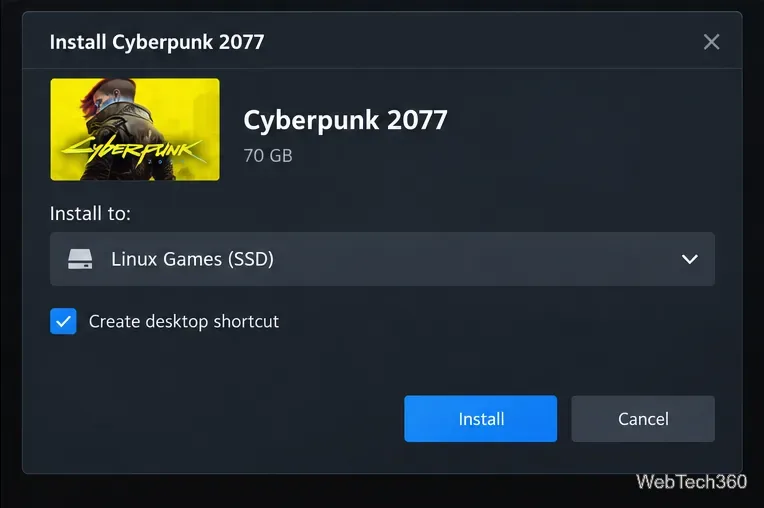
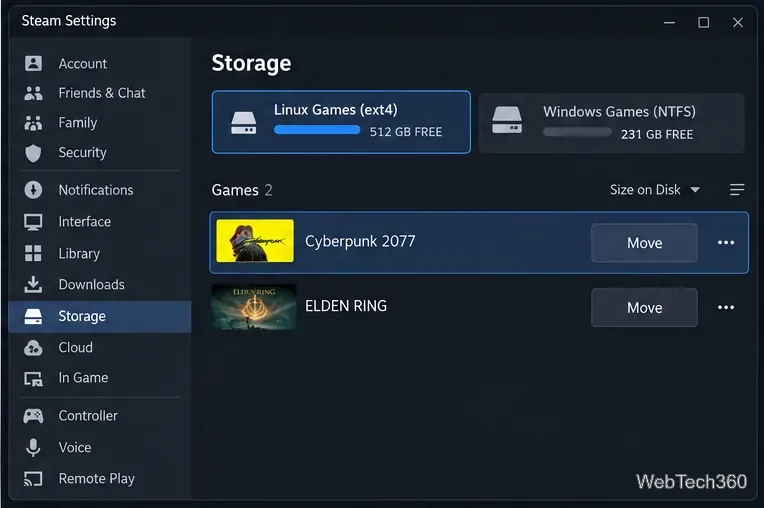
Choose an SSD-backed Steam library. A native Linux filesystem such as ext4 or Btrfs is generally the safer choice for Proton than reusing an NTFS Windows library.
Install the game to an SSD, preferably on a native Linux filesystem.
4. Let Steam download the game, then launch it once
Wait for the download and shader or redistributable setup to finish. For the first launch, try Steam's default compatibility choice before changing anything. Valve updates Proton frequently, so the automatic selection is often better than an old manual recommendation.
Let Steam finish the download and first-run setup before troubleshooting.
5. If the game does not start, force a Proton version
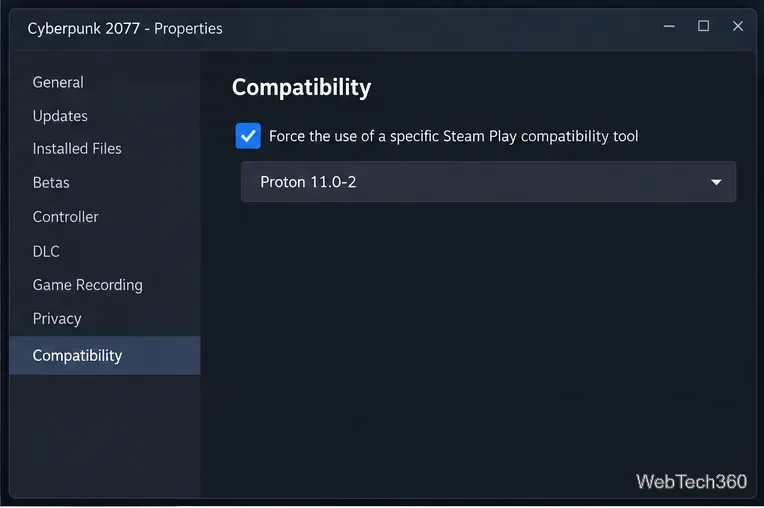
Right-click Cyberpunk 2077, open Properties > Compatibility, and enable Force the use of a specific Steam Play compatibility tool. As of August 2026, Valve's latest stable release is Proton 11.0-2. Start with the current stable version; if a new Cyberpunk patch causes a regression, try Proton Experimental temporarily. Valve explains the difference between Stable, Experimental, Hotfix, and Bleeding Edge on its official Proton versions page, and publishes current builds on the Proton releases page.
Force a specific Proton version only when the default selection has a problem.
6. Fix common launch or update problems
If Cyberpunk 2077 stops launching after an update, work through these checks before adding custom launch options:
Update your GPU driver and Linux packages. CD PROJEKT RED specifically recommends current graphics drivers when diagnosing launch crashes.
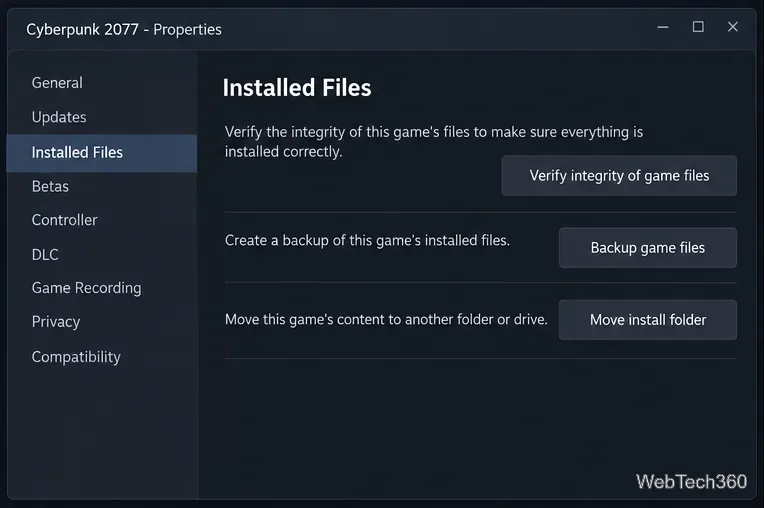
Verify the game files. Open Properties > Installed Files and choose Verify integrity of game files.
Switch Proton versions. Try the latest stable build first, then Proton Experimental. Avoid Bleeding Edge unless you are testing a specific fix; Valve describes it as automated and untested.
Disable mods and custom launch options. Return to a clean baseline before troubleshooting Proton.
Keep the Proton prefix on a Linux filesystem. Valve's Cyberpunk 2077 Proton issue tracker includes recent reports involving NTFS-mounted Steam libraries and compatibility data. If your game lives on an NTFS drive and crashes immediately, moving it to ext4 or Btrfs is a practical test.
Use Steam file verification after a failed update or unexplained launch error.If an NTFS library causes Proton trouble, move the game to a native Linux Steam library.
Do you need Proton Experimental?
Usually, no. If Cyberpunk 2077 launches with Steam's default Proton selection, leave it alone. Use Proton Experimental when a newly released game patch needs a fix that has not yet reached Stable, then switch back once the stable branch catches up.
Is there a native Cyberpunk 2077 Linux version?
No native Linux build is listed on Steam. Linux desktop users are running the Windows version through Steam Play/Proton. That is also why keeping Proton, graphics drivers, and Steam current matters more than following an old fixed Proton version from a legacy guide.