Home
» LINUX
»
How to Play Dead Rising on Linux with Steam and Proton
How to Play Dead Rising on Linux with Steam and Proton
Dead Rising does not have a native Linux build, but the Windows version can run on Linux through Steam and Valve’s Proton compatibility layer. The simplest approach is to install the native Steam client, make sure Steam Play is enabled, then let Steam use a current Proton release for the game.
This guide focuses on the original 2016 PC release, Steam App 427190. Capcom’s current Dead Rising Steam page lists Windows 10 or Windows 11 rather than Linux, so Proton is what makes the Windows build usable on a Linux desktop.
What you need before you start
A 64-bit x86_64 Linux system with current graphics drivers.
The Steam for Linux client and a Steam account that owns Dead Rising.
At least 8 GB of free space for the game, plus extra room for Steam, Proton, shader data, and the game’s compatibility prefix.
Valve currently requires glibc 2.31 or newer for the Steam Linux client and recommends using a maintained Linux release. The Steam Linux support notice and the Steam for Linux documentation are the best places to check current client requirements.
1. Install Steam on Linux
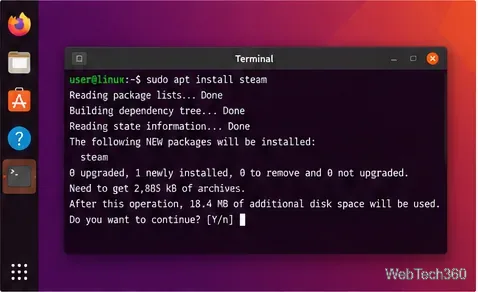
On Ubuntu and other Debian-based systems, the safest option is to download Valve’s current steam_latest.deb package and install it with your desktop package installer or the method documented by Valve. On Arch, Fedora, openSUSE, and other distributions, use the Steam package provided by your distribution unless you have a specific reason to choose another packaging format.
After Steam starts, let it update fully, sign in, and install any graphics-driver updates offered by your distribution. Proton depends heavily on working Vulkan and 32-bit graphics libraries, so outdated or incomplete drivers can cause games to fail before they reach the title screen.
A typical Steam installation step on a Debian-based Linux desktop. Package names and commands can vary by distribution.
2. Enable Steam Play and Proton
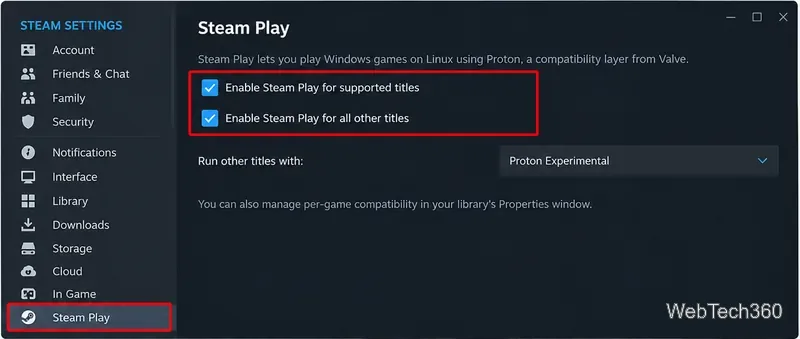
Open Steam > Settings > Compatibility. Some client builds or documentation still use the older label Steam Play. Make sure compatibility for Windows-only titles is enabled. Steam may choose a Proton version automatically; if it does, that is the best starting point.
Valve’s Proton project describes Proton as the Steam compatibility tool that runs Windows games on Linux. At the time of this update, the latest stable release shown by Valve is Proton 11.0-2. Proton Experimental is also available for newer fixes, but it changes more frequently.
Steam compatibility controls may be labeled Compatibility or Steam Play depending on the client build. Start with Steam’s default Proton choice when possible.
3. Find and install Dead Rising
Open the Store tab in Steam.
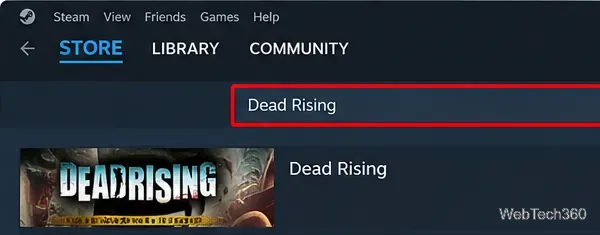
Search for Dead Rising and open the entry published by Capcom.
Purchase the game if it is not already in your account.
Open Library, select Dead Rising, and click Install.
The Steam listing currently shows an 8 GB storage requirement and Windows-only operating-system requirements. You do not need a separate Windows installation for this method; Steam downloads the Windows game files and Proton provides the compatibility layer.
Search for the original Dead Rising in the Steam Store, then add it to your account before installing it from the Library.
4. Launch Dead Rising with Proton
Once installation finishes, click Play. If Steam has already assigned a compatibility tool, test the game before changing anything. If the game refuses to launch, right-click Dead Rising > Properties > Compatibility, enable Force the use of a specific Steam Play compatibility tool, and try the current stable Proton release. If that still fails, test Proton Experimental.
Do not begin by copying old launch options from older Linux guides. Proton has changed significantly, and an override that helped Proton 4, 5, or 6 can cause new problems on Proton 11.
After installation, launch Dead Rising from the Steam Library. Use per-game Compatibility settings only if the default Proton choice has problems.
Troubleshooting Dead Rising on Linux
Nothing happens after clicking Play: update Steam, your Linux distribution, and GPU drivers; remove any custom launch options; then switch between the current stable Proton and Proton Experimental.
The game starts but audio or loading hangs: Valve’s long-running Dead Rising Proton compatibility issue is still open and is tagged for XAudio2-related problems. Older reports used XAudio workarounds, but those reports were written for much older Proton releases, so test a clean current Proton prefix first.
A Proton version behaves worse than another: return to Properties > Compatibility and choose a different Valve-provided Proton build. Valve recommends that most users use the Proton versions shipped directly through Steam.
Game files may be damaged: open the game’s Properties page and use Steam’s file-verification option under Installed Files before reinstalling the entire game.
Can Dead Rising run natively on Linux?
No native Linux version is listed on Steam. On a Linux PC, you are running Capcom’s Windows build through Proton. That means compatibility can vary with your GPU driver, desktop environment, Proton release, and Steam client version. Start with Steam’s defaults, keep the system current, and only add game-specific tweaks when you have a reproducible problem.