Home
» LINUX
»
How to Play Deep Rock Galactic on Linux with Steam Proton
How to Play Deep Rock Galactic on Linux with Steam Proton
You can play Deep Rock Galactic on Linux through Steam using Proton, Valve’s compatibility tool for Windows games. The setup is straightforward: install Steam, enable Steam Play, install the game, and launch it from your Library.
Steam’s current store listing names Windows as the game’s operating system, so this is not a native Linux version. Proton translates the Windows game for Linux, and results can vary with your distribution, graphics drivers, hardware, and future game updates. Treat it as a compatibility method rather than a guarantee of official Linux support.
Before you begin
Update your Linux distribution and install the graphics driver recommended for your GPU. Proton relies on the system’s graphics stack, so an outdated or incomplete driver can cause a launch failure or poor performance. You’ll also need an internet connection, a Steam account, and a license for the game.
Install Steam on Linux
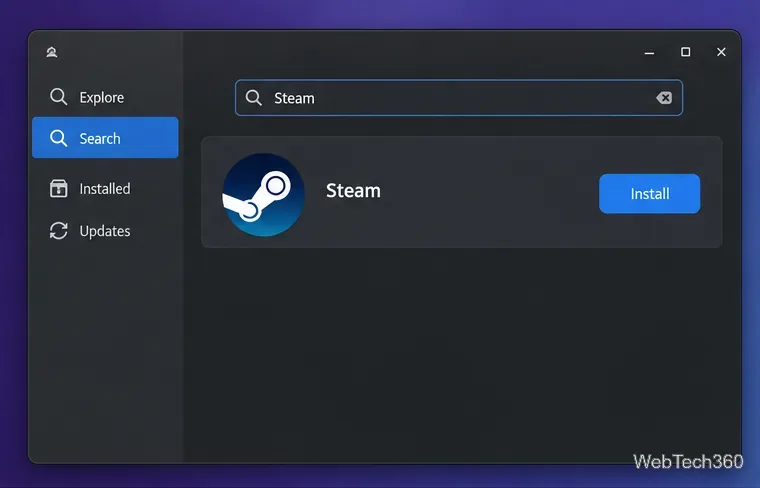
Install the Steam client. Open your distribution’s software center or package manager and install Steam from its official repository. If your distro does not offer it there, use Valve’s Steam for Linux page and follow the installation instructions for your distribution. Package names and steps differ, so use your distro’s instructions instead of copying commands for another Linux release. The Steam app on Flathub is a community-provided package and is not supported by Valve; its Flathub listing explains its status and setup.
Example of finding Steam in a Linux software center; the catalog design varies by distribution.
Enable Proton and install Deep Rock Galactic
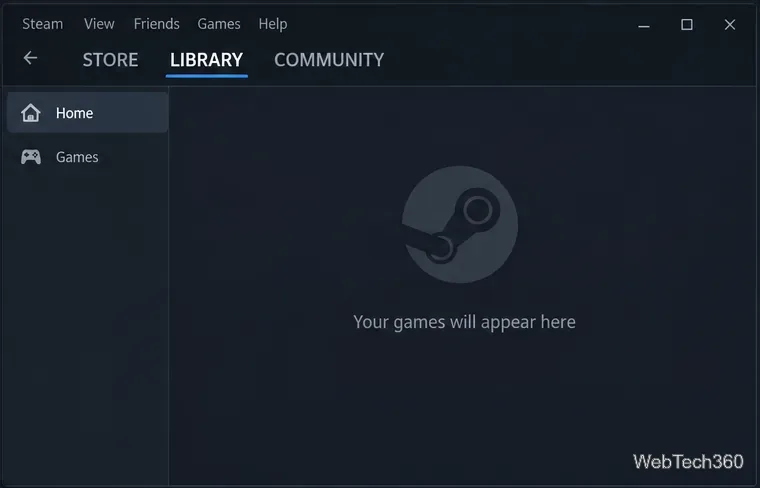
Open Steam and sign in. Launch the client, sign in to the account that owns Deep Rock Galactic, and let Steam finish any client update. If you do not own the game yet, find it in the Steam Store; otherwise, continue from the Library.
The Library tab is where your games appear after you sign in.
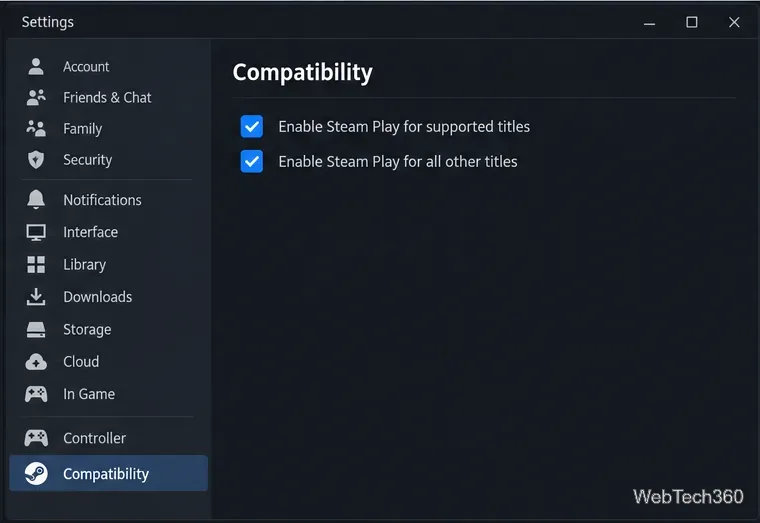
Turn on Steam Play for Windows titles. In Steam, open Steam > Settings > Compatibility. Select Enable Steam Play for supported titles and Enable Steam Play for all other titles. The second option is needed for a Windows-only game that Steam does not list as Linux-compatible. Restart the client if Steam asks you to.
Enable both Steam Play options to make Proton available to Windows-only games.
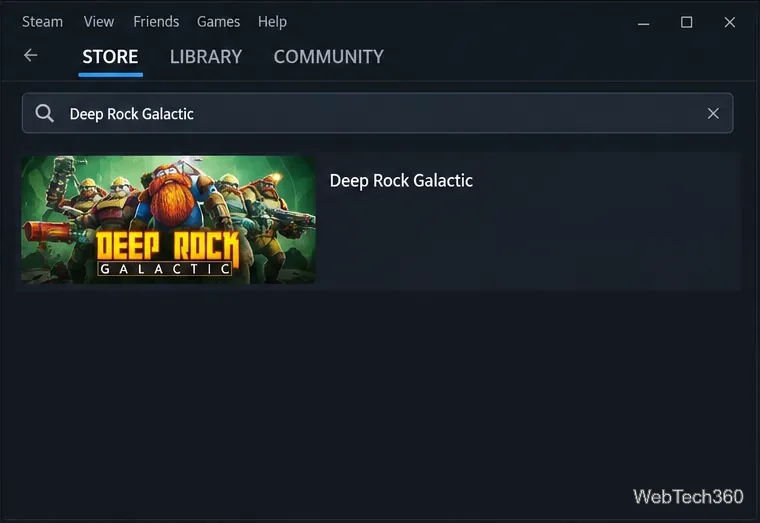
Open the correct store page. Search Steam for Deep Rock Galactic and select the base game, not a similarly named title. If it is already in your account, select it in the Library. The Steam store page shows the current operating-system and hardware requirements; those published requirements describe the Windows version and do not promise the same performance under Proton.
Choose the Deep Rock Galactic base game from the Steam Store results.
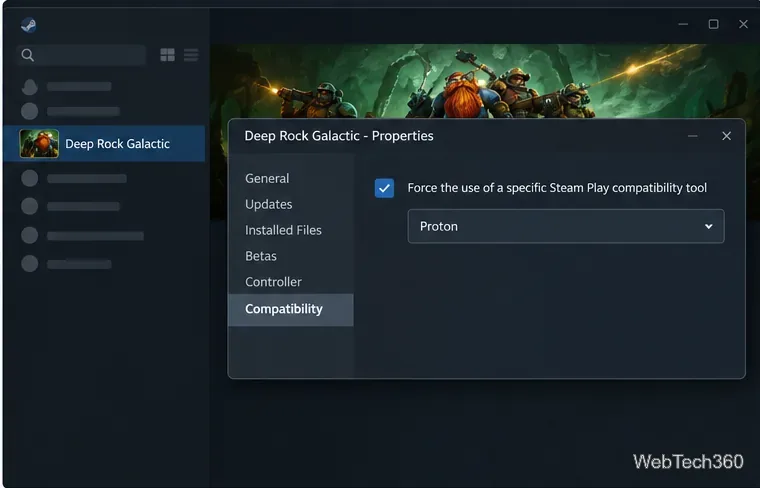
Choose a Proton version only if Steam needs help. First try the game with Steam’s default compatibility setting. If it will not launch, open the game’s Library page, select the gear icon or right-click the title, then choose Properties > Compatibility. Check Force the use of a specific Steam Play compatibility tool and select the latest regular Proton release available. Valve’s Proton project explains that Steam’s Proton tool runs Windows-only games on Linux. Proton Experimental can be a useful test if a stable release fails, but switch back if the test causes new problems.
Use the per-game Compatibility override only when Steam’s default Proton choice does not work.
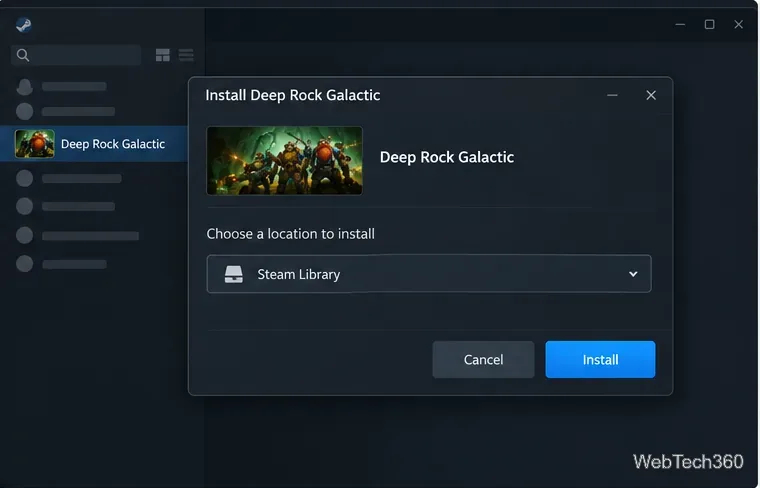
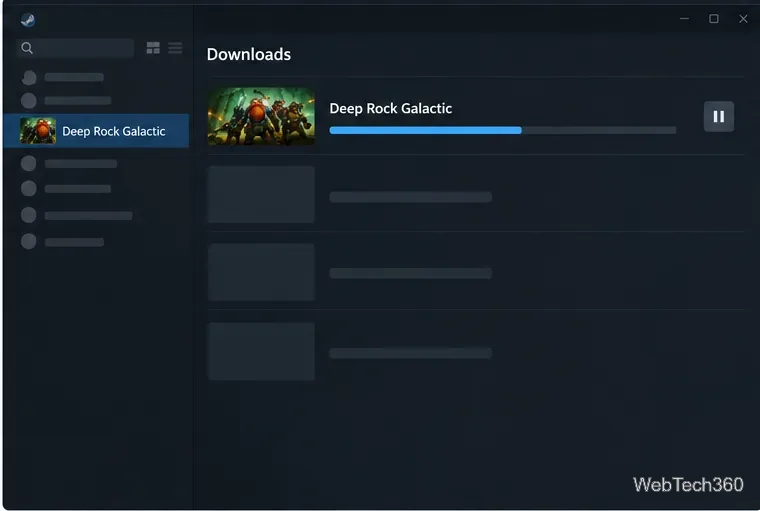
Install the game. Select Install, choose a Steam Library with enough free space, and confirm. Steam’s current store listing shows 3 GB of available storage as the Windows minimum; leave additional room for updates and compatibility files, and recheck the store page because requirements can change.
Choose the Steam Library where you want to install the game.Wait for Steam to finish downloading and installing the game.
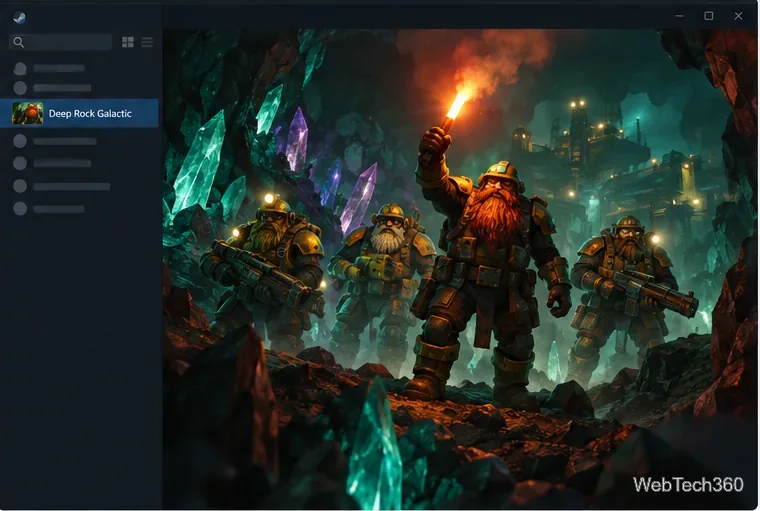
Launch from your Library. When installation finishes, open the game’s Library page and select Play. Steam may prepare compatibility files the first time it starts the game. Let that process complete before troubleshooting. If the game opens, you can adjust its graphics options in-game to suit your hardware.
A conceptual view of a mining crew in a cavern after the game launches.
If Deep Rock Galactic will not start
Restart Steam, install available Linux system and graphics-driver updates, and try again. Steam’s launch troubleshooting guide includes Linux-specific checks.
Verify the install: open Properties > Installed Files and choose Verify integrity of game files. Follow Steam Support’s verification steps.
If you forced a Proton version, test the latest regular release and Proton Experimental one at a time. Remove the override to return to Steam’s default selection.
Check recent Deep Rock Galactic reports on ProtonDB for notes from Linux players using similar GPUs and Proton versions. These are community reports, not an official compatibility guarantee.
Because the game is listed for Windows and runs through Proton on Linux, compatibility can change after a game, Steam, Proton, or graphics-driver update. If a new issue appears, compare recent community reports before changing several settings at once.