Deus Ex: Human Revolution - Director's Cut does not have a native Linux build listed on Steam, but it can be played on Linux through Steam Play and Valve's Proton compatibility layer. For most desktop Linux users, the simplest path is to install the Linux Steam client, install the game normally, and let Steam choose Proton. If the game does not launch or you want to test a different compatibility version, you can force a Proton version for this game only.
What you need before you start
The Steam version currently sold is Deus Ex: Human Revolution - Director's Cut, released in 2013. Its store page lists Windows system requirements and about 17 GB of storage, while Steam marks the title as Playable on Steam Deck. That Deck rating is a useful sign for Proton compatibility, but desktop Linux results can still vary by graphics driver, distribution, and Steam client version.
Valve's current Steam for Linux requirements call for a 64-bit x86_64 system, current 64-bit and 32-bit graphics libraries, and glibc 2.31 or newer. Keep your distribution and GPU drivers updated before troubleshooting the game itself.
1. Install Steam on Linux
Valve officially targets the latest Ubuntu or Ubuntu LTS releases for the Steam Linux client. On Ubuntu-based systems, you can install Steam from the distribution's package tools or download Valve's current steam_latest.deb package from the official Steam Linux repository.
Other distributions commonly provide Steam through their own package repositories. Arch Linux, for example, carries Steam in its multilib repository. A Flatpak build is also available through Flathub, but that package is community-maintained rather than supported by Valve. Whichever method you use, open Steam after installation and let the client finish any self-updates.
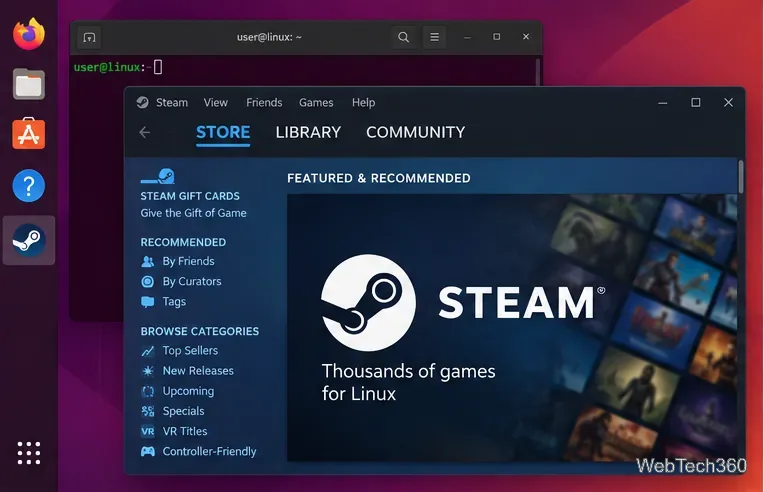
2. Sign in, find the game, and install it
Sign in to your Steam account, open Store, and search for Deus Ex: Human Revolution - Director's Cut. The official Steam store page for app 238010 is the version this guide refers to.
- Purchase the game if it is not already in your account.
- Open Library and select the game.
- Click Install, choose a Steam library location, and wait for the download to finish.
- When installation is complete, click Play.
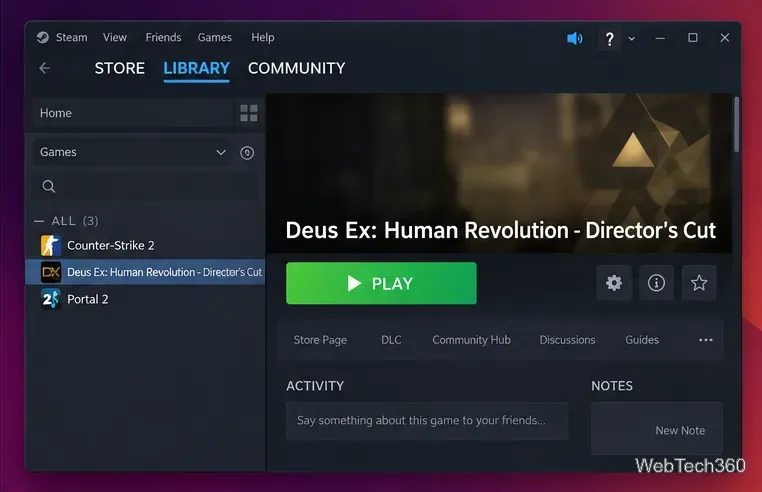
On a compatible setup, Steam can apply Proton automatically. The first launch may take longer than later launches while Proton creates the game's compatibility environment and installs required Windows components.
3. Force Proton if the game does not start
If Steam does not select a working compatibility tool automatically, set one for this title instead of changing every game in your library. Valve documents the same per-game control in Steam's compatibility support guidance.
- In Library, right-click the game and choose Properties.
- Open Compatibility.
- Enable Force the use of a specific Steam Play compatibility tool.
- Choose the newest stable Proton version offered by your Steam client. If that does not work, try Proton Experimental, which receives newer compatibility fixes.
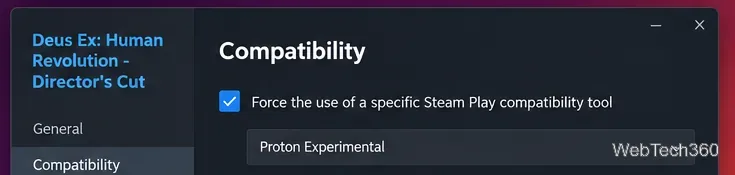
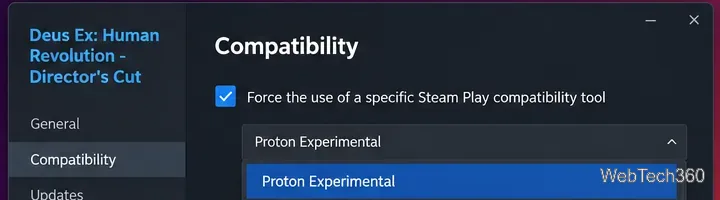
You can review Valve's current Proton builds on the official Proton releases page. Avoid copying old game-specific launch commands unless you know exactly what problem they solve; many older Proton tweaks become unnecessary after client, driver, or Proton updates.
4. Troubleshoot crashes, black screens, or failed launches
If the game still will not run, work through the simple fixes first:
- Update Steam and your Linux system. An outdated client, Mesa stack, NVIDIA driver, or 32-bit graphics library can prevent Proton games from starting.
- Switch Proton versions. Try the newest stable Valve Proton release, then Proton Experimental. Restart Steam after changing the compatibility tool if the behavior does not change immediately.
- Verify the game files. Open Properties > Installed Files and use Steam's file-integrity verification option to replace missing or corrupted files.
- Remove old launch options or mods. Test the game with a clean configuration before adding custom environment variables, DLL overrides, or third-party modifications.
- Check free disk space. The game itself needs roughly 17 GB, and Steam also needs extra room for shader caches, Proton data, and updates.
Valve's Steam compatibility troubleshooting guidance also recommends trying the latest Proton version and lowering graphics settings when a game is unstable.
Do you need Wine or Lutris?
Not for the Steam copy. Steam Play already integrates Proton, so installing a separate Wine prefix or launcher adds complexity without being necessary for the normal setup. Start with Steam and Proton; only move to another launcher if you have a specific non-Steam copy or a problem that cannot be solved inside Steam.









