How to Recover Lost Partitions and Hard Disk Data Safely
Learn how to recover lost partitions and files with TestDisk and PhotoRec. Protect the source drive, scan safely, and save recovered data to another disk.
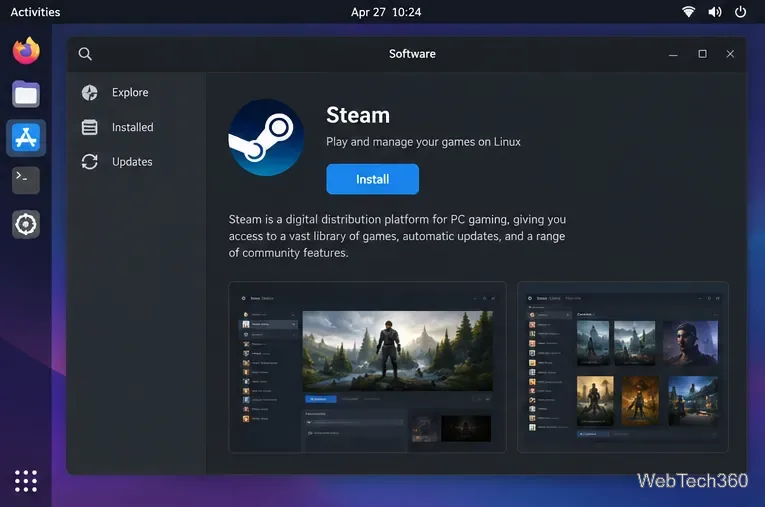
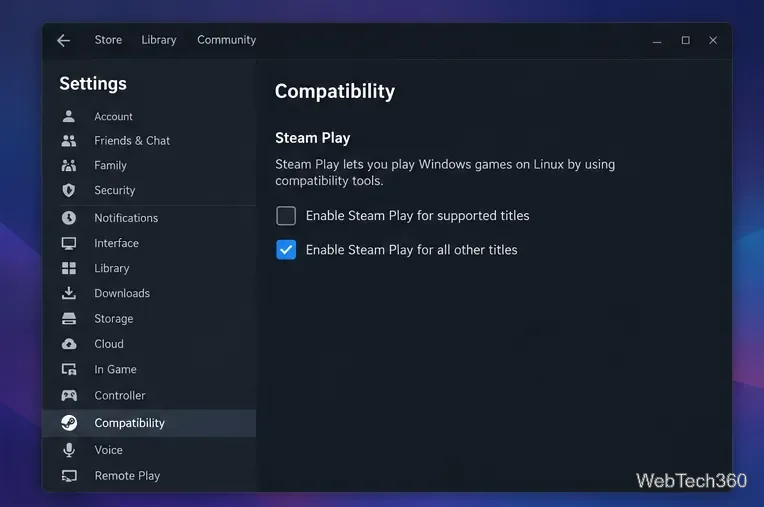
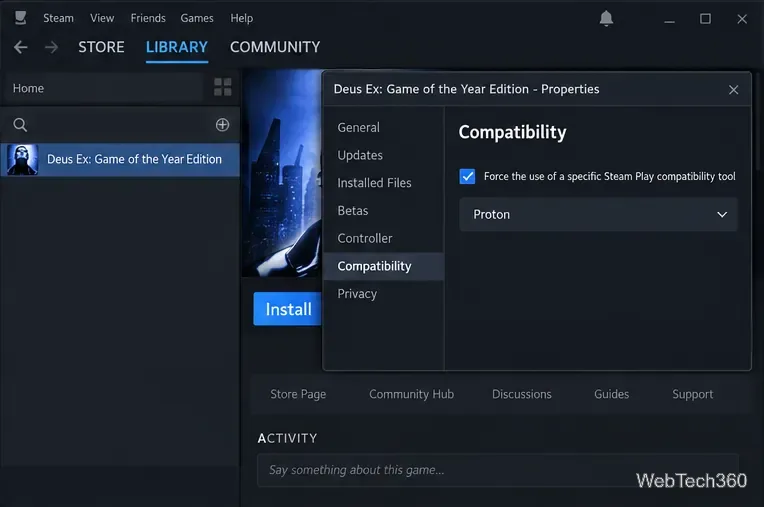
To play the original Deus Ex on Linux, install Steam, enable Steam Play for other titles, and install Deus Ex: Game of the Year Edition from your Steam library. The Steam listing gives Windows system requirements, so the Linux route uses Proton, Valve’s compatibility layer for running Windows games. Proton makes this possible, but compatibility can vary with the game, distribution, and graphics drivers. These steps explain the normal Steam setup; they cannot guarantee the same result on every Linux PC. See Valve’s Proton and compatibility documentation for how the layer works.
You need a Steam account, a license for the correct edition, a working graphics driver, internet access for setup, and room for the game and Proton files. The listing’s Windows 95/98 minimum requirements are historical; they do not describe a modern Linux setup.
Install Steam through your distribution’s recommended software source or follow Valve’s installation instructions. Valve’s Linux client troubleshooting page lists Ubuntu LTS as its supported baseline. Other distributions may work, but follow their current package and support guidance.
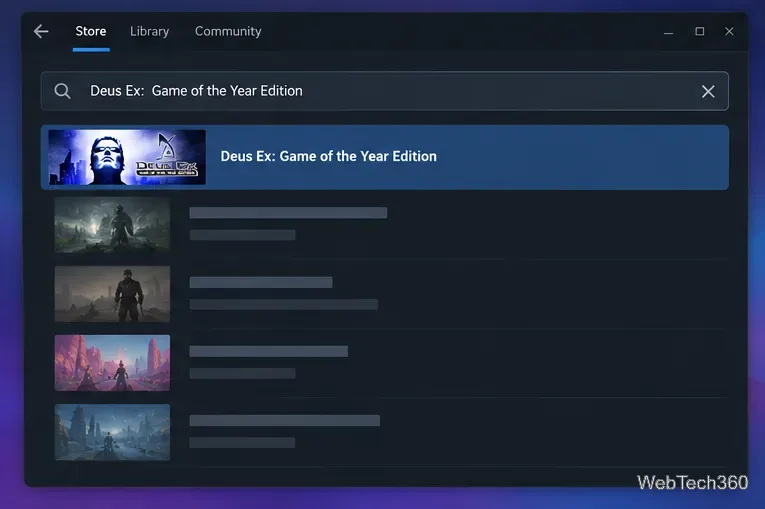
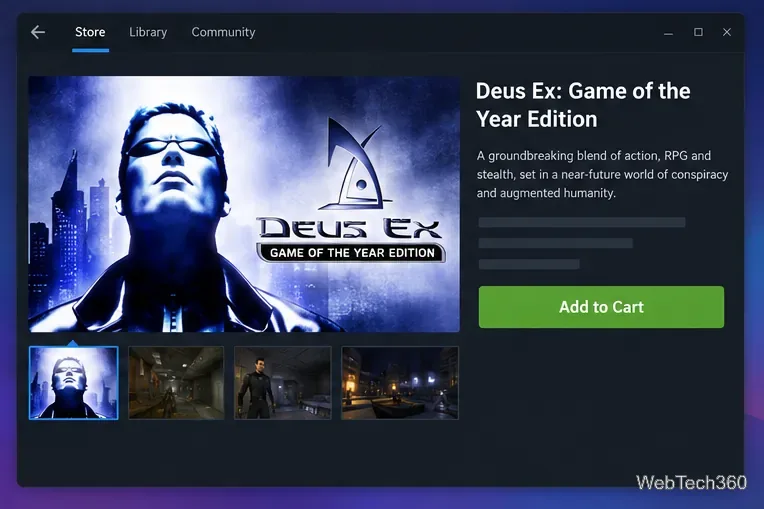
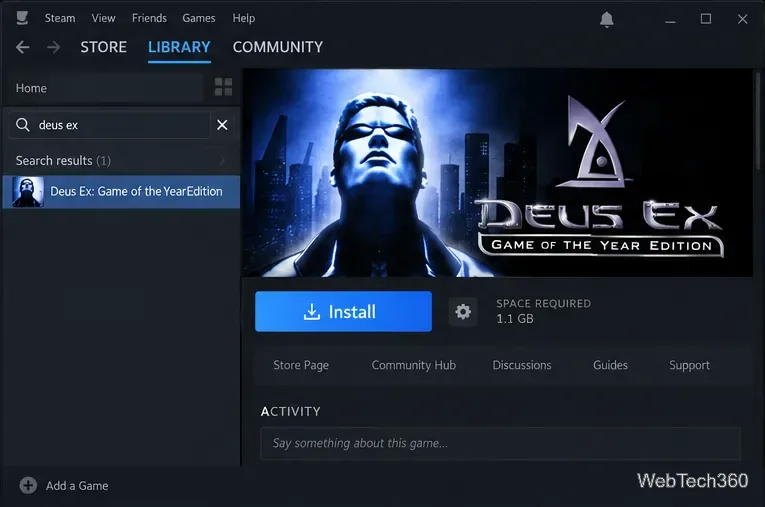
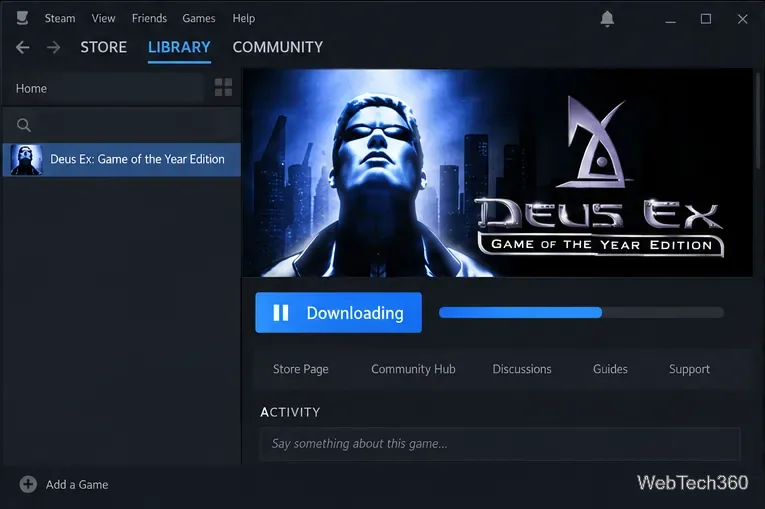
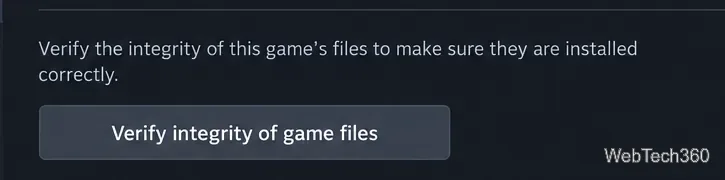
Try these checks in order, changing one thing at a time so you can tell which change helped:
If the problem continues, note your distribution, graphics hardware, selected Proton version, and any error message before contacting Steam Support. A successful launch on one setup does not guarantee the same result on every Linux system.
Learn how to recover lost partitions and files with TestDisk and PhotoRec. Protect the source drive, scan safely, and save recovered data to another disk.
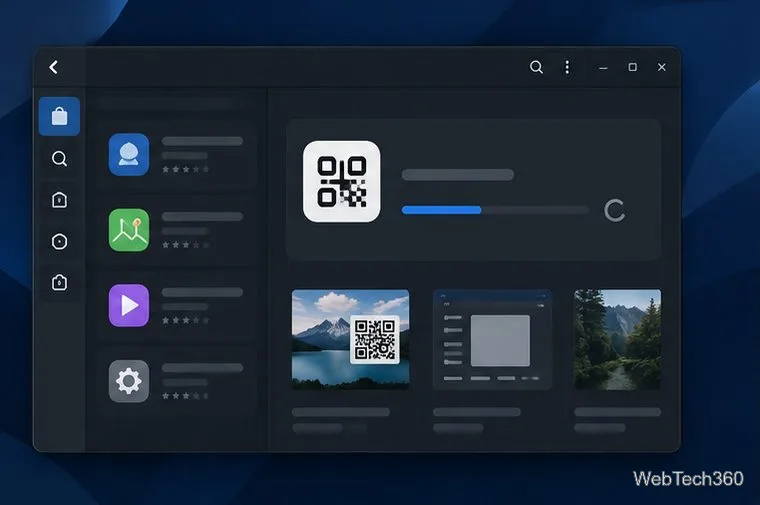
Scan QR codes on Linux with CoBang using a webcam or image file. See installation options, setup steps, and fixes for Flatpak camera access.
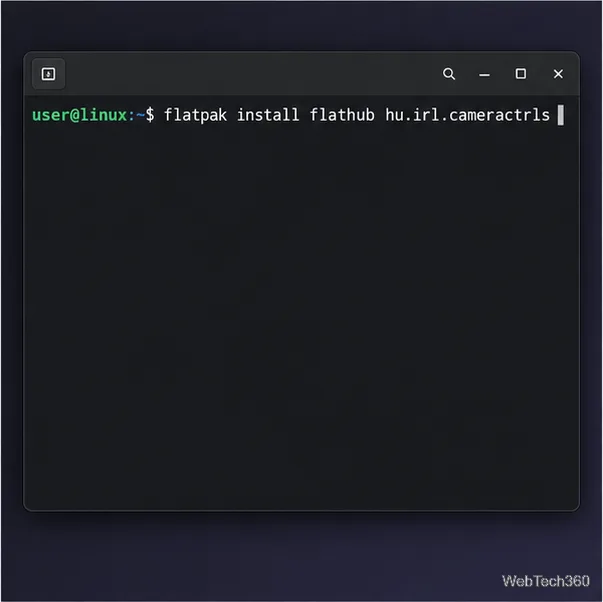
Change webcam settings on Linux with Cameractrls: tune exposure, color, flicker reduction, and other supported controls, then check compatible video modes.
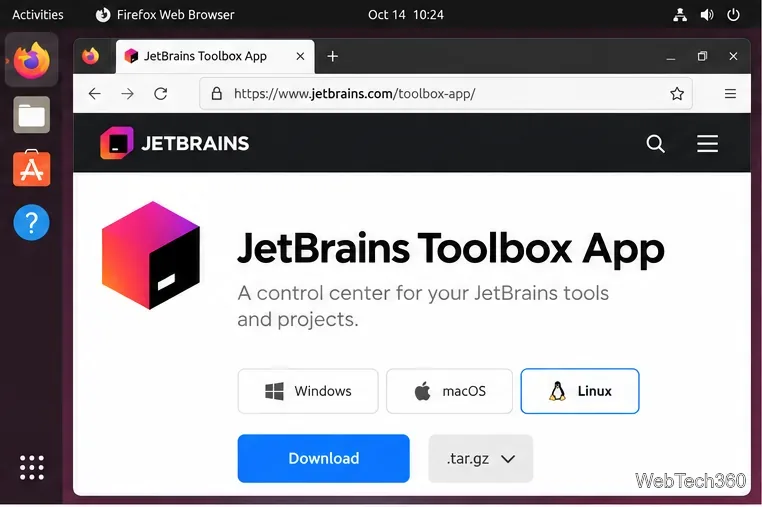
Install PhpStorm on Linux with JetBrains Toolbox or the standalone tar.gz archive, plus Snap and Arch AUR options. Java is already bundled.
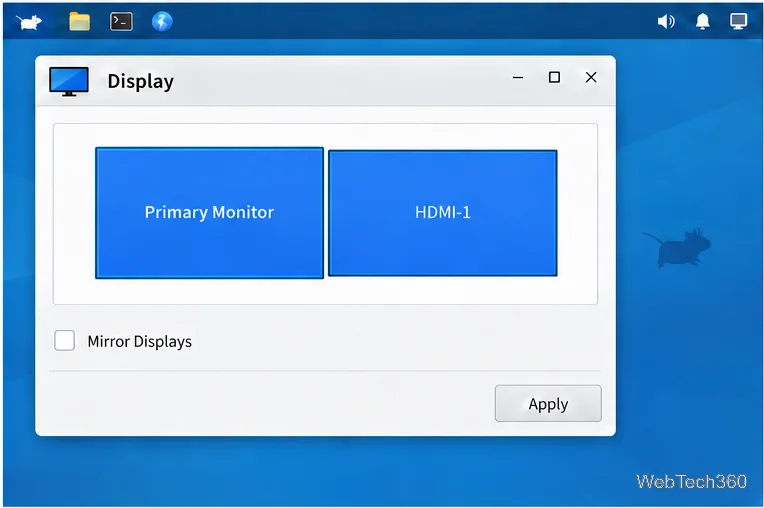
Create a separate XFCE 4 panel for each display, assign the second panel to the right output, position and size it, and add the launchers and status items you need.
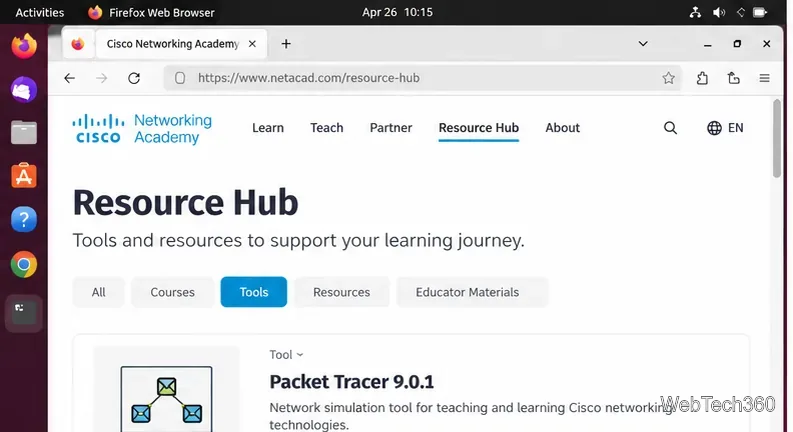
Download Cisco Packet Tracer 9.0.1 for Ubuntu 64-bit, install the DEB package with APT, accept the license in Terminal, and sign in to start a lab.
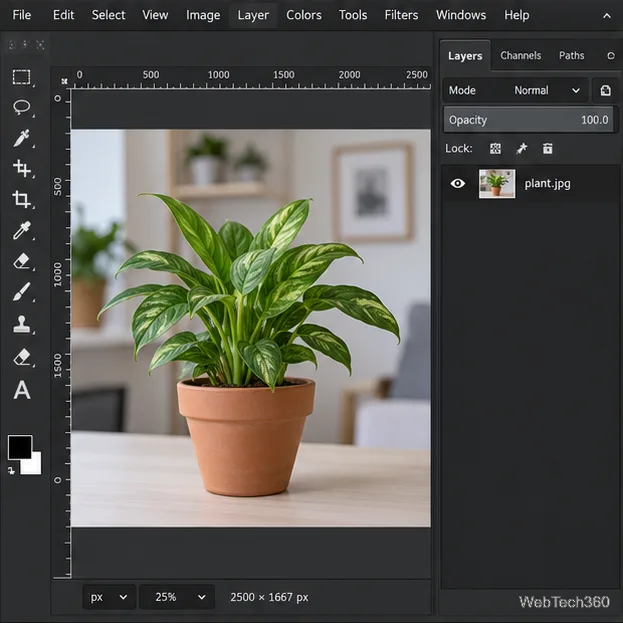
Remove a photo background on Linux with GIMP: trace a subject, delete the selected background, keep transparency, and export a reusable PNG.
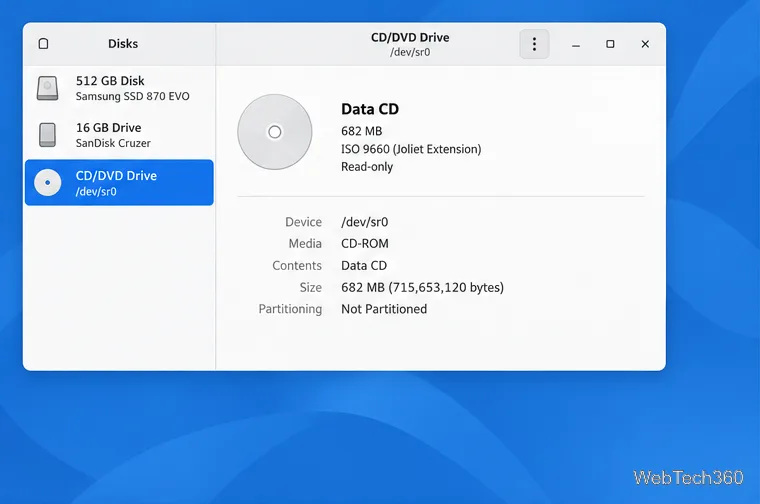
Create a CD-ROM ISO on Linux with GNOME Disks or dd. Identify the optical drive, monitor the copy, verify the image, and know when a damaged or audio disc needs another tool.
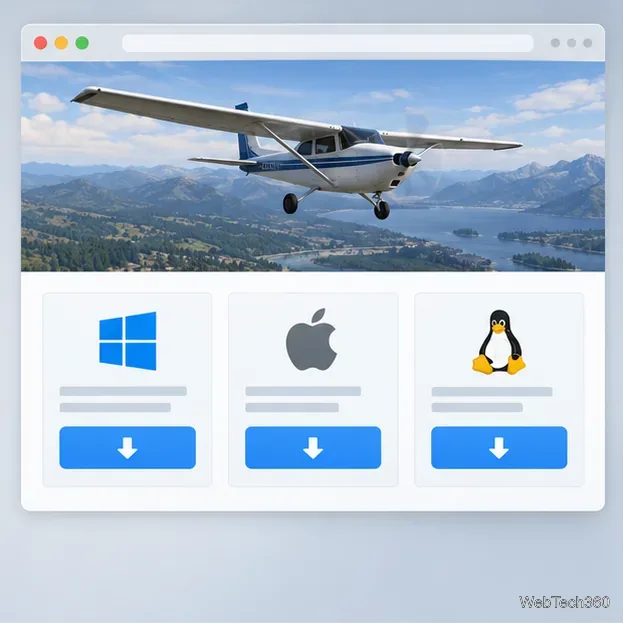
Download FlightGear for free from the official site. Compare Windows, macOS, and Linux packages, install the data files, and start your first flight.
Open Google Tasks in a browser, add a Chrome shortcut or app-style launch, and manage dated to-dos through Calendar and Gmail.