How to Recover Lost Partitions and Hard Disk Data Safely
Learn how to recover lost partitions and files with TestDisk and PhotoRec. Protect the source drive, scan safely, and save recovered data to another disk.
If you already own the original DiRT Rally on Steam, you can play it on Linux through its native Linux version. Install Steam, download the game from your Library, and try the native build first; Proton is a fallback if that version will not start. There is one important limitation: the current Steam listing says DiRT Rally is no longer available in the store, so this guide is for people who already have it in their Steam account.
Open the DiRT Rally page on Steam. Steam currently displays a notice that the game is no longer available for purchase. If you bought it before it was delisted, it should remain in the Library tied to that account. Sign in to the same account you used for the purchase. The sequel, DiRT Rally 2.0, is a separate game and does not grant access to the original.
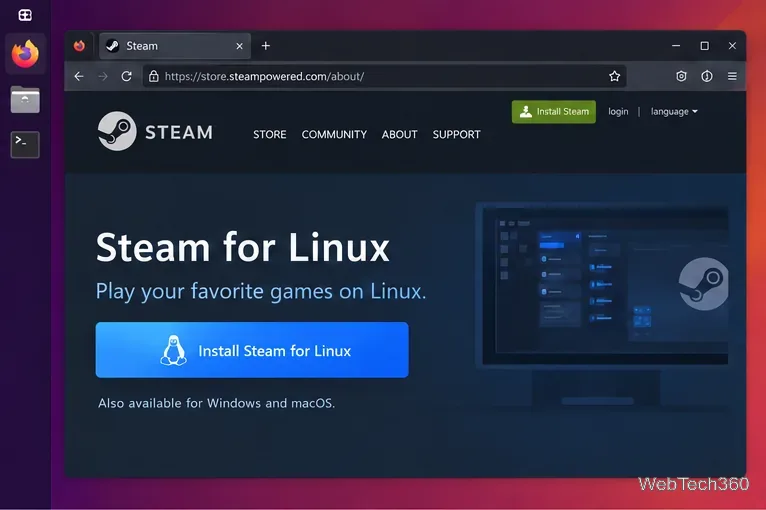
Download Steam from Valve’s official Steam installation page, or install the client from your Linux distribution’s supported software source. Follow the installer instructions for your distribution, then open Steam and let the client update. Valve’s current Linux support guidance focuses on recent Ubuntu LTS releases and recommends keeping Linux up to date; an older distribution may lack libraries that the current Steam client needs.
Feral Interactive made the Linux port of DiRT Rally. Its support documents list Ubuntu 16.10 and SteamOS 2.0 as tested targets and name a 42 GB drive requirement. Those are old published specifications, not a current compatibility guarantee. Keep extra free space for Steam updates, and use a currently supported Linux distribution with up-to-date graphics drivers. You can review Feral’s Linux ReadMe and Linux support FAQ for the game-specific notes.
In Steam, open Library and search for “DiRT Rally.” If the game appears, select it. If it does not, first check that you are signed in to the account that owns it and that your Library search is not filtering it out. Because the title is delisted, the Store page is not a way to add it to a new account.
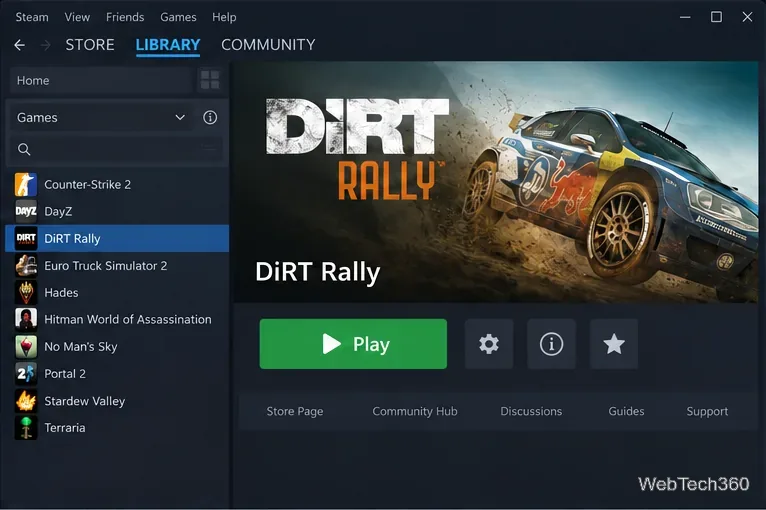
On the game’s Library page, choose Install, select a drive with enough free space, and wait for Steam to finish downloading. Leave the Compatibility setting alone for now. Steam should select the Linux version on a Linux system, and the game’s official Linux port does not require Wine or Proton for a normal first attempt.
Starting with the native version keeps the setup simple and follows Feral’s Linux instructions: the game is installed as part of the Steam download, then launched from the Steam Library. Avoid turning on a global compatibility setting just to make this one title run; Steam lets you apply Proton to an individual game if you need it.
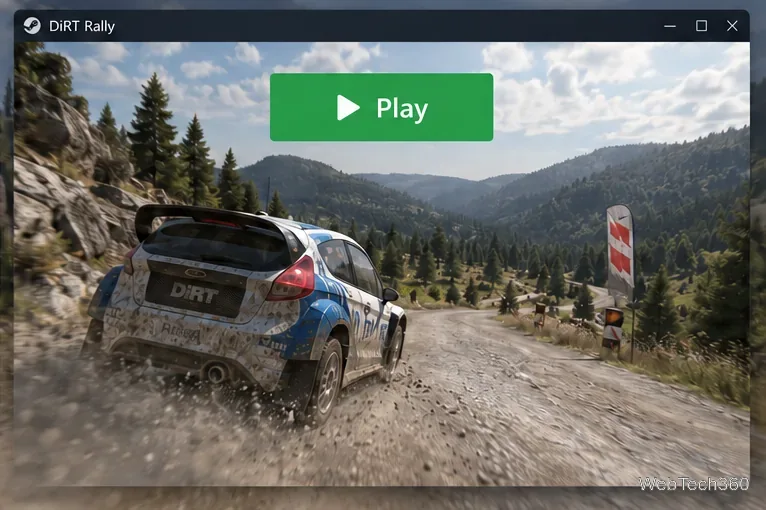
When the download completes, select Play from the Library. Feral’s ReadMe says a DiRT Rally pre-game Options window appears before the game starts; select Play there as well. On first launch, follow the prompts to create a profile and set preferences. The game then takes you to its main menu, where you can begin Career or choose another available mode.
Use Proton only after the native version fails to launch or has a serious compatibility problem. In your Library, right-click DiRT Rally and choose Properties, open Compatibility, check Force the use of a specific Steam Play compatibility tool, and select an installed Proton option. Close Properties and press Play. Steam may download the Windows version of the game when you enable this setting, so allow for additional download time and disk space.
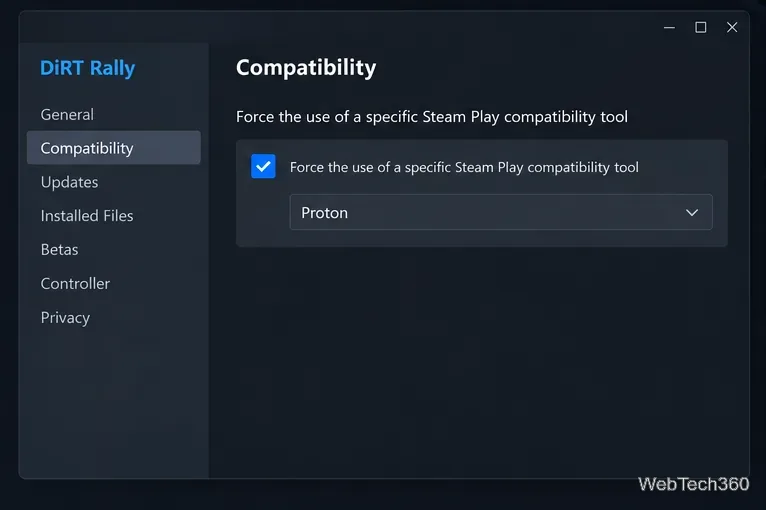
Proton can help on some systems, but it is not a guaranteed fix. If it makes the game behave worse, return to Properties → Compatibility and clear the checkbox to go back to the native Linux build. Steam’s compatibility guidance explains how forcing a Steam Play tool can cause Steam to download a different platform version.
Feral recommends a steering wheel or a gamepad with analog triggers because pressure-sensitive inputs make throttle and braking easier to control. A keyboard also works, but its digital keys cannot vary acceleration or braking smoothly. If you use a keyboard, Feral suggests raising ABS, Traction Control, and Stability Control in Options → Preferences from the in-game pause menu.
If the game returns to the Play button or stops during launch, restart Steam, install available Linux and graphics-driver updates, then use the Library’s Properties → Installed Files → Verify integrity of game files option. Try the native build again before changing compatibility settings. Steam’s Linux support notes say that older distributions with glibc earlier than 2.31 are no longer supported by the Steam client as of August 15, 2025. If your distribution is current and the issue continues, consult Feral’s game-specific FAQ linked above.
Learn how to recover lost partitions and files with TestDisk and PhotoRec. Protect the source drive, scan safely, and save recovered data to another disk.
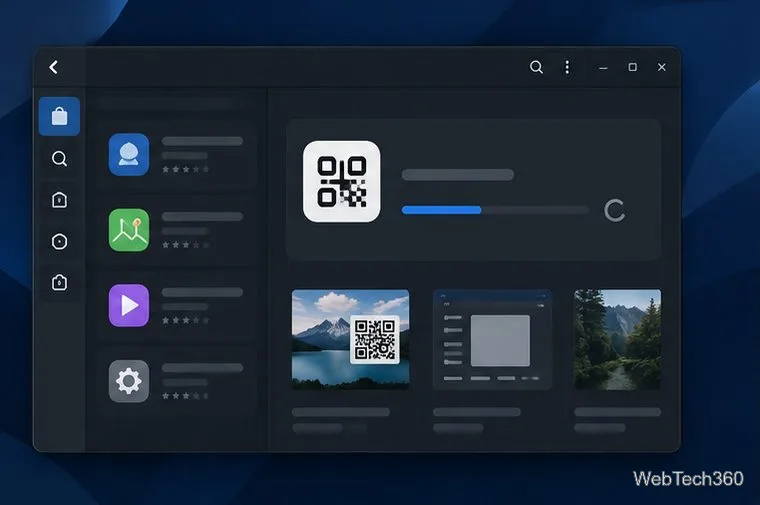
Scan QR codes on Linux with CoBang using a webcam or image file. See installation options, setup steps, and fixes for Flatpak camera access.
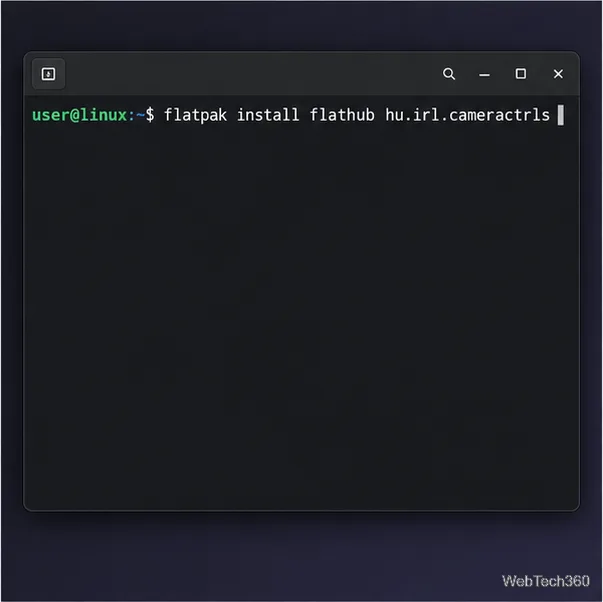
Change webcam settings on Linux with Cameractrls: tune exposure, color, flicker reduction, and other supported controls, then check compatible video modes.
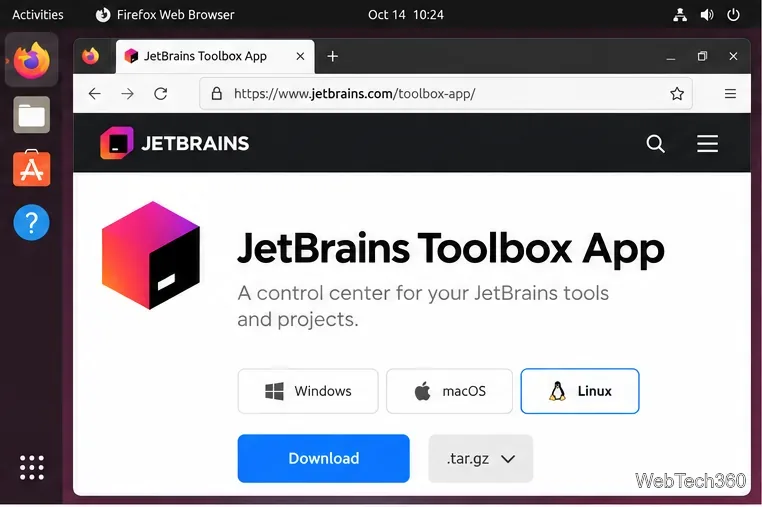
Install PhpStorm on Linux with JetBrains Toolbox or the standalone tar.gz archive, plus Snap and Arch AUR options. Java is already bundled.
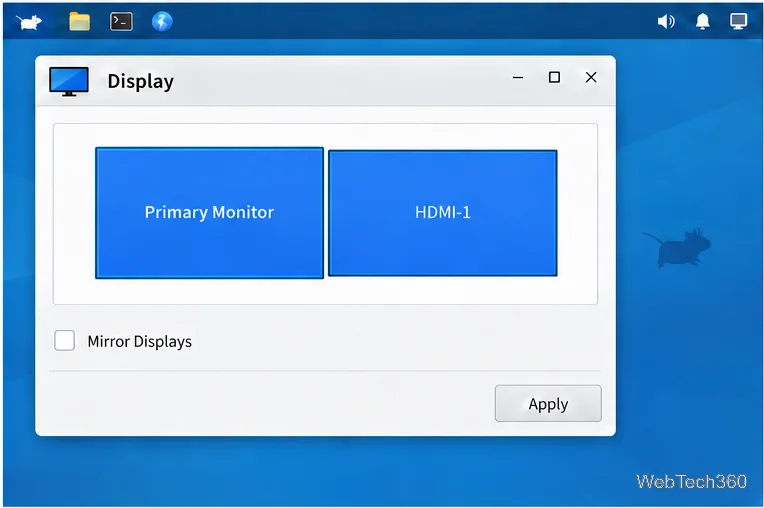
Create a separate XFCE 4 panel for each display, assign the second panel to the right output, position and size it, and add the launchers and status items you need.
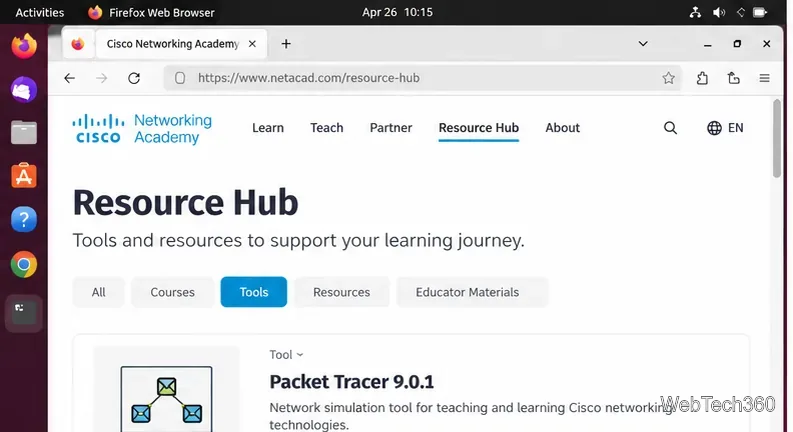
Download Cisco Packet Tracer 9.0.1 for Ubuntu 64-bit, install the DEB package with APT, accept the license in Terminal, and sign in to start a lab.
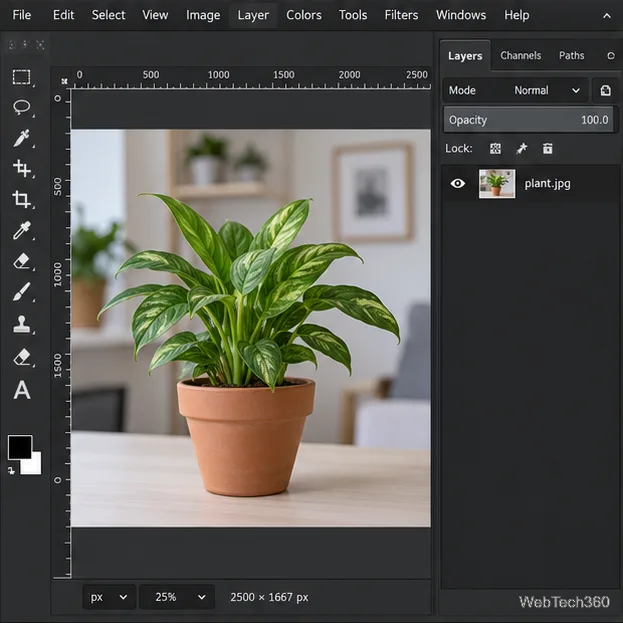
Remove a photo background on Linux with GIMP: trace a subject, delete the selected background, keep transparency, and export a reusable PNG.
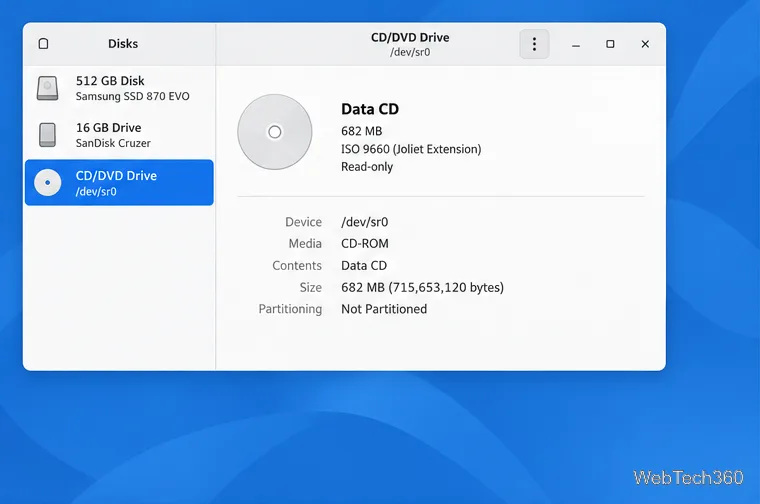
Create a CD-ROM ISO on Linux with GNOME Disks or dd. Identify the optical drive, monitor the copy, verify the image, and know when a damaged or audio disc needs another tool.
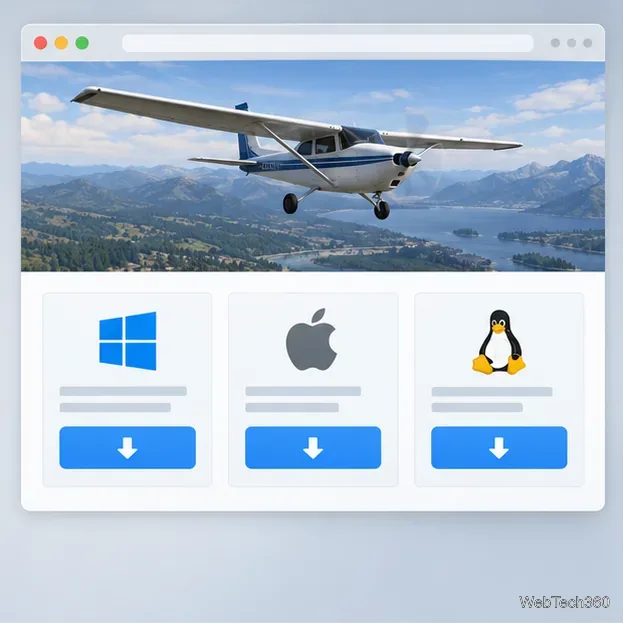
Download FlightGear for free from the official site. Compare Windows, macOS, and Linux packages, install the data files, and start your first flight.
Open Google Tasks in a browser, add a Chrome shortcut or app-style launch, and manage dated to-dos through Calendar and Gmail.