Home
» LINUX
»
How to Play Dishonored on Linux with Steam and Proton
How to Play Dishonored on Linux with Steam and Proton
You can play Dishonored on Linux through Steam's Proton compatibility layer. Dishonored does not have a native Linux build on Steam; its store page still lists Windows system requirements. Proton lets Steam run the Windows version on Linux without a separate Wine setup.
This guide uses Steam's current per-game Compatibility controls rather than the older “Steam Play” menus found in many outdated tutorials. You will need a Steam account that owns Dishonored, a supported 64-bit Linux system, current graphics drivers, and enough free storage for the game plus Proton's compatibility files.
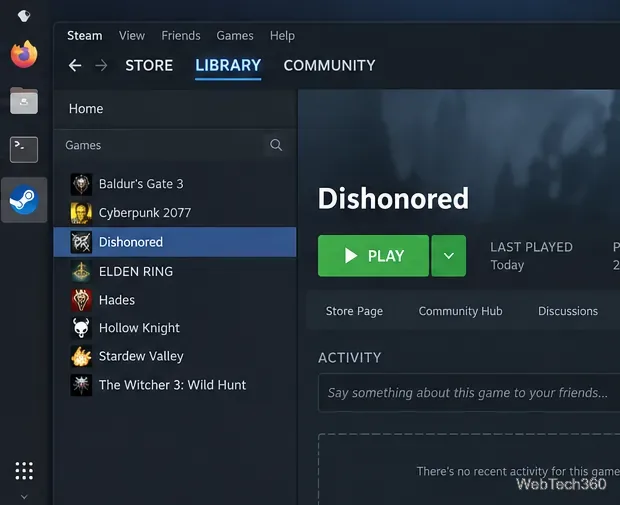
Dishonored selected in the Steam Library on a Linux desktop.
1. Install Steam on Linux
Start with the Linux Steam client. Valve's current Linux client documentation lists the latest Ubuntu or Ubuntu LTS on a 64-bit kernel as its main supported configuration, with both 64-bit and 32-bit graphics libraries required. Other Linux distributions commonly package Steam too, but their installation details are maintained by those distributions.
The safest starting point is the official Steam download page. Install Steam using the package intended for your distribution, launch it, sign in, and let the client finish any updates before continuing.
If Steam itself crashes or will not open, update your Linux system and graphics drivers first. Valve's Linux client troubleshooting page specifically calls out graphics-driver and 32-bit OpenGL issues as common causes.
2. Add Dishonored to your Steam Library
If you already own the game, open Library and search for Dishonored. If you do not own it, buy it from the official Dishonored Steam page, then return to your Library.
Steam identifies Dishonored as app 205100. The store page lists Windows requirements and 9 GB of disk space for the original Windows release. Keep additional free space available because Steam also downloads Proton and creates a compatibility prefix for the game.
3. Set Proton for Dishonored
For this game, a per-game Proton setting is clearer and more predictable than changing Steam's global compatibility defaults:
In Library, right-click Dishonored or select the gear icon on its game page.
Choose Properties.
Open Compatibility.
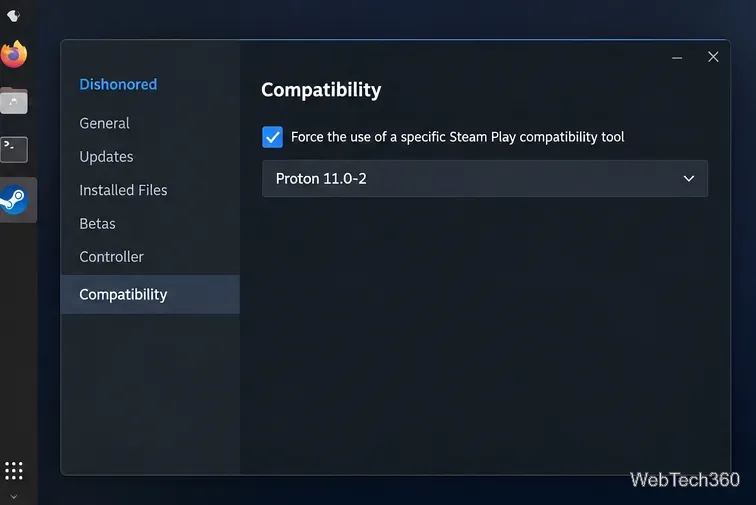
Enable Force the use of a specific Steam Play compatibility tool.
Select the newest stable Proton version offered by your Steam client.
Dishonored's per-game Compatibility page with a stable Proton version selected.
At the time of this update, Valve's official Proton releases list Proton 11.0-2 as the latest stable release, while newer builds may appear later. If your client offers a newer stable Proton, use that instead. Valve recommends using the Proton versions supplied by Steam for normal use; its official Proton project also documents advanced options for troubleshooting.
4. Install Dishonored
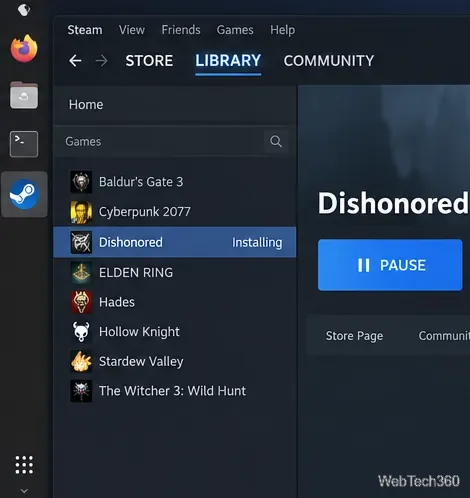
Return to Dishonored's Library page and click Install. Choose your Steam library location and let Steam download the game. Steam may also download the selected Proton build or other runtime components.
Steam installing Dishonored after its compatibility tool has been configured.
Do not cancel first-run dependency setup when you launch the game. Proton can create a Windows-style prefix and run redistributable installers the first time a title starts, so the first launch can take longer than later launches.
5. Launch Dishonored on Linux
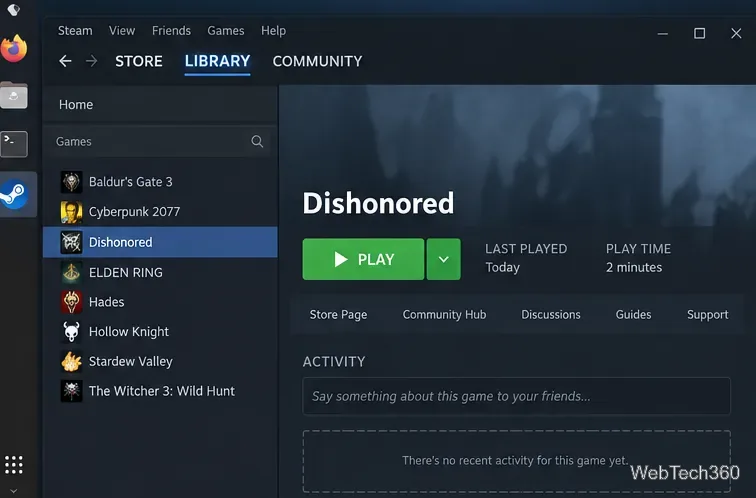
When installation is complete, click the green Play button. Steam will start Dishonored through the selected Proton version. You do not need to launch Wine manually or point Steam at the game's executable.
Dishonored ready to launch from the Steam Library after installation.
If Dishonored does not launch
Try these fixes in order before adding custom launch options:
Restart Steam and Linux. This clears stuck client or runtime processes.
Try another official Proton version. Return to Properties → Compatibility and switch between the latest stable Proton and Proton Experimental.
Verify the game files. Open Properties → Installed Files → Verify integrity of game files. This is Valve's current repair procedure for damaged or missing files.
Update your graphics drivers and Linux packages. Proton depends heavily on working Vulkan/OpenGL support and the correct 32-bit libraries.
Remove unnecessary launch options. Old guides may recommend environment variables that are no longer needed with current Proton releases.
Steam Support's game launch troubleshooting guide also recommends updating Linux and verifying game files when a title closes immediately after “Preparing to Launch.”
Bottom line
Dishonored is still a Windows game on Steam, but Linux users can run it through Proton with only a few Steam settings. Install the Linux Steam client, select Dishonored, set a current official Proton build in the game's Compatibility properties, install the game, and launch it normally from your Library.