Home
» LINUX
»
How to Play GTA III on Linux With Steam Proton
How to Play GTA III on Linux With Steam Proton
You can play the classic Grand Theft Auto III on Linux through Steam’s Proton compatibility layer if the game is already in your Steam library. The old Steam release is Windows-only, but Proton is designed to run many Windows games on Linux. One important change from older guides: the classic GTA III Steam page now states that the game is no longer available for purchase, so there is no current “Add to Cart” step.
Before you start: check which GTA III you own
This guide focuses on the original Steam release, App ID 12100. You can confirm its current store status on the official GTA III Steam page. If it is already attached to your account, it can still appear in your Library even though Steam no longer sells it.
The newer Grand Theft Auto III – The Definitive Edition is a separate game. Steam currently sells it as part of Grand Theft Auto: The Trilogy – The Definitive Edition, and its official PC requirements list Windows rather than Linux. The Proton method below is therefore specifically the practical route for the classic Windows release already owned on Steam.
How to play GTA III on Linux with Proton
1. Install or update the Steam client
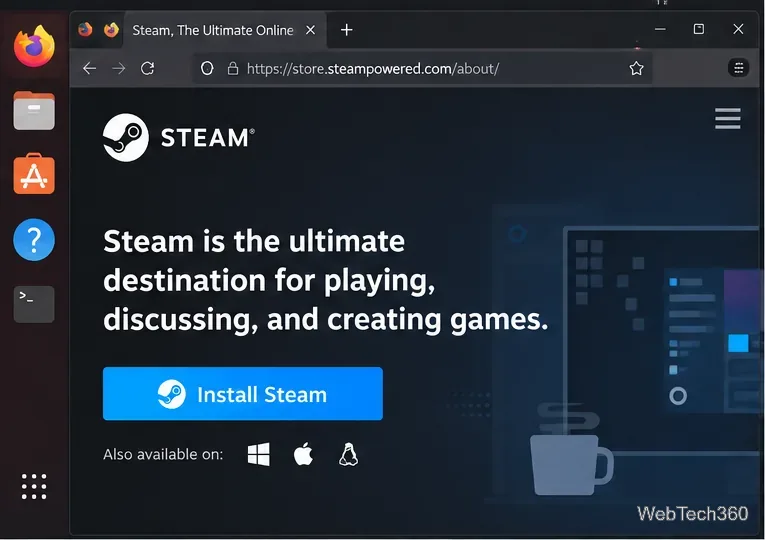
Install Steam from your distribution’s package source or from Valve’s official Steam download page, then sign in to the account that owns GTA III. Valve’s Linux support documentation currently limits official desktop support to the latest Ubuntu LTS, although Steam is commonly packaged by other Linux distributions as well. Keeping Steam, your distribution, and your graphics drivers updated reduces compatibility problems.
Install the Steam client from Valve or your distribution before configuring Proton.
2. Enable Steam Play for Windows-only games
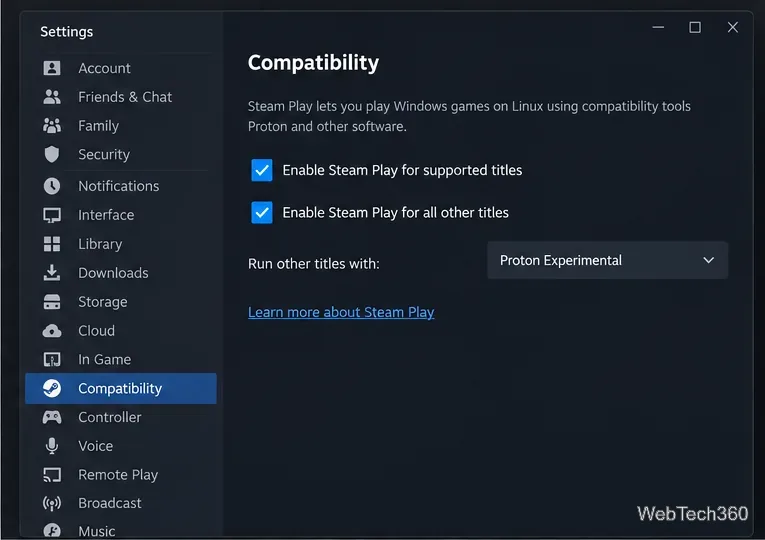
Open Steam > Settings > Compatibility. Enable Enable Steam Play for supported titles and, if GTA III is not immediately installable, enable Enable Steam Play for all other titles. Steam may ask to restart. Valve describes Steam Play as the feature that lets the Linux client use compatibility tools for Windows-only games, while Proton is Valve’s Wine-based compatibility tool.
The Compatibility page controls Steam Play for Windows-only titles.
3. Choose Proton for GTA III
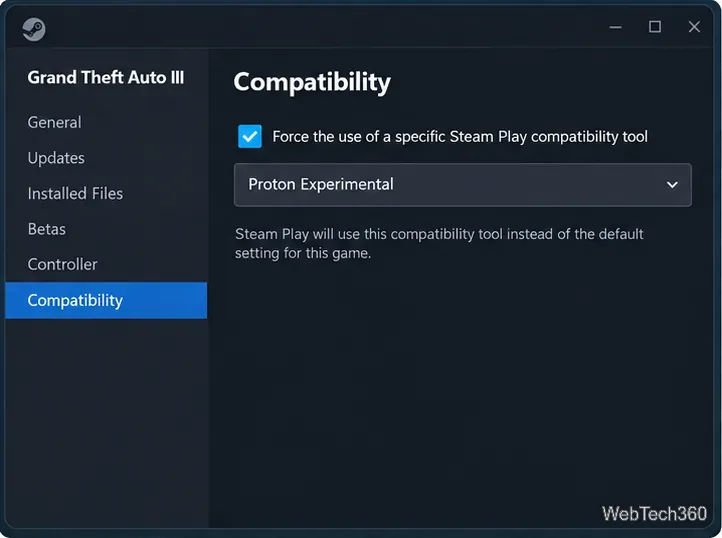
In your Library, right-click Grand Theft Auto III, choose Properties, and open Compatibility. If Steam’s default does not launch the game correctly, turn on Force the use of a specific Steam Play compatibility tool. Start with the newest stable Proton version offered by your Steam client.
If you have video or startup trouble, try Proton Experimental. Valve’s September 2026 Proton changelog specifically noted a fix for GTA III intro videos after a Proton 11 regression, making Experimental a sensible troubleshooting option when the stable build misbehaves. Proton versions change over time, so use the versions actually offered by your current client rather than copying an old version number from a guide.
A per-game Proton override is useful when Steam’s default compatibility choice has a problem.
4. Install GTA III from your Library
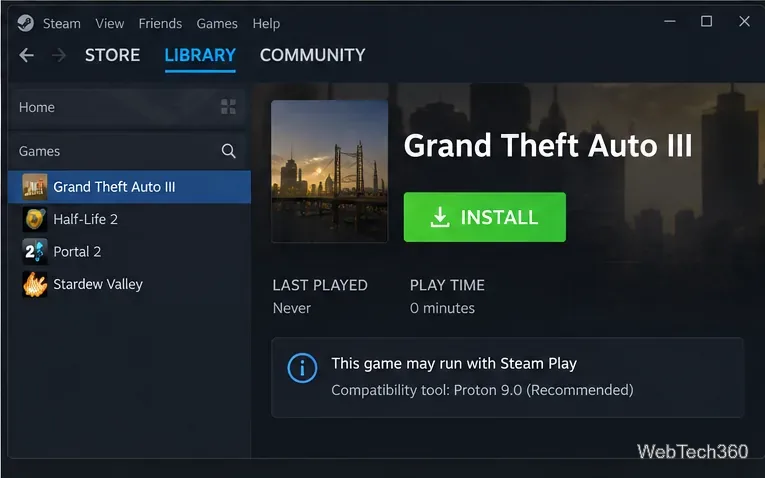
Select GTA III in the Library and click Install. Choose a Steam Library location and let Steam download the Windows game files plus any compatibility components it needs. You do not need to search the Store or repurchase the classic release; if you own it, the Library entry is the place to install it.
Existing owners can install the classic GTA III directly from the Steam Library.
5. Launch the game
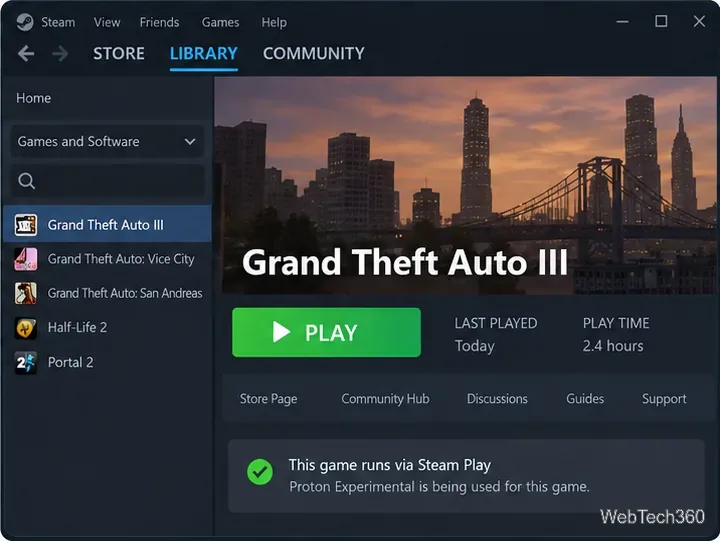
When installation finishes, click Play. The first launch can take longer while Proton creates the game’s compatibility prefix and Steam completes first-run setup. If the game opens normally, leave the compatibility settings alone; forcing extra launch options or community builds is unnecessary unless you are solving a specific problem.
Once installation is complete, launch GTA III normally from Steam.
Troubleshooting GTA III on Linux
If GTA III does not start, first remove any custom launch options and try the newest stable Proton build. Then test Proton Experimental. You can also open Properties > Installed Files and use Steam’s file-verification option to replace damaged or missing game files.
If the intro has sound but no picture, update Proton Experimental before trying older workarounds. Valve’s official Proton changelog records the recent GTA III intro-video fix. For persistent title-specific problems, the open Valve Proton compatibility issue for GTA III is a better technical reference than outdated one-off tweaks.
If Steam reports that the game is unavailable for your platform, recheck Settings > Compatibility and make sure Steam Play is enabled for other titles. Valve’s Steam for Linux support page explains that Steam Play can provide compatibility for Windows-only games. If the Steam client itself crashes or fails to open, use Valve’s Linux client troubleshooting guide before changing GTA III settings.