Home
» LINUX
»
How to Play GTA: San Andreas on Linux With Steam Proton
How to Play GTA: San Andreas on Linux With Steam Proton
Yes, you can play GTA: San Andreas on Linux with Steam and Proton. Rockstar Games has never released a native Linux version of the PC game, so Steam runs the Windows build through its compatibility layer instead. For most users, the cleanest setup is to install the Linux Steam client, enable Proton for the game, and launch it from the Steam Library.
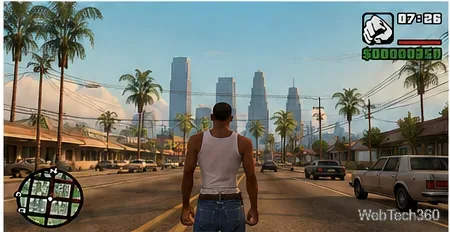
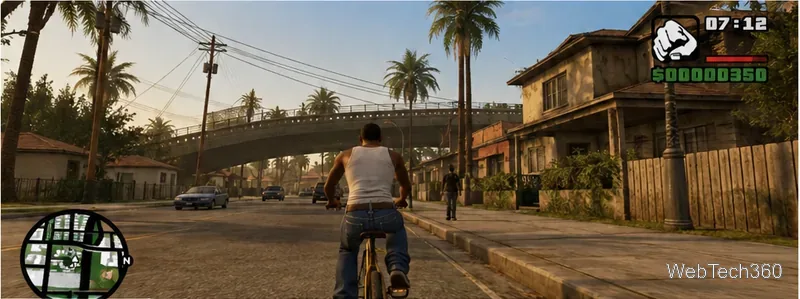
A gameplay-style view of San Andreas after the game starts successfully through Steam Proton on Linux.
Know which San Andreas version you have
Edition
What to know on Linux
Classic Steam release
Windows-only and retired from sale, but useful for existing owners. Rockstar lists 4.7 GB for a full install.
Definitive Edition
Currently sold through Steam as part of The Trilogy – The Definitive Edition. Rockstar lists 45 GB of storage and requires a Rockstar Games account plus internet access for activation and periodic entitlement checks.
1. Install Steam on Linux
Start with an up-to-date Linux system and graphics driver. Valve's Steam Linux support page says the client is officially supported on the most recent Ubuntu LTS with Unity, GNOME, or KDE. Steam also runs on many other distributions, but support there may come from the distribution or community.
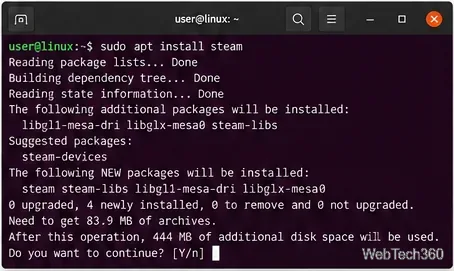
On Ubuntu systems where the Steam package is enabled, you can install it from a terminal:
sudo apt install steam
On Ubuntu systems with the package enabled, Steam can be installed from the terminal.
If your distribution does not provide Steam directly, Flatpak is another option. The Flathub Steam package is community-maintained rather than officially supported by Valve, so keep that distinction in mind when troubleshooting.
The community-maintained Steam Flatpak can be installed from Flathub when a distro package is not suitable.
2. Sign in and locate GTA: San Andreas
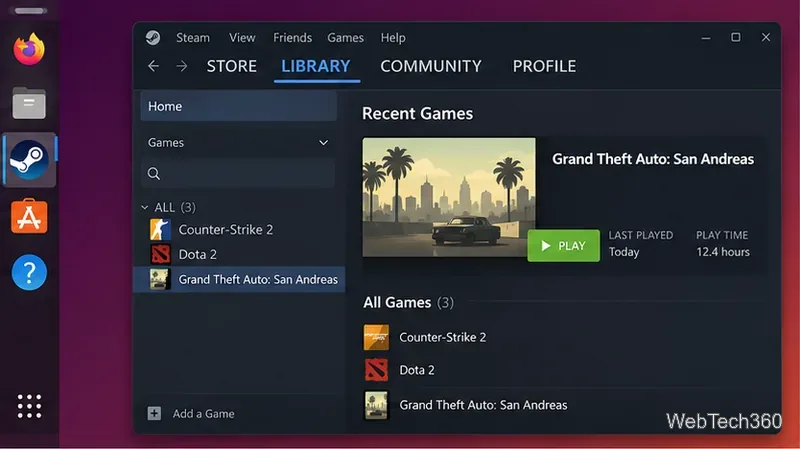
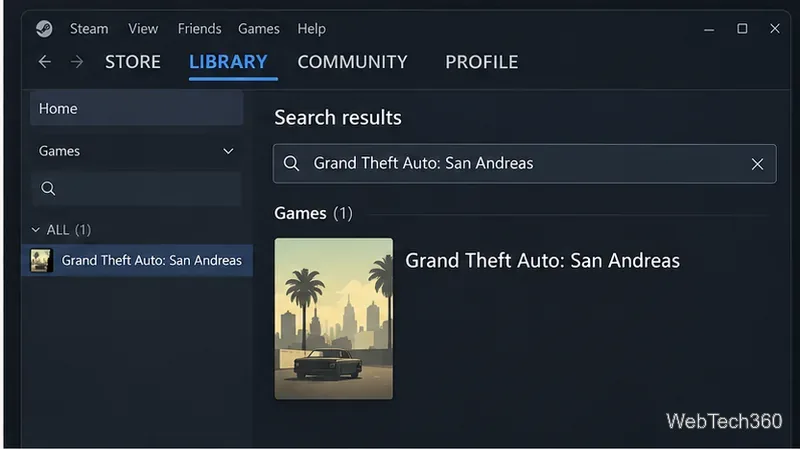
Launch Steam, sign in, and open Library. Existing owners of the classic release should see Grand Theft Auto: San Andreas in their collection. Select it directly or use the Library search box if you have many games.
Open the Steam Library and select Grand Theft Auto: San Andreas if the classic release is already tied to your account.Use the Library search box to find San Andreas quickly in a large Steam collection.
If you do not already own the classic release, do not expect the old store page to offer a purchase button. Use the Definitive Edition store listing instead, then return to your Library after purchase.
3. Force Proton for San Andreas
Right-click the game in your Library and choose Properties > Compatibility. Enable Force the use of a specific Steam Play compatibility tool. This is the per-game setting Valve documents for running Windows titles through Proton.
Enable the per-game Steam Play compatibility option in Properties > Compatibility.
Choose the latest stable Proton version available in Steam. If the game does not start or behaves badly, try Proton Experimental. Valve publishes current builds on the official Proton releases page, so you do not need to rely on old version numbers from older tutorials.
Proton Experimental is a useful fallback when the latest stable Proton build does not launch the game correctly.
4. Install and launch the game
Click Install, choose a Steam library location, and let the download finish. The classic release needs roughly 4.7 GB for a full installation according to Rockstar's PC requirements. The Definitive Edition requires 45 GB according to Rockstar's current requirements.
Press Play. On the first launch, Steam may build a Proton prefix and run Windows components required by the game. Let those setup steps finish. The Definitive Edition can also require Rockstar Games Launcher sign-in and online entitlement verification.
After Proton finishes first-run setup, launch the game and adjust resolution and controls as needed.
5. Fix common launch problems
If San Andreas closes immediately, hangs, or never reaches the game window, work through these fixes in order:
Update Linux and your graphics driver. Valve specifically recommends keeping Linux and GPU drivers current when a game will not launch.
Verify the game files. In Steam, open Properties > Installed Files > Verify integrity of game files. Valve documents this process in its verification guide.
Switch Proton versions. Try the latest stable build first, then Proton Experimental.
Disable mods while testing. Get the unmodified game launching first, then add mods one at a time.
Check Flatpak permissions. If Steam is installed through Flatpak and your library is on another drive, make sure the Steam Flatpak can access that path.
Once the game starts reliably, adjust resolution, controls, and other in-game settings as needed. Proton handles most of the Windows compatibility work automatically, so you generally should not need a separate manual Wine installation for the Steam version.