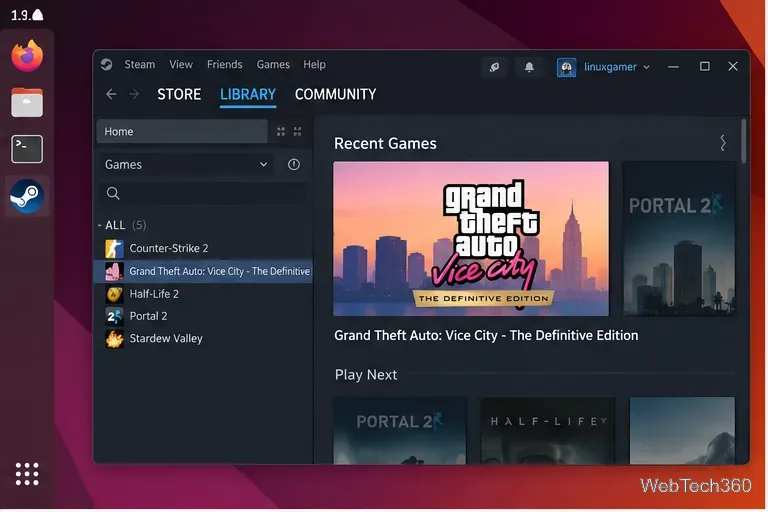
The easiest current way to play GTA: Vice City on Linux is to use the Linux version of Steam and Valve's Proton compatibility layer. For a new purchase, the practical Steam option is Grand Theft Auto: Vice City – The Definitive Edition, included with Grand Theft Auto: The Trilogy – The Definitive Edition. Rockstar says the Steam release is playable on Steam Deck, while the Steam store still lists Windows—not Linux—as the game's native operating system, so desktop Linux relies on Proton rather than an official native port.
If you already own the original 2002 Steam version, you can also try launching that copy with Proton from your existing library. Rockstar began removing the classic trilogy from digital storefronts in 2021, so old instructions telling new users to buy the original Vice City Steam app are no longer a reliable route.
What you need before you start
- A 64-bit Linux PC with an up-to-date graphics driver and Steam installed. Valve's current Linux client requirements call for both 64-bit and 32-bit graphics support and glibc 2.31 or newer.
- A Steam license for Grand Theft Auto: Vice City – The Definitive Edition, or an older Vice City license already attached to your Steam account.
- A Rockstar Games account and an internet connection for installation, activation, and periodic entitlement checks required by the PC release.
Valve describes Proton as the Steam compatibility tool that allows Windows-only games to run on Linux. You normally do not need to install Wine separately when using the Steam version.
How to play GTA: Vice City on Linux with Steam and Proton
1. Install or update Steam for Linux
Install Steam from your distribution's supported package source, or download the Linux installer from the official Steam download page. Sign in, let the client update completely, and install current GPU drivers before troubleshooting the game itself.
If you use Flatpak, be aware that the Flathub Steam package is community maintained rather than officially supported by Valve. It can work well, but a distro-native Steam package is a simpler baseline when diagnosing compatibility problems.
2. Make sure Steam Play/Proton is available
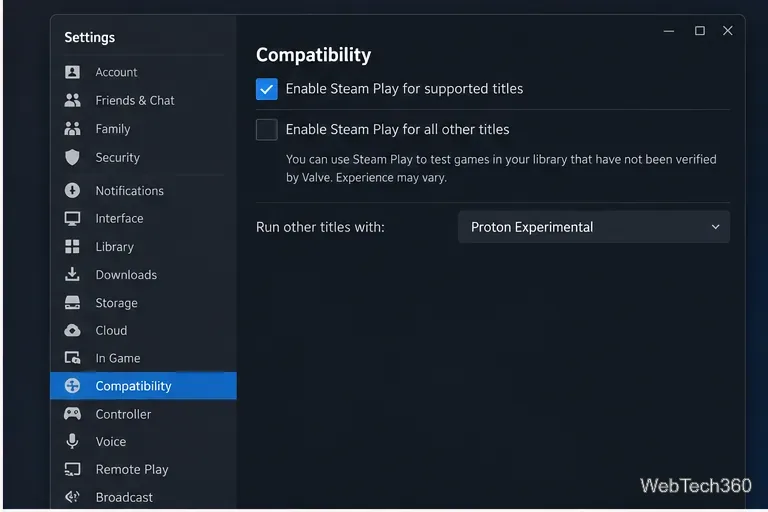
Open Steam > Settings > Compatibility. Steam may already select Proton automatically for supported Windows games. If Vice City does not offer an Install button, enable Steam Play for supported titles and, if needed, enable it for other titles as well.
Start with Steam's default compatibility choice. Do not force a special Proton version unless the game fails to start. Valve recommends using the Proton builds supplied by the Steam client for normal use.
3. Install Vice City from your Steam Library
The current Steam listing is Grand Theft Auto: Vice City – The Definitive Edition, which is part of the Definitive Edition trilogy. Rockstar announced the Steam release on January 19, 2023 and specifically said the trilogy is playable on Steam Deck.
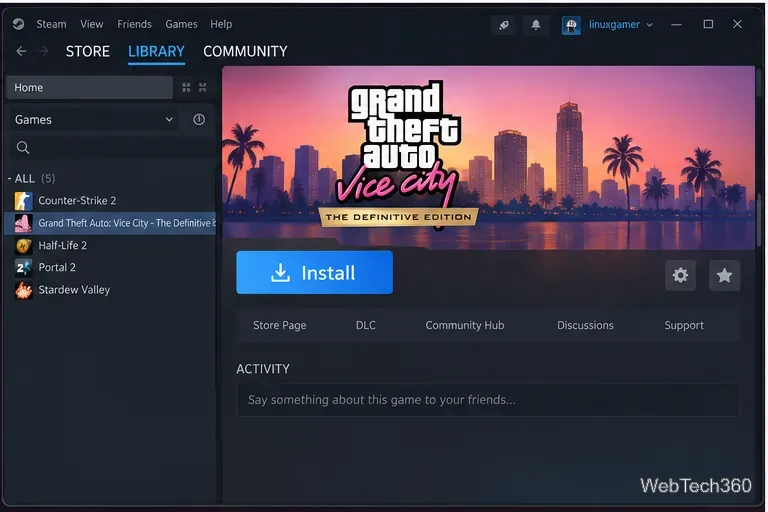
After the game is in your account, open Library, select Vice City, choose Install, pick a Steam library location, and let the download finish. If you own the old 2002 Steam release, select that older entry instead; the same Proton workflow applies, although compatibility behavior can differ from the Definitive Edition.
4. Launch the game and change Proton only if necessary
Select Play. Steam will create the Proton environment and install any required Windows components. The PC version also uses Rockstar's platform and account services, so a Rockstar sign-in prompt may appear during first launch.
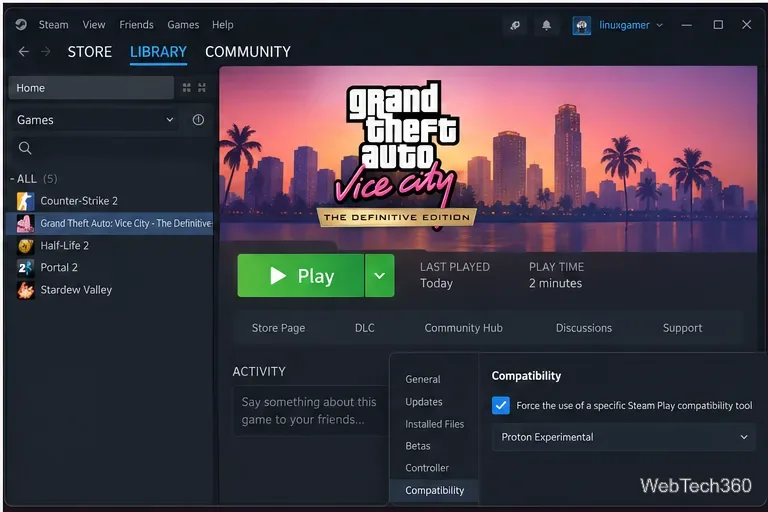
If the game closes immediately or never reaches the menu, right-click Vice City in the library and open Properties > Compatibility. Check Force the use of a specific Steam Play compatibility tool, then try Proton Experimental. If Experimental introduces a regression, switch back to the current stable Proton release and test again.
Troubleshooting GTA: Vice City on Linux
- Steam Deck OLED fatal error: Rockstar documents a specific workaround for the Definitive Edition. Open Properties > General > Launch Options and enter
%command% -dx12. See Rockstar's Steam Deck OLED support note.
- Black screen or crash on desktop Linux: update the graphics driver, remove unnecessary custom launch options, verify the installed game files in Steam, then test the default Proton release and Proton Experimental.
- Rockstar sign-in or activation loop: confirm that Steam and the Rockstar service can reach the internet, restart Steam, and try again. Rockstar's PC requirements state that activation and periodic entitlement verification require an internet connection.
- Old classic copy behaves differently: keep the classic game separate from the Definitive Edition when troubleshooting. Fixes intended for the Unreal Engine-based Definitive Edition do not necessarily apply to the 2002 release.
Classic Vice City or the Definitive Edition?
For someone setting up the game today, the Steam release of Vice City – The Definitive Edition is the cleaner Linux route because Steam can manage Proton directly and Rockstar officially describes the trilogy as playable on Steam Deck. The original Vice City remains relevant mainly for players who already own it or deliberately buy Rockstar's separate classic trilogy, but Rockstar does not provide a native Linux version of either PC edition.
For the latest official PC requirements and account requirements, check Rockstar's Vice City – The Definitive Edition system requirements.









