How to Recover Lost Partitions and Hard Disk Data Safely
Learn how to recover lost partitions and files with TestDisk and PhotoRec. Protect the source drive, scan safely, and save recovered data to another disk.
You can play It Takes Two on Linux through Steam Play and Proton. Valve describes Proton in its Proton documentation as a compatibility tool for running Windows games on Linux. This is not a native Linux release: Steam lists Windows requirements, and results vary across desktop distributions, hardware, and graphics drivers. This guide uses the Steam edition.
Install Steam from your distribution’s official software source or Valve’s download page, then sign in. Update your graphics driver using your distribution’s supported method; Proton depends on the system graphics stack. The Windows baseline on the Steam game page lists 8 GB of memory and 50 GB of storage, but it does not guarantee Linux performance.
It Takes Two requires two players. Choose local split-screen, invite someone online, or use Steam Remote Play Together. EA’s Friend’s Pass guide says a guest can join without owning the full game; both players can try the first chapter free, but one must own the full game to continue.
Use your distribution’s supported Steam package or Valve’s download page. According to EA’s update for It Takes Two on Steam, the Steam edition no longer requires the EA App launcher. Let Steam update before changing compatibility settings.
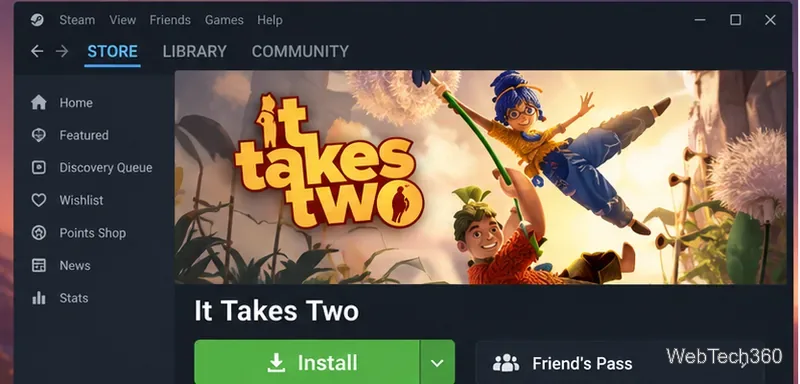
Search the Steam Store for It Takes Two. Add the full game, or install the free Steam Friend’s Pass if you are joining an owner. Use the Steam version: EA’s instructions explain that the older EA App pass still opens through that launcher, while the newer Steam version supports Steam invitations.
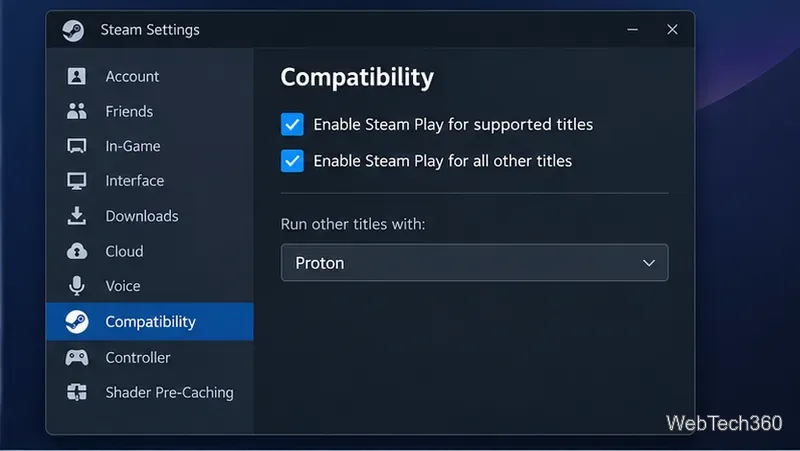
Open Steam > Settings > Compatibility. Enable Steam Play for supported titles and for other titles, then choose a Proton tool from the dropdown. This makes Proton available for the Windows-only game. Steam may download the tool or ask you to restart.
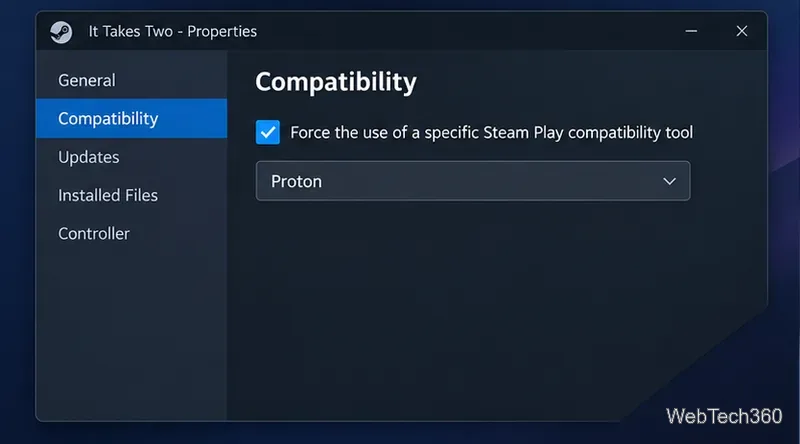
In your Library, right-click It Takes Two and select Properties > Compatibility. Check Force the use of a specific Steam Play compatibility tool, then choose an available Proton version. Start with Steam’s current stable option. If it fails, test another version; Experimental is a troubleshooting option, not a guarantee.
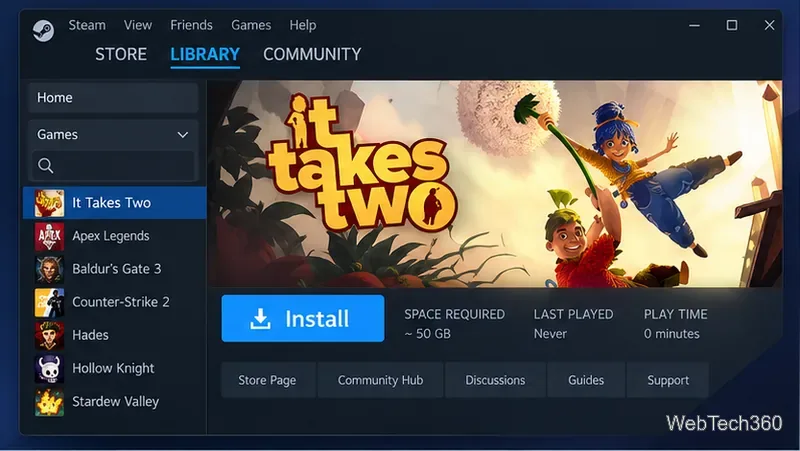
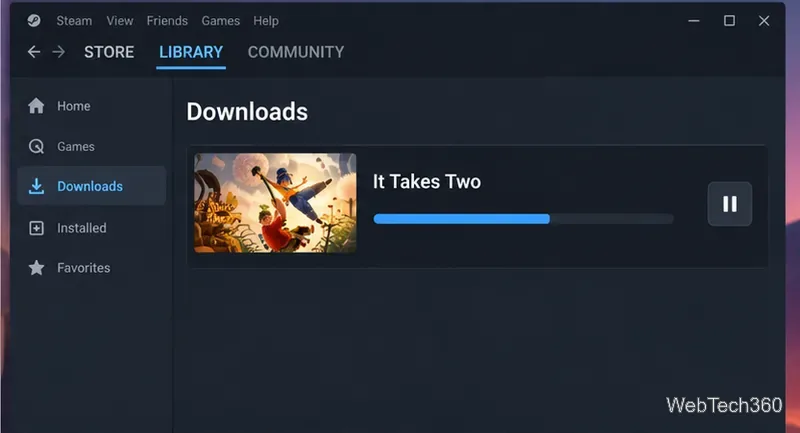
On the game’s Library page, select Install and choose a Steam library with enough free space. Steam currently lists 50 GB. Wait for the download to finish; check progress under Steam > Downloads.
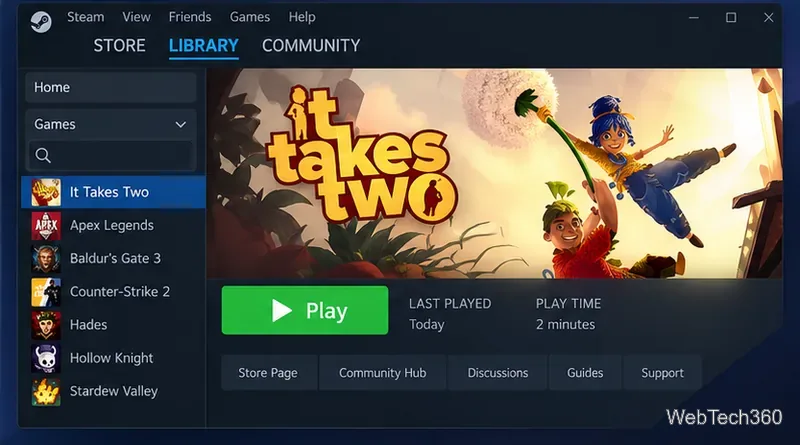
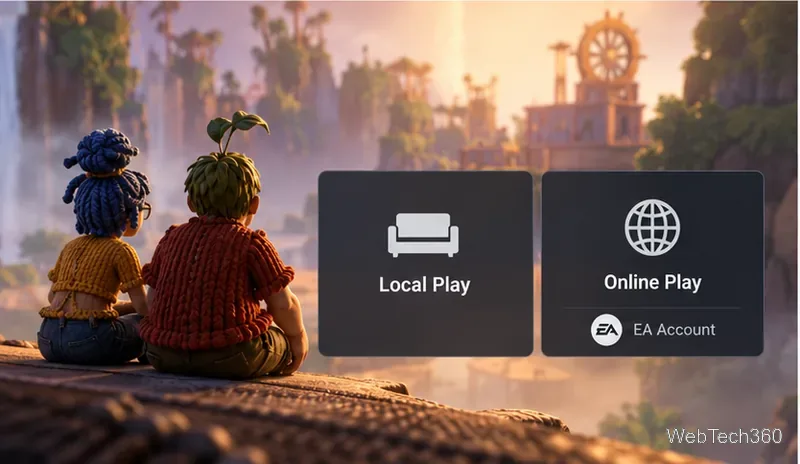
Select Play on the Library page. The first launch may take longer while Steam prepares Proton. Link an EA account if you want to play online through EA servers; local play and Remote Play Together have different requirements, explained below.
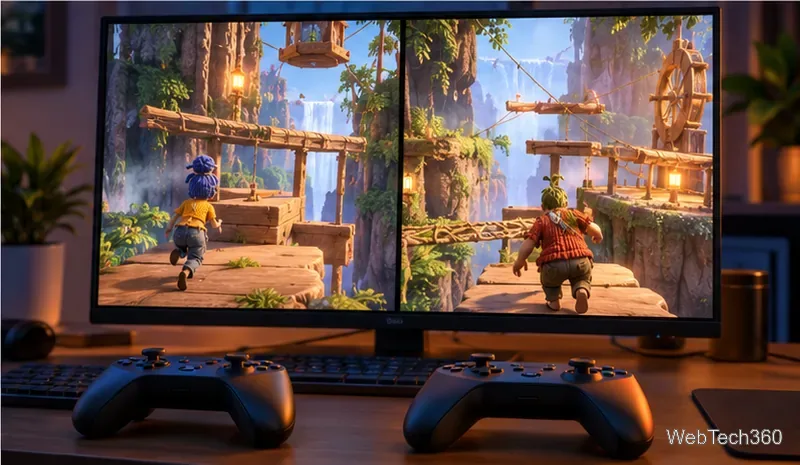
For couch co-op, connect both controllers and choose local split-screen play. To play online, link your EA account to Steam when prompted and invite a friend through Steam. EA says local play and Steam Remote Play Together do not require an EA account; EA server play does. Invite a Friend’s Pass player from the game’s main menu.
If Play returns to the Library, restart Steam and check for current graphics and Vulkan drivers. In Properties > Installed Files, select Verify integrity of game files using Steam’s file verification steps. Then test another Proton version and temporarily remove custom launch options. Results can vary by distribution and GPU; Steam Support’s Linux Steam Play guidance and Valve’s Proton documentation explain the compatibility layer and its limits.
Learn how to recover lost partitions and files with TestDisk and PhotoRec. Protect the source drive, scan safely, and save recovered data to another disk.
Scan QR codes on Linux with CoBang using a webcam or image file. See installation options, setup steps, and fixes for Flatpak camera access.
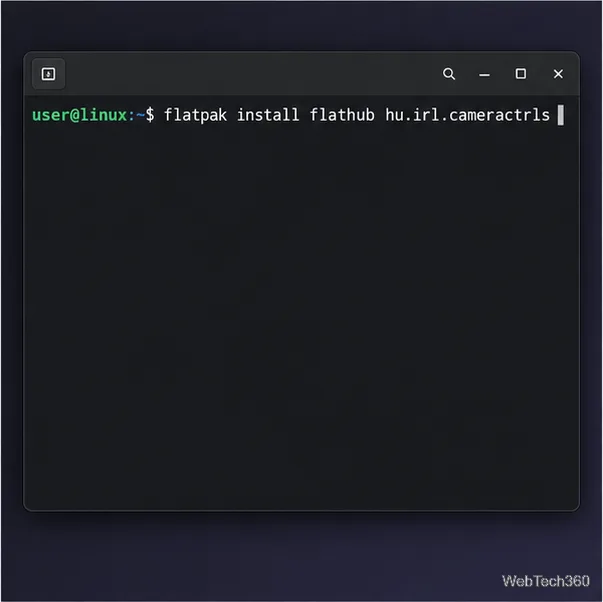
Change webcam settings on Linux with Cameractrls: tune exposure, color, flicker reduction, and other supported controls, then check compatible video modes.
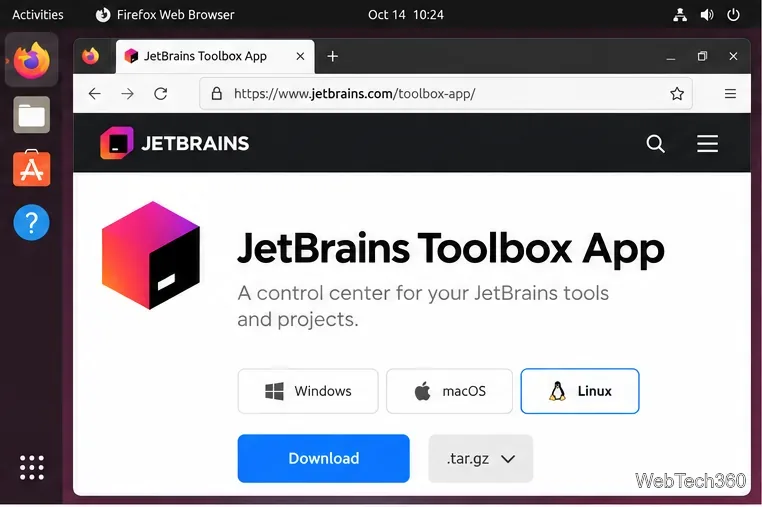
Install PhpStorm on Linux with JetBrains Toolbox or the standalone tar.gz archive, plus Snap and Arch AUR options. Java is already bundled.
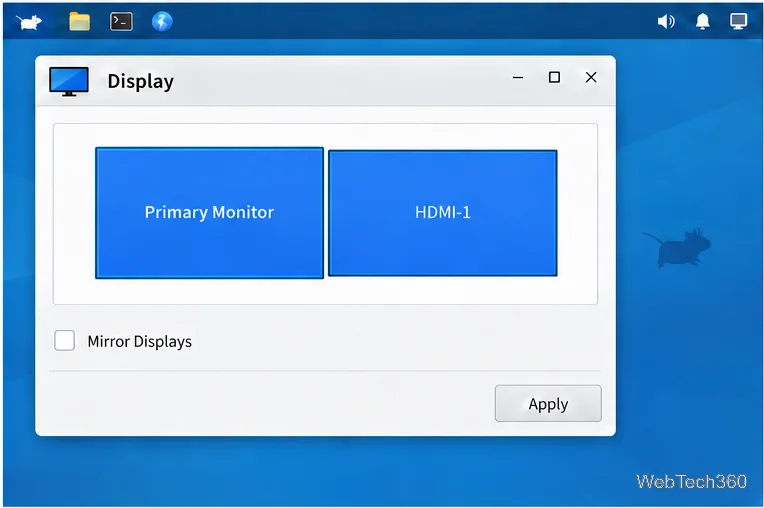
Create a separate XFCE 4 panel for each display, assign the second panel to the right output, position and size it, and add the launchers and status items you need.
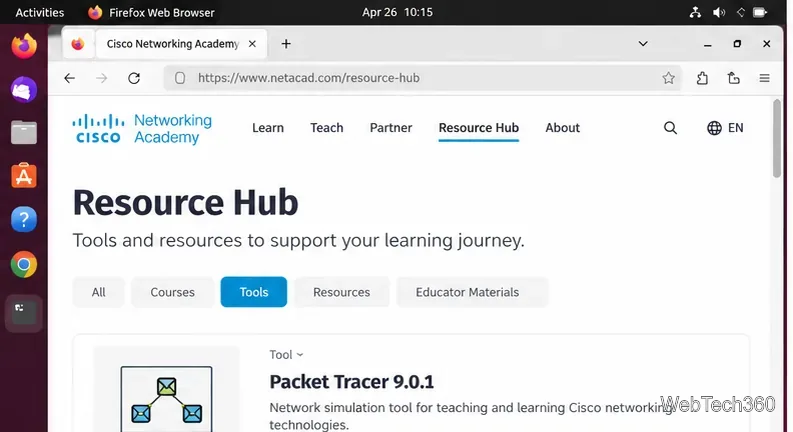
Download Cisco Packet Tracer 9.0.1 for Ubuntu 64-bit, install the DEB package with APT, accept the license in Terminal, and sign in to start a lab.
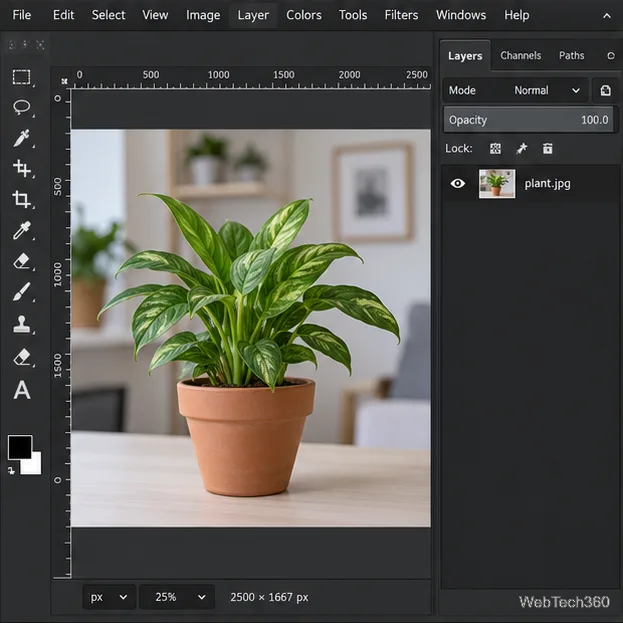
Remove a photo background on Linux with GIMP: trace a subject, delete the selected background, keep transparency, and export a reusable PNG.
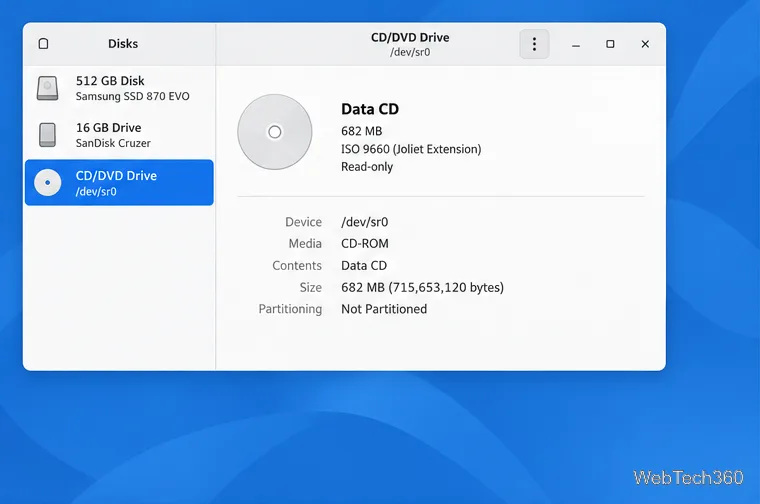
Create a CD-ROM ISO on Linux with GNOME Disks or dd. Identify the optical drive, monitor the copy, verify the image, and know when a damaged or audio disc needs another tool.
Download FlightGear for free from the official site. Compare Windows, macOS, and Linux packages, install the data files, and start your first flight.
Open Google Tasks in a browser, add a Chrome shortcut or app-style launch, and manage dated to-dos through Calendar and Gmail.