Home
» LINUX
»
How to Play Max Payne on Linux With Steam and Proton
How to Play Max Payne on Linux With Steam and Proton
Yes, you can play the original Max Payne on Linux, but it is not a native Linux release. The practical route is the Linux version of Steam plus Proton, Valve's compatibility tool for running Windows games on Linux. Valve describes Proton as a Wine-based Steam Play tool and recommends using the version supplied by the Steam client for normal use. See Valve's official Proton project.
This guide focuses on the 2001 PC game from Remedy Entertainment and Rockstar Games, not Max Payne 3. Rockstar still lists the original Max Payne as a PC title, while its support documentation says the Rockstar Games Launcher does not currently support Max Payne or Max Payne 2. That makes Steam the simpler supported storefront path when the game is available in your region or already in your library. Rockstar's Max Payne page and Rockstar Launcher supported-title list provide the current platform context.
Before you start
Use an up-to-date 64-bit Linux installation with current graphics drivers and an up-to-date Steam client. Valve ended Steam support for Linux distributions using glibc older than 2.31 on August 15, 2025, so very old distributions can fail before the game even launches. Valve's current Linux support guidance is available on the Steam Linux Support page.
Also remember that Max Payne is a Windows game. Steam says Steam Play can allow Windows-only games to work on Linux, but it does not promise that every unsupported title will work on every configuration. If you are buying the game specifically for Linux, check that the Steam store lets you purchase it in your region and be aware of that compatibility limitation.
How to play Max Payne on Linux with Steam and Proton
1. Install or update Steam
Install Steam from your distribution's supported package source or use Valve's official Steam download page. Start Steam, let the client update fully, and sign in. Avoid installing old third-party Steam packages from abandoned repositories.
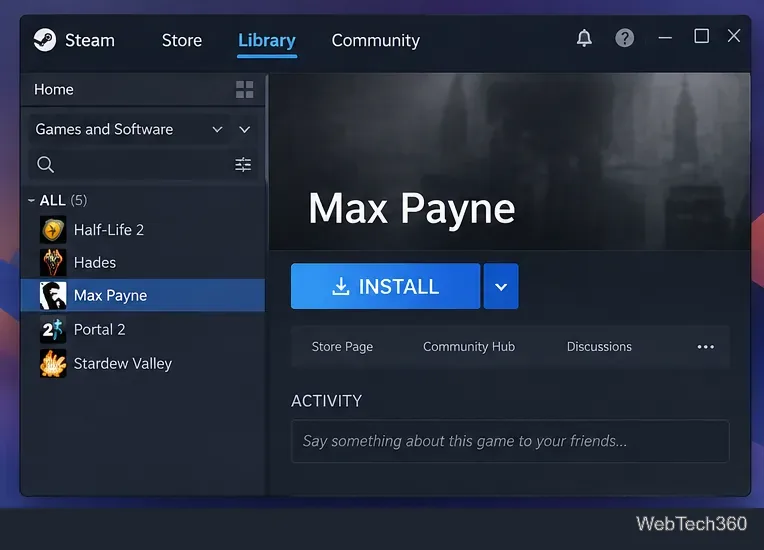
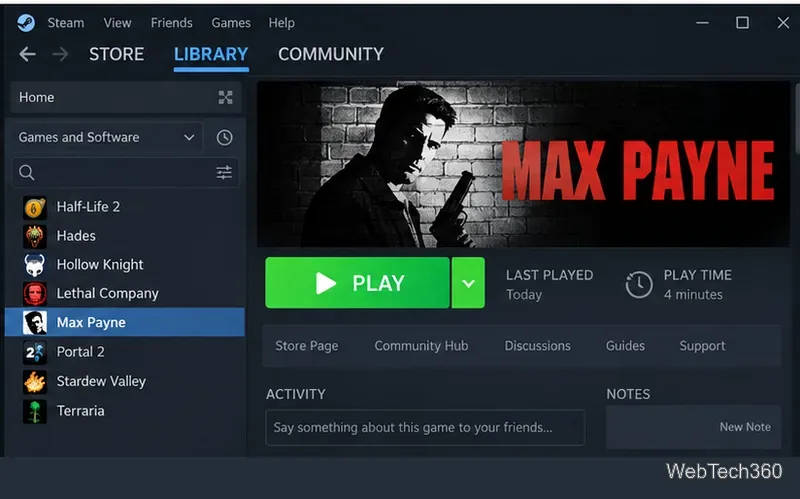
Max Payne selected in the Steam Library on Linux.
2. Add Max Payne to your Steam library
If you already own Max Payne, open Library and select it. If you do not own it, use the Steam Store and purchase it only if the game is currently offered in your region. Store availability can differ by country, so this guide does not assume that every reader sees the same purchase option.
The Steam Library is the starting point for installing the Windows version of Max Payne.
3. Open the game's Compatibility settings
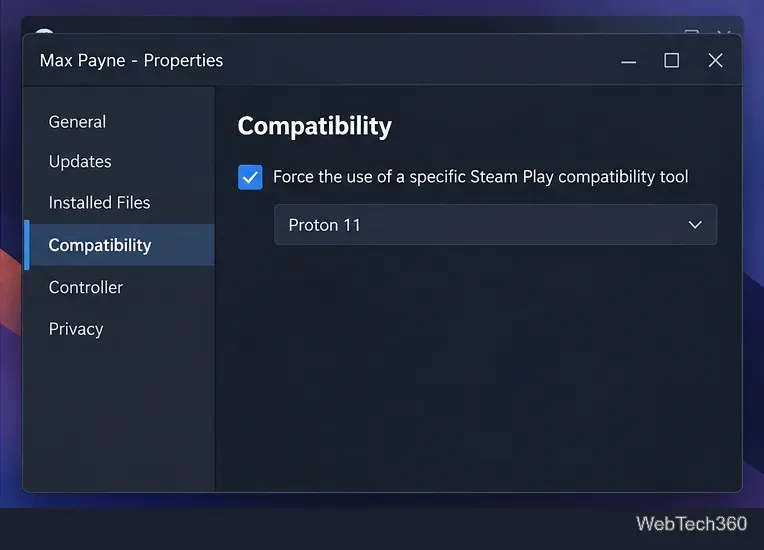
In the Library, right-click Max Payne and choose Properties. Open Compatibility. Steam's current support guidance uses this per-game path when you need to force Proton: Properties > Compatibility > Force the use of a specific Steam Play compatibility tool. Valve documents the same Compatibility control in Steam Support.
Open Max Payne Properties and select Compatibility.
4. Force a current Proton version
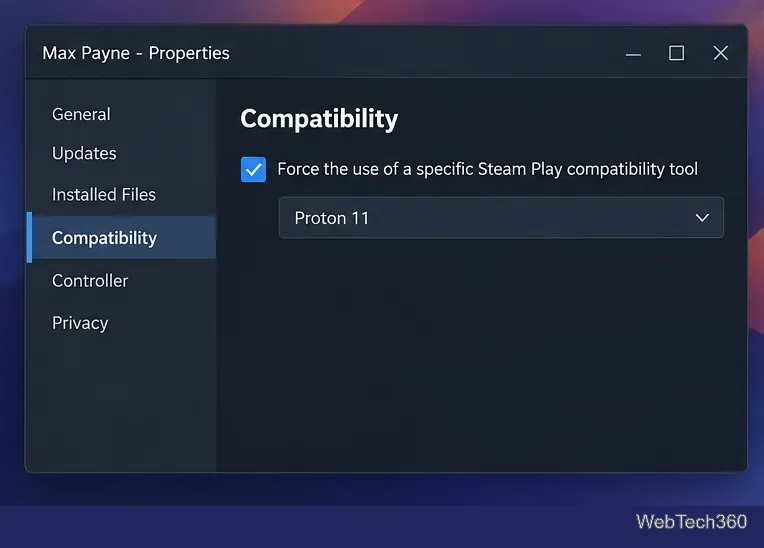
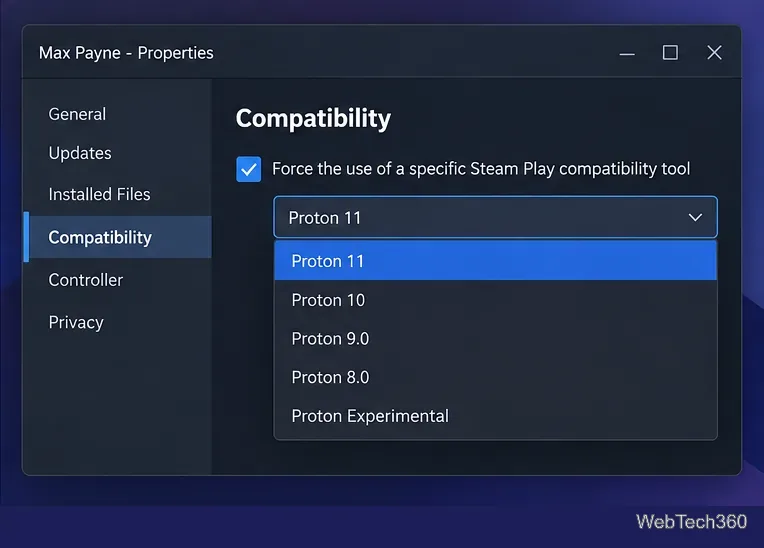
Check Force the use of a specific Steam Play compatibility tool. Select the newest stable Proton version offered by your Steam client. If that version does not start the game, Proton Experimental is a reasonable second test because it receives newer compatibility changes sooner. You normally do not need to download Proton manually; Steam installs the selected compatibility tool automatically.
Enable the per-game Steam Play compatibility tool for Max Payne.Choose the newest stable Proton first; Proton Experimental is a useful fallback.
5. Install Max Payne
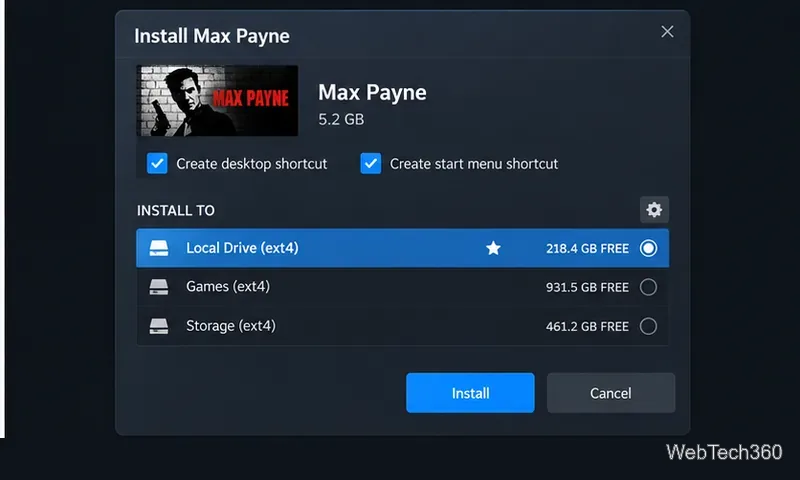
Return to the Max Payne Library page and select Install. Choose a Linux-native Steam library location such as an ext4 or btrfs drive when practical. Shared NTFS libraries can work in some setups, but they add permissions and filesystem edge cases that are unnecessary for this game.
Choose the Steam library location and start the installation.
Let Steam finish downloading the game and any selected Proton runtime. The first launch can take longer than later launches because Steam may create a compatibility prefix and prepare Windows runtime components.
6. Start the game
When installation finishes, the Library button changes to Play. Select it and wait for the initial Proton setup to complete. Do not install the Rockstar Games Launcher for the original Max Payne; Rockstar's current supported-title list excludes this game from that launcher.
After installation, launch Max Payne from Steam with Proton handling compatibility.
7. If Max Payne does not launch
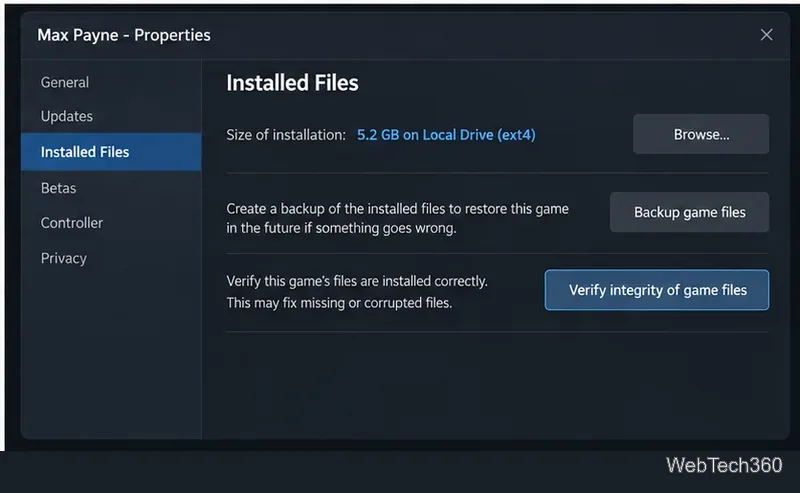
Start with the low-risk fixes: update Steam and your graphics driver, restart Steam, and try a different Proton version under Properties > Compatibility. Then open Properties > Installed Files and use Steam's file-verification option to replace missing or corrupted files. Valve also recommends keeping Linux and graphics drivers current when games fail to start.
Verify the installed files before trying more invasive troubleshooting.
If the Steam copy still refuses to launch, avoid random Windows DLL downloads or old Wine scripts from untrusted sites. Keep the troubleshooting inside Steam and Proton first. For advanced diagnosis, Valve's Proton FAQ documents the launch option PROTON_LOG=1 %command%, which creates a Proton log that can help identify where startup fails. Valve Proton FAQ.
Bottom line
For most Linux users, the cleanest setup is simple: install the current Steam client, force a current Proton build for Max Payne, install the game, and launch it from the Library. You do not need a native Linux port or the Rockstar Games Launcher. If the first Proton choice fails, verify the files and test another Valve-provided Proton version before changing anything else.