Home
» LINUX
»
How to Play Microsoft Flight Simulator on Linux
How to Play Microsoft Flight Simulator on Linux
Yes, you can run Microsoft Flight Simulator (2020) on Linux, but there is no native Linux version. The practical local-install route is the Linux Steam client plus Valve’s Proton compatibility layer. Because the Steam store page lists Windows rather than Linux as the supported PC operating system, this setup is unofficial and compatibility can change after Steam, Proton, driver, or game updates.
This guide covers Microsoft Flight Simulator (2020) 40th Anniversary Edition. Microsoft Flight Simulator 2024 is a separate title, so do not assume every Proton workaround applies to both games.
Before you start
Use the Steam edition. This Proton method launches the Windows Steam build from Linux.
Have a Microsoft account ready. Microsoft requires account sign-in even when the game was purchased through Steam.
Check storage and hardware. Microsoft’s current requirements for the 2020 release list 150 GB of storage, 8 GB RAM minimum, and 16 GB RAM recommended. See the official requirements.
Update your Linux distribution and graphics driver before installing a large DirectX game through Proton.
1. Install Steam on Linux
Install Steam from a current source for your distribution rather than using an old download URL from a previous guide. Valve provides the current installer from its Steam installation page.
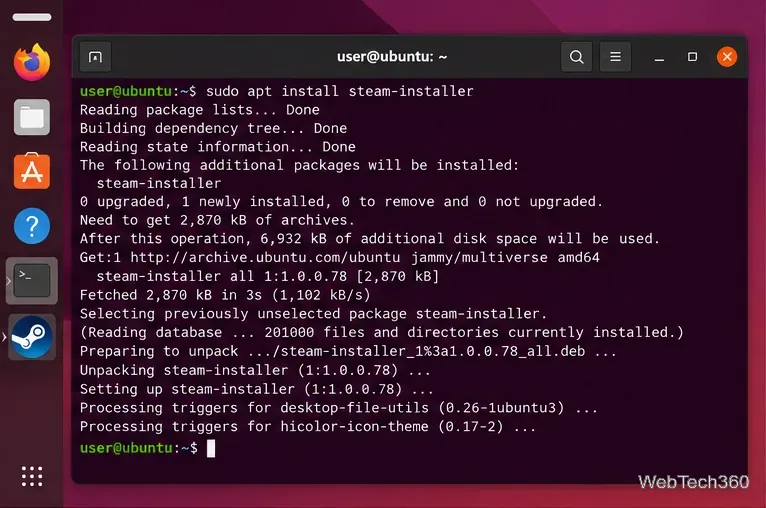
On Ubuntu 24.04 LTS, the steam-installer package is available in the official multiverse repository:
sudo apt update
sudo apt install steam-installer
Debian users should follow the Debian Steam instructions, which include enabling 32-bit support. On Arch Linux, enable multilib and install the steam package as described in the ArchWiki Steam guide.
Install Steam from your distribution’s current package source or Valve’s current installer.
2. Install Microsoft Flight Simulator from your Steam Library
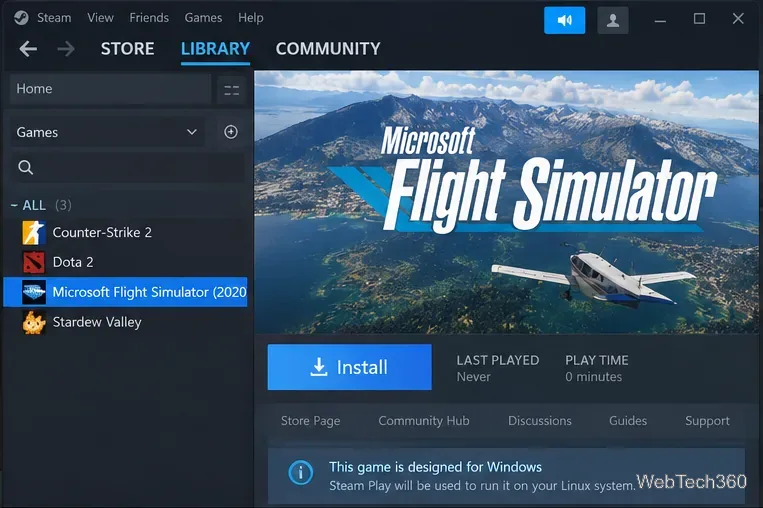
Open Steam, sign in, and locate Microsoft Flight Simulator (2020) in your Library. If you do not own the Steam edition, purchase it through Steam before continuing. Select Install and choose a library location with enough free space.
The first Steam download is not necessarily the entire simulator. Microsoft’s own Steam installation instructions explain that the launcher starts first and then downloads additional simulator packages.
Select Microsoft Flight Simulator in Steam and install the Windows build that Proton will run.
3. Force Proton for Microsoft Flight Simulator
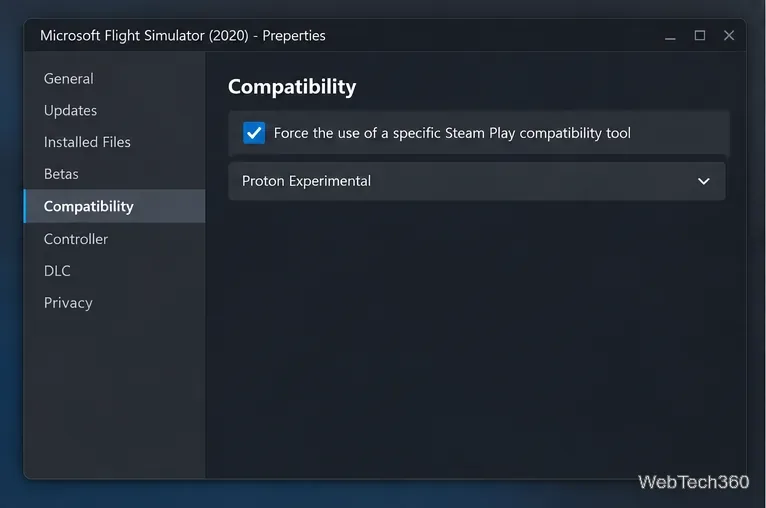
In Steam, right-click the game and open Properties > Compatibility. Enable Force the use of a specific Steam Play compatibility tool. Start with the newest stable Proton version available in your client. If the game does not launch or the Microsoft sign-in window misbehaves, try Proton Experimental.
Valve documents the same per-game compatibility control in its Steam troubleshooting guidance. You do not need the old pair of global “Steam Play” checkboxes used by older Steam clients.
Use the game’s Compatibility settings to choose a Proton version.
4. Launch the simulator and finish the in-game download
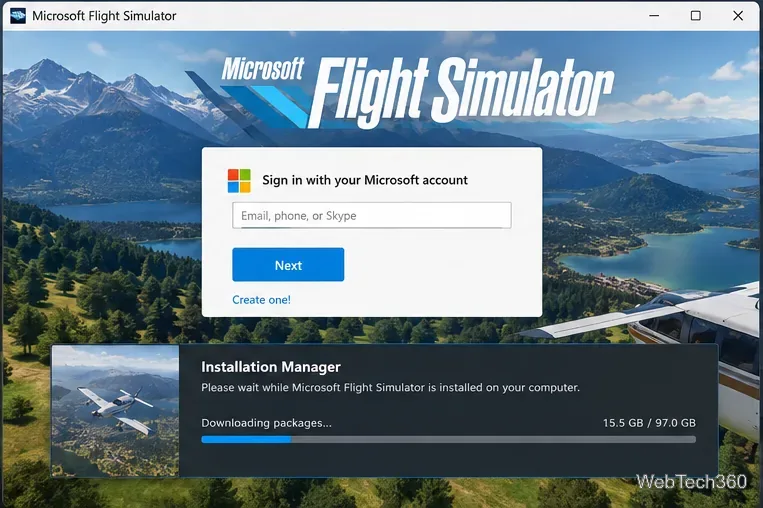
Click Play. When prompted, sign in with the Microsoft account and gamertag you want tied to Microsoft Flight Simulator. Microsoft confirms that account sign-in is required on Steam as well as other platforms in its account FAQ.
After sign-in, use the Installation Manager to select the content you want and start the package download. Let that process finish before judging performance; the launcher stage and the simulator-content download are separate parts of the installation.
Sign in with your Microsoft account, then let the Installation Manager download the required packages.
5. What to try if the game will not start
Restart Steam and switch between the latest stable Proton build and Proton Experimental.
Remove old custom launch options such as -FastLaunch while troubleshooting; they are not required for a standard installation.
Update your GPU driver and Steam client, then verify the game files from Steam’s Properties menu.
If the Microsoft sign-in dialog fails, change Proton versions and relaunch before applying system-wide networking or security changes copied from old forum posts.
If an update breaks the game, remember that Linux is not an officially supported Microsoft Flight Simulator PC platform, so a Proton regression may require waiting for a Steam or Proton fix.
For a lower-maintenance alternative, Microsoft also offers Microsoft Flight Simulator through Xbox Cloud Gaming on supported devices, browsers, subscriptions, and regions. Check Microsoft’s current compatibility list before relying on cloud play from a particular Linux device.