Home
» LINUX
»
How to Play Minecraft Bedrock Edition on Linux
How to Play Minecraft Bedrock Edition on Linux
You can play Minecraft Bedrock Edition on Linux, but not with an official native Bedrock client. Mojang officially supports Minecraft: Java Edition on desktop Linux, while Bedrock on Linux requires a third-party compatibility launcher. The most established option is the unofficial Minecraft Bedrock Launcher, which runs the Android version of the game.
The launcher is not affiliated with Mojang or Microsoft, and its own project documentation describes it as unstable. You also need a Google account that owns Minecraft on Google Play. Owning Bedrock through the Microsoft Store, Xbox, PlayStation, iOS, or another store does not satisfy this launcher's Google Play license check.
A Google account that owns the Android version of Minecraft on Google Play.
An internet connection for authentication and downloading the game files.
Flathub currently lists the launcher for x86_64 and aarch64 systems. The Flathub listing is marked Unverified, so treat it as community software rather than an official Minecraft app.
Install Minecraft Bedrock Launcher on Linux
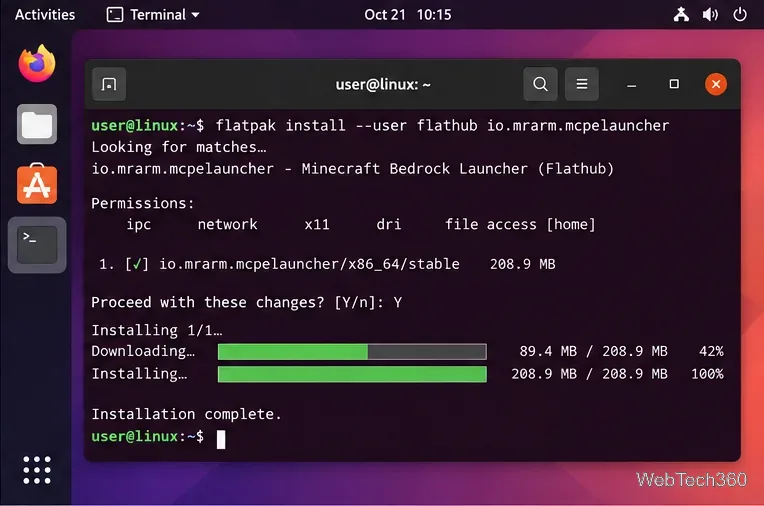
The project's current documentation recommends Flatpak or native distribution packages. Its old AppImage builds are deprecated and can remain on outdated releases, so this guide uses Flatpak.
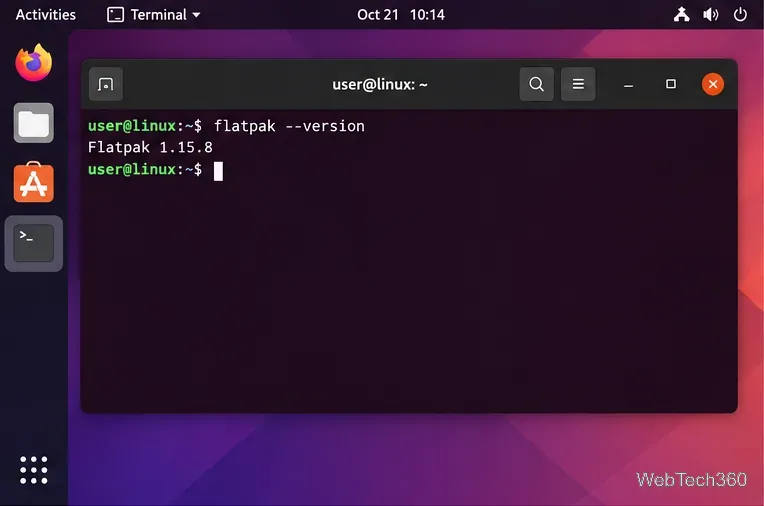
1. Check that Flatpak is installed
Open a terminal and run:
flatpak --version
If the command is not found, install Flatpak using the official setup instructions for your distribution before continuing.
Confirm that Flatpak is available before installing the launcher.
Install the current Flatpak package instead of relying on the deprecated AppImage.
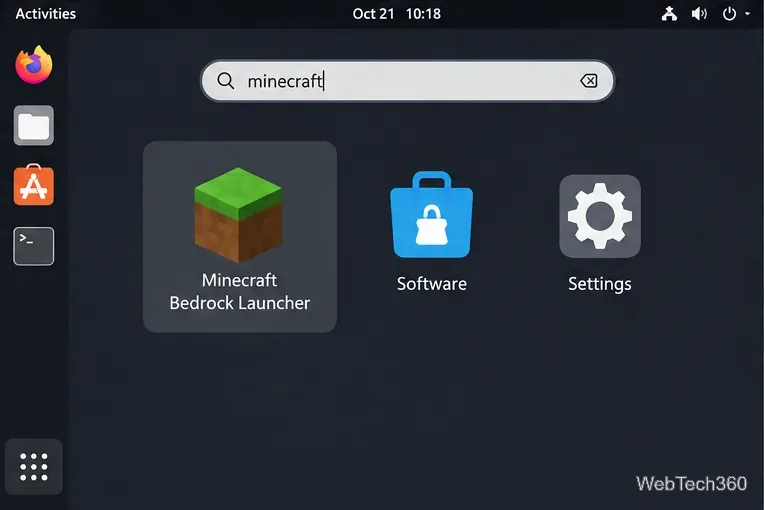
3. Start Minecraft Bedrock Launcher
Launch it from your desktop's application menu, or run:
flatpak run io.mrarm.mcpelauncher
After installation, the launcher should appear in the desktop application menu.
Download and play Minecraft Bedrock Edition
4. Confirm the Google Play requirement
Before signing in, remember that the launcher downloads the Android build through Google Play. The project's official FAQ says the Google account used by the launcher must own Minecraft on the Play Store. Do not download paid APK files from random websites; the project does not support that route.
The launcher uses a Google Play license to obtain the Android game files.
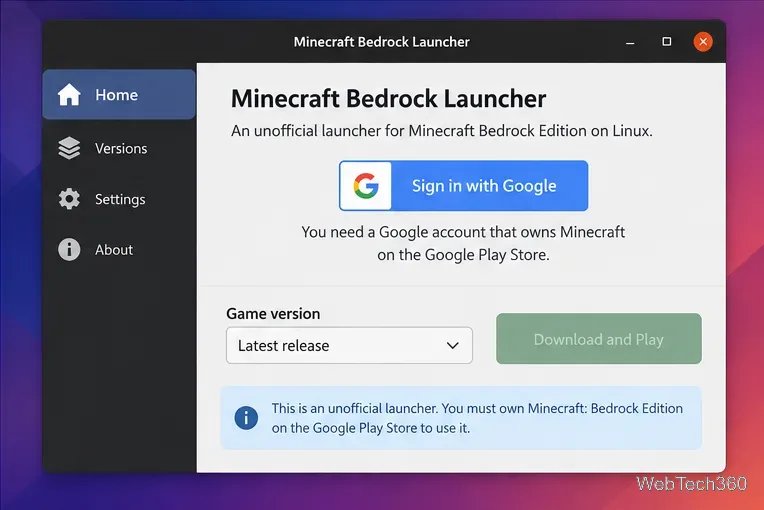
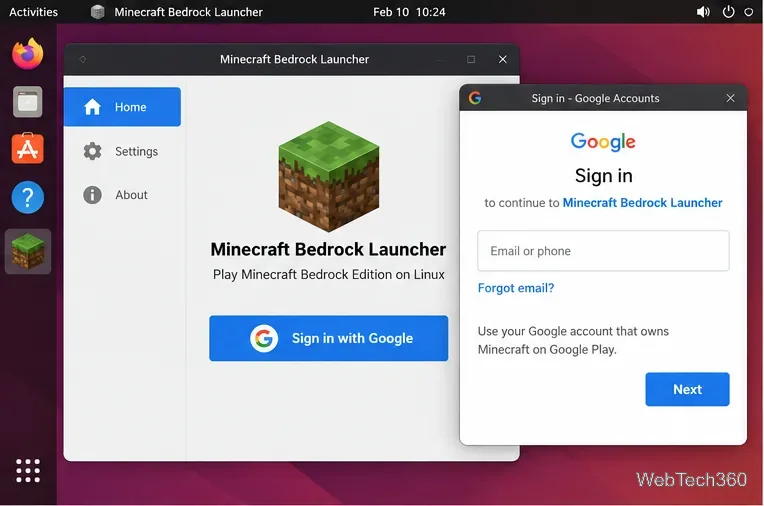
5. Sign in with the Google account that owns Minecraft
Choose the Google sign-in option and authenticate with the account that purchased Minecraft on Google Play. Keep the launcher updated if Google authentication fails; recent launcher releases have included Google sign-in fixes.
Use the same Google account that owns the Android edition of Minecraft.
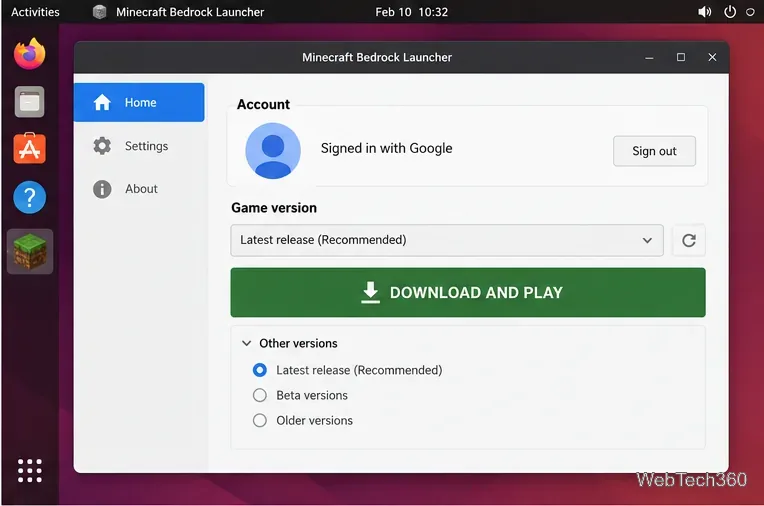
6. Choose a compatible Minecraft version
After authentication, select a game version in the launcher profile. The project supports managing multiple versions, which is useful because a brand-new Minecraft release can arrive before the Linux launcher has caught up. If the newest version fails, first update the launcher rather than importing an APK manually.
Select a launcher-supported Bedrock version before downloading the game files.
7. Download the game files
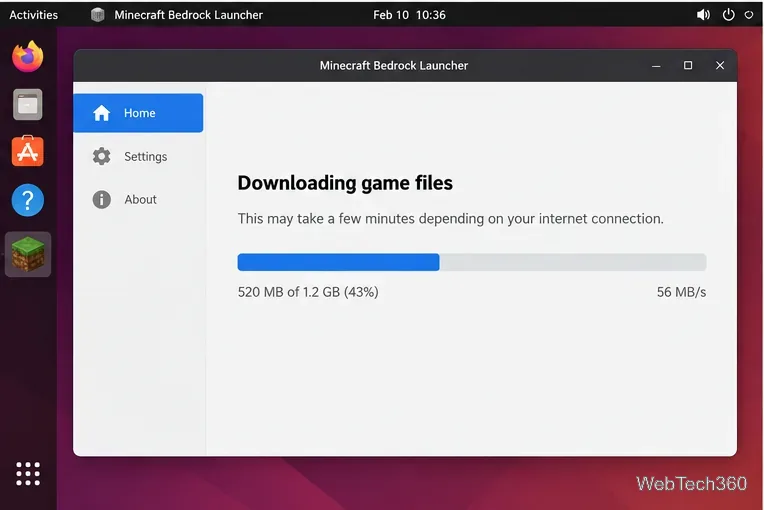
Choose Download and Play and let the launcher retrieve the compatible Android files tied to your Google Play license. The first download can take a while depending on your connection.
Let the launcher finish downloading and preparing the selected Bedrock version.
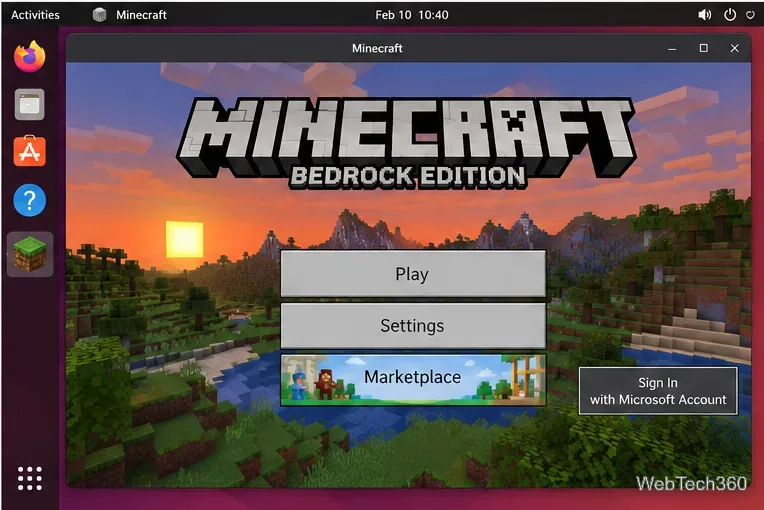
8. Start Minecraft
When the download finishes, launch the game from the launcher. Minecraft should open in its own window. You can then use a Microsoft account inside the game for features that require Xbox services, although the Google Play account is still what the Linux launcher uses to obtain the Android build.
Once the game starts, you can configure Minecraft and begin playing.
If Minecraft Bedrock will not start on Linux
Update the Flatpak: run flatpak update, then reopen the launcher.
Enable launcher logging: run flatpak run io.mrarm.mcpelauncher -v to get more diagnostic output.
Try the built-in troubleshooter: the project documentation says the Qt launcher includes a Run troubleshooter option in Settings.
Check Wayland/X11 issues: if the launcher itself closes on a Wayland-based desktop, the project documents an X11 fallback command: flatpak run --nosocket=wayland --nosocket=fallback-x11 --socket=x11 io.mrarm.mcpelauncher.
Do not assume the newest Bedrock release works immediately: the project troubleshooting guide notes that launcher and game compatibility can lag behind updates.
Other installation options
If you prefer native packages, the Minecraft Linux project installation page documents Debian/Ubuntu and Fedora repositories plus AUR packages for Arch Linux. For Arch, the documented AUR packages are mcpelauncher-linux and mcpelauncher-ui. Flatpak remains the easiest cross-distribution path for most users.
Where Minecraft worlds are stored
For the Flatpak build, the project's FAQ lists Minecraft worlds under:
Back up that folder before experimenting with older game versions or major launcher changes. Because this is an unofficial compatibility project, keeping a current world backup is especially important.