Home
» LINUX
»
How to Play Monster Hunter: World on Linux with Steam Proton
How to Play Monster Hunter: World on Linux with Steam Proton
Yes, you can play Monster Hunter: World on Linux through Steam using Valve's Proton compatibility layer. Capcom does not list a native Linux version on the game's Steam page, so this is not the same as official Linux support. Valve describes Proton as the compatibility layer that lets Windows games run on Linux, and Steam Support notes that Linux users may be able to run Windows-only titles through Steam Play.
For the cleanest setup, use the regular Steam client, current graphics drivers, and an official Proton build before experimenting with custom compatibility tools. The game's Steam store page currently lists 52 GB of storage and 8 GB of RAM in its Windows requirements, so leave additional free space for Steam updates and Proton files.
Before you install Monster Hunter: World
Update your Linux system and graphics stack first. Valve's Steam for Linux requirements call for a 64-bit x86 Linux system with current 64-bit and 32-bit graphics drivers. Proton translates Windows graphics APIs for Linux, so outdated Mesa or NVIDIA drivers are a common place to start when a game refuses to launch.
Use a supported 64-bit Linux installation.
Install current AMD, Intel, or NVIDIA graphics drivers from your distribution's recommended source.
Have at least 52 GB free for the game, plus extra space for updates and Proton data.
Sign in to Steam with an account that owns Monster Hunter: World.
How to play Monster Hunter: World on Linux
1. Install Steam and sign in
Install Steam from your distribution's package manager or Valve's package. Debian stable provides the steam-installer package in its contrib repository, while Valve also publishes a current Debian-format installer in its official Steam package repository. After installation, open Steam, let it update, and sign in.
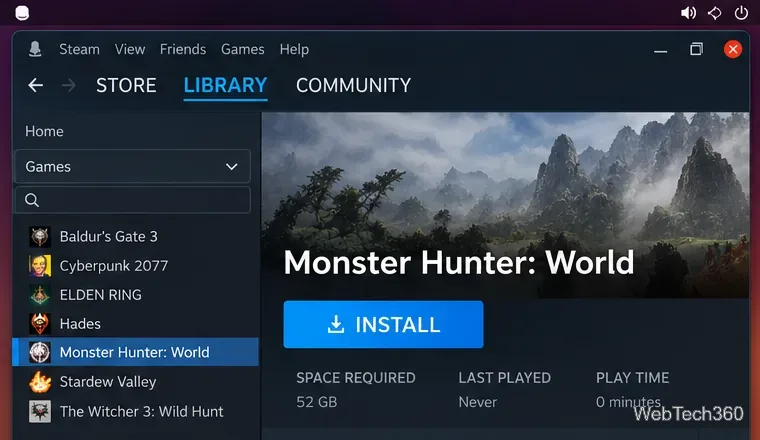
Monster Hunter: World appears in the Steam library as a Windows game that can be installed on Linux once Proton compatibility is available.
2. Enable Steam Play compatibility
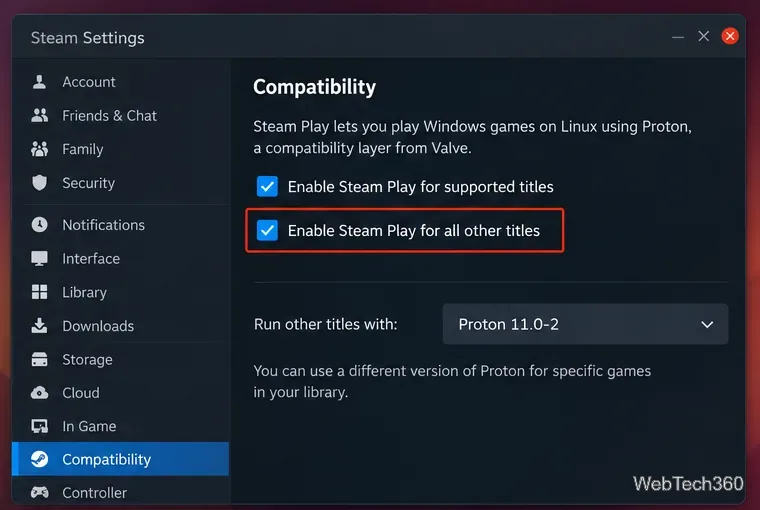
Open Steam > Settings > Compatibility. Enable Steam Play for all other titles if the option is not already active. Valve's Proton documentation explains that Proton uses a modified Wine environment plus graphics translation components to run Windows games on Linux.
Start with Steam's current stable Proton release. As of October 2026, Valve lists Proton 11.0-2 as the latest stable release, but Steam may offer a newer stable build later. You can check Valve's official Proton releases instead of relying on an old version number from a guide.
Steam's Compatibility settings let Windows-only games use Proton on Linux.
3. Install the game and choose Proton if needed
Open Library, select Monster Hunter: World, and click Install. Choose a Steam library with enough free space and let the download finish.
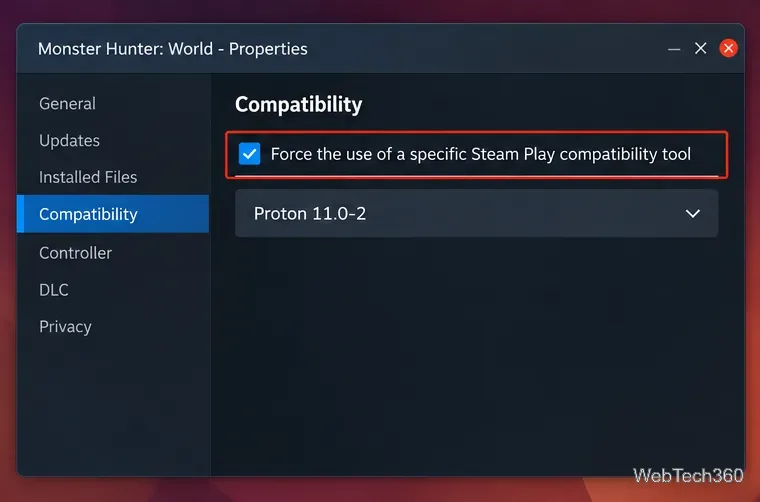
If Steam does not automatically choose a working compatibility tool, right-click the game, open Properties > Compatibility, enable Force the use of a specific Steam Play compatibility tool, and select the current stable Proton version. If stable Proton has a regression on your hardware, Proton Experimental is the next official build worth testing.
A per-game compatibility override lets Monster Hunter: World use a specific official Proton release.
4. Launch Monster Hunter: World
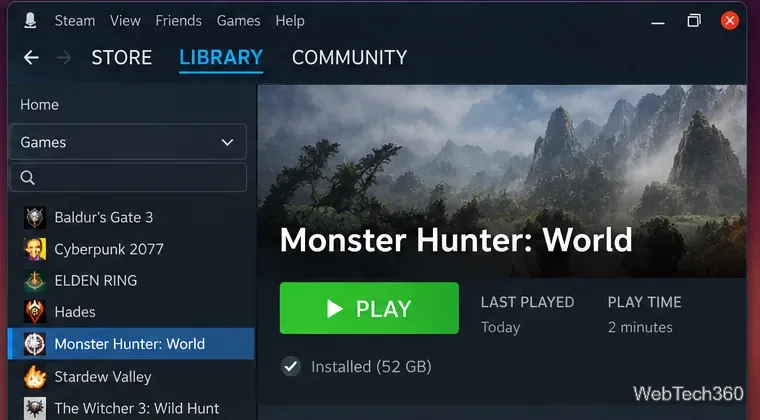
Click Play. The first launch can take longer because Steam may create the Proton prefix and process shaders or redistributables. Avoid interrupting this setup unless Steam is clearly stuck.
After installation, launch Monster Hunter: World from the normal Steam Library Play button.
What to try if Monster Hunter: World will not start
Update Steam and your GPU driver. Reboot after major graphics-driver changes.
Verify the game files. Open the game's Properties, choose Installed Files, and run Steam's file-integrity check.
Switch official Proton versions. Try the current stable build first, then Proton Experimental. Remove old custom launch options while testing so you change one variable at a time.
Retest without DirectX 12. If you previously enabled the game's DirectX 12 option and now see an ERR23-style device error or rendering problem, disable DX12 and test the default renderer before making deeper changes.
Check Valve's compatibility tracker. The Monster Hunter: World Proton issue remains open and contains reports of hardware- and version-specific regressions. Treat individual reports as troubleshooting leads, not guarantees for your PC.
For most Linux users, the best approach is simple: keep Steam and graphics drivers current, use Valve's stable Proton first, install Monster Hunter: World normally, and only force another official Proton build if the game fails to launch or a game update introduces a regression.