Home
» LINUX
»
How to Play Mount & Blade II: Bannerlord on Linux
How to Play Mount & Blade II: Bannerlord on Linux
Yes. You can play Mount & Blade II: Bannerlord on Linux through Steam using Proton, Valve’s compatibility tool for Windows games. Install the game from your Steam library, enable Steam Play for Windows titles, and try Steam’s included Proton first. Proton-GE is an optional fallback if the game does not launch correctly; the old guide’s pinned Proton 5.11 download and launcher-file workaround are not necessary for a first attempt.
Steam lists Bannerlord for Windows and marks it “Playable” on Steam Deck. That rating applies to Valve’s handheld setup and does not guarantee every desktop Linux configuration. Valve’s Proton project describes Proton as Steam’s tool for running Windows-only games on Linux.
Before you install
Install Steam from your distribution’s supported software source or Valve’s Steam download page, open it, and sign in. Update your graphics driver and Vulkan stack through your distribution’s normal update process; Proton needs a working Vulkan setup.
Bannerlord’s Steam page lists 60 GB of available storage and 6 GB of RAM in its minimum Windows requirements. Treat those figures as a baseline, not a promise of smooth performance under Proton, and leave extra room for updates. Check the current Steam listing for the full system requirements.
How to set up Bannerlord on Linux
1. Enable Steam Play for Windows games
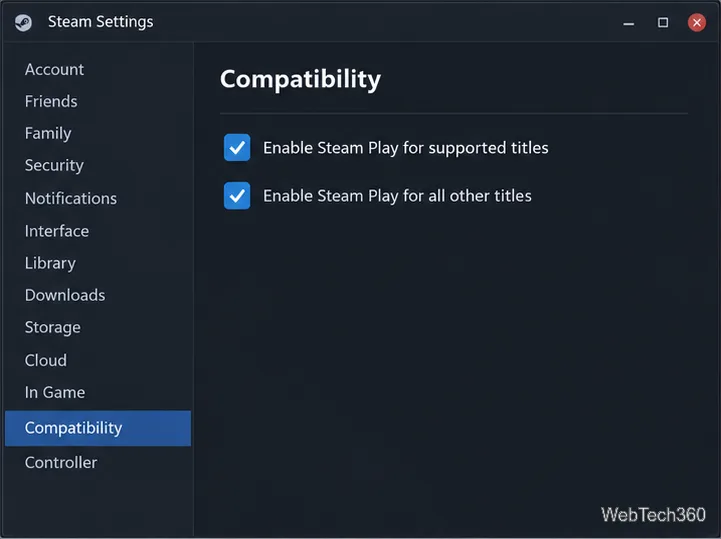
In Steam, open Steam > Settings > Compatibility. Some client versions still call this area “Steam Play.” Turn on the options for supported titles and for other titles, then restart Steam if it asks. This lets Steam use Proton for games that do not offer a native Linux build.
The compatibility settings allow Steam to run Windows games through Proton.
2. Install Bannerlord from your Steam library
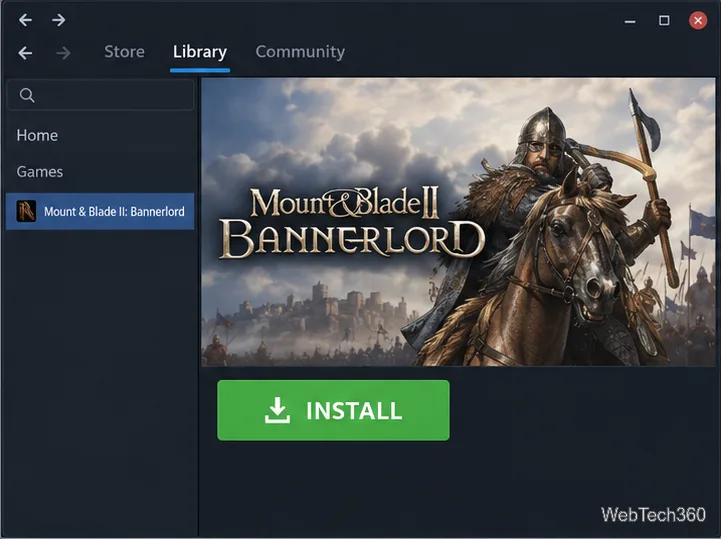
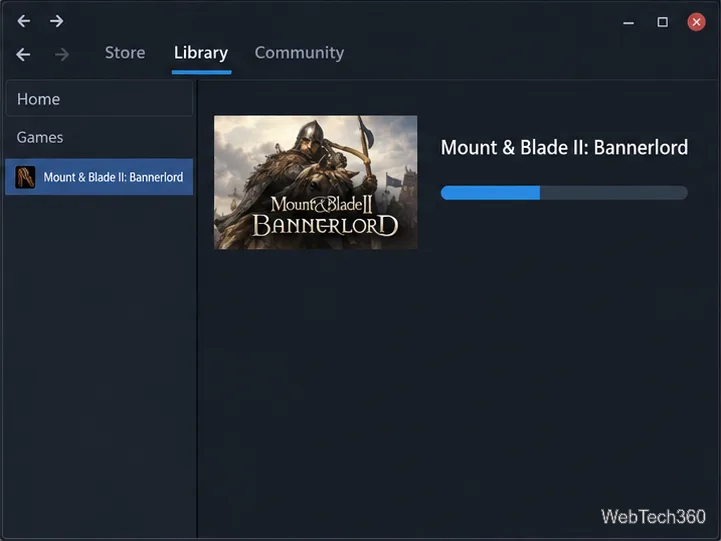
Open Library, select Mount & Blade II: Bannerlord, and click Install. Choose the drive with enough free space and let Steam finish downloading the game before launching it. If you do not own the game yet, open its Steam store page and add it to your account first.
Select the game in your library to begin installation.Let Steam finish downloading the game files before the first launch.
3. Launch once with Steam’s included Proton
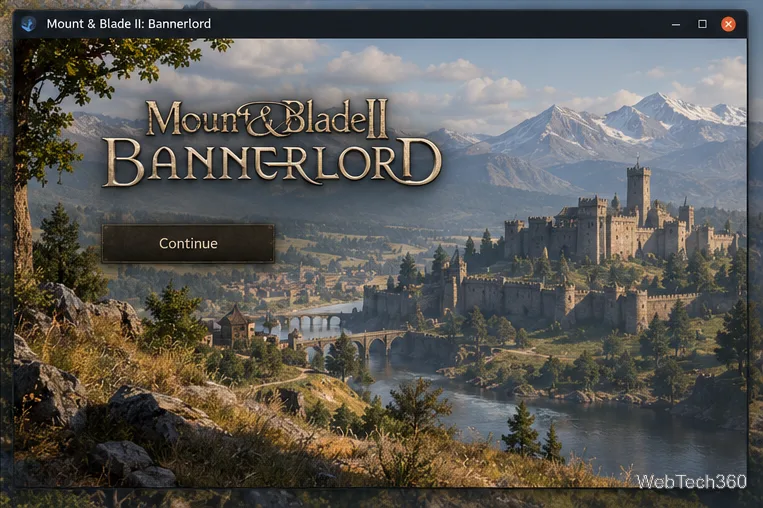
When installation finishes, click Play. Steam may download a runtime or prepare a compatibility prefix on the first launch; let that process complete. Start with Steam’s own Proton version instead of installing a custom build in advance. If Bannerlord reaches its title screen, the basic setup is working.
Reaching the game’s opening menu is a useful first-launch check; screens can vary by build.
4. If it fails, try Proton Experimental for this game
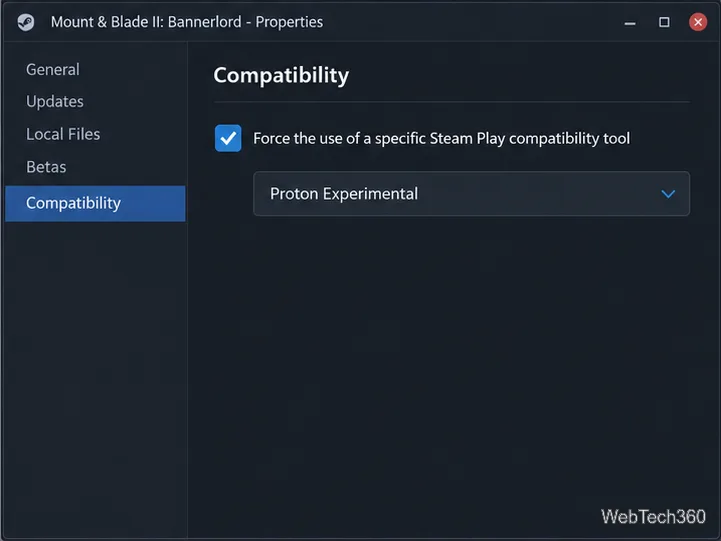
If the launcher closes, the game hangs, or you get a black screen, right-click Bannerlord in your library and choose Properties > Compatibility. Check Force the use of a specific Steam Play compatibility tool, select Proton Experimental, close the dialog, and try Play again. This changes the compatibility tool for Bannerlord only, so you can undo it from the same menu if another version works better.
Choose a compatibility tool for Bannerlord from its own Properties menu.
5. Use Proton-GE only as an optional fallback
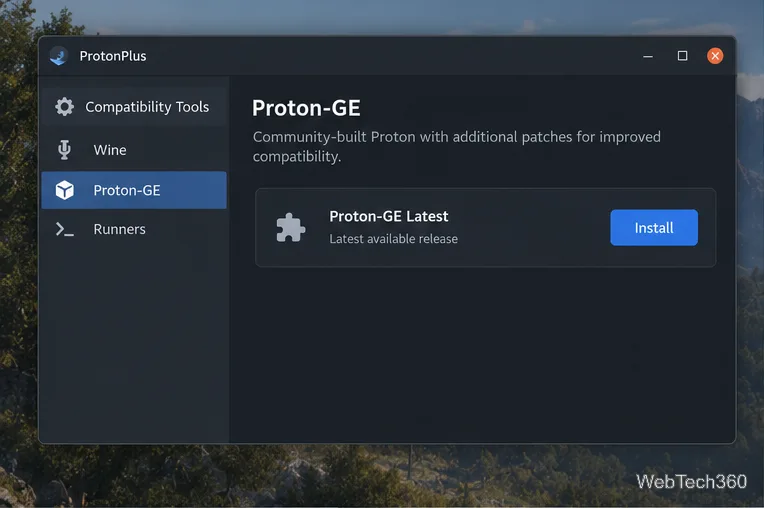
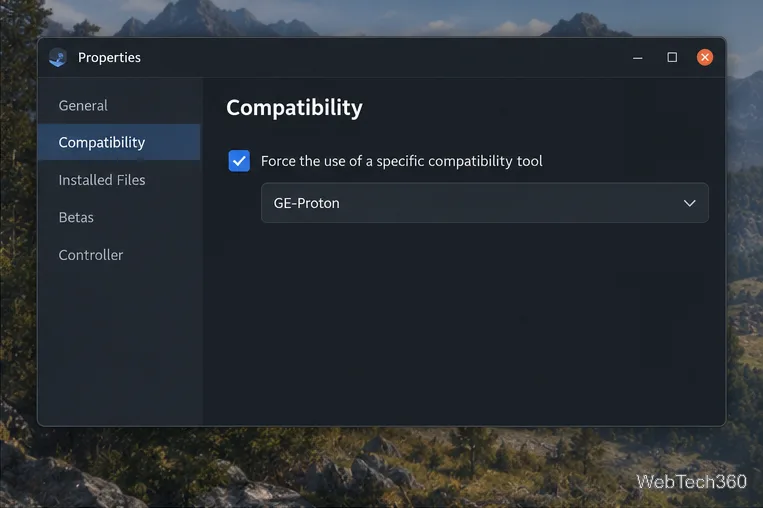
If Valve’s Proton versions still fail, try a recent GE-Proton release. GE-Proton is a community-maintained Proton build with additional patches; it is separate from Valve’s included Proton. Its current instructions describe installing it with ProtonPlus or manually from the project’s releases. After installation, fully restart Steam, reopen Bannerlord’s Compatibility properties, and select the new GE-Proton entry.
Steam Flatpak users should follow the Flatpak-specific instructions in the GE-Proton project because its compatibility-tool folder differs from the native Steam package. If GE-Proton makes the problem worse, switch back to Proton Experimental or the default tool. Avoid copying a hard-coded Proton version or executable rename from an older guide unless a current, game-specific report calls for it.
ProtonPlus can manage a recent GE-Proton release for Steam.After restarting Steam, select the installed GE-Proton tool here.
Troubleshoot crashes, black screens, and poor performance
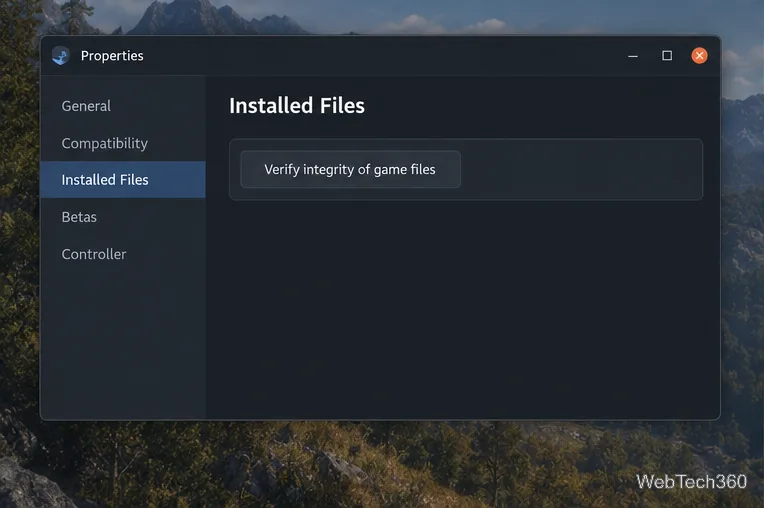
Verify the installation: open Properties > Installed Files and choose Verify integrity of game files. Steam will replace damaged or missing files.
Remove extra variables: clear custom launch options, disable mods temporarily, and test the base game. If it starts, re-enable mods one at a time to identify a conflict.
Update graphics support: install the current graphics driver and Vulkan components recommended for your distribution, reboot if the driver update requires it, then try again.
Test one Proton version at a time: use the per-game Compatibility menu and note which version works. A new game or driver update can change the result, so do not assume an old community workaround is still required.
Adjust performance: if the game opens but battles run poorly, lower the in-game graphics preset or resolution and test again. Results depend on the GPU, driver, desktop session, and battle load.
Steam’s file verification can repair missing or damaged installation files.
Bannerlord includes online PvP and Workshop content, but a successful base-game launch does not guarantee every mod or online mode will work. Test an unmodded single-player session first. For version- or hardware-specific problems, compare recent player reports on ProtonDB’s Bannerlord page; those are community experiences, not a publisher guarantee.