Home
» LINUX
»
How to Play Nintendo 3DS Games on Linux with Azahar
How to Play Nintendo 3DS Games on Linux with Azahar
To play Nintendo 3DS games on Linux today, use Azahar instead of following old Citra installation guides. Citra was discontinued in March 2024, while Azahar continues the Citra codebase and is actively maintained. The Azahar project recommends its Flathub package for Linux.
This guide assumes you are using games and system data from a Nintendo 3DS you own. Azahar does not include Nintendo games, firmware, or console-unique files, and downloading random ROM or “system file” packs creates both legal and security risks.
What you need
A modern 64-bit Linux distribution.
An x86-64 or ARM64 processor. On x86-64, Azahar requires SSE4.2.
A GPU and driver with OpenGL 4.3 or Vulkan 1.1 support.
At least 2 GB of RAM; the project recommends 4 GB.
Your own Nintendo 3DS system data and legally backed-up games.
You can confirm the current requirements on the official Azahar repository. As of October 22, 2026, use Azahar 2126.2 or a newer stable release. Version 2126.2 fixes a high-severity security issue that affects versions 2126.1.2 and earlier, so do not keep an older build just because it still launches your games.
1. Install Azahar on Linux
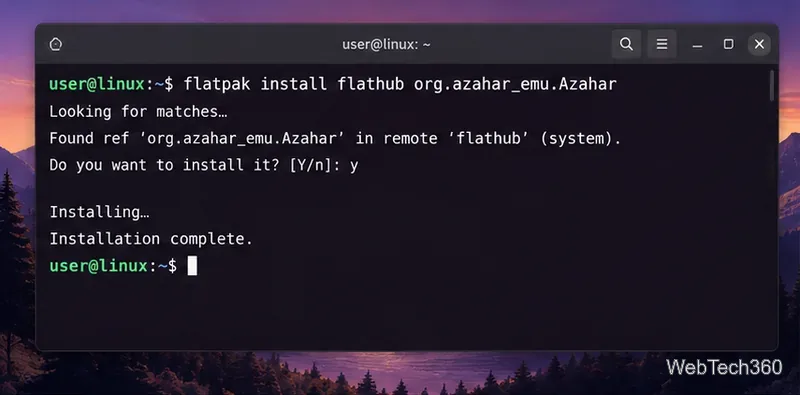
The simplest installation method is Flatpak. Make sure Flatpak and Flathub are already enabled on your distribution, then run:
flatpak install flathub org.azahar_emu.Azahar
You can also install Azahar from its Flathub listing. After installation, launch Azahar from your application menu. If you already have it installed, update your Flatpak before continuing:
flatpak update org.azahar_emu.Azahar
The official Azahar project recommends the Flathub build for Linux.
2. Set up system files from your own 3DS
Current Azahar builds provide a built-in system-file setup flow. The project’s official Artic Setup Tool runs on your real 3DS and lets Azahar receive the system files and console-specific data it needs.
Follow the Artic Setup Tool instructions on the Azahar project page. The tool currently requires a recent Luma3DS release, listed by the project as version 13.3.1 or newer.
Run the setup tool on your 3DS and note the IP address it displays.
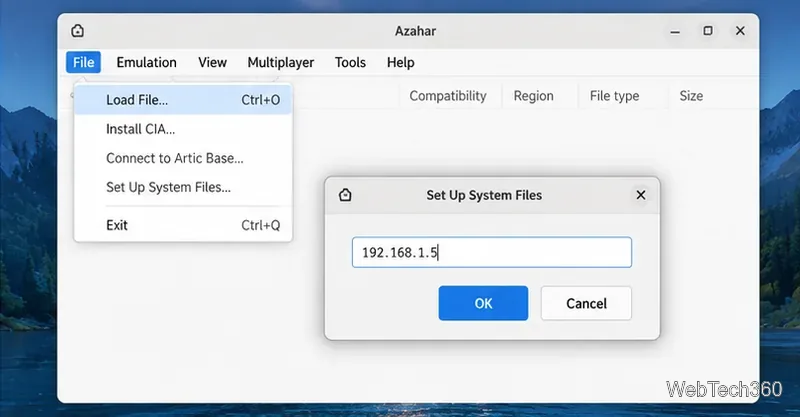
In Azahar on Linux, open File > Set Up System Files....
Enter the IP address shown on the console and complete the setup.
Do not substitute a downloaded NAND, keys bundle, or “complete emulator pack.” If you cannot obtain the required data from hardware you are entitled to use, stop at this step.
Use File > Set Up System Files and enter the address shown by the Artic Setup Tool on your own 3DS.
3. Load a Nintendo 3DS game
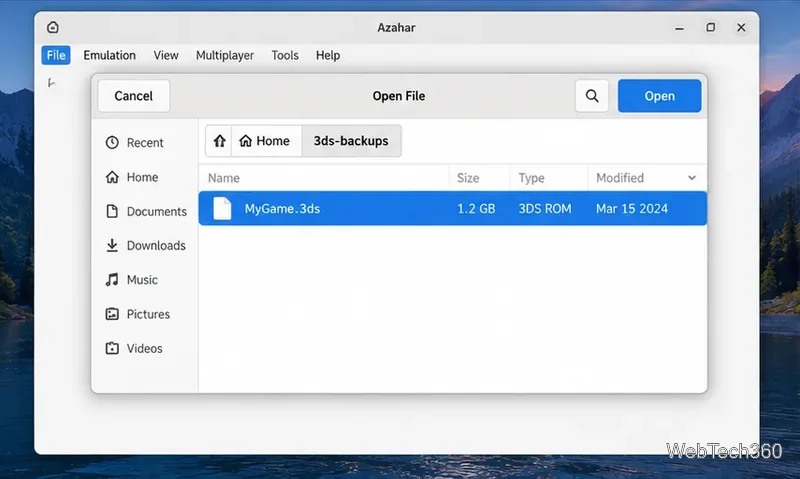
Once setup is complete, use File > Load File... to open a supported game dump from your own collection. Azahar also has File > Install CIA... for installable content you have legitimately dumped.
If Azahar reports that a game is encrypted, invalid, or unsupported, do not solve the problem by downloading another copy from an unknown source. Re-check your own dump and the current Azahar documentation. The emulator does not support every file or encryption state.
Load a supported backup you created from your own game collection.
4. Configure a controller and touchscreen input
Azahar supports keyboard and gamepad input, which is useful because many 3DS games rely on the Circle Pad, D-pad, shoulder buttons, and sometimes the C-Stick.
Connect your controller before opening the configuration window.
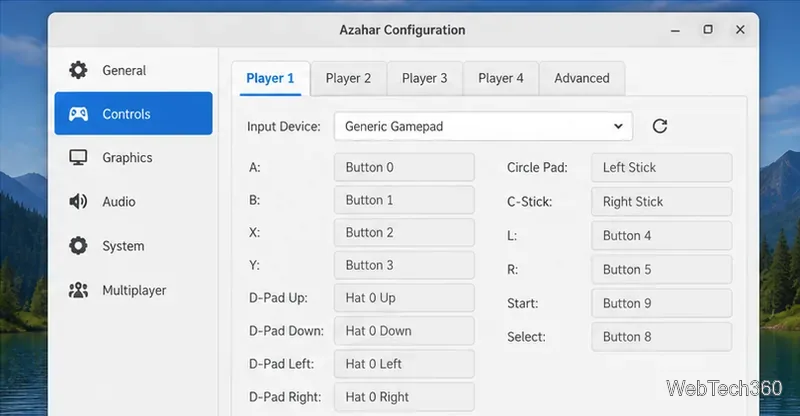
Choose Emulation > Configure, then open Controls.
Map A, B, X, Y, the D-pad, Circle Pad, L, R, Start, and Select. Map the C-Stick if the game uses New Nintendo 3DS controls.
Use mouse input for touchscreen interactions when a game expects taps or dragging on the lower screen.
Map the controls your game actually needs; C-Stick is mainly relevant to New Nintendo 3DS features.
Saving and loading progress
Use a game’s normal in-game save system whenever possible. Azahar also provides Emulation > Save State and Emulation > Load State, but save states should be treated as convenience snapshots rather than your only backup.
Recent Azahar releases lock save states to the version that created them. If you update Azahar and an old state no longer loads, the project recommends temporarily returning to the matching version, loading the state there, and then saving normally inside the game before upgrading again.
Quick troubleshooting
Azahar will not start: verify that you are on 64-bit Linux and that your graphics driver supports OpenGL 4.3 or Vulkan 1.1.
Every game shows a black screen or crashes: update your GPU driver and try the other graphics API in Azahar before changing multiple settings at once.
Only one game fails: check the project’s official compatibility list before assuming your installation is broken.
A save state fails after an update: use the Azahar version that created it, then make an in-game save.
The key difference from older Linux guides is simple: Citra is no longer the current path. Install the maintained Azahar build, keep it updated, provide system files from your own console, and use your own game backups.