Home
» LINUX
»
How to Play Red Dead Redemption 2 on Linux with Proton
How to Play Red Dead Redemption 2 on Linux with Proton
Yes, you can play Red Dead Redemption 2 on Linux, but there is no native Linux version. The practical route is the Windows Steam release running through Valve's Proton compatibility layer. Rockstar officially lists Windows 10 64-bit for the PC version, so Linux play is an unofficial compatibility setup rather than a platform Rockstar supports directly.
For the simplest setup, use the Steam edition of the game. Steam can manage Proton automatically, while the first launch also installs and opens the Rockstar Games Launcher required by Red Dead Redemption 2.
What you need before installing RDR2 on Linux
A 64-bit Linux system with current graphics drivers and Vulkan support.
A Rockstar Games account for activation and the Rockstar Games Launcher.
At least 150 GB of available storage. Rockstar and Steam both list 150 GB for the PC release.
An internet connection for installation, activation, launcher sign-in, and periodic entitlement checks.
If Steam is already installed and your graphics drivers are up to date, you can skip directly to the Proton steps below. Valve's current Steam for Linux documentation also recommends keeping both 64-bit and 32-bit graphics components current where your distribution requires them.
1. Enable Steam Play and Proton
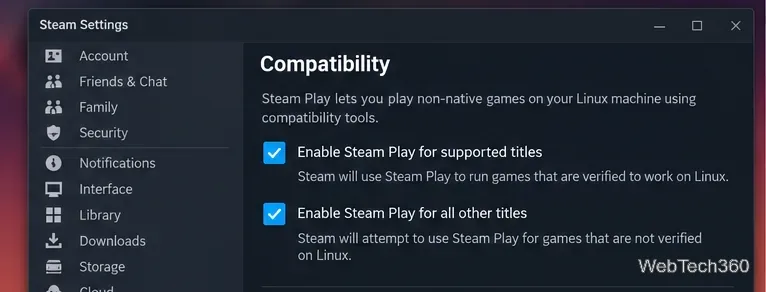
Open Steam on Linux, select Steam > Settings > Compatibility, and enable Steam Play for supported titles. If your client also shows an option to enable Steam Play for all other titles, turn that on as well. Menu wording can change between Steam client updates, but the setting remains under Compatibility.
Enable Steam Play in Steam's Compatibility settings so Windows games can run through Proton.
Restart Steam if it asks you to do so. Proton is supplied through Steam, so you do not need to install Wine separately for this method.
2. Choose a Proton version for Red Dead Redemption 2
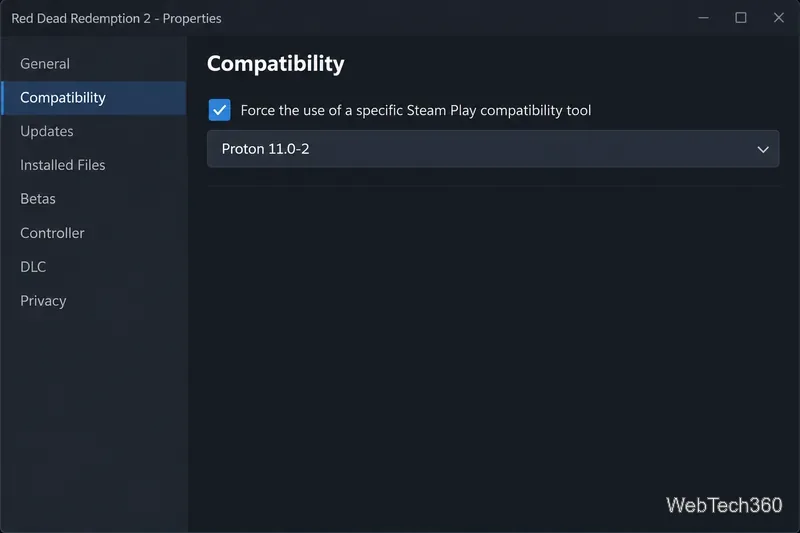
In your Steam Library, right-click Red Dead Redemption 2, select Properties, and open Compatibility. Steam may select a compatibility tool automatically. If the game does not install or launch correctly, enable Force the use of a specific Steam Play compatibility tool.
As of October 2026, Valve's latest stable release is Proton 11.0-2. That is a sensible first manual choice. If a Rockstar Launcher update or game update causes a regression, try Proton Experimental, which receives newer fixes sooner. Valve publishes current versions on the official Proton releases page.
Force Proton for RDR2 only when needed; Proton 11.0-2 is the current stable release at the time of writing.
3. Install Red Dead Redemption 2
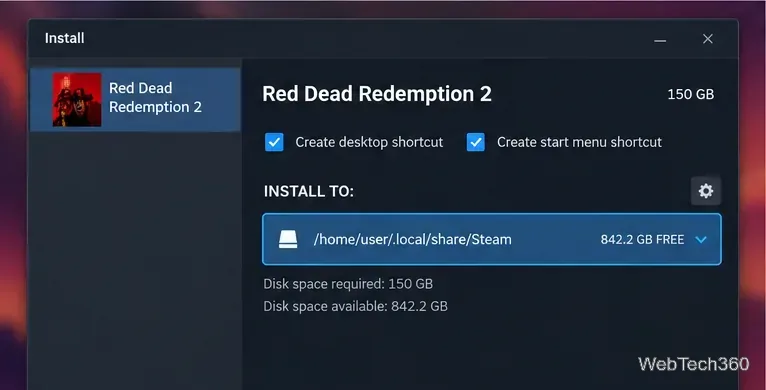
Select Install from the game's Steam Library page and choose a library with enough free space. Plan for at least 150 GB before starting. The final on-disk use can change with updates, so leaving additional free space is a good idea.
Choose a Steam library with at least 150 GB available for the PC installation.
Let Steam finish downloading the game and any Proton components it needs. Avoid adding old launch commands before the first run. In particular, the once-common PULSE_LATENCY_MSEC=60 %command% workaround should not be treated as a required RDR2 setting on modern Linux audio stacks or current Proton releases.
4. Launch the game and sign in to Rockstar Games Launcher
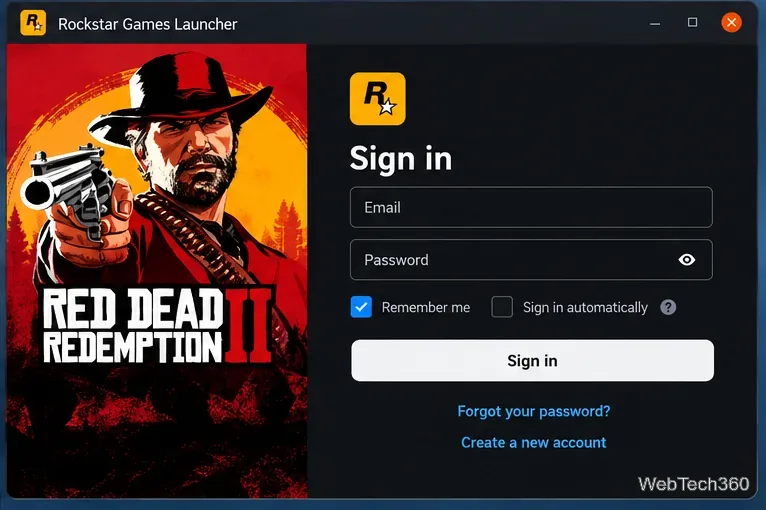
Click Play in Steam. On the first run, Steam may spend extra time creating the Proton prefix and installing Windows components. The Rockstar Games Launcher should then open. Sign in with the Rockstar account linked to your game entitlement and let the launcher finish any required updates.
The Steam version still uses Rockstar Games Launcher for account sign-in and entitlement checks.
Rockstar lists Red Dead Redemption 2 as a title supported by the Rockstar Games Launcher on PC, although Rockstar does not list Linux itself as a supported operating system. That means a future launcher update can temporarily affect Proton compatibility.
Common fixes if RDR2 will not launch on Linux
Switch Proton versions: try Proton 11.0-2 first, then Proton Experimental if the launcher hangs, loops, or closes.
Remove custom launch options: test with the Launch Options field empty before adding community workarounds.
Verify the game files: open Properties > Installed Files and run Steam's file verification.
Update graphics drivers: Rockstar's PC troubleshooting guidance and Valve's Proton documentation both emphasize current GPU drivers.
Restart Steam and the Rockstar launcher: this can clear a one-time launcher or audio failure after an update.
Check current community reports: the RDR2 page on ProtonDB is useful for spotting a new game- or launcher-specific regression. Recent reports continue to show the game running on Linux, but results vary by GPU, driver, distribution, and Proton version.