How to Share Files Over Bluetooth on Linux with Blueman

Send and receive files over Bluetooth on Linux with Blueman. Install OBEX support, pair devices, choose a file, accept transfers, and fix common issues.
You can play Old School RuneScape (OSRS) on Linux using Jagex’s official Linux Launcher beta and RuneLite. The launcher is distributed as a standalone AppImage, so you do not need to add a Debian repository or build an Arch package for this route. There is an important limit: as of October 23, 2026, Jagex’s Linux beta supports OSRS through RuneLite, while its support page says the main RuneScape game is still planned for Linux before the end of 2026.
This guide covers the supported OSRS path and explains the current status for the main RuneScape client. Download the launcher only from an official Jagex page, and do not run it as root.
| Game or device | Current Linux status |
|---|---|
| Old School RuneScape | Available through the Jagex Launcher Linux beta, using RuneLite. |
| RuneScape (the main game, often called RS3) | Not supported in the Linux beta as of October 23, 2026. Jagex says official support is planned before the end of 2026. |
| Steam Deck | Not officially supported; Jagex recommends Desktop Mode if you try it. |
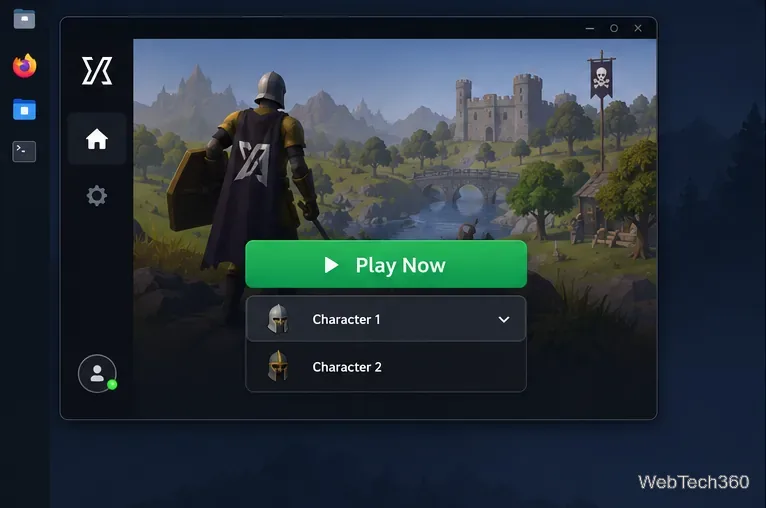
The launcher’s Linux beta is separate from the Windows and macOS launcher. Jagex says you can sign in with a Jagex Account and choose a character from the dropdown beneath “Play Now.” Since the beta currently launches OSRS through RuneLite, the steps below do not apply to the main RuneScape client.
Open Jagex’s Linux beta FAQ or its launcher download page, then follow the Linux download link. The download is a single AppImage file. The official link currently serves an x64 build, so check Jagex’s download page if you use a different processor architecture.
In your file manager, open the folder where the download was saved, usually Downloads. Right-click the AppImage, open Properties, and find the permissions setting. Enable Allow executing file as program or the equivalent option in your desktop environment. Then close the dialog and double-click the file.
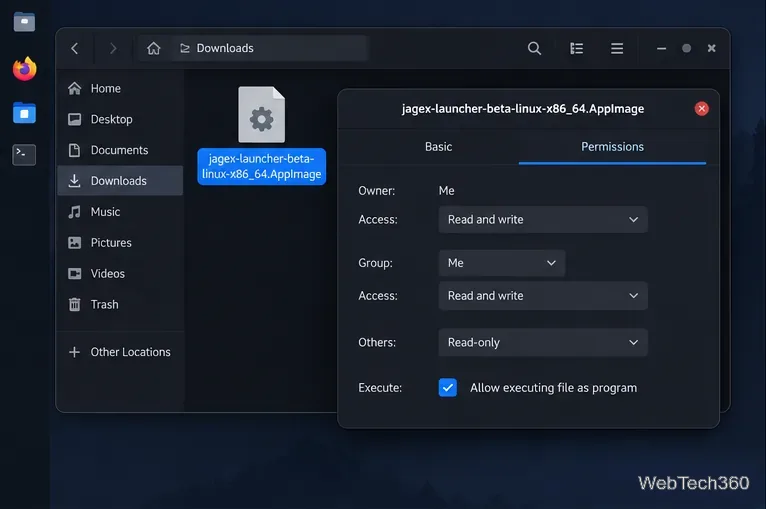
If you prefer the terminal, open a terminal in the download folder and run:
chmod +x jagex-launcher-beta-linux-x86_64.AppImage
./jagex-launcher-beta-linux-x86_64.AppImage
If your browser saved the file under a different name, use that filename in both commands. You do not need sudo or administrator privileges; Jagex specifically advises against running the beta as an administrator.
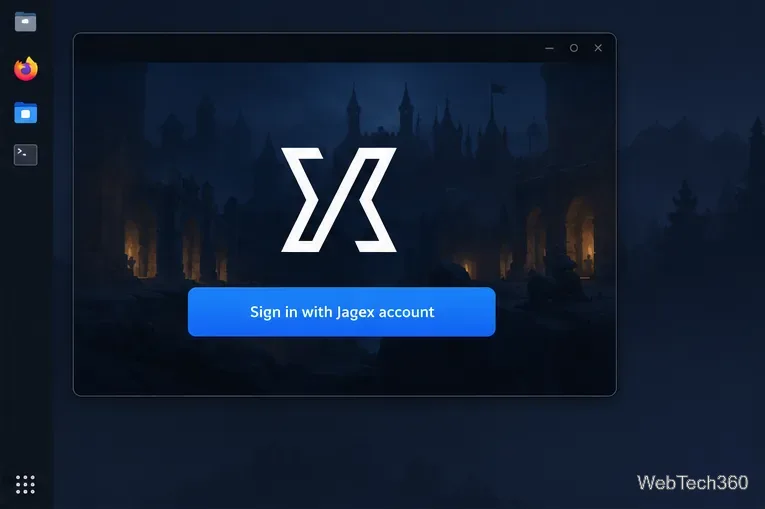
When the launcher opens, choose the Jagex Account sign-in option and complete the authentication flow. The Linux beta can look different from the launcher on Windows or macOS, but it uses the same account and character access. If a character is missing, check that it has been added to the Jagex Account you used to sign in.
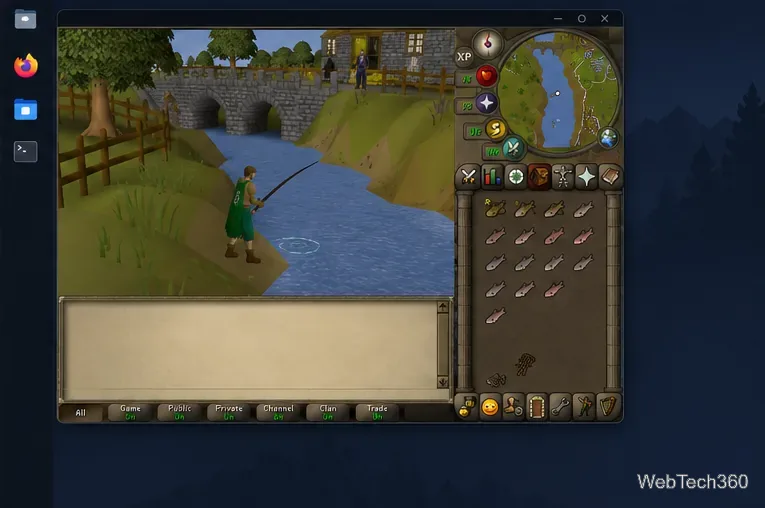
Open the character dropdown beneath Play Now, select the OSRS character you want, and choose Play Now. The beta uses RuneLite for Old School RuneScape. If RuneLite has not been downloaded for this launcher yet, let the launcher complete that setup, then wait for the game client to open.
Use the launcher to start the game in later sessions as well. Jagex’s support page explains that RuneLite can be selected and installed from within the Launcher. This gives the launcher a single place to handle account sign-in and the supported client.
If by “RuneScape” you mean the current main game rather than Old School RuneScape, the Linux beta does not support it yet. Jagex’s FAQ, checked October 23, 2026, says the team is working toward official Linux support before the end of 2026. Until Jagex updates that guidance and provides a compatible client, this OSRS setup will not launch RS3. Community workarounds and older launcher packages are not the same as official Linux support, so use them only if you understand that distinction.
For OSRS, the current official Linux route is straightforward: download Jagex’s AppImage, mark it executable, sign in, choose your character, and launch through RuneLite. For the main RuneScape game, check Jagex’s beta FAQ for a support announcement before trying these steps.
Send and receive files over Bluetooth on Linux with Blueman. Install OBEX support, pair devices, choose a file, accept transfers, and fix common issues.
Connect GNOME Files to SSH/SFTP, FTP, SMB, WebDAV, or NFS with the correct server URI, sign-in details, and fixes for common connection errors.
Open SFTP, SSH, SMB, FTP, NFS, and WebDAV locations in Dolphin, sign in safely, transfer files, and save network folders for later.
Connect a DualShock 4 to Linux by USB or Bluetooth, then check controller detection and configure Steam Input only when a game needs it.
Use DNF5 parallel downloads to reduce RPM install waits in GNOME Software, then tell when mirror or Flatpak delays need a different fix.
Access iCloud on Linux in a current browser. Learn how to sign in, use iCloud Drive and other web apps, and understand the limits of browser access.
Save GRUB settings, boot files, and UEFI entry details to removable storage, then use rescue media to repair the correct boot path safely.
Install Bitwarden on Linux with the right DEB, RPM, Snap, Flatpak, or AppImage package, then sign in and set a secure vault timeout.
Pick a screensaver theme in Xfce, preview it, choose when it starts, and configure automatic locking in the separate Lock Screen tab.
Stop GNOME Shell from blanking or locking your display automatically. Change Power and Screen Lock settings, or use Caffeine for a temporary keep-awake toggle.








