Home
» LINUX
»
How to Play RUST on Linux: Proton Setup and Current Limitations
How to Play RUST on Linux: Proton Setup and Current Limitations
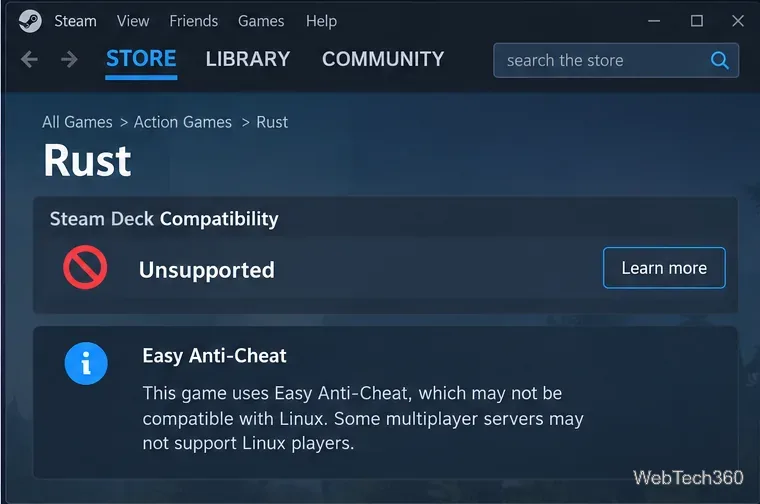
You can install and launch the Windows version of RUST on Linux with Steam Proton, but there is one major limitation: RUST's normal Easy Anti-Cheat (EAC) multiplayer is not officially supported on Linux. Steam currently marks the game as Unsupported on Steam Deck, and Facepunch has not announced supported Proton/EAC access for the regular server ecosystem. In practice, Proton is useful for testing the game or connecting only where EAC is not required; it is not a supported replacement for Windows if you want unrestricted public-server access.
RUST is currently listed as unsupported on Steam Deck, while its multiplayer relies on Easy Anti-Cheat.
Can you play RUST on Linux?
RUST once had a native Linux client, but Facepunch retired it in 2019. The studio's official Linux update said Proton could run the Windows build but would not be officially supported, particularly because Easy Anti-Cheat was not available for that setup. Facepunch later reiterated in its Proton support statement that enabling Linux/Proton remained an anti-cheat concern.
Valve's current Proton documentation explains that Easy Anti-Cheat can work through Proton, but the game's developer must explicitly configure and publish support for its build. RUST has not received that supported configuration. The current Steam store page for RUST still shows Steam Deck compatibility as Unsupported and identifies Easy Anti-Cheat as the game's anti-cheat system.
What you need before installing RUST
Install the current Linux Steam client from your distribution's package manager or the official Steam download page. Keep your Linux distribution, graphics driver, and Steam client updated before troubleshooting Proton.
The Steam store does not publish Linux system requirements for RUST. Its current Windows requirements call for at least 12 GB of RAM and 45 GB of free storage, while the recommended configuration uses 16 GB of RAM and requires an SSD. Those numbers are useful as a rough hardware baseline, but they are not a promise of Linux compatibility or performance.
How to install RUST on Linux with Proton
1. Enable Steam Play for Windows games
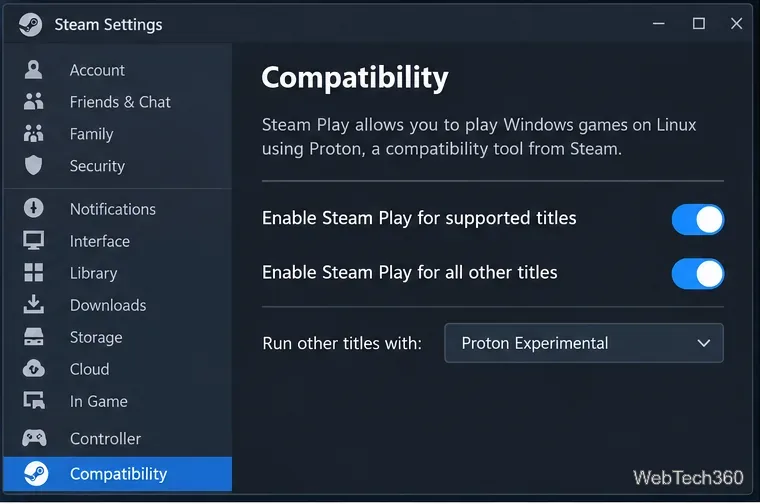
Open Steam, choose Steam > Settings > Compatibility, and enable Steam Play for other titles. Select a current Valve Proton release, such as Proton Experimental, as the default compatibility tool if the option is available. Valve describes Proton as its Wine-based compatibility layer for running Windows games on Linux.
Enable Steam Play in Steam's Compatibility settings so Windows-only games can be installed through Proton.
2. Set a Proton version for RUST
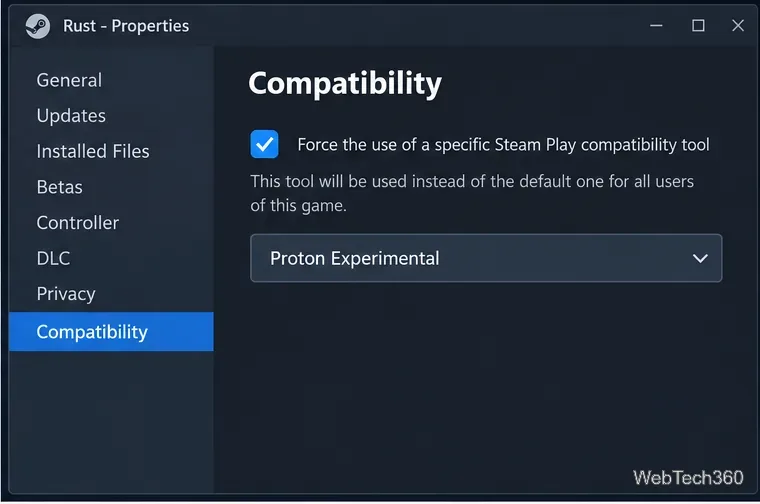
In your Steam Library, right-click RUST, choose Properties, then open Compatibility. If Steam does not automatically pick a working compatibility tool, enable the per-game override and choose Proton Experimental or the latest stable Valve Proton release. If one version fails to start the game, switching between the current stable release and Experimental is a reasonable troubleshooting step.
RUST can be assigned a specific Proton version from the game's Compatibility properties.
3. Install the Windows build
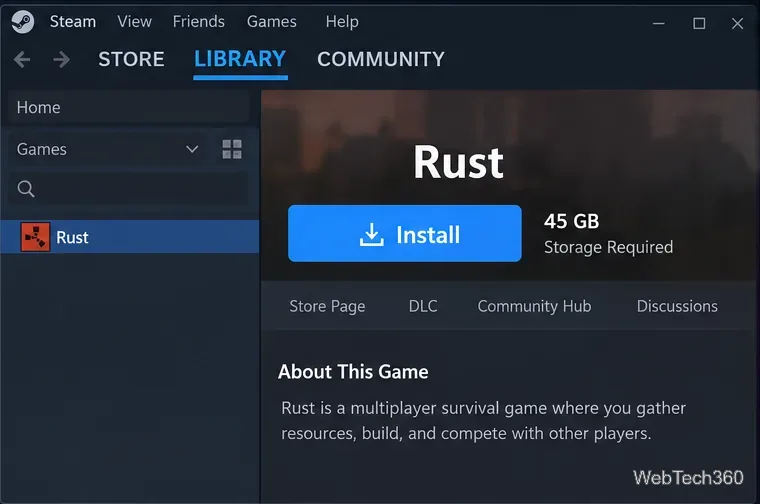
Open RUST in your Library and click Install. Steam will download the Windows build and the compatibility components it needs. The store currently lists 45 GB of available storage as the minimum, and an SSD is strongly recommended. Leave additional free space for updates, shader caches, and Proton files.
Install RUST from your Steam Library after Proton compatibility is enabled.
4. Launch RUST and understand the EAC limit
Click Play and let Steam finish its first-run Proton setup. The game executable may launch successfully, but that does not mean EAC-protected multiplayer is supported. Valve's Steam Hardware and Proton documentation states that EAC support requires title-specific developer configuration. If an EAC-protected server rejects the Linux client, there is no Steam setting that turns supported access on from the player side.
Do not try to disable or bypass Easy Anti-Cheat to enter protected servers. Servers that intentionally run without EAC are a separate, unsupported case and may be rare. Their policies can change at any time, so confirm a server's rules before relying on it.
Troubleshooting RUST on Linux
The Install button is unavailable: Recheck Steam > Settings > Compatibility and make sure Steam Play for other titles is enabled.
The game closes immediately: Update Steam and your graphics driver, verify RUST's installed files, then try the latest stable Proton release or Proton Experimental.
You get an Easy Anti-Cheat error or are kicked from a server: This is the key Linux limitation. Changing Proton versions generally cannot make an EAC-protected RUST server accept an unsupported Linux client.
Performance is poor: Use an SSD, close memory-heavy background applications, lower demanding graphics options, and make sure your GPU's Linux driver is current.
Should you use Linux for RUST?
If your goal is simply to see whether the Windows build launches through Proton, the steps above are the cleanest way to try it. If your goal is reliable access to the standard RUST multiplayer experience, Linux is still a poor fit because the anti-cheat path is not officially supported. For regular EAC-protected servers, use a platform currently supported by Facepunch and listed by Steam for the game.